

- Partial keyword matching
- Exact keyword matching
- Negative keyword exclusions
Too Long? Check out this Video →
Why Keyword Tracking?
- Buying, hiring, and research intent is often shared openly in LinkedIn posts
- Keyword tracking helps you catch these conversations as soon as they happen
- You no longer need to manually search or scroll LinkedIn
- You can respond faster with better context and timing
How OutX.ai Helps with Keyword Tracking
OutX.ai continuously scans LinkedIn for keywords you define or describe in plain English. It groups matching posts into organized watchlists with labels for clarity. You see all relevant conversations in a single feed, updated automatically. From there, you can engage manually or automate engagement using simple rules.Quick Setup Guide
1. Create a Watchlist
Click ”+” along with watchlist to create a new watchlist. A watchlist is where you tell OutX.ai what kind of LinkedIn posts you want to monitor.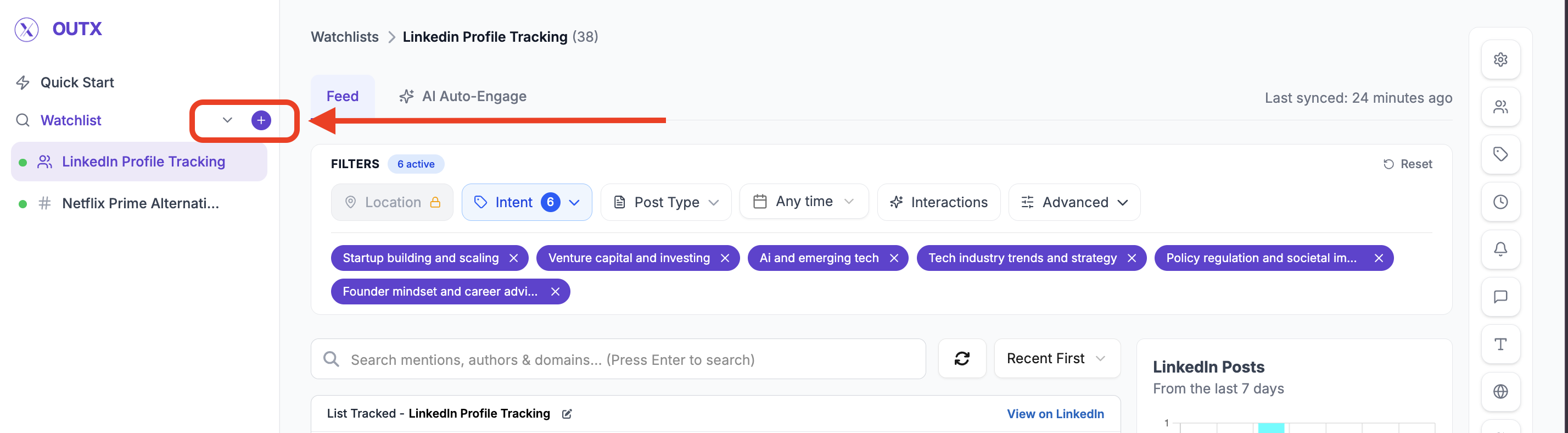
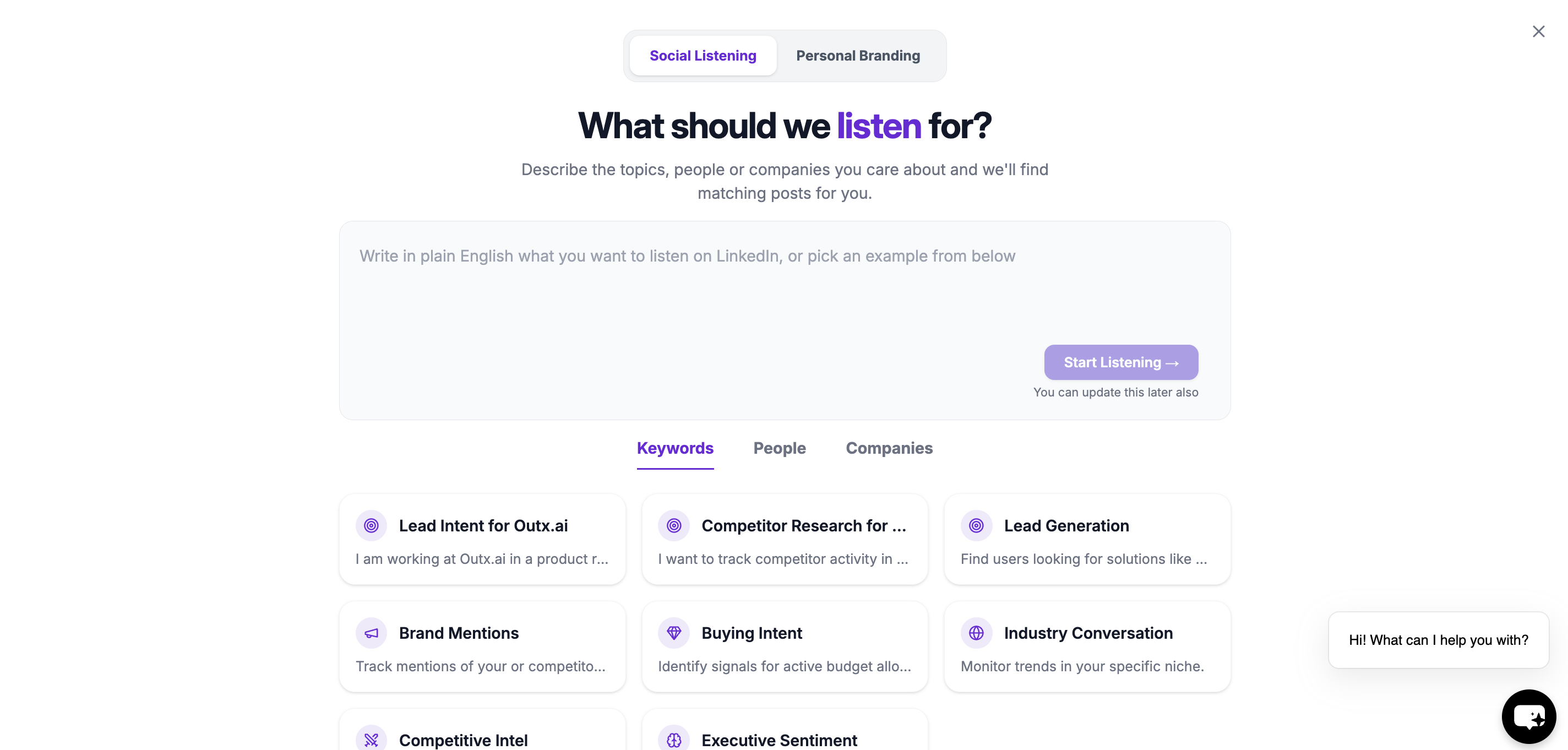
2. Add a Prompt (What should we track?)
Instead of manually setting up keywords right away, you can simply describe what you want to track in plain English. Think of this as telling OutX.ai what kind of conversations you care about. Example prompts (under 200 characters):- “People hiring remote engineers”
- “Founders talking about CRM tools”
- “Posts about outbound sales or lead generation”
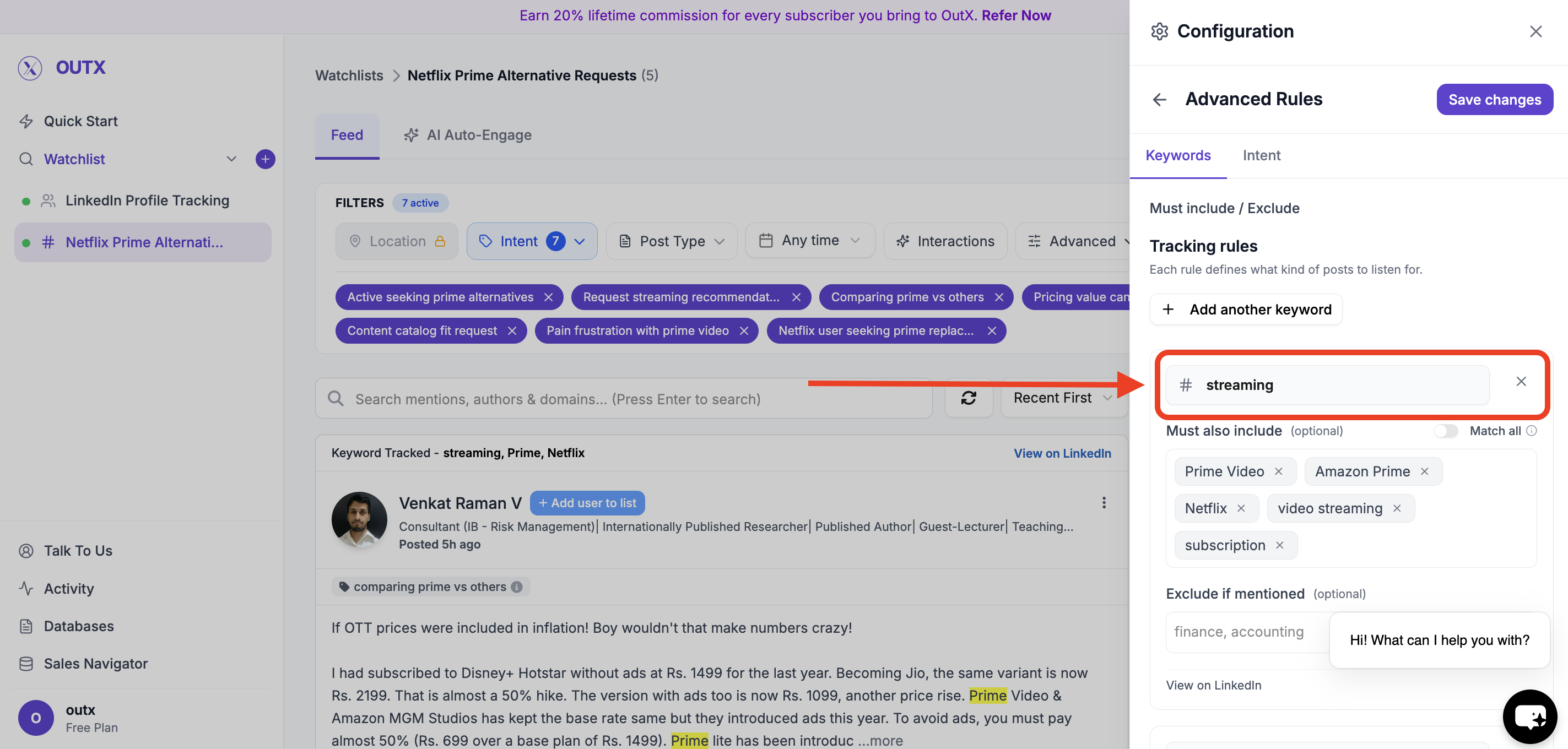
Primary Keywords
These are the main words or phrases OutX.ai looks for in LinkedIn posts. Use keywords that directly relate to your intent. Examples:- “hiring remote”
- “looking for developers”
- “CRM recommendation”
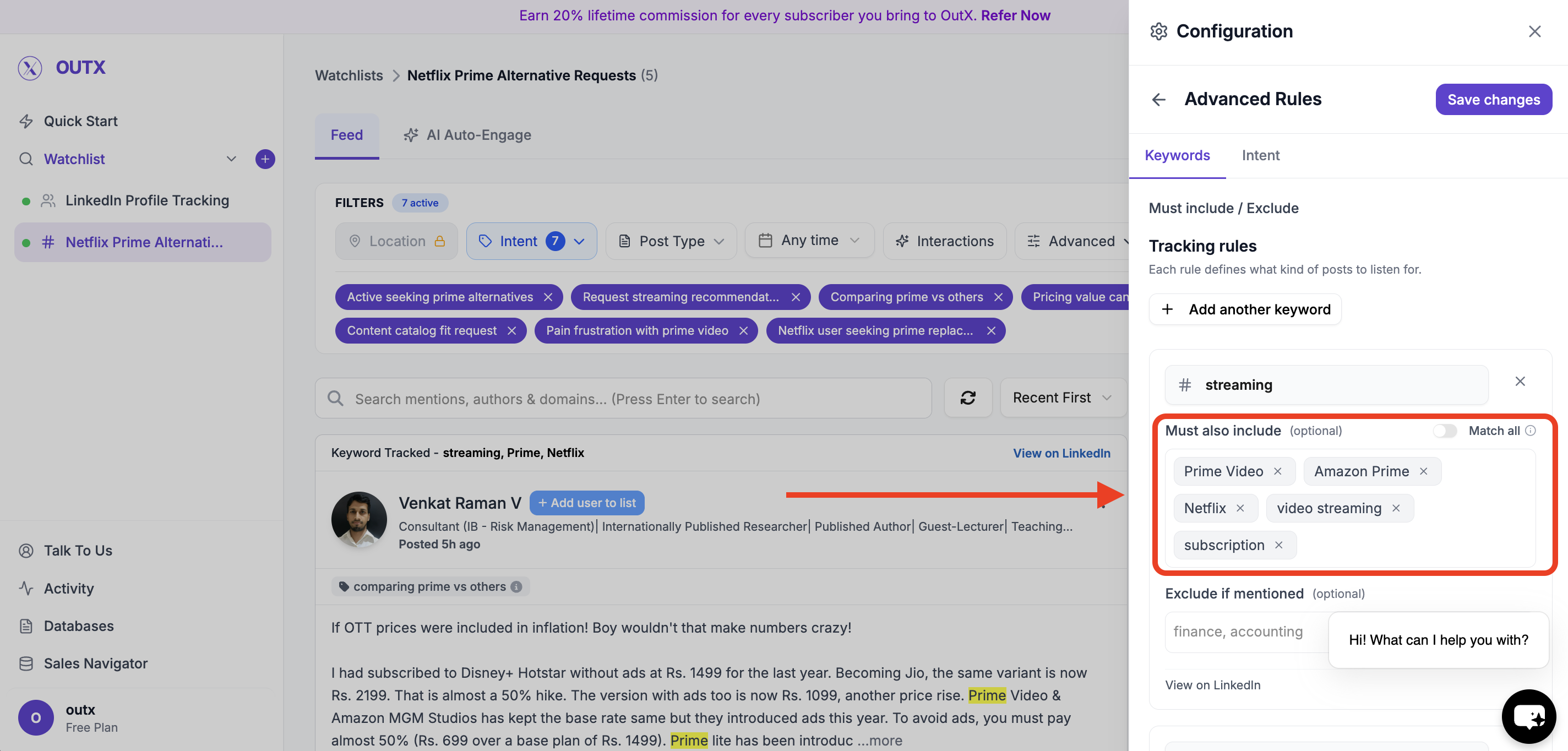
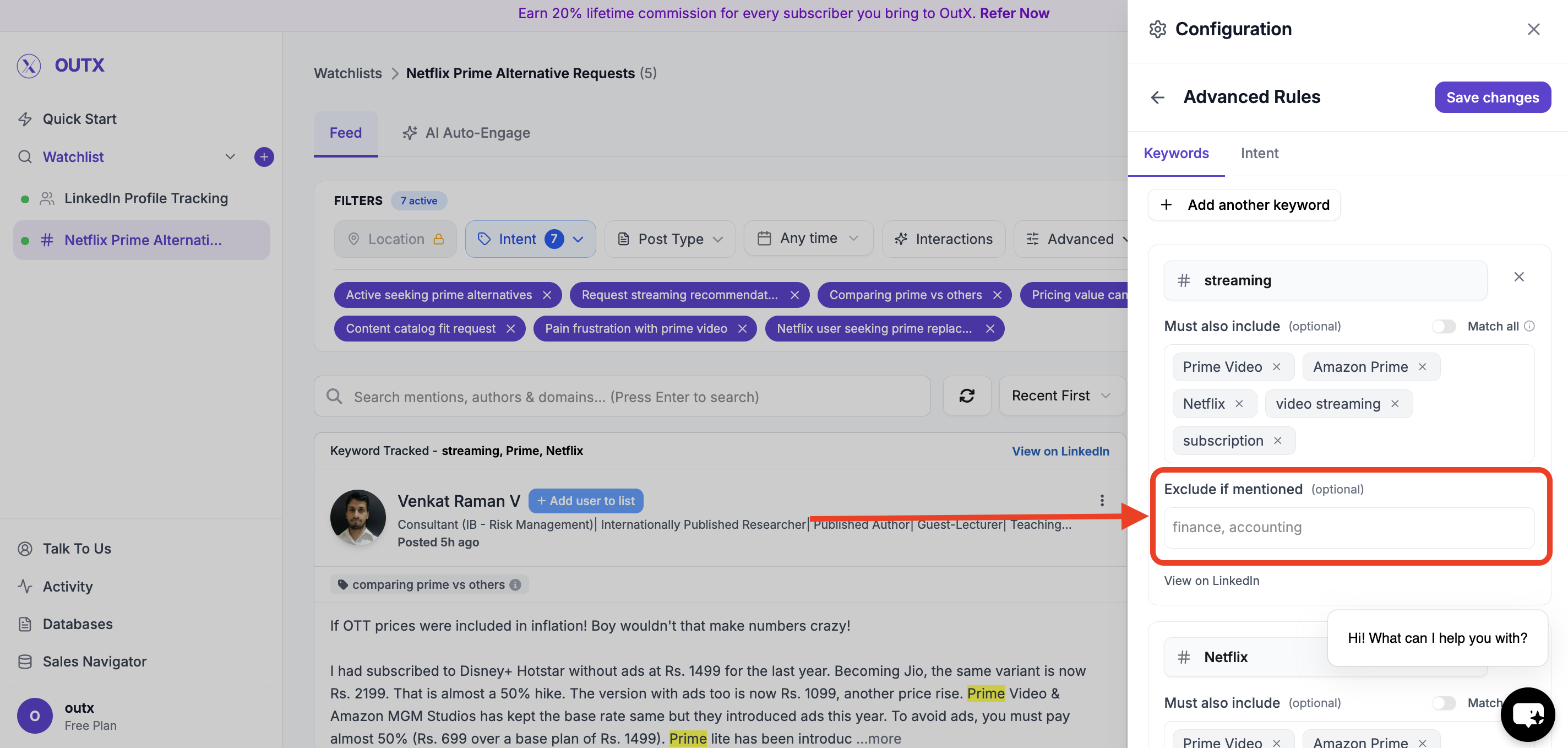
Must Also Include Keywords
Use this when a post should contain more than one condition to be relevant. Example: Track posts only if they mention:- “hiring” and
- “remote”
Excluded Keywords
These keywords tell OutX.ai what to ignore. If a post contains an excluded keyword, it will not appear-even if it matches your main keywords. Examples:- “internship”
- “freelance”
- “agency”
4. Intent
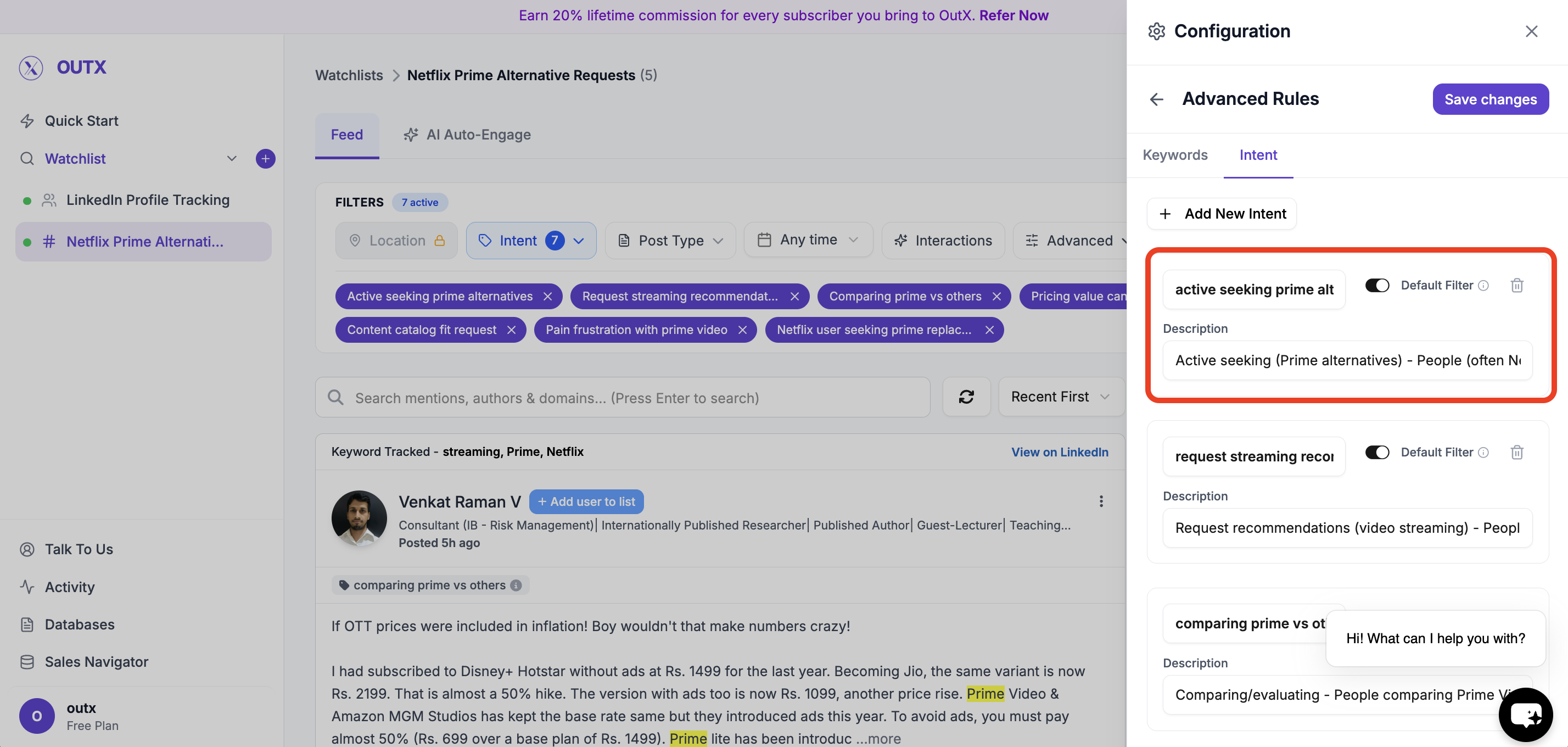
Intents help you categorize posts inside a watchlist. Instead of putting everything in one bucket, labels let you:- Group similar posts together
- Quickly understand why a post was captured
- Route signals to the right people or workflows
- Remote Hiring
- Tool Comparison
- Buying Intent
- Review posts faster
- Share context with teammates
5. Advanced Watchlist Settings & Notifications
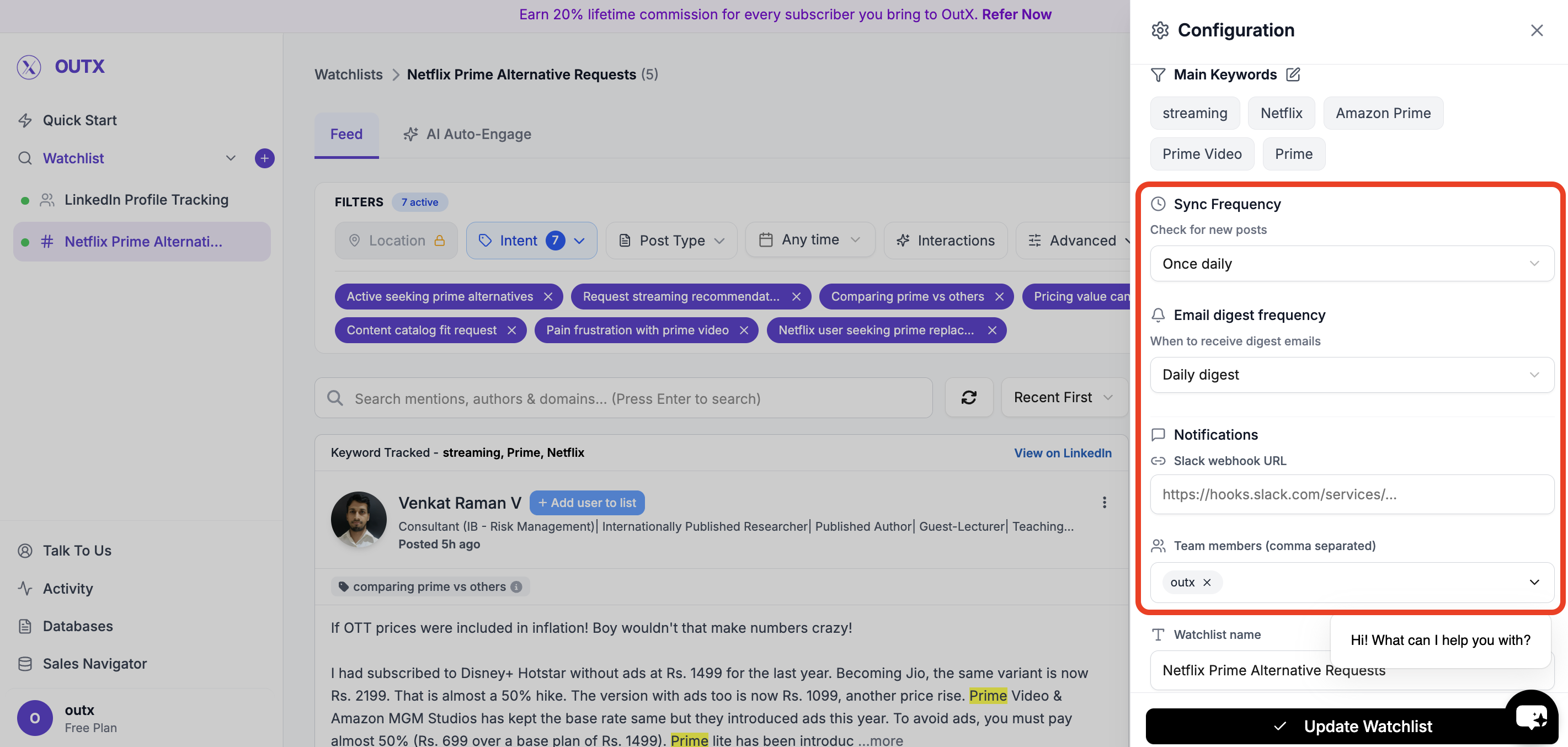
Fine-tune how and when you’re notified:- Fetch frequency: How often OutX.ai scans LinkedIn (e.g., every 12 hours)
- Team access: Add teammates to the watchlist
- Slack integration: Drop in your webhook URL to receive real-time alerts
6. Feed
Finally you have a live feed where you can posts with your targeted keywords.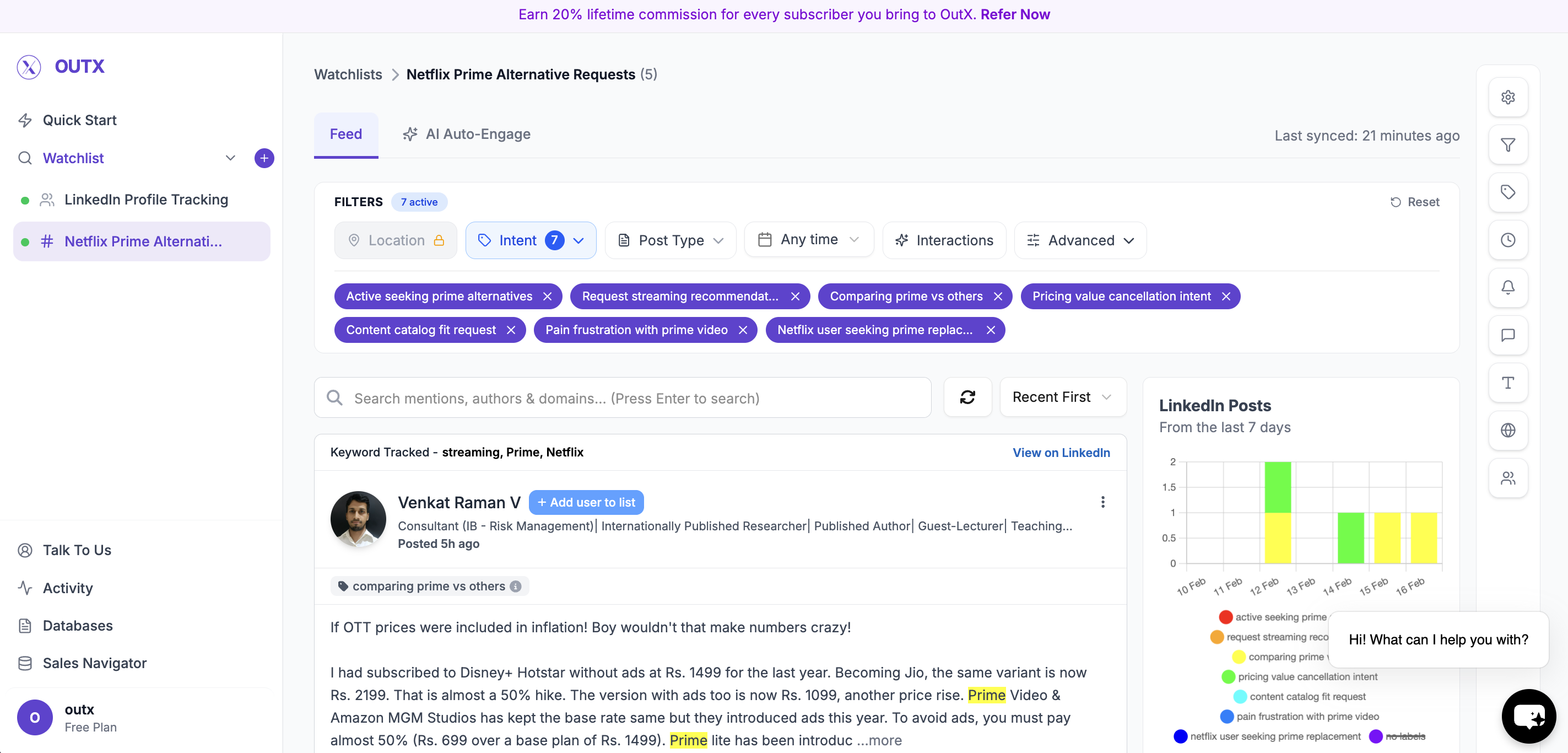
How to edit Keyword watchlist
1. Open Watchlist
Navigate to Watchlist you want to update from the main dashboard. Click the configuration(Gear icon) on right side panel.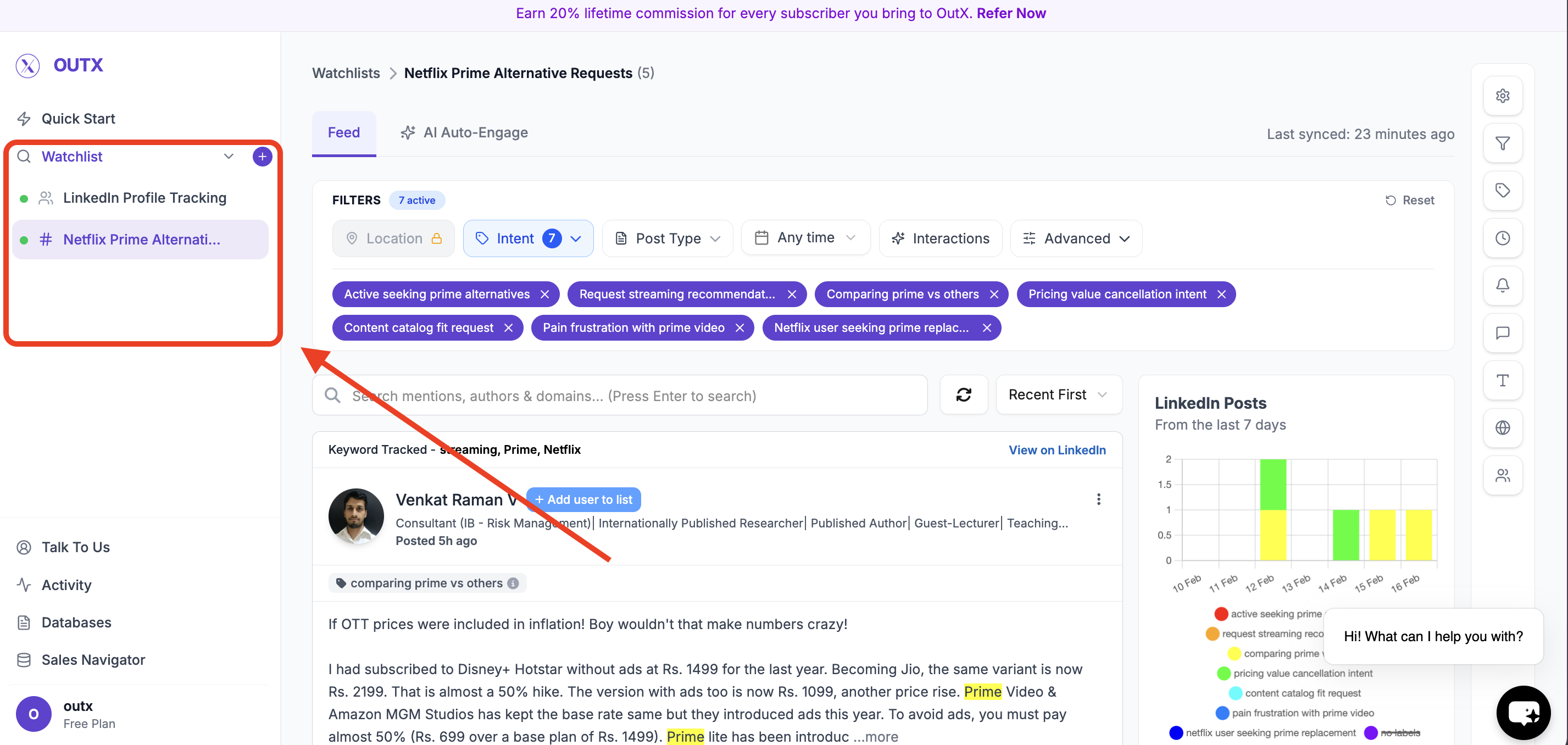
2. Edit Watchlist Configuration
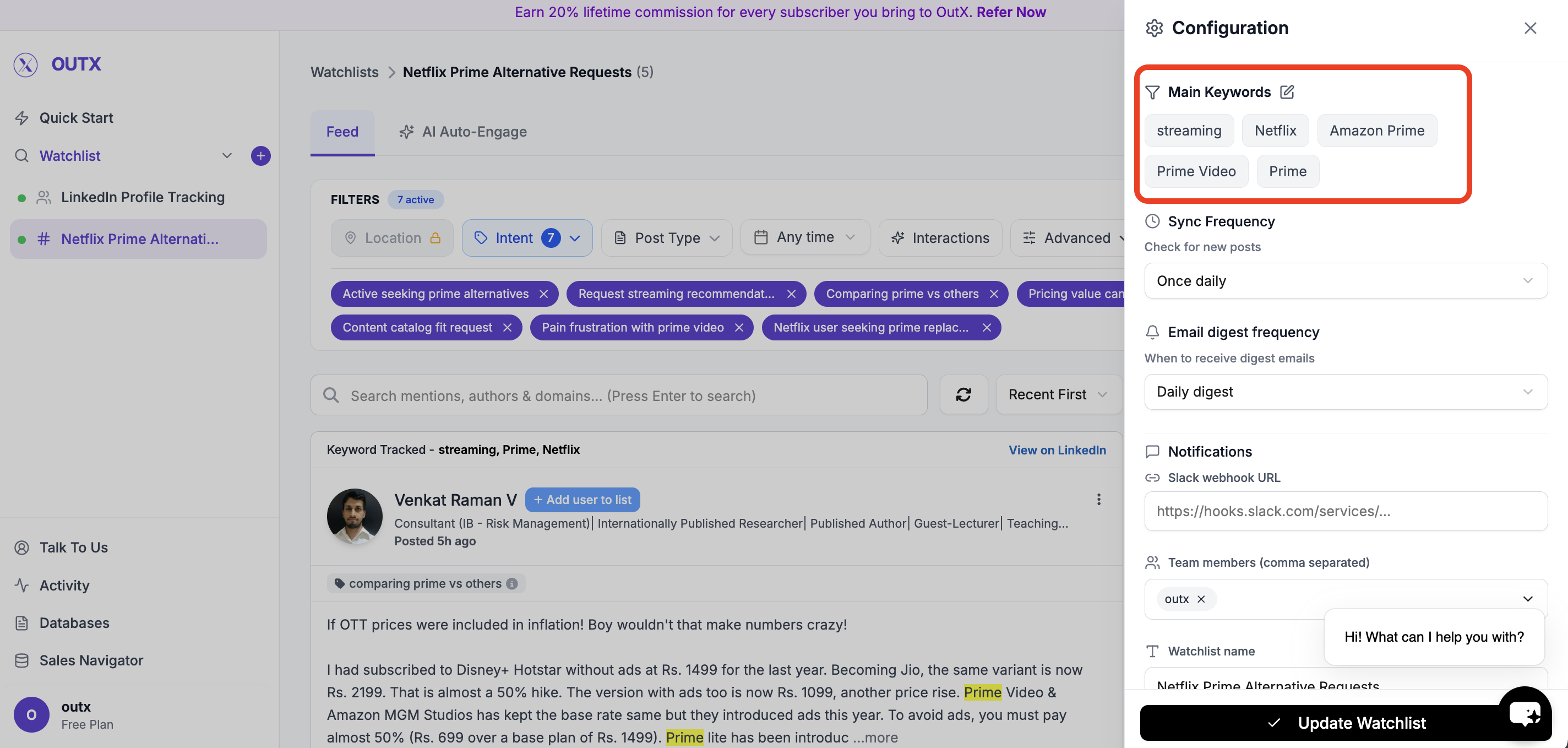
Clicking the gear icon, you will be taken to the watchlist configuration screen.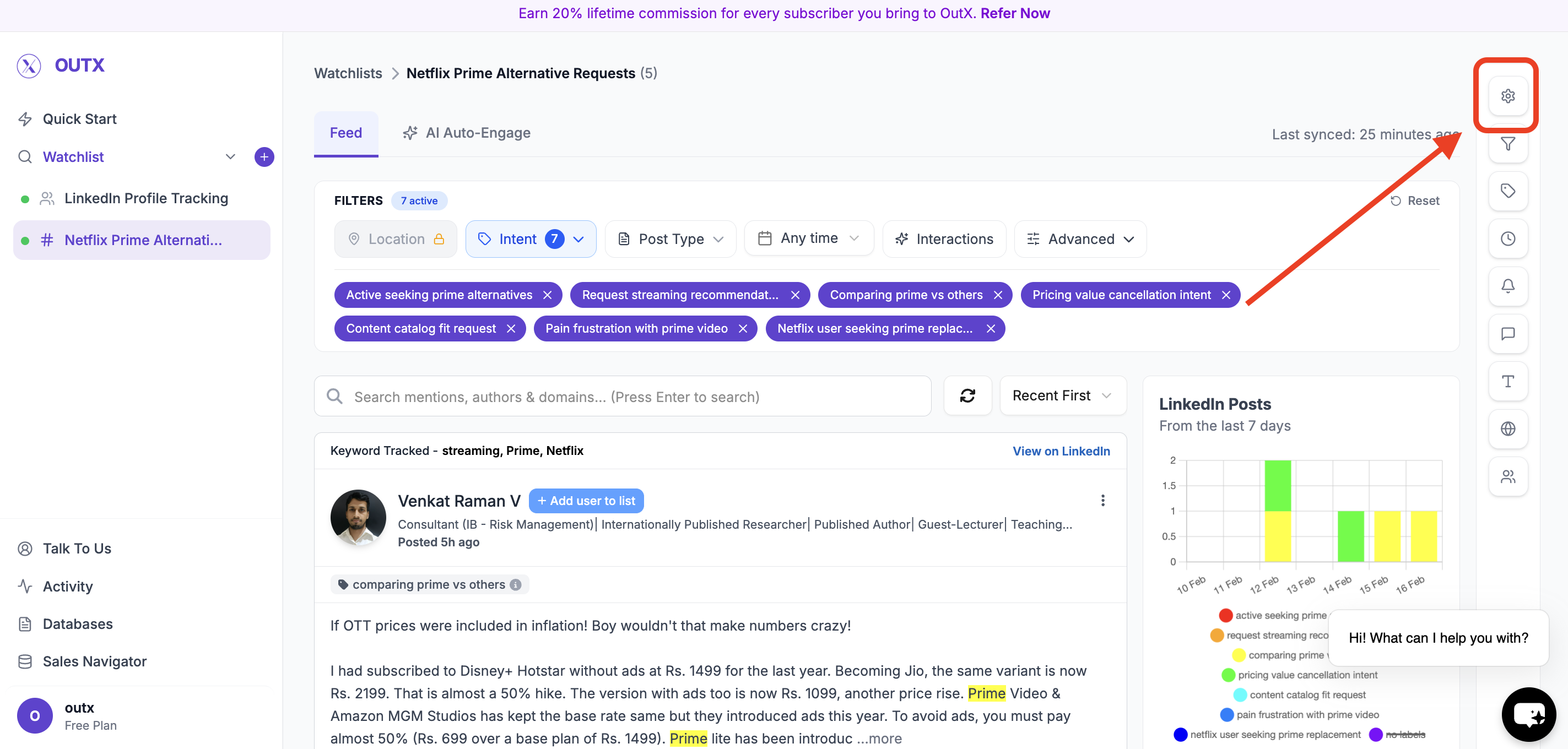
- Adding, removing, or modifying keywords
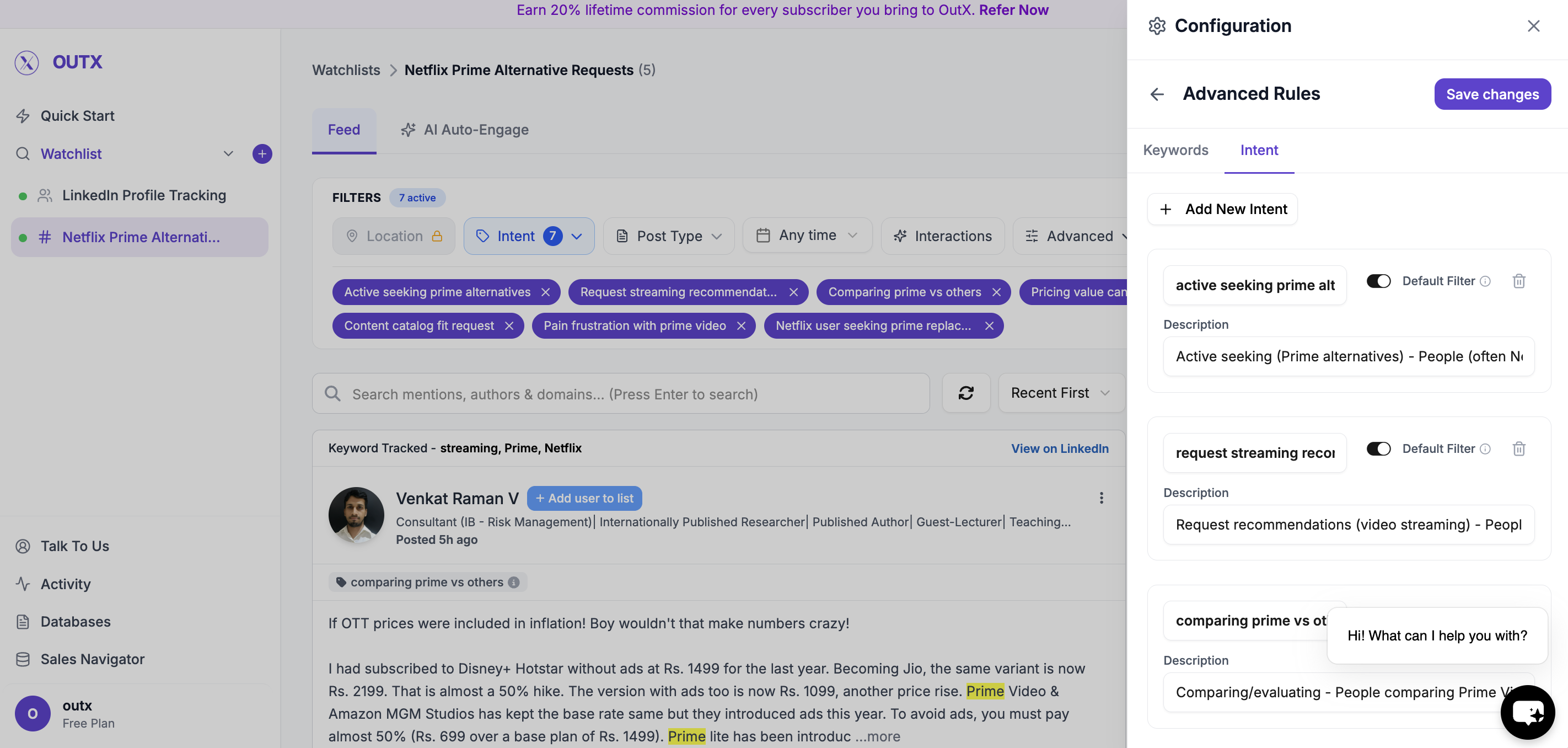
- Updating intents
- Adjusting any alert or tracking settings
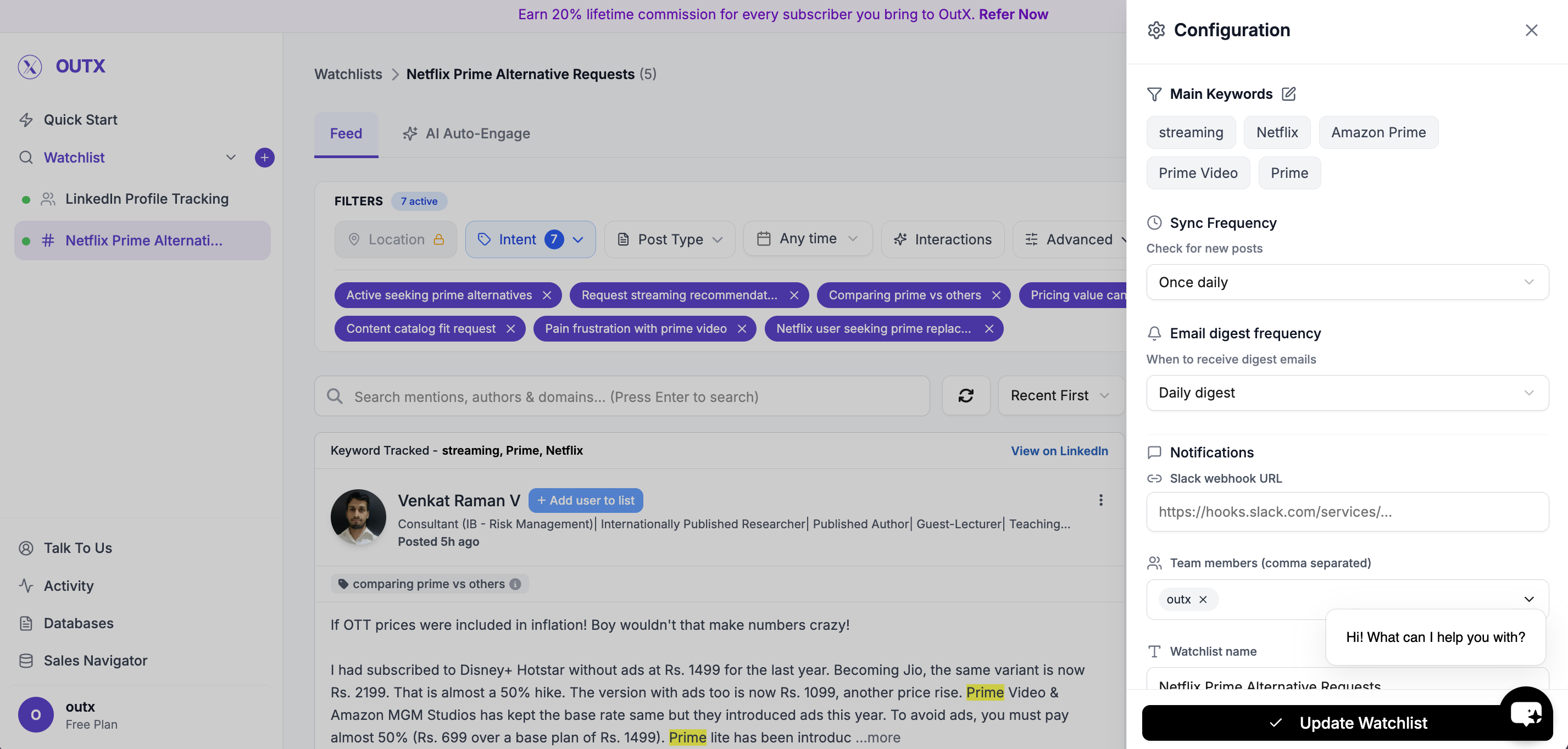
4. Save Changes
Click Update watchlist to apply your updates. The watchlist will immediately start tracking data based on the updated configuration.How to delete a keyword watchlist? Click on the three dots menu, then click the delete button.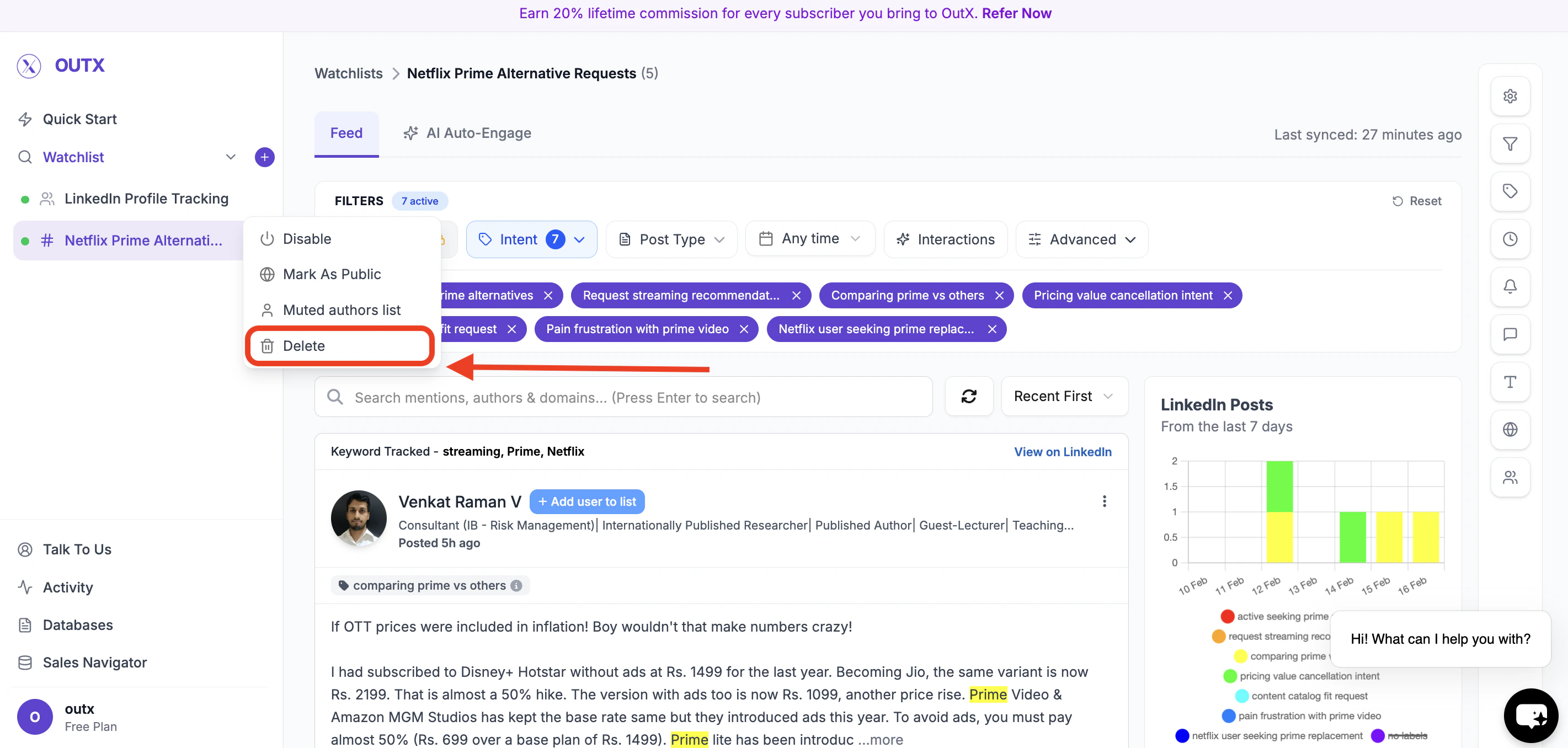
Frequently Asked Questions
What happens if a keyword is misspelled?
What happens if a keyword is misspelled?
OutX supports partial matching, so minor misspellings often still match.
How do I exclude certain keywords from tracking?
How do I exclude certain keywords from tracking?
Add keywords you don’t want to track in the excluded keywords section. Posts containing those keywords won’t be tracked.
Can I monitor LinkedIn comments?
Can I monitor LinkedIn comments?
Yes. You can monitor comments from a set of LinkedIn profiles. Comment tracking is available on Expert and Ultimate plans.
How do I remove a keyword from a watchlist?
How do I remove a keyword from a watchlist?
Edit the watchlist anytime and delete keywords or labels as needed.
Is there a limit to how many keywords I can track?
Is there a limit to how many keywords I can track?
Your plan may have limits, but OutX supports high-volume tracking for enterprise users.
Can I filter posts based on location?
Can I filter posts based on location?
Yes, you can filter posts based on location if the post mentions the country you are targeting.
What happens if I remove a keyword from a watchlist?
What happens if I remove a keyword from a watchlist?
All posts associated with that keyword will be permanently removed from the watchlist results.
What happens when I add a new keyword?
What happens when I add a new keyword?
New posts will start appearing from the moment the keyword is added. Previously published posts will not be backfilled.
Does editing a watchlist reset existing data?
Does editing a watchlist reset existing data?
No. Editing a watchlist does not reset the entire watchlist. Only data related to removed keywords is deleted.
Can I edit a watchlist multiple times?
Can I edit a watchlist multiple times?
Yes. You can edit a keyword watchlist at any time, and changes apply after you save.
Is editing different from creating a watchlist?
Is editing different from creating a watchlist?
The configuration steps are the same. The only difference is that editing starts by clicking the pencil icon on an existing watchlist instead of creating a new one.
Can I edit or change the prompt after creating a watchlist?
Can I edit or change the prompt after creating a watchlist?
Yes! You can edit the prompt at any time from the watchlist configuration screen (gear icon). Click the edit icon next to the Prompt section to modify it. When you update the prompt, OutX re-runs the full AI analysis and generates new keywords, categories, and a new relevance scoring objective. You get two options: Reset existing keywords and labels (replaces everything with freshly generated ones) or Keep existing and add new (merges new keywords with your current set). You can also check Re-enrich existing posts (last 30 days) to re-classify recent posts against the updated objective.
Can I filter posts by geographic location?
Can I filter posts by geographic location?
Yes. On Expert and Ultimate plans, the Location Filter is available in the feed sidebar. This filter works by detecting country names mentioned in post content. Go to your watchlist feed, open the filters panel on the left, and select the countries you want to focus on. Note: this filters by content mentions, not by the author’s profile location.
How does relevance sorting work?
How does relevance sorting work?
When you create a watchlist using a prompt, OutX generates an objective from your prompt and scores each post 1-10 on relevance to that objective. The default sort for prompt-based watchlists is Relevance, showing the most relevant posts first. You can switch to Popularity (by engagement) or Recent (by post date) using the sort dropdown.
Why am I seeing irrelevant posts in my feed?
Why am I seeing irrelevant posts in my feed?
If your watchlist returns too many irrelevant posts, try these fixes:
- Add excluded keywords to filter out noise (e.g., “hiring”, “internship”, “freelance”)
- Add must-also-include keywords to require multiple conditions
- Make your primary keywords more specific
- Use the Intent filter in the feed sidebar to focus on specific categories