

How It Works
- Add LinkedIn companies to monitor
- OutXAI scans companies every 12 hours
- Get clean feeds of posts, updates, and activity
- Organize with watchlists, labels, and notifications”
Quick Setup Guide
1. Create Watchlist
Click ”+” along with watchlist to create a new watchlist and click on company A company watchlist lets you track specific LinkedIn company and get notified when something changes like new posts, job updates, or activity.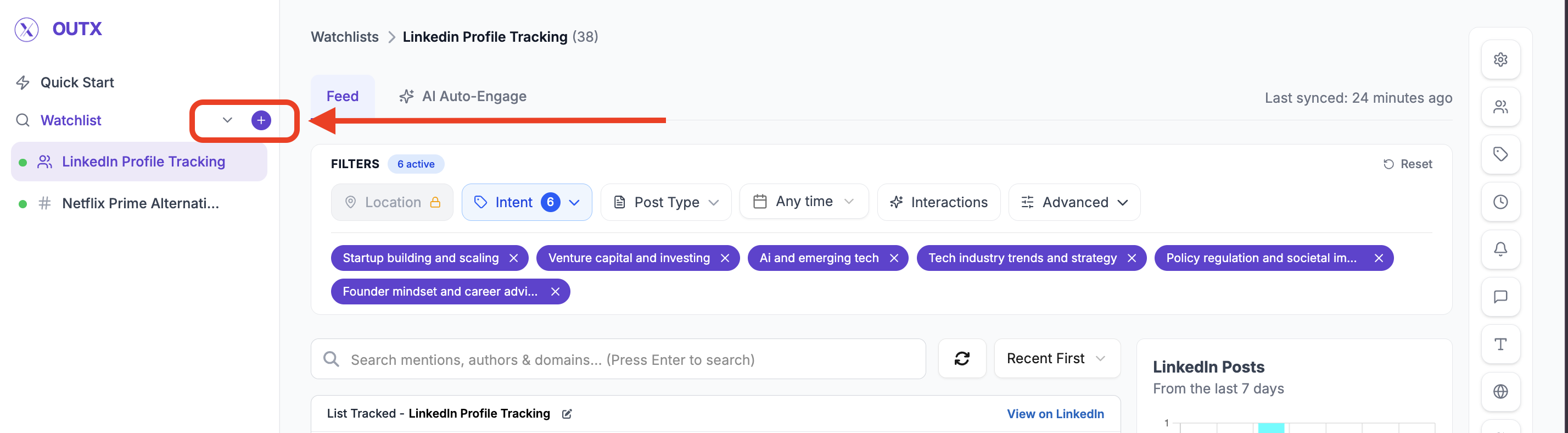
2. Add Company
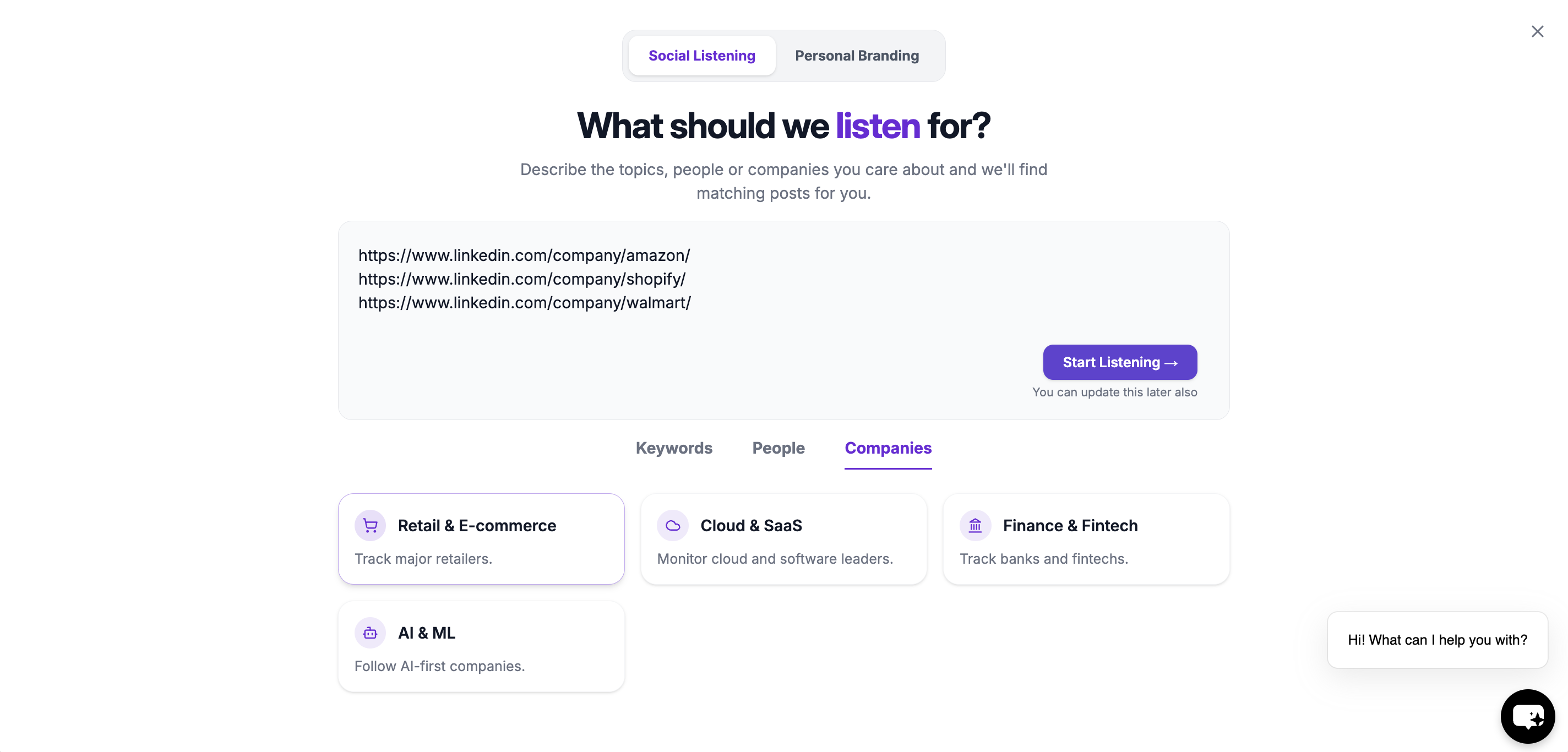
This step defines which LinkedIn company OutX.ai should monitor then click on start listening Examples:- Key companies
3. Set Intents
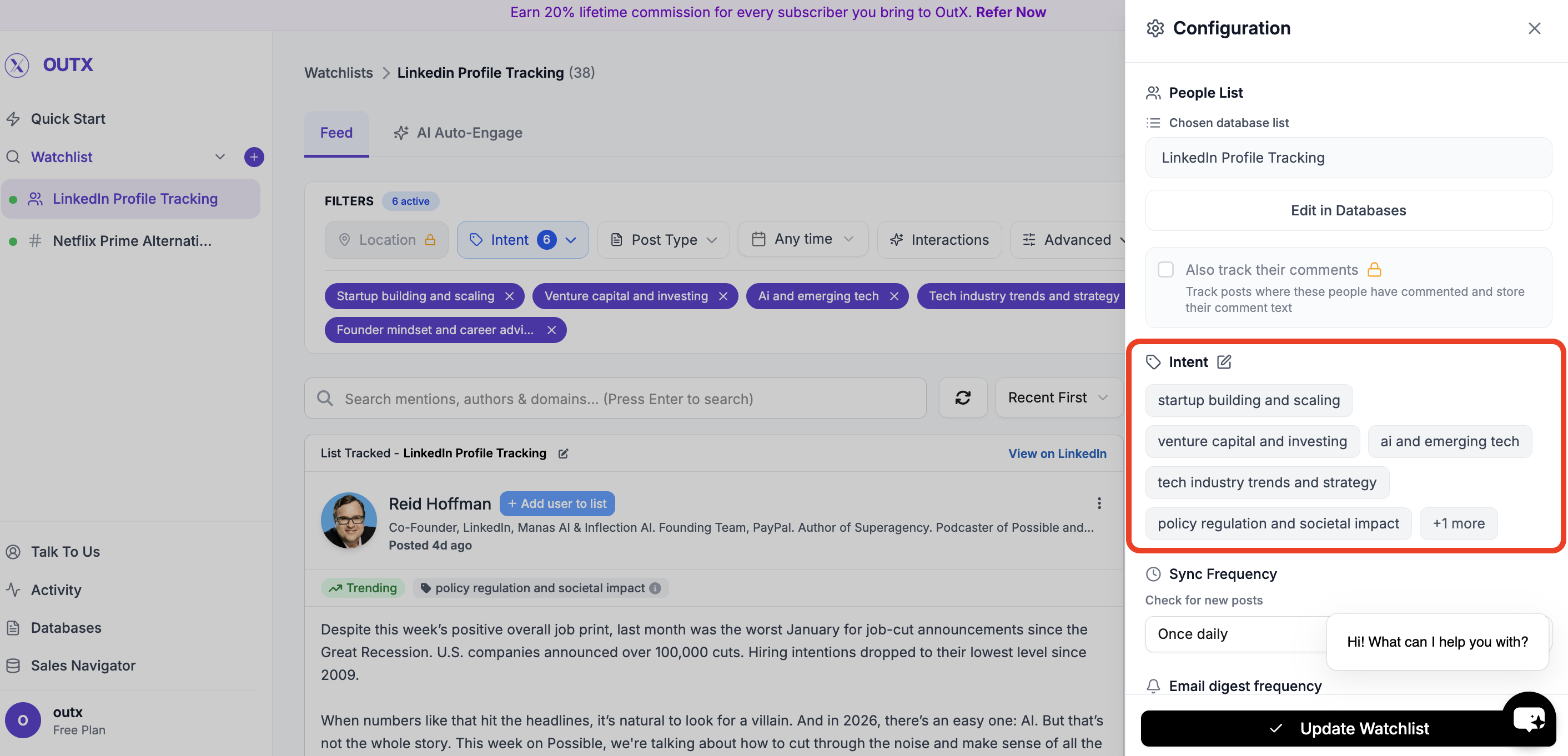
Intents help you group company’s post inside a watchlist. Instead of tracking everyone the same way, labels let you:- Segment posts by role, intent, or priority
- Filter updates more easily
- Understand why someone is being tracked
- Startup
- High-Intent Leads
- Decision Makers
4. Advanced Watchlist Settings & Notifications
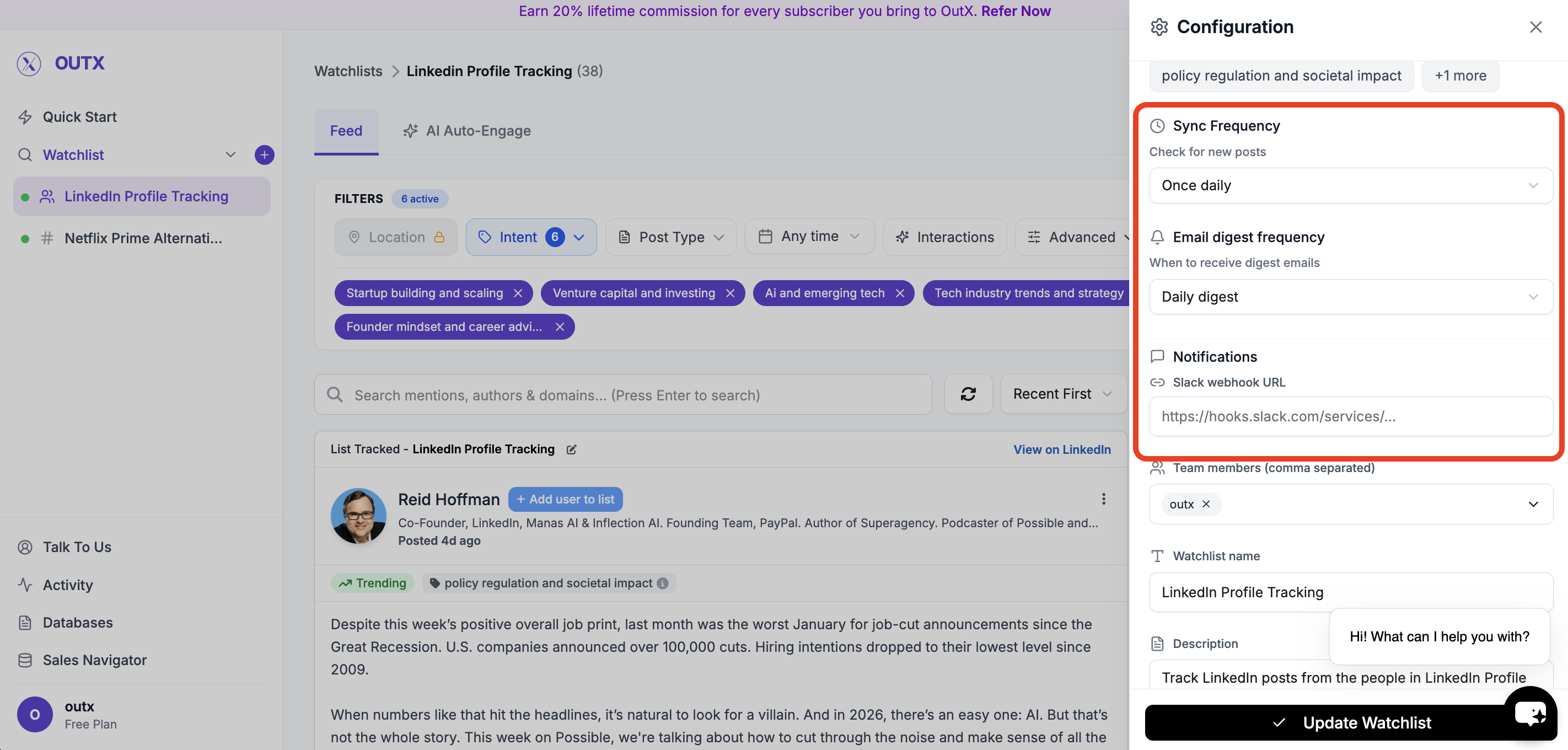
Fine-tune how and when you’re notified:- Fetch frequency: How often OutX.ai scans LinkedIn (e.g., every 12 hours)
- Team access: Add teammates to the watchlist
- Slack integration: Drop in your webhook URL to receive real-time alerts
Feed
OutX.ai now tracks all selected LinkedIn company automatically, delivering relevant updates without manual checking.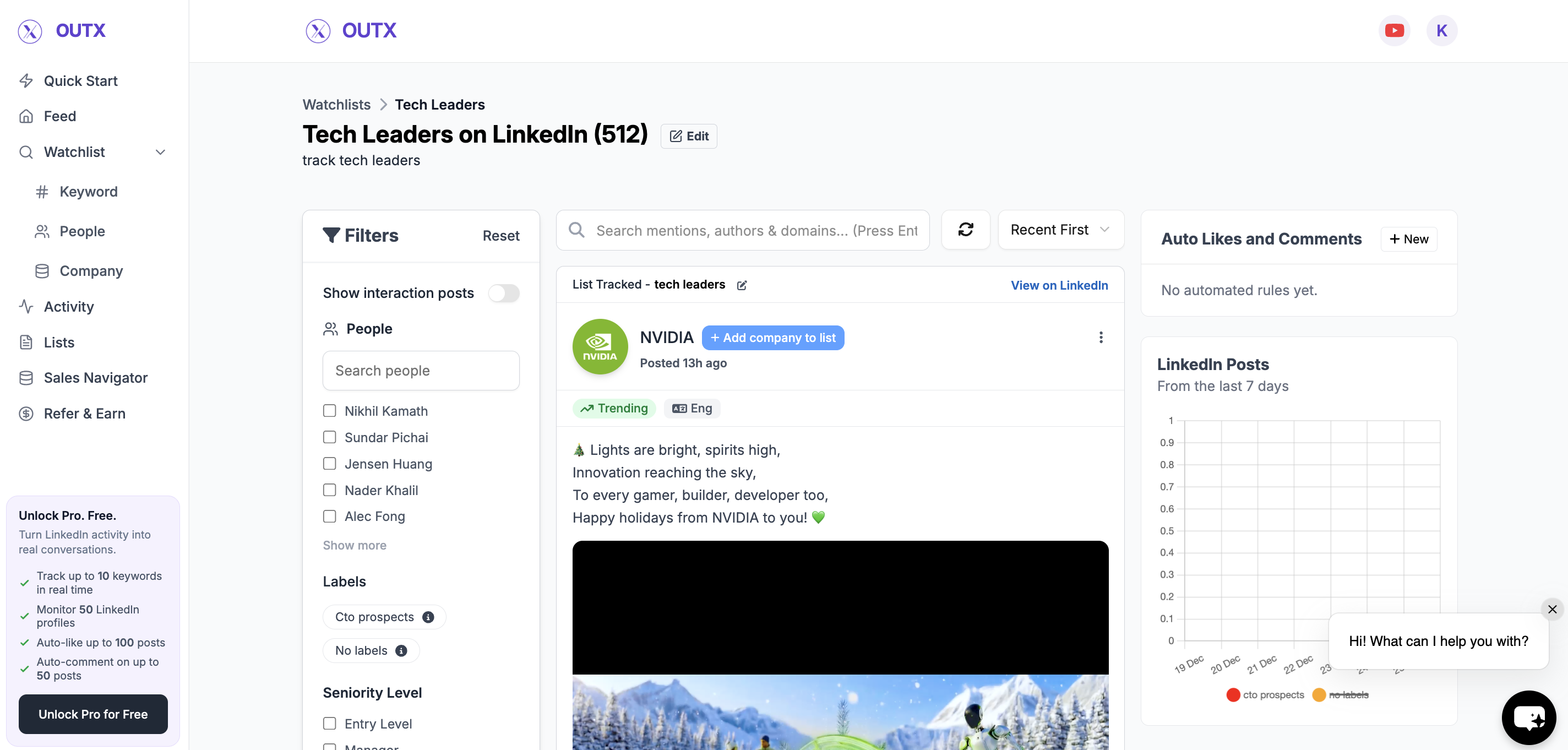
How to edit company watchlist?
1. Open Watchlist
Navigate to Watchlist you want to update from the main dashboard. Click the configuration(Gear icon) on right side panel.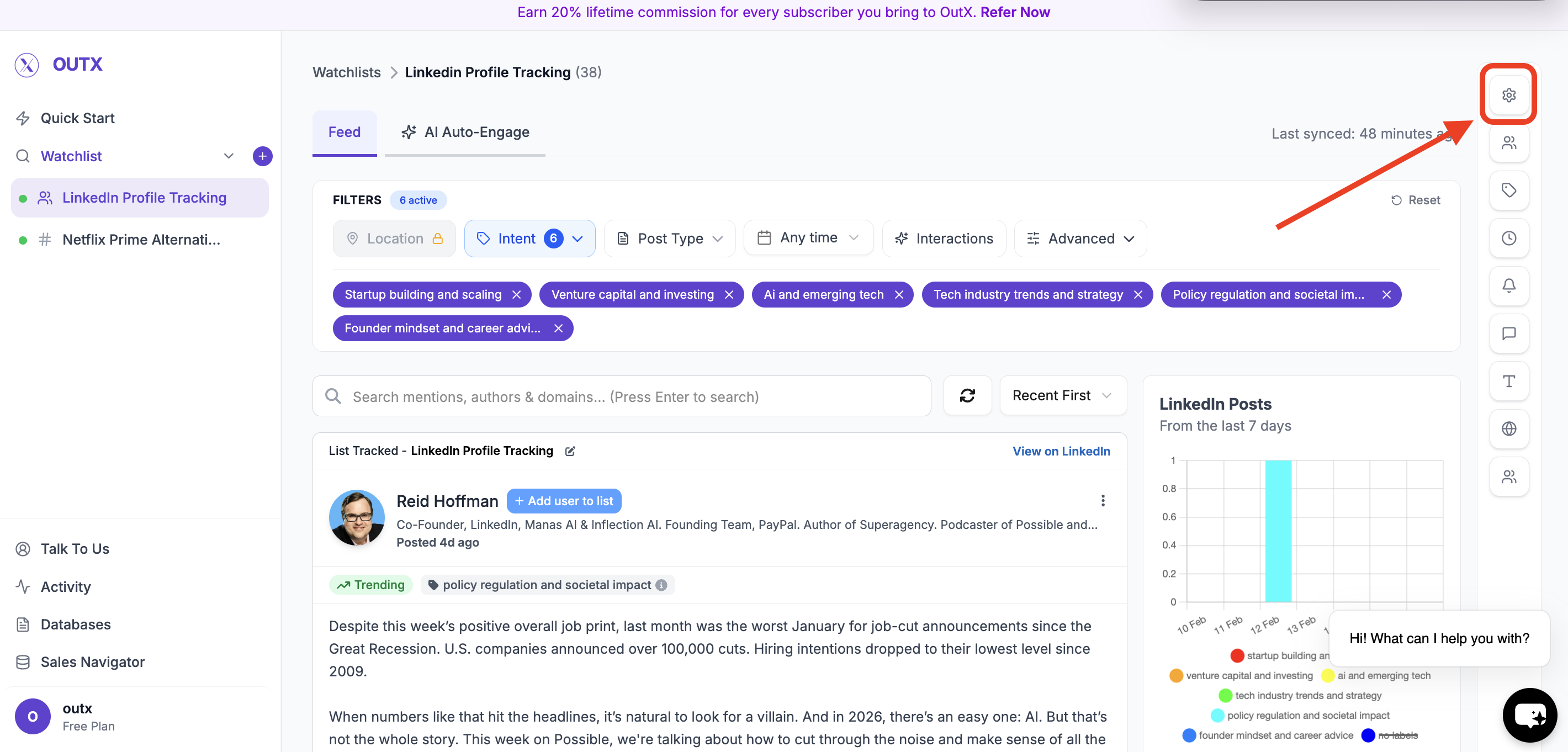
2. Edit in database
Click on edit in database then add company in selected list.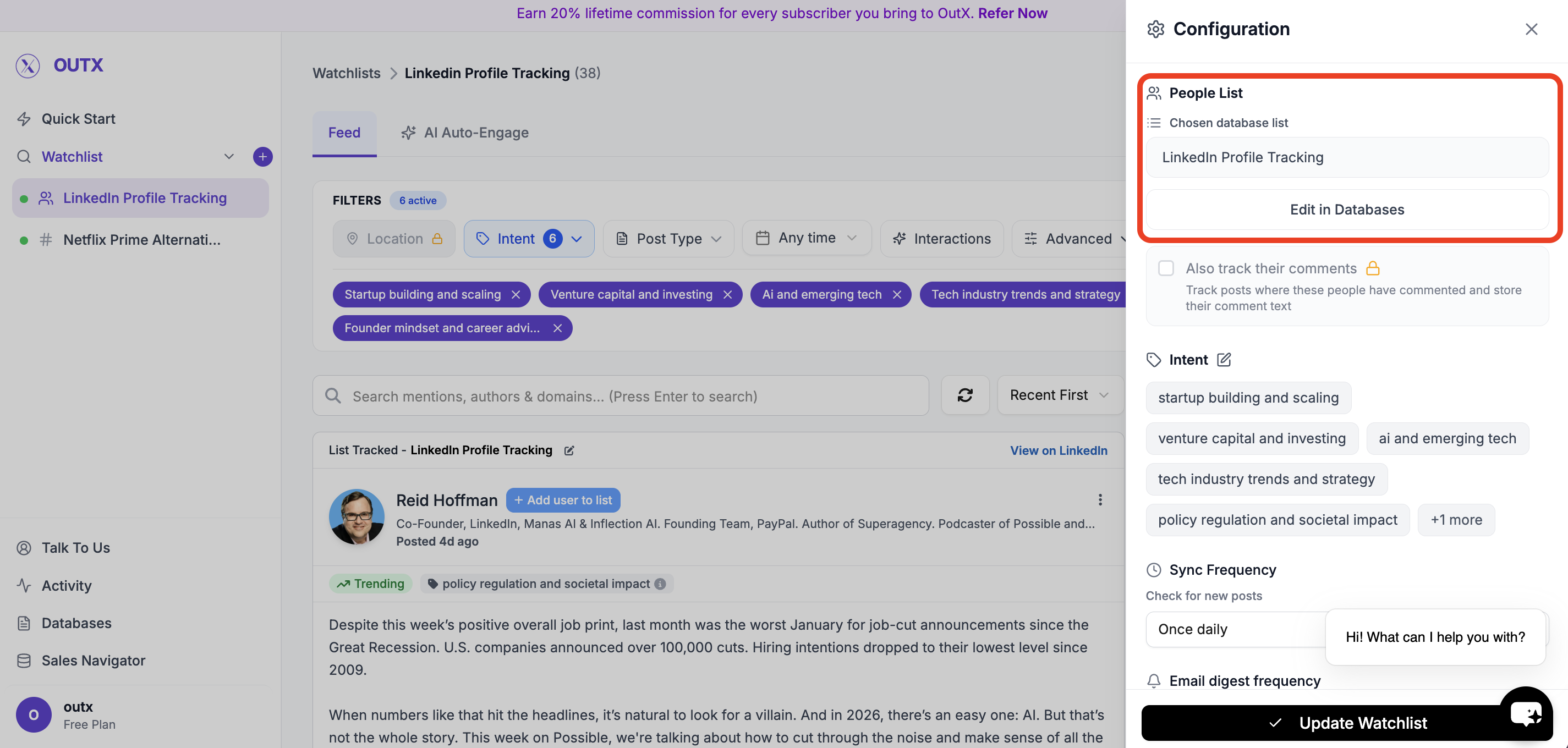
3. Import Profiles
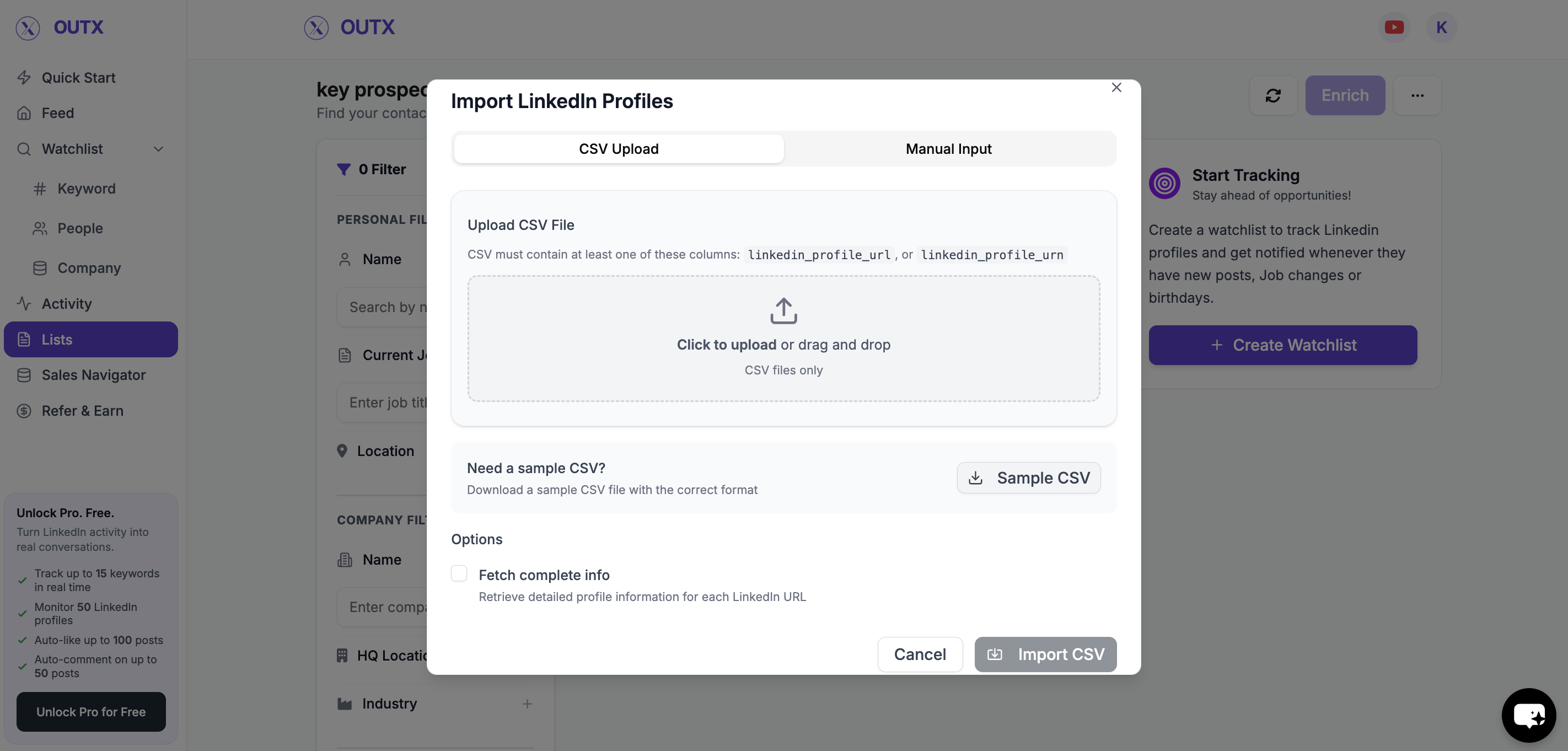
Within the list, click the three dots (⋯) in the top right corner, and then select Import.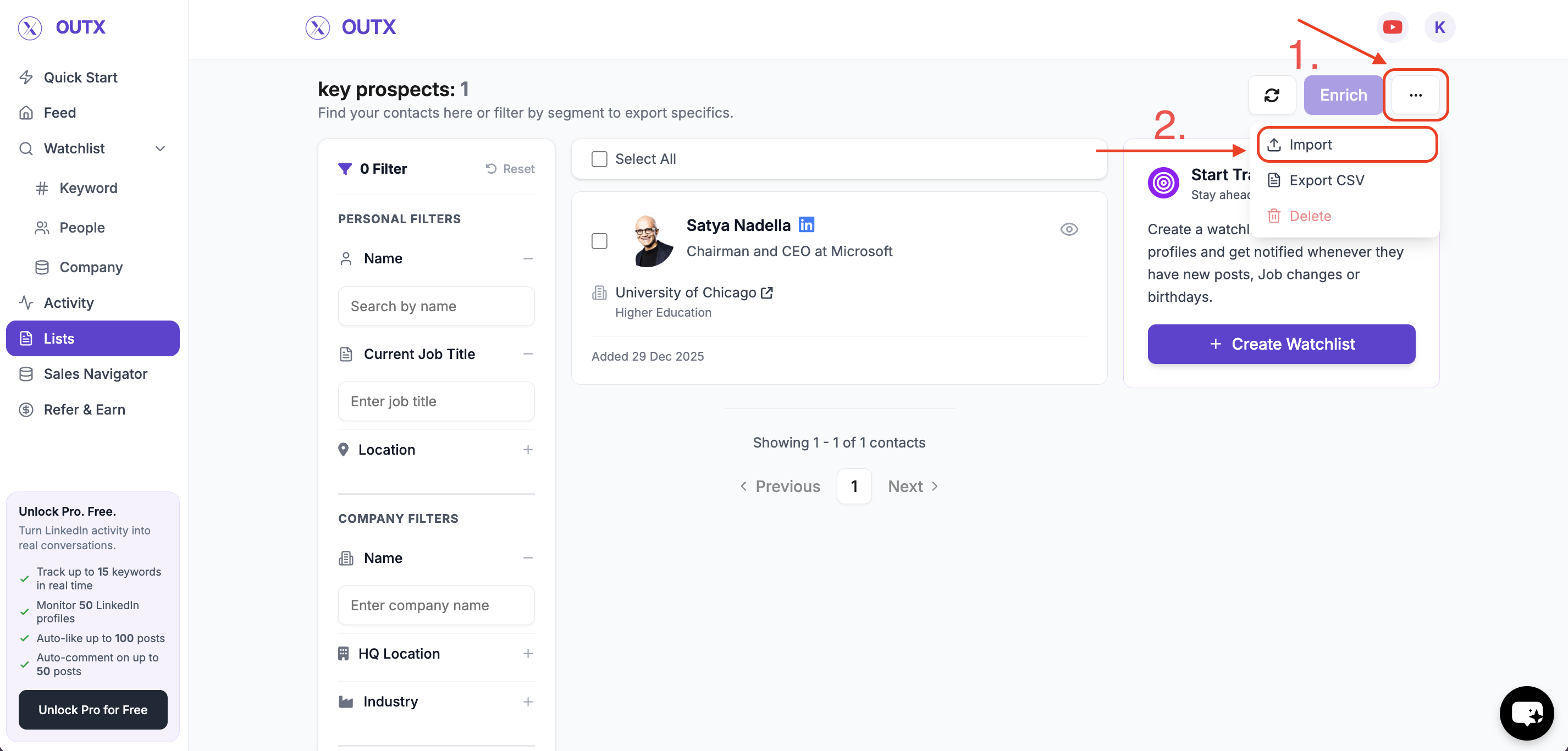
4. Add or Update company
You can now update the list of company to be tracked in two ways:- Manual Import – Paste LinkedIn company URLs or enter them one-by-one.
- CSV Import – Upload a CSV file containing LinkedIn company URLs.
Frequently Asked Questions
Can I track private company?
Can I track private company?
No, OutX only tracks publicly available data to stay compliant with LinkedIn’s rules.
Can I see a user's connection list?
Can I see a user's connection list?
No, LinkedIn does not allow third-party tools to access private connection data.
What if a user blocks me?
What if a user blocks me?
If a user blocks you on LinkedIn, OutX cannot fetch their posts anymore.
How many company's can I track?
How many company's can I track?
Each watchlist supports up to 200 company profiles. Your total depends on how many watchlists your plan includes: Growth allows 5 watchlists (1,000 total), Expert allows 20 (4,000 total), and Ultimate allows 100 (20,000 total).
Can I get alerts for company's updates like Posts?
Can I get alerts for company's updates like Posts?
Yes, OutX supports this in the company tracking module.
Can I filter all the posts based on location?
Can I filter all the posts based on location?
Yes, you can filter posts based on location if the post mentions the country you are targeting for.
What happens if I remove a company from the list?
What happens if I remove a company from the list?
Removing a company will stop tracking that company going forward. Previously collected activity for that company may be retained depending on your plan and retention settings.
Can I import profiles in bulk?
Can I import profiles in bulk?
Yes you can import multiple LinkedIn companies at once using a CSV file via the import option. This is useful when updating large lists.
Can a watchlist be edited multiple times?
Can a watchlist be edited multiple times?
Yes you can update a company Watchlist as often as needed. Changes apply once you save the updated list.