> ## Documentation Index
> Fetch the complete documentation index at: https://www.outx.ai/docs/llms.txt
> Use this file to discover all available pages before exploring further.
# Llms guide
# OutX - Product Guide
> This file is the OutX web dashboard walkthrough: social listening, personal branding, data export, and pricing.
> The API documentation is a separate file: [https://outx.ai/docs/llms-full.txt](https://outx.ai/docs/llms-full.txt). Where this guide and the API reference disagree, the API reference is right.
## Table of Contents
* [OutX - LinkedIn Social Listening, Automation & API Platform](https://outx.ai/docs/index)
* [Pricing & Subscription](https://outx.ai/docs/documentation/pricing-and-subscription)
* [Get started in 10 minutes](https://outx.ai/docs/documentation/linkedin-social-listening/get-started-in-10-minutes)
* [Keyword Watchlist](https://outx.ai/docs/documentation/linkedin-social-listening/keyword-watchlist)
* [People Watchlist](https://outx.ai/docs/documentation/linkedin-social-listening/people-tracking)
* [Company Watchlist](https://outx.ai/docs/documentation/linkedin-social-listening/company-watchlist)
* [Feed & Filters](https://outx.ai/docs/documentation/linkedin-social-listening/feed-and-filters)
* [Auto like and Auto comment](https://outx.ai/docs/documentation/linkedin-social-listening/auto-engagement)
* [Reddit Tracking](https://outx.ai/docs/documentation/linkedin-social-listening/reddit-tracking)
* [Get started in 10 minutes](https://outx.ai/docs/documentation/personal-branding/get-started-in-10-minutes)
* [How to Automate Likes & Comments?](https://outx.ai/docs/documentation/personal-branding/how-to-automate-likes-comments-to-boost-engagement)
* [How OutX.ai Analyzes Likes & Comments](https://outx.ai/docs/documentation/personal-branding/how-outx-analyzes-likes-and-comments)
* [Activity](https://outx.ai/docs/documentation/personal-branding/activity)
* [Get Started in 10 Minutes](https://outx.ai/docs/documentation/data-export/get-started-in-10-minutes)
* [LinkedIn Sales Navigator Export](https://outx.ai/docs/documentation/data-export/linkedin-sales-navigator)
* [People Search Export](https://outx.ai/docs/documentation/data-export/people-search-export)
* [Database](https://outx.ai/docs/documentation/data-export/lists)
***
# OutX - LinkedIn Social Listening, Automation & API Platform
Source: [https://outx.ai/docs/index](https://outx.ai/docs/index)
OutX is a LinkedIn social listening, personal branding, and API platform. Track keywords, monitor profiles, automate engagement, and fetch LinkedIn data via API.
**For AI agents**: Use [llms.txt](https://outx.ai/docs/llms.txt) for documentation discovery or [llms-full.txt](https://outx.ai/docs/llms-full.txt) for complete docs in a single file.
## Get Started
No-code dashboard for social listening, personal branding, and data export.
Create watchlists, retrieve AI-categorized posts, and automate engagement via API.
Fetch profiles, get posts, like and comment. Direct LinkedIn proxy for developers.
## Explore
Track keywords, people, and companies on LinkedIn with real-time alerts
Auto-like and auto-comment to stay active and visible on LinkedIn
Export leads from Sales Navigator and LinkedIn People Search
Full API documentation for watchlists and LinkedIn data endpoints
Required for all OutX features, installation, permissions, and troubleshooting
Integrate OutX with Claude Code, Cursor, and other AI development tools
## How OutX Works
OutX runs through the [Chrome extension](/docs/resources/chrome-extension) installed on your browser. The extension operates in the background while you browse, it simulates normal LinkedIn browsing, so it looks exactly like you are manually using LinkedIn. OutX does not take your cookies, passwords, or save any credentials. Everything runs locally in your browser.
This means:
* **No proxy rotation or CAPTCHA solving** needed
* **No risk of IP bans**, requests go through your real browser session
* **Real-time data** from LinkedIn, not cached or stale datasets
* **Minimal risk of LinkedIn restrictions**, behaves like natural browsing
The Chrome extension must be installed and active on at least one team member's browser within the last 48 hours for all features (including the API) to work.
## Key Features
### Social Listening
Track LinkedIn for keywords, people, and companies. OutX continuously scans and organizes matching posts into watchlists with AI-powered categorization and relevance scoring.
* **Keyword Watchlists**, Describe what you want to track in plain English. OutX generates keywords from your prompt automatically. [Set up keywords →](/docs/documentation/linkedin-social-listening/keyword-watchlist)
* **People Tracking**, Monitor posts from specific LinkedIn profiles. [Track people →](/docs/documentation/linkedin-social-listening/people-tracking)
* **Company Tracking**, Monitor company pages for posts and activity. [Track companies →](/docs/documentation/linkedin-social-listening/company-watchlist)
* **Reddit Tracking**, Monitor Reddit conversations alongside LinkedIn. [Track Reddit →](/docs/documentation/linkedin-social-listening/reddit-tracking)
### Personal Branding & Auto-Engagement
Stay active on LinkedIn automatically. Set up rules to like and comment on posts that match your keywords and target people. Comments are AI-generated in a natural tone.
* [Get started with auto-engagement →](/docs/documentation/personal-branding/get-started-in-10-minutes)
* [How auto-engagement works →](/docs/documentation/linkedin-social-listening/auto-engagement)
### Data Export
Export leads from LinkedIn searches into clean, structured data.
* **Sales Navigator Export**, Export any Sales Navigator search or list. [Export from Sales Nav →](/docs/documentation/data-export/linkedin-sales-navigator)
* **People Search Export**, Export LinkedIn People Search results. [Export from search →](/docs/documentation/data-export/people-search-export)
### API Access
Build custom integrations with two API surfaces:
* **Watchlists & Engagement API**, CRUD watchlists, retrieve posts, automate likes and comments. [API Quick Start →](/docs/api-reference/quickstart)
* **LinkedIn Data API**, Fetch profiles, get posts, like, comment. Async with task polling. [LinkedIn API Quick Start →](/docs/linkedin-api/quickstart)
## Pricing
Free plan available with 2 watchlists. Growth from \$99/mo. [See all plans →](/docs/documentation/pricing-and-subscription)
## Frequently Asked Questions
OutX is a LinkedIn social listening, personal branding, and API platform. It tracks keywords, monitors profiles and companies, automates engagement, and provides API access to LinkedIn data, all through a Chrome extension that runs in the background.
Yes. OutX runs through the Chrome extension on your local browser. It simulates normal LinkedIn browsing behavior, the same as you manually scrolling, liking, and commenting. OutX does not take your cookies, passwords, or any credentials. It does not use proxies, headless browsers, or scraping. The risk of LinkedIn restrictions is minimal because it behaves like natural browsing.
OutX requires the Chrome extension to be active, your browser needs to be open with the extension running. If your computer is off or the browser is closed, watchlist scanning and engagement actions will pause and resume when the browser is open again. The extension must have been active within the last 48 hours for the API to work.
No. OutX tracks public LinkedIn posts across the platform, not just from your connections. It scans posts based on your keywords regardless of whether you are connected to the author.
You do not need to manually edit keywords. Go to your watchlist settings and edit the prompt, OutX automatically regenerates the keywords from your updated prompt. This is the easiest way to refine what you are tracking.
After creating a watchlist, it takes a couple of minutes for the first posts to appear in your feed. The Chrome extension processes watchlist tasks in the background and populates results on the next scan cycle.
Yes. When using the engagement features (via API or auto-engagement rules), you can set `actor_type` to `"company"` and provide your company name. The like or comment will be posted from your company's LinkedIn page.
Yes. On Expert and Ultimate plans, the location filter is available in the feed sidebar. This filter works by detecting country names mentioned in post content. You can also filter posts by geography using the API with appropriate search terms.
Install the Chrome extension, go to LinkedIn Sales Navigator, run a search or open a saved list, and click the OutX export button. The data is saved to your OutX database where you can download it as a spreadsheet. [Step-by-step guide →](/docs/documentation/data-export/linkedin-sales-navigator)
OutX operates through the Chrome extension installed on each user's browser. Each team member manages their own LinkedIn session. You can add team members to your OutX team so everyone's activity is coordinated under one dashboard, but each person's extension runs on their own browser.
To cancel your subscription or delete your account, contact [support@outx.ai](mailto:support@outx.ai) from your registered email address. [More details →](/docs/resources/account-management)
The count shows the total number of posts matching your watchlist filters. Posts are paginated at 20 per page, so you can calculate total pages by dividing count by 20.
Watchlists are for social listening, they continuously scan LinkedIn for posts matching your keywords, people, or companies. Databases (in the Data Export section) are for storing exported lead data from Sales Navigator or People Search. They serve different purposes: watchlists monitor conversations, databases store contact data.
Yes. The OutX API allows you to build custom integrations. You can create watchlists, retrieve posts, and automate engagement programmatically. The API is on every plan, free included. Contact [support@outx.ai](mailto:support@outx.ai) for high-volume access and white-label options.
***
# Pricing & Subscription
Source: [https://outx.ai/docs/documentation/pricing-and-subscription](https://outx.ai/docs/documentation/pricing-and-subscription)
## Plan limits at a glance
Every number the backend enforces, in one table. The plan sections below add pricing and features.
| Limit | Free | Growth | Expert | Ultimate |
| ----------------------------------------------------- | ------- | ------- | -------- | --------- |
| Watchlists (all four types combined) | 2 | 5 | 20 | 100 |
| Team members | 5 | 10 | 25 | Unlimited |
| Auto-engagement rules per watchlist | 1 | 2 | 5 | 10 |
| Profiles or companies per people or company watchlist | 200 | 200 | 200 | 200 |
| Tracked profiles and companies across the team | 400 | 1,000 | 4,000 | 20,000 |
| Posts per watchlist per week | 2,000 | 15,000 | 15,000 | 15,000 |
| Historical data (how long a post is kept) | 28 days | 45 days | 180 days | 720 days |
Notes on the table:
* The weekly post limit counts posts with a relevance score of 4 or higher. Free teams whose extension and human activity have gone quiet for a while are limited to 100 posts per watchlist per week.
* `pro` is a legacy plan identifier. It carries the same limits as `growth`. There is no enterprise plan on the API.
* These are quotas on how much you can have, not on how often you can call the API. There is no request rate limit on any plan.
* Hitting a quota returns `402` with a message naming the limit. See [Error Codes](/docs/api-reference/errors).
## Pricing Plans Overview
OutX.ai pricing is divided into three core product categories:
1. **Social Listening for LinkedIn**
2. **Personal Branding**
3. **LinkedIn Sales Navigator Scraper**
You can view the live pricing page here:
***
## Social Listening for LinkedIn
Designed for teams and businesses that want to monitor LinkedIn keywords, profiles, and engagement signals in real time.
### Growth Plan: **\$99/month**
**Limits & Features**
* 5 Private Watchlists
* Up to 15,000 posts per watchlist per week
* 1,000 profiles tracked across the team (200 per watchlist, people & company combined)
* 10 Team Members
* 45 Days Historical Data
* 100 OutX Credits/month
* 2 Auto-Engagement Rules per Watchlist
* Fetch frequency options in the app depend on your plan (down to every 6 hours on Ultimate); the API accepts any allowed value
* Email Notifications
* Email Support
* CSV Exports
* API Access
* AI intent labels and relevance scoring
***
### Expert Plan: **\$249/month (Most Popular)**
**Limits & Features**
* 20 Private Watchlists
* Up to 15,000 posts per watchlist per week
* 4,000 profiles tracked across the team (200 per watchlist, people & company combined)
* Location Filter
* 25 Team Members
* 500 OutX Credits/month
* 5 Auto-Engagement Rules per Watchlist
* Fetch frequency options in the app depend on your plan (down to every 6 hours on Ultimate); the API accepts any allowed value
* Email Notification + Slack
* Track Comments from Specific Profiles
* 180 Days Historical Data
* One-time account setup included
* Email/Slack Support
* CSV Exports
* API Access
* Advanced AI intent labels and relevance scoring
***
### Ultimate Plan: **\$999/month**
**Limits & Features**
* 100 Private Watchlists
* Up to 15,000 posts per watchlist per week
* 20,000 profiles tracked across the team (200 per watchlist, people & company combined)
* Location Filter
* Unlimited Team Members
* 2,000 OutX Credits/month
* 10 Auto-Engagement Rules per Watchlist
* Fetch frequency options in the app depend on your plan (down to every 6 hours on Ultimate); the API accepts any allowed value
* Email Notification + Slack
* Track Comments from Specific Profiles
* 720 Days Historical Data
* One-time account setup included
* Weekly check-ins for first 3 months
* Email/Slack/WhatsApp Support
* CSV Exports
* API Access
* Advanced AI intent labels and relevance scoring
***
## Personal Branding Plans
Built for founders, creators, and individuals growing their LinkedIn presence.
### Starter Plan: **Free**
**Limits & Features**
* 2 Private Watchlists, of any of the four types
* Up to 2,000 posts per watchlist per week
* 400 profiles tracked across the team
* 5 Team Members
* 1 Auto-Engagement Rule per Watchlist
* Email Notification
* 28 Days Historical Data
* Full API Access, social listening included
* AI intent labels and relevance scoring
Free teams whose extension and human activity have gone quiet for a while are limited to 100 posts per watchlist per week.
***
### Growth Plan: **\$99/month**
Includes everything in the free plan, plus all Social Listening features. See [Growth plan details above](#growth-plan-99month).
***
## LinkedIn Sales Navigator Scraper
This product uses a **credits-based pricing model**, ideal for lead generation teams and agencies.
### Pricing Model
* **Base price:** 100 credits - \$9/month (billed monthly)
* **Credit usage:**
* 1 exported lead/account = 1 credit
* 1 email found = 1 credit
### Available Credit Packages (billed monthly)
* 100 - \$9/month (Base plan)
* 500 - \$29/month
* 1,500 - \$49/month
* 4,000 - \$99/month
* 8,000 - \$149/month
* 20,000 - \$299/month
* 50,000 - \$499/month
* 100,000 - \$899/month
* 200,000 - \$1,699/month
* Custom plans available
### Included Features
* Sales Navigator lead export
* Data cleaning & filtering
* Email finder & verifier
* LinkedIn URL enrichment
* Unlimited Sales Navigator accounts
***
## Subscription Management
### Upgrade or Downgrade
* You can change your plan anytime from the Paddle billing section or mail to: [support@outx.ai](mailto:support@outx.ai)
* Upgrades apply immediately.
* Downgrades take effect at the next billing cycle.
***
### Subscription Cancellation
You can cancel your subscription at any time. Two paths, both work.
**On a free trial?** Email support at least **6 hours before your trial ends** to ensure cancellation lands before the auto-charge runs.
**Email support (recommended, fastest)**
Send an email to **[support@outx.ai](mailto:support@outx.ai)** from your registered email requesting cancellation. Subject "Cancel Subscription". Processed within a few hours during business days.
**Paddle billing portal**
1. Log in to your OutX account
2. Go to **Settings** → **Billing**
3. Click **Manage Subscription** (opens Paddle billing portal)
4. Click **Cancel Subscription**
We are working with Paddle to support cancellation directly from the OutX dashboard so you do not have to leave the app. That experience will land soon. Until then, the email path is the most reliable. If the Paddle portal does not load, email support and we will cancel manually.
**After cancellation:**
* Your plan remains active until the end of the current billing period
* You will not be charged from the next billing cycle
* No partial refunds are issued for unused time
* Your data remains accessible until the billing period ends
***
## Team Invitation & Management
All paid plans support team collaboration with plan-based limits.
### Team Features
* Invite team members via email
* Assign access instantly
* Manage or remove members anytime
* Team limits depend on your current plan
* Unlimited seats available for Sales Navigator Scraper
Team members inherit access based on the workspace permissions and plan limits.
***
## Pricing FAQs
Yes. The free plan has 2 watchlists of any type, 5 team members, 1 auto-engagement rule per watchlist, 28 days of history, and the full API. It never asks for payment details.
Yes. All paid plans include a **7-day free trial** with full access. Payment details are entered up front through Paddle and nothing is charged during the trial. To avoid charges, email [support@outx.ai](mailto:support@outx.ai) at least **6 hours before your trial ends** to cancel.
To prevent abuse and to keep access uninterrupted if you continue. Nothing is charged during the trial, and the free plan never asks for them.
Credits are used **only** for Sales Navigator export and the email finder. 1 exported lead = 1 credit, 1 verified email = 1 credit. **API calls do not consume credits.** Watchlists, posts, likes, comments, profile fetches, and every other API endpoint are unlimited on every paid plan.
Yes. The free plan includes 2 watchlists of any of the four types, plus the full API. What a paid plan buys is volume: more watchlists, more tracked profiles, more posts per week, and longer history.
Yes. Free plan: up to 5 members. Paid plans: 10 (Growth) to unlimited (Ultimate) members, depending on the plan.
No. Slack alerts are available on Expert and Ultimate plans only.
No CSV exports on the free plan. The API is fully available, with the plan quotas in the table above.
Yes, you can cancel at any time. Once canceled, you will not be billed from the next billing cycle. The fastest path is email [support@outx.ai](mailto:support@outx.ai) from your registered email. You can also use the Paddle billing portal at **Settings → Billing → Manage Subscription**. **On a free trial, email at least 6 hours before the trial ends** so we can cancel before the auto-charge runs. We are working on direct in-dashboard cancellation with Paddle.
Yes. You can upgrade anytime. Downgrades apply next billing cycle.
Yes. An active LinkedIn Sales Navigator subscription is required.
Yes. Custom and agency plans are available on request. Contact [support@outx.ai](mailto:support@outx.ai).
***
# Get started in 10 minutes
Source: [https://outx.ai/docs/documentation/linkedin-social-listening/get-started-in-10-minutes](https://outx.ai/docs/documentation/linkedin-social-listening/get-started-in-10-minutes)
## **Why use OutX.ai?**
Most intent on LinkedIn is shared publicly through posts, comments, and profile updates.
OutX.ai helps you capture these signals automatically instead of manually checking LinkedIn.
***
## **How OutX.ai helps with Social Listening**
OutX.ai continuously scans LinkedIn for keywords, people, and companies you care about, then organizes updates into a single feed so you can act at the right time.
***
## Setup Your account
## **Step 1: Create Your Account**
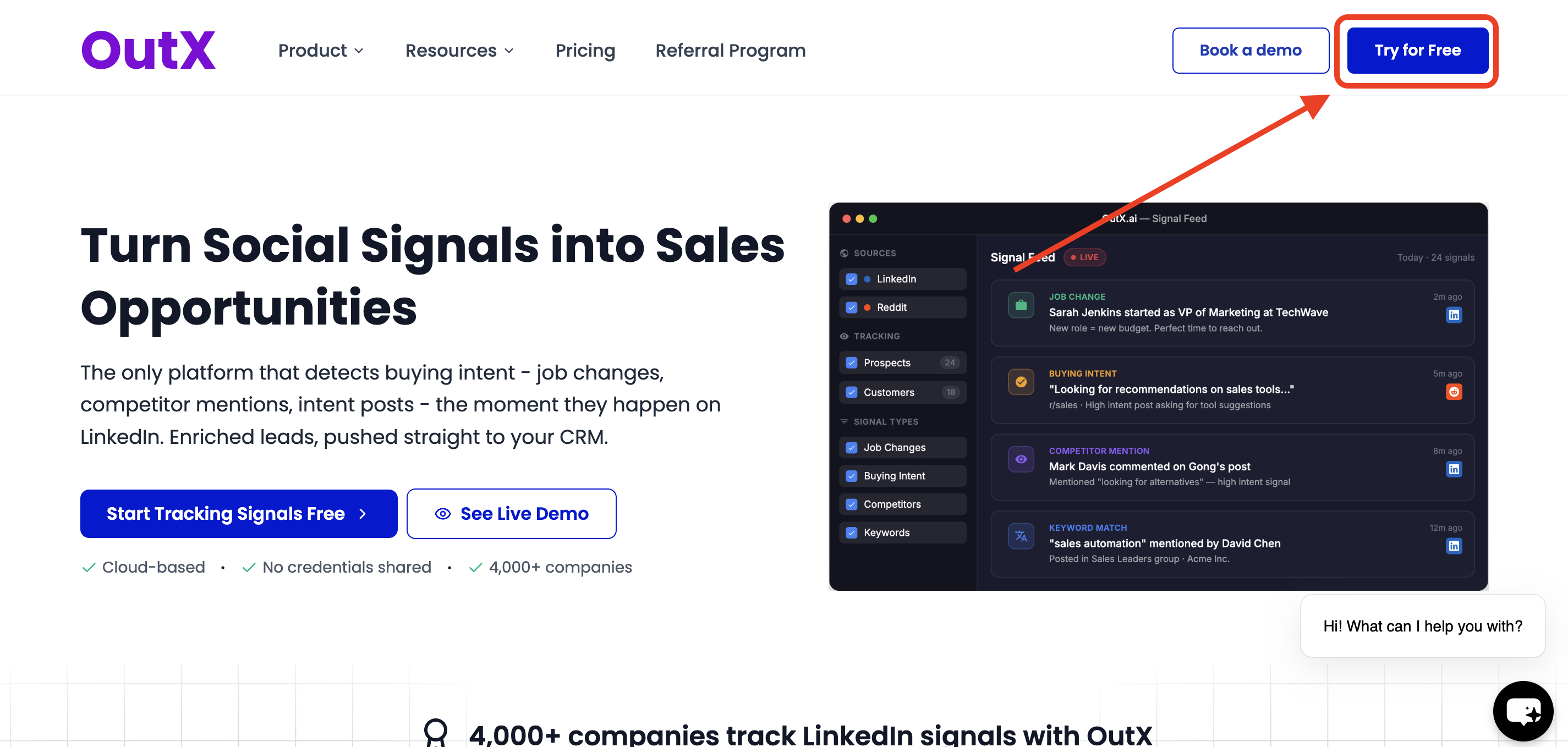
Click **Try for free** on the OutX.ai website and sign up using **Google login** or **email OTP**.
 ## **Step 2: Install the Chrome Extension**
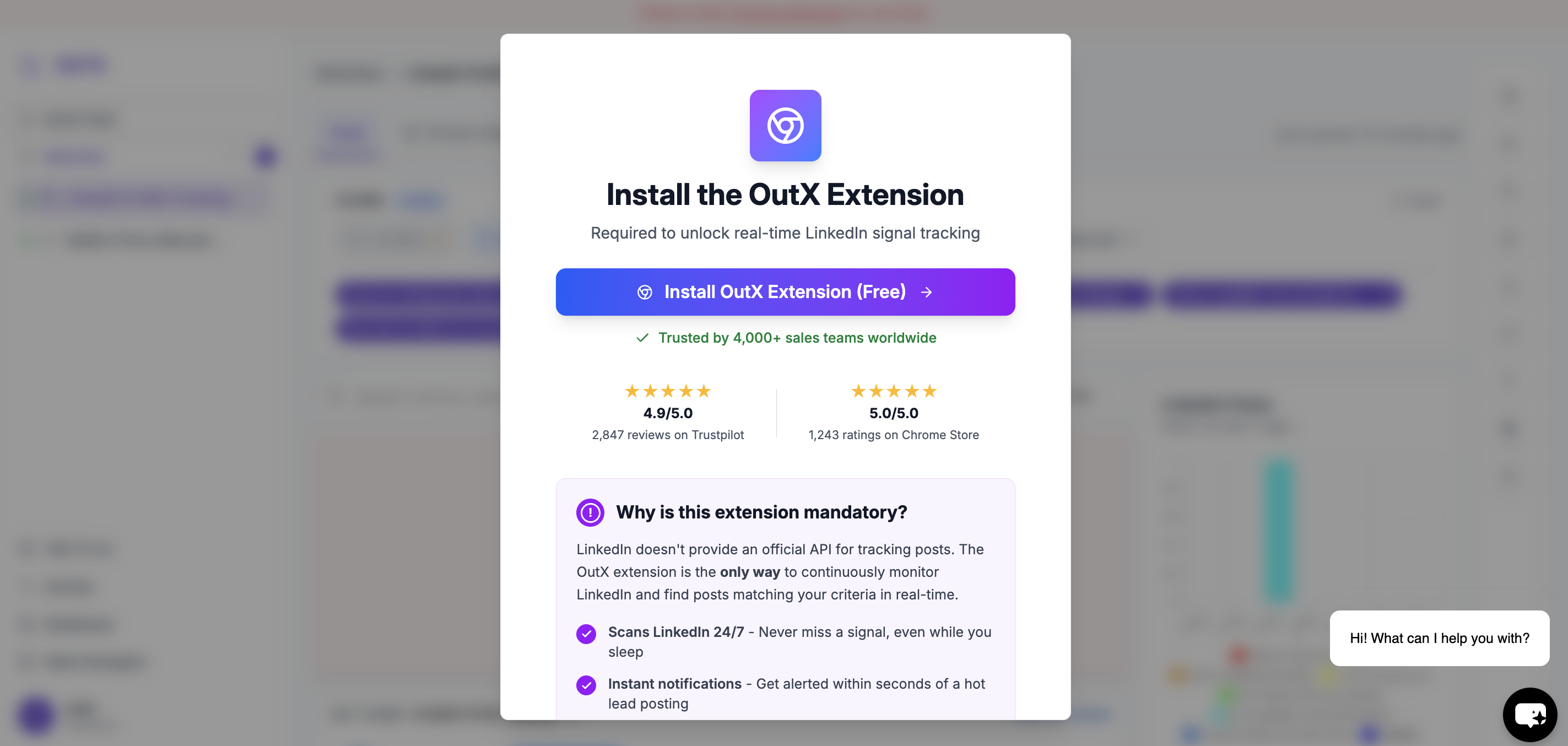
The OutX.ai Chrome extension connects LinkedIn to your account.
* No LinkedIn password required
* No cookies or private data accessed
* Reads only public LinkedIn content
> ⚠️ The extension is mandatory for tracking posts and profiles.
## **Step 2: Install the Chrome Extension**
The OutX.ai Chrome extension connects LinkedIn to your account.
* No LinkedIn password required
* No cookies or private data accessed
* Reads only public LinkedIn content
> ⚠️ The extension is mandatory for tracking posts and profiles.
 ### Steps to install
1. Click **Install Chrome Extension**
2. Approve the extension in Chrome
3. Keep the extension enabled while using LinkedIn
***
## **Step 3: Select what you want [OutX](https://outx.ai) to do?**
After installing the extension, you'll see a **chatbot interface** instead of a setup modal.
Here, simply **describe in plain English** what you want to track on LinkedIn or select from pre made prompt customised for you from below.
**Examples:**
* "Track people talking about buying sales engagement tools"
* "Monitor posts mentioning Apollo, ZoomInfo, or sales automation"
* "Track founders hiring SDRs in US startups"
* "Follow posts from RevOps leaders about outbound"
The more clearly you describe your goal, the better OutX.ai can build your watchlist.
Outx.ai is designed to support different outbound goals. During setup, you select what you want to achieve:
* **Social Listening**
* Track **industry keywords**, **competitor mentions**, and **your brand**
* Track **people** (leads, prospects, customers)
* Personal Branding
* Automatically like or comment on relevant posts
* Engage with tracked people and companies
* Stay active on LinkedIn using simple rules
### Steps to install
1. Click **Install Chrome Extension**
2. Approve the extension in Chrome
3. Keep the extension enabled while using LinkedIn
***
## **Step 3: Select what you want [OutX](https://outx.ai) to do?**
After installing the extension, you'll see a **chatbot interface** instead of a setup modal.
Here, simply **describe in plain English** what you want to track on LinkedIn or select from pre made prompt customised for you from below.
**Examples:**
* "Track people talking about buying sales engagement tools"
* "Monitor posts mentioning Apollo, ZoomInfo, or sales automation"
* "Track founders hiring SDRs in US startups"
* "Follow posts from RevOps leaders about outbound"
The more clearly you describe your goal, the better OutX.ai can build your watchlist.
Outx.ai is designed to support different outbound goals. During setup, you select what you want to achieve:
* **Social Listening**
* Track **industry keywords**, **competitor mentions**, and **your brand**
* Track **people** (leads, prospects, customers)
* Personal Branding
* Automatically like or comment on relevant posts
* Engage with tracked people and companies
* Stay active on LinkedIn using simple rules
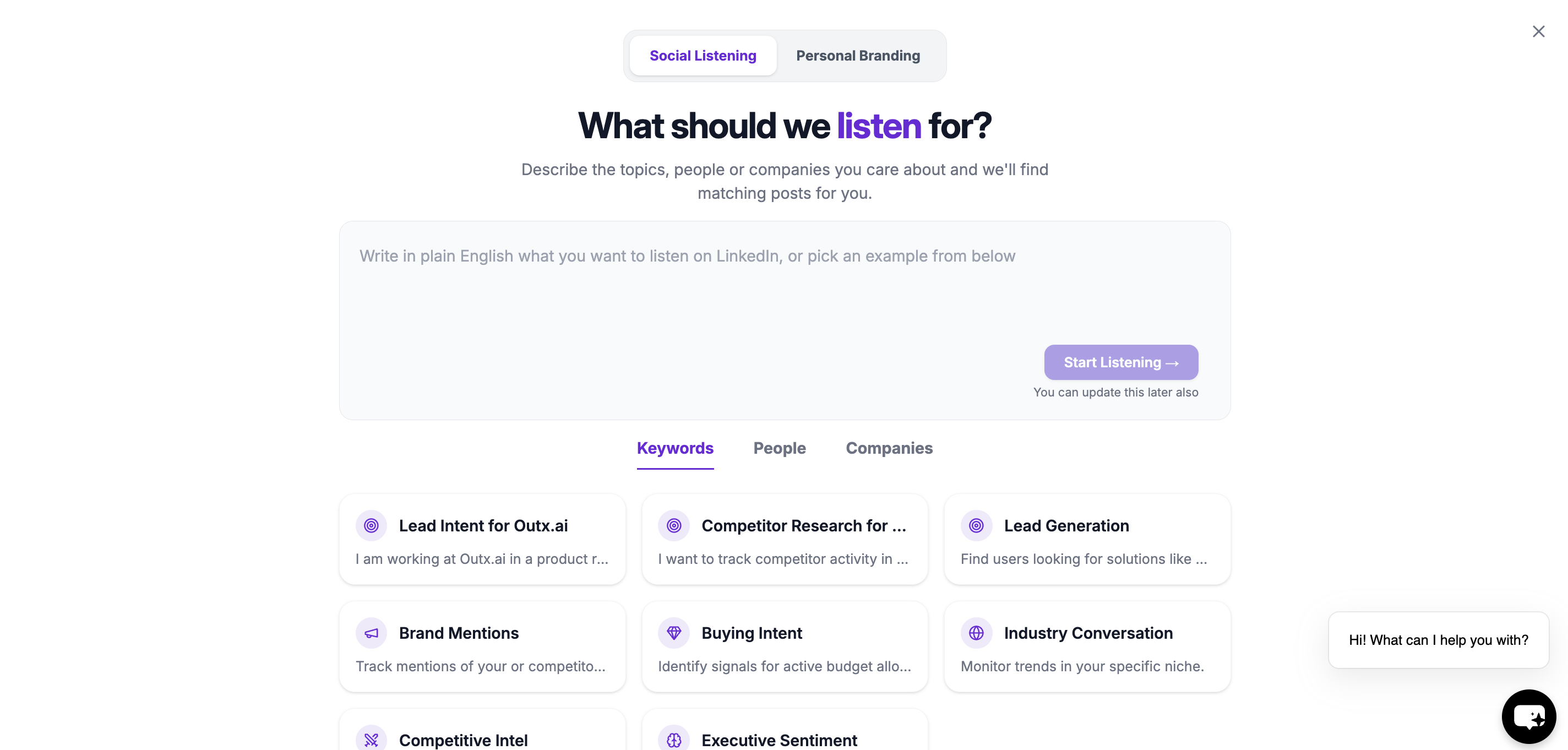 Click **Start Listening** after entering your prompt.
This intent selection configures which engines and workflows are activated in your account.
***
## Step 4: Wait While Your Watchlist Is Created
OutX.ai analyzes your prompt and automatically:
Click **Start Listening** after entering your prompt.
This intent selection configures which engines and workflows are activated in your account.
***
## Step 4: Wait While Your Watchlist Is Created
OutX.ai analyzes your prompt and automatically:
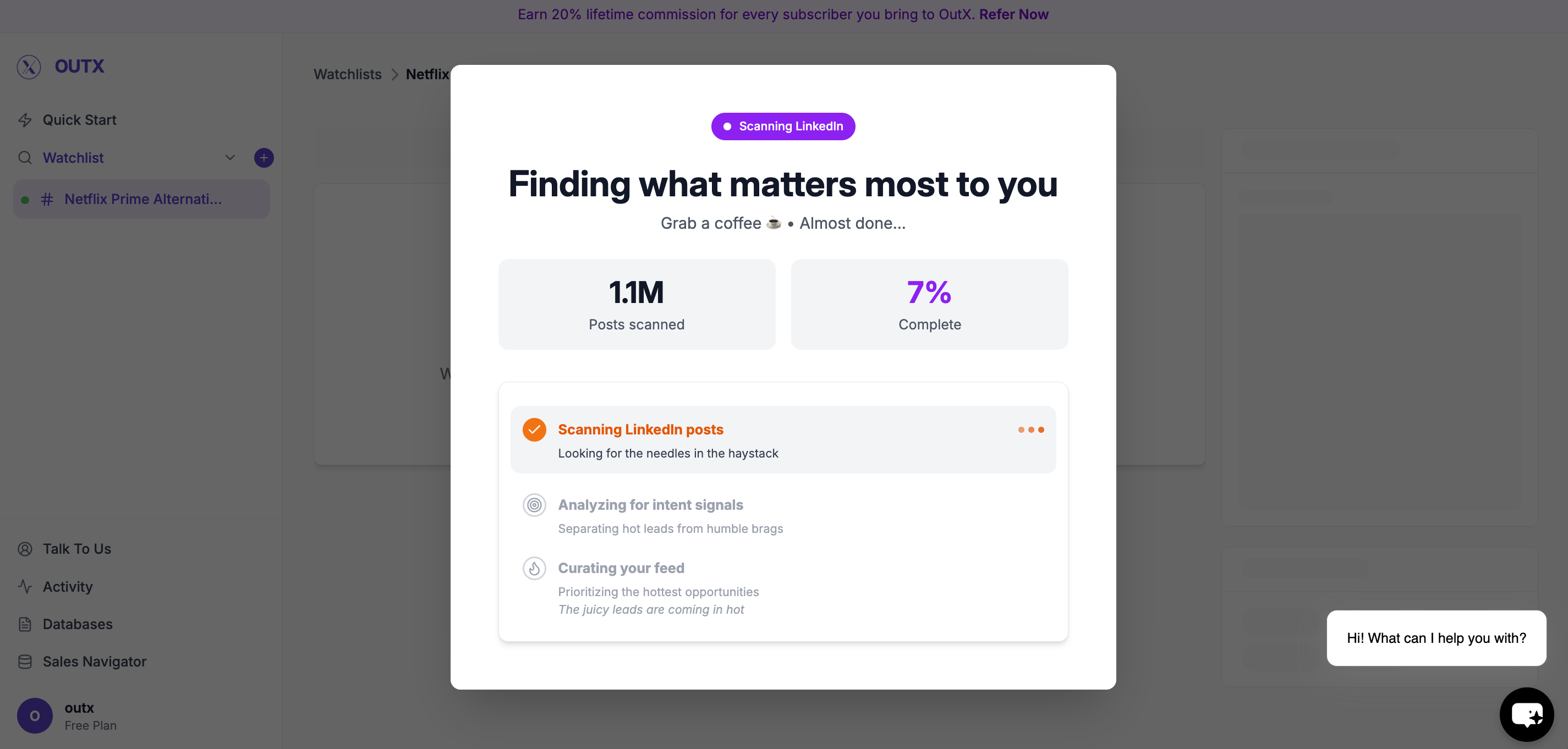 * Generates relevant keywords
* Creates a watchlist
* Starts scanning LinkedIn
This usually takes a few minutes.
Once complete, your watchlist will start showing matching posts.
***
## Managing Your Watchlist
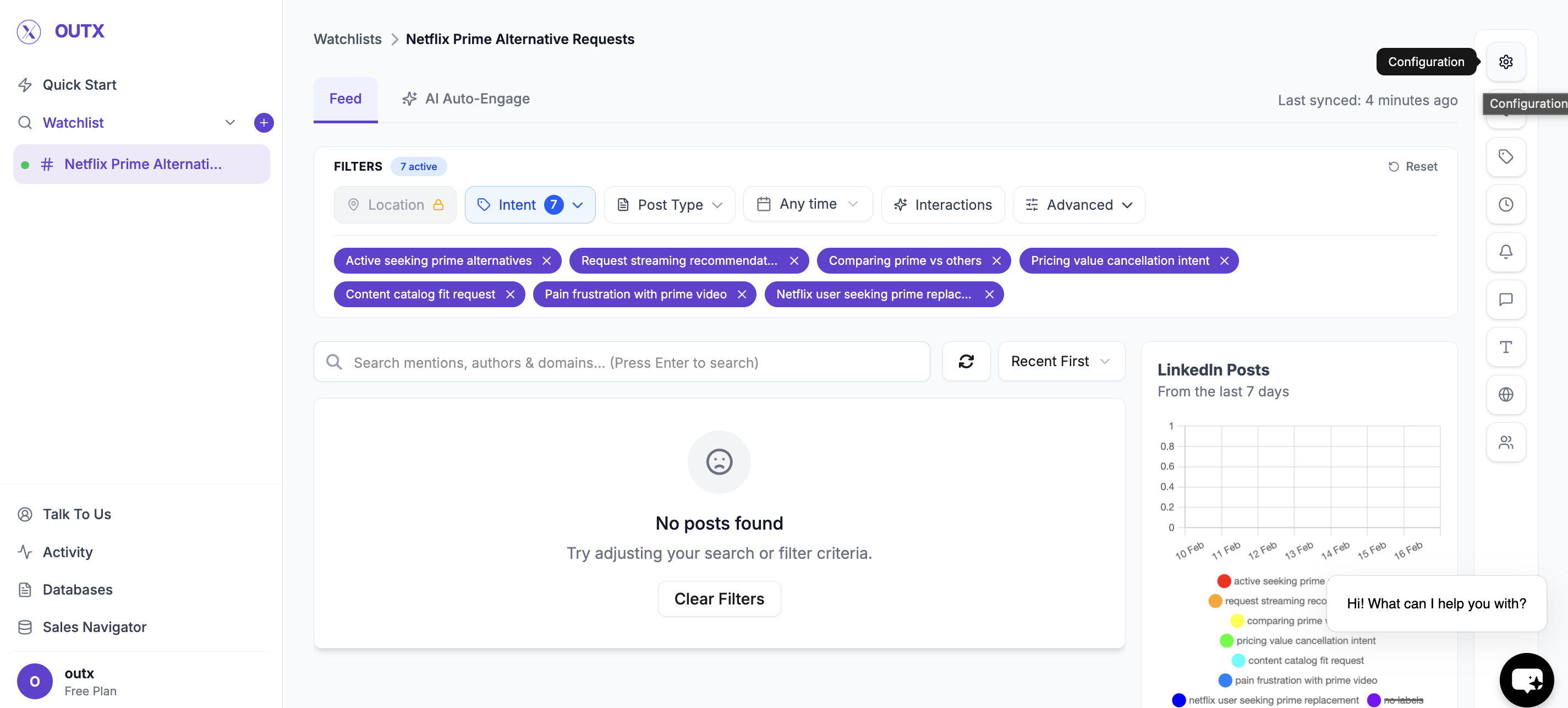
Click on Configuration.
* Generates relevant keywords
* Creates a watchlist
* Starts scanning LinkedIn
This usually takes a few minutes.
Once complete, your watchlist will start showing matching posts.
***
## Managing Your Watchlist
Click on Configuration.
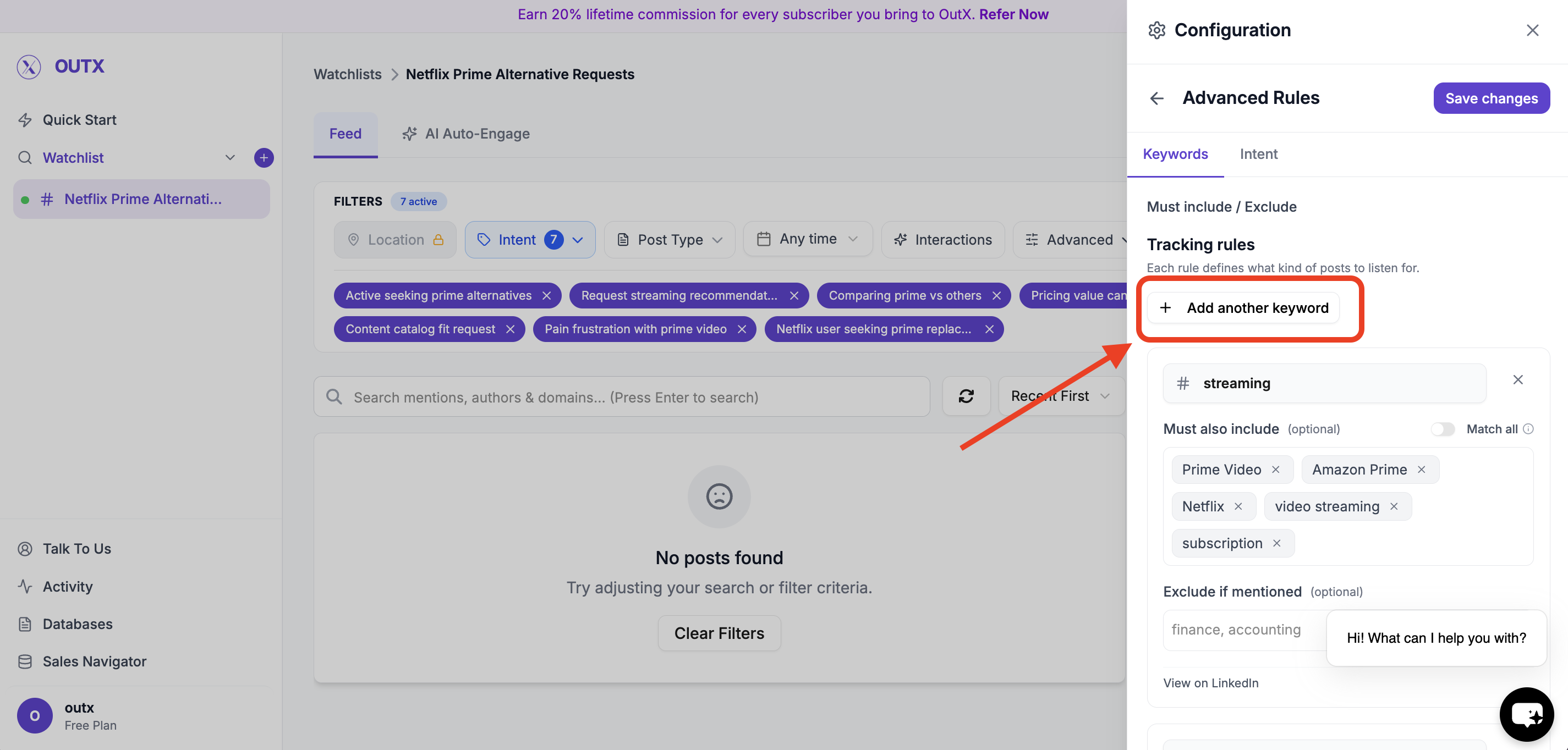
 ### Edit Keywords (Optional)
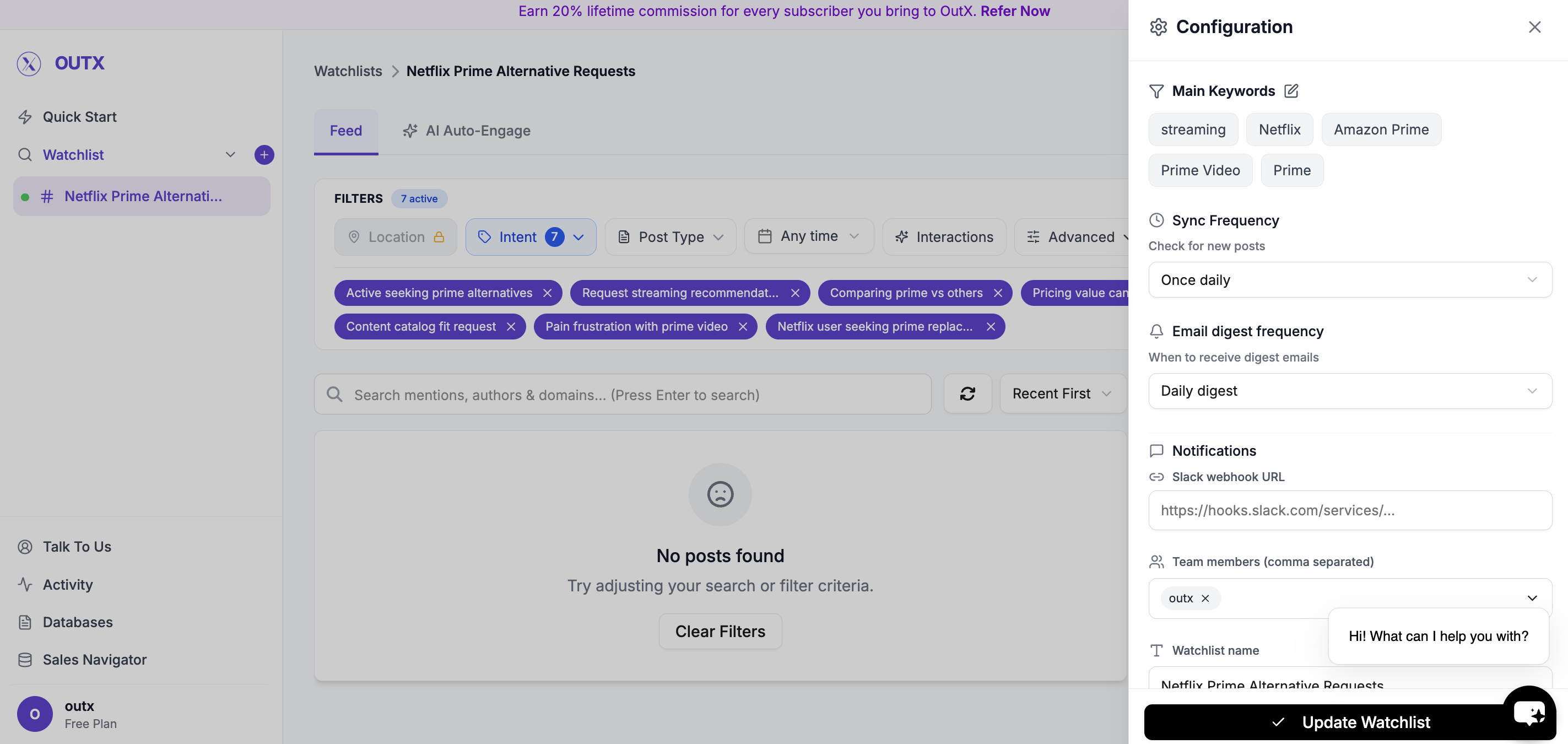 You can review and update the suggested keywords anytime:
* Add new keywords
* Remove irrelevant ones
* Adjust wording to match your niche
You can review and update the suggested keywords anytime:
* Add new keywords
* Remove irrelevant ones
* Adjust wording to match your niche
 ***
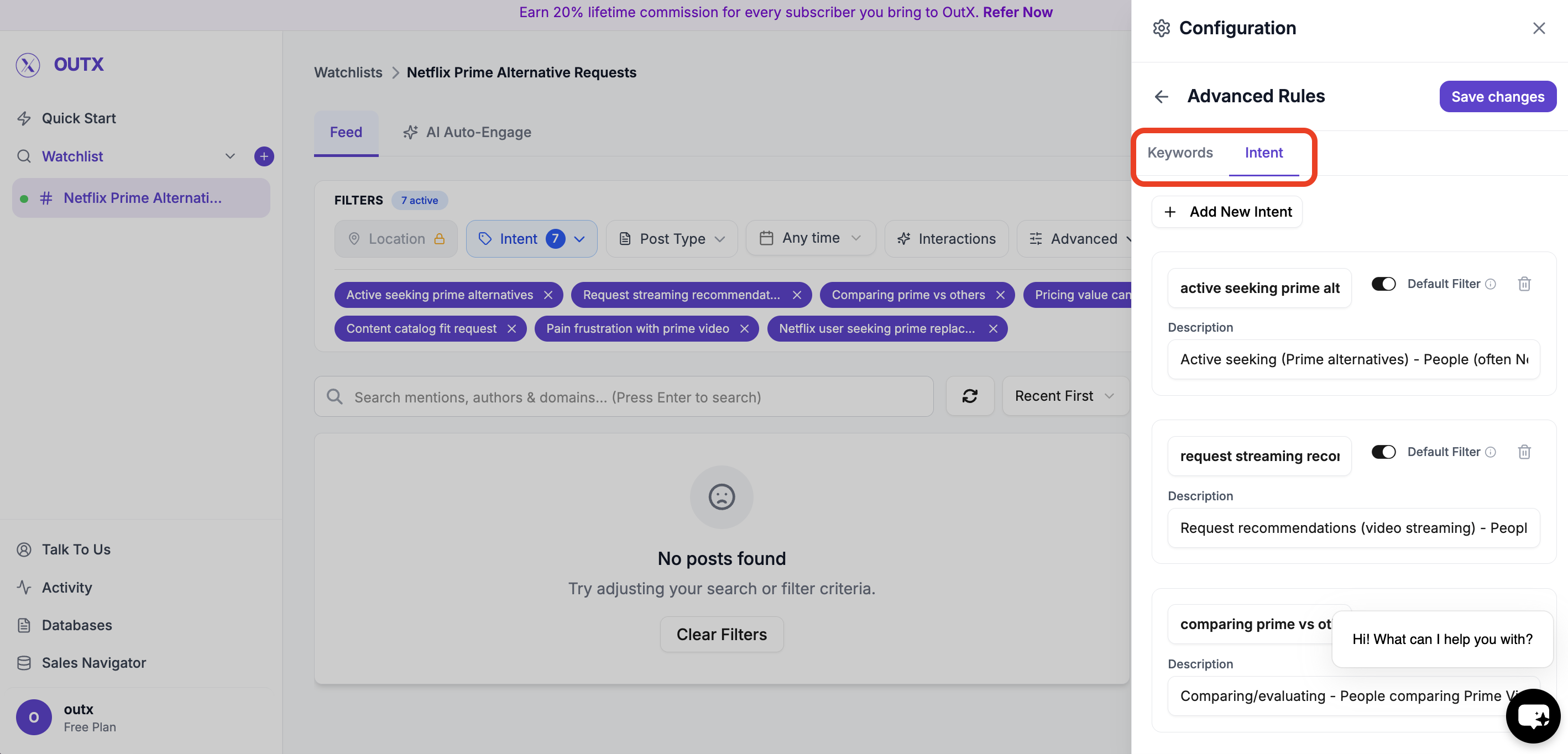
### Labels (Optional)
Labels help organize posts inside a watchlist.
Use labels to:
* Group similar posts
* Understand why a post was captured
* Route signals to the right workflow
Example labels:
* Buying Intent
* Hiring
* Competitor Mention
* Lead
***
### Labels (Optional)
Labels help organize posts inside a watchlist.
Use labels to:
* Group similar posts
* Understand why a post was captured
* Route signals to the right workflow
Example labels:
* Buying Intent
* Hiring
* Competitor Mention
* Lead
 ***
## How to Add People or Companies
### 1. Open a Watchlist
Go to any existing watchlist, or create a new one using the chatbot.
***
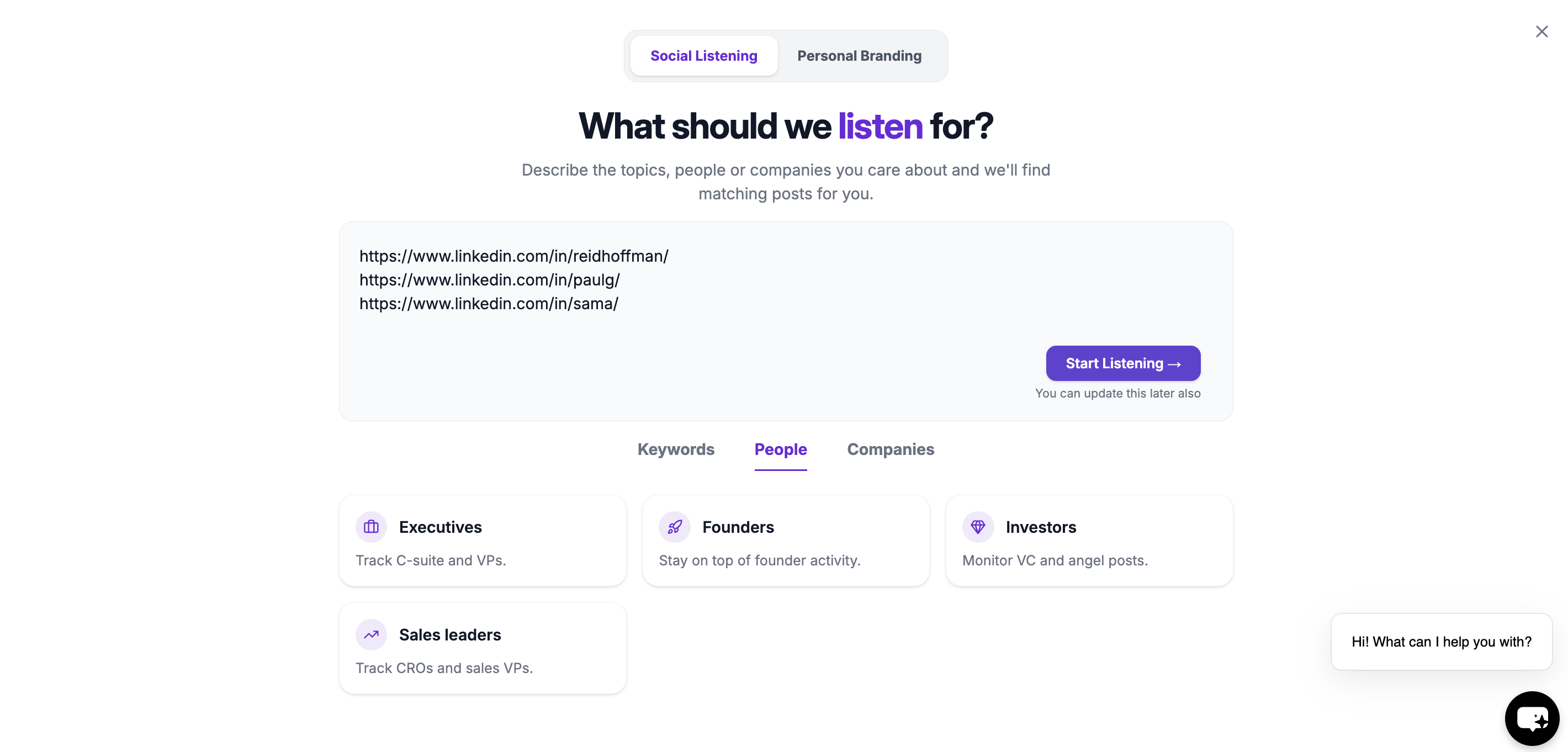
### 2. Add LinkedIn Profile or Company URLs
Paste the LinkedIn profile or company page URLs you want to track.
You can add:
* Individual LinkedIn profiles
* Company pages
* Multiple URLs at once
OutX.ai will automatically recognize each profile or company.
***
## How to Add People or Companies
### 1. Open a Watchlist
Go to any existing watchlist, or create a new one using the chatbot.
***
### 2. Add LinkedIn Profile or Company URLs
Paste the LinkedIn profile or company page URLs you want to track.
You can add:
* Individual LinkedIn profiles
* Company pages
* Multiple URLs at once
OutX.ai will automatically recognize each profile or company.
 ***
### 3. Save
Once saved, OutX.ai begins monitoring these profiles in the background.
***
### **Engage with tracked people**
* **Manual engagement:** Reply thoughtfully using AI-suggested comments
* **Automatic engagement:** Engage using rules to stay consistent
🔗 *Read more about people and company tracking*
***
## **Optional: Personal Branding with Auto Engagement**
You can enable auto engagement to build your personal brand by staying visible on LinkedIn.
* Automatically like or comment on relevant posts
* Engage from personal or company accounts
* Fully controlled by rules
This step is optional and can be enabled anytime.
***
## **You're Live**
In under 10 minutes, you've:
* Connected LinkedIn
* Set up keyword or people tracking
* Started capturing signals
* Begun engaging with posts
OutX.ai now runs in the background so you don't have to.
***
## Frequently Asked Questions
OutX.ai tracks **public LinkedIn activity**, including:
* Posts
* Profile updates (job or company changes)
* Company page posts
* Hiring and job-related updates
* Birthdays (when publicly visible)
* Keyword-based conversations
Yes. You can track **individual LinkedIn profiles** and see their public posts and profile changes in one feed.
Yes. You can track **company pages**, competitors, and target accounts to monitor posts and major updates.
Yes. You can track **keywords, brands, competitors, and industry topics** mentioned in public LinkedIn posts.
Yes. OutX.ai surfaces **public job changes, hiring posts, and role updates**.
Yes, **if they're publicly visible** on LinkedIn.
No. OutX.ai does **not** track individual comments on posts.
No. Likes and reactions are **not tracked**.
No. OutX.ai only reads **public LinkedIn content**. No DMs, passwords, or private data.
***
# Keyword Watchlist
Source: [https://outx.ai/docs/documentation/linkedin-social-listening/keyword-watchlist](https://outx.ai/docs/documentation/linkedin-social-listening/keyword-watchlist)
[OutXAI](http://Outx.ai) uses a combination of:
* Partial keyword matching
* Exact keyword matching
* Negative keyword exclusions
Set **fetch frequency** and **notification preferences** to stay updated without overwhelm.
> Too Long? Check out this Video →
***
## **Why Keyword Tracking?**
* Buying, hiring, and research intent is often shared openly in LinkedIn posts
* Keyword tracking helps you catch these conversations as soon as they happen
* You no longer need to manually search or scroll LinkedIn
* You can respond faster with better context and timing
***
## **How OutX.ai Helps with Keyword Tracking**
OutX.ai continuously scans LinkedIn for keywords you define or describe in plain English. It groups matching posts into organized watchlists with labels for clarity.
You see all relevant conversations in a single feed, updated automatically. From there, you can engage manually or automate engagement using simple rules.
***
## Quick Setup Guide
### **1. Create a Watchlist**
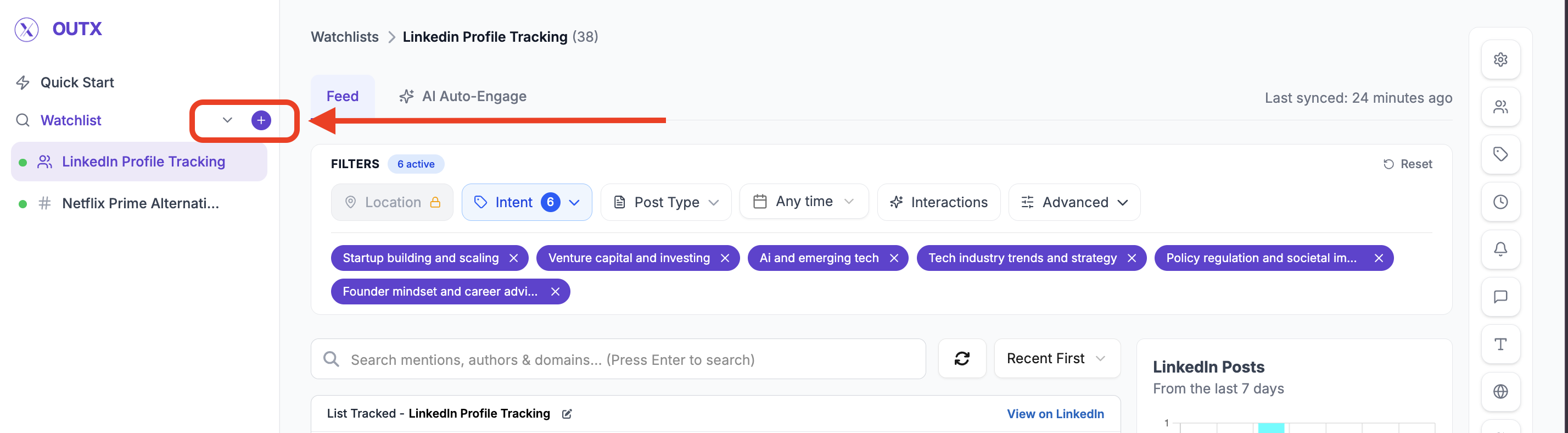
Click "**+"** along with watchlist to create a new watchlist.
A watchlist is where you tell OutX.ai *what kind of LinkedIn posts you want to monitor*.
***
### 3. Save
Once saved, OutX.ai begins monitoring these profiles in the background.
***
### **Engage with tracked people**
* **Manual engagement:** Reply thoughtfully using AI-suggested comments
* **Automatic engagement:** Engage using rules to stay consistent
🔗 *Read more about people and company tracking*
***
## **Optional: Personal Branding with Auto Engagement**
You can enable auto engagement to build your personal brand by staying visible on LinkedIn.
* Automatically like or comment on relevant posts
* Engage from personal or company accounts
* Fully controlled by rules
This step is optional and can be enabled anytime.
***
## **You're Live**
In under 10 minutes, you've:
* Connected LinkedIn
* Set up keyword or people tracking
* Started capturing signals
* Begun engaging with posts
OutX.ai now runs in the background so you don't have to.
***
## Frequently Asked Questions
OutX.ai tracks **public LinkedIn activity**, including:
* Posts
* Profile updates (job or company changes)
* Company page posts
* Hiring and job-related updates
* Birthdays (when publicly visible)
* Keyword-based conversations
Yes. You can track **individual LinkedIn profiles** and see their public posts and profile changes in one feed.
Yes. You can track **company pages**, competitors, and target accounts to monitor posts and major updates.
Yes. You can track **keywords, brands, competitors, and industry topics** mentioned in public LinkedIn posts.
Yes. OutX.ai surfaces **public job changes, hiring posts, and role updates**.
Yes, **if they're publicly visible** on LinkedIn.
No. OutX.ai does **not** track individual comments on posts.
No. Likes and reactions are **not tracked**.
No. OutX.ai only reads **public LinkedIn content**. No DMs, passwords, or private data.
***
# Keyword Watchlist
Source: [https://outx.ai/docs/documentation/linkedin-social-listening/keyword-watchlist](https://outx.ai/docs/documentation/linkedin-social-listening/keyword-watchlist)
[OutXAI](http://Outx.ai) uses a combination of:
* Partial keyword matching
* Exact keyword matching
* Negative keyword exclusions
Set **fetch frequency** and **notification preferences** to stay updated without overwhelm.
> Too Long? Check out this Video →
***
## **Why Keyword Tracking?**
* Buying, hiring, and research intent is often shared openly in LinkedIn posts
* Keyword tracking helps you catch these conversations as soon as they happen
* You no longer need to manually search or scroll LinkedIn
* You can respond faster with better context and timing
***
## **How OutX.ai Helps with Keyword Tracking**
OutX.ai continuously scans LinkedIn for keywords you define or describe in plain English. It groups matching posts into organized watchlists with labels for clarity.
You see all relevant conversations in a single feed, updated automatically. From there, you can engage manually or automate engagement using simple rules.
***
## Quick Setup Guide
### **1. Create a Watchlist**
Click "**+"** along with watchlist to create a new watchlist.
A watchlist is where you tell OutX.ai *what kind of LinkedIn posts you want to monitor*.
 ***
### **2. Add a Prompt (What should we track?)**
Instead of manually setting up keywords right away, you can simply **describe what you want to track in plain English**.
Think of this as telling OutX.ai *what kind of conversations you care about*.
**Example prompts (under 200 characters):**
* "People hiring remote engineers"
* "Founders talking about CRM tools"
* "Posts about outbound sales or lead generation"
OutX.ai uses this prompt to suggest relevant keywords for your watchlist.
Once done [Outx.ai](http://Outx.ai) will make your watchlist
***
### **Primary Keywords**
These are the **main words or phrases** OutX.ai looks for in LinkedIn posts.
Use keywords that directly relate to your intent.
Examples:
* "hiring remote"
* "looking for developers"
* "CRM recommendation"
Posts containing these keywords will be considered relevant.
***
### **2. Add a Prompt (What should we track?)**
Instead of manually setting up keywords right away, you can simply **describe what you want to track in plain English**.
Think of this as telling OutX.ai *what kind of conversations you care about*.
**Example prompts (under 200 characters):**
* "People hiring remote engineers"
* "Founders talking about CRM tools"
* "Posts about outbound sales or lead generation"
OutX.ai uses this prompt to suggest relevant keywords for your watchlist.
Once done [Outx.ai](http://Outx.ai) will make your watchlist
***
### **Primary Keywords**
These are the **main words or phrases** OutX.ai looks for in LinkedIn posts.
Use keywords that directly relate to your intent.
Examples:
* "hiring remote"
* "looking for developers"
* "CRM recommendation"
Posts containing these keywords will be considered relevant.
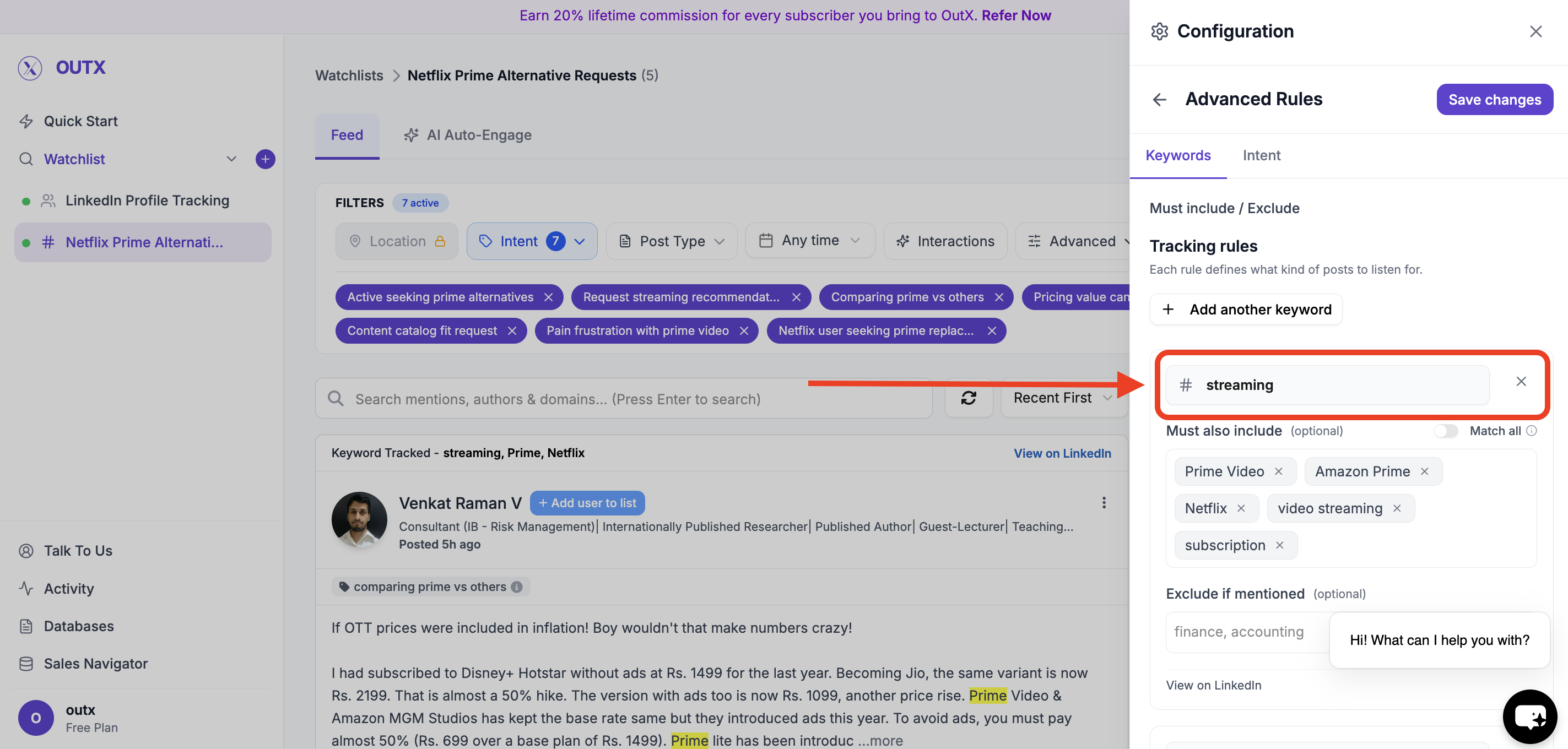 ***
### **Must Also Include Keywords**
Use this when a post should contain **more than one condition** to be relevant.
Example:
Track posts only if they mention:
* "hiring" **and**
* "remote"
This helps reduce noise and improves accuracy.
***
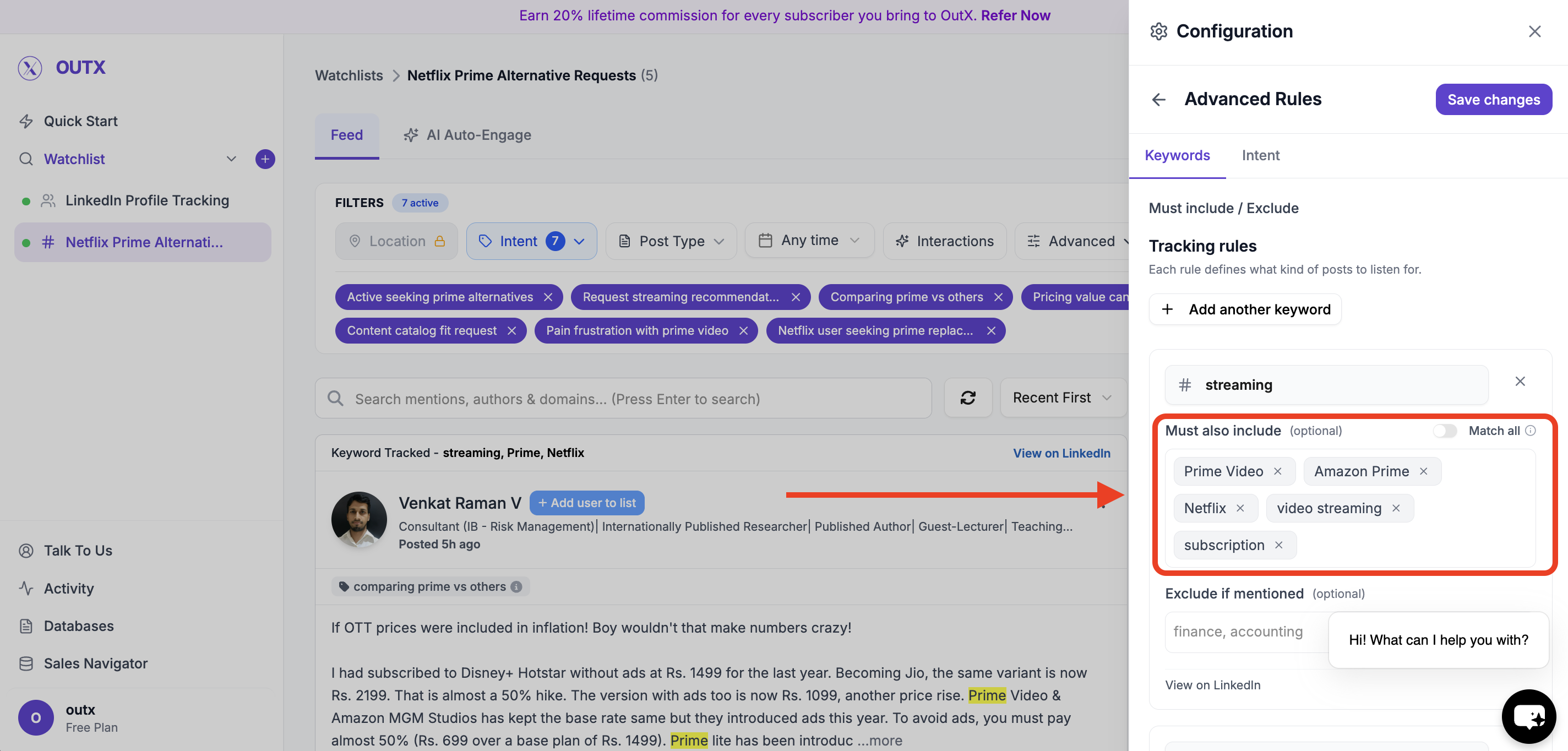
### **Must Also Include Keywords**
Use this when a post should contain **more than one condition** to be relevant.
Example:
Track posts only if they mention:
* "hiring" **and**
* "remote"
This helps reduce noise and improves accuracy.
 ***
### **Excluded Keywords**
These keywords tell OutX.ai **what to ignore**.
If a post contains an excluded keyword, it will not appear-even if it matches your main keywords.
Examples:
* "internship"
* "freelance"
* "agency"
This is useful for filtering out irrelevant posts.
***
### **Excluded Keywords**
These keywords tell OutX.ai **what to ignore**.
If a post contains an excluded keyword, it will not appear-even if it matches your main keywords.
Examples:
* "internship"
* "freelance"
* "agency"
This is useful for filtering out irrelevant posts.
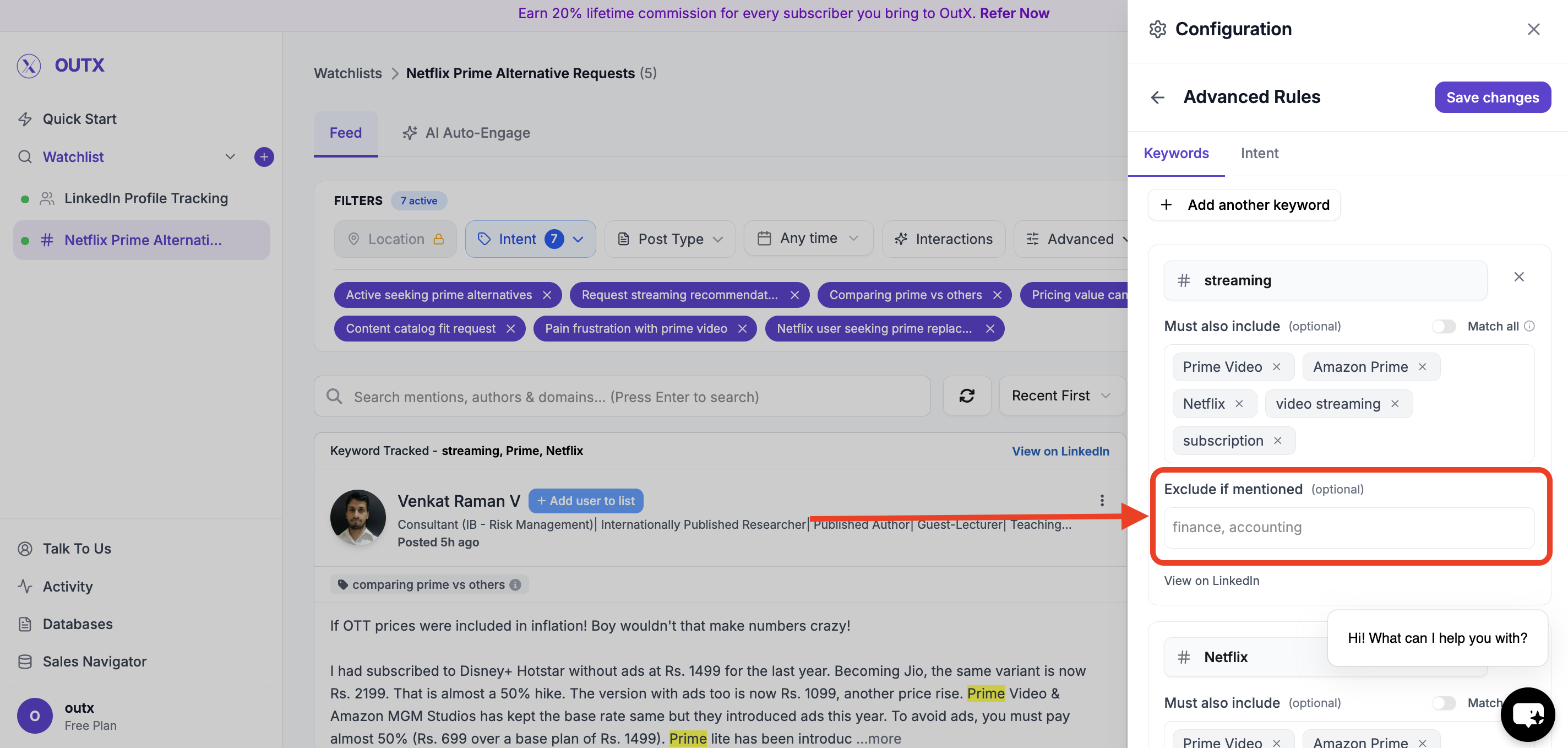 ***
### **4. Intent**
Intents help you **categorize posts inside a watchlist**.
Instead of putting everything in one bucket, labels let you:
* Group similar posts together
* Quickly understand *why* a post was captured
* Route signals to the right people or workflows
**Intent Name**
A short category name, such as:
* *Remote Hiring*
* *Tool Comparison*
* *Buying Intent*
**Intent Description**
A short explanation of what this label represents.
This makes it easier to:
* Review posts faster
* Share context with teammates
***
### **4. Intent**
Intents help you **categorize posts inside a watchlist**.
Instead of putting everything in one bucket, labels let you:
* Group similar posts together
* Quickly understand *why* a post was captured
* Route signals to the right people or workflows
**Intent Name**
A short category name, such as:
* *Remote Hiring*
* *Tool Comparison*
* *Buying Intent*
**Intent Description**
A short explanation of what this label represents.
This makes it easier to:
* Review posts faster
* Share context with teammates
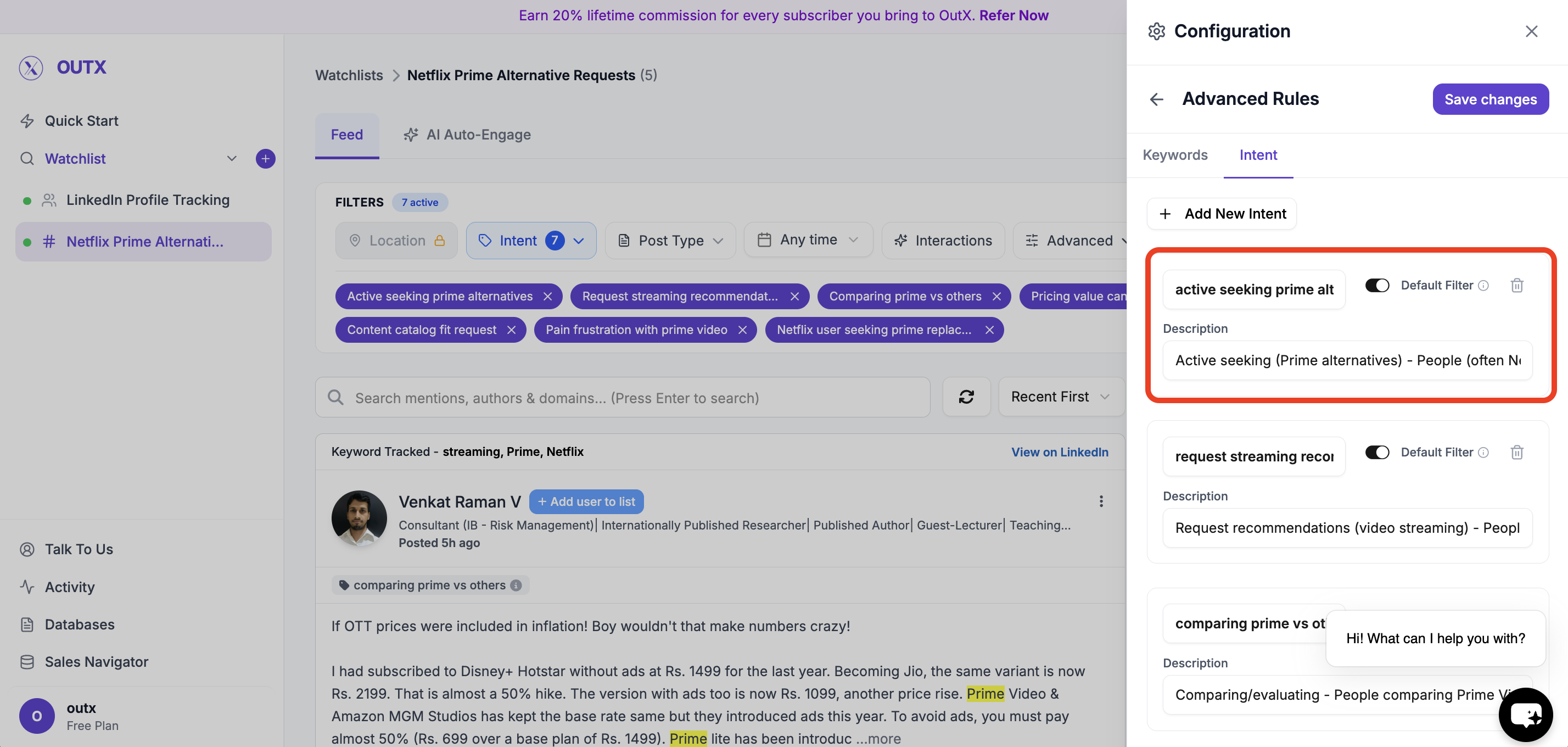 ***
### **5. Advanced Watchlist Settings & Notifications**
Fine-tune how and when you're notified:
* **Fetch frequency**: How often OutX.ai scans LinkedIn (e.g., every 12 hours)
* **Team access**: Add teammates to the watchlist
* **Slack integration**: Drop in your webhook URL to receive real-time alerts
***
### **5. Advanced Watchlist Settings & Notifications**
Fine-tune how and when you're notified:
* **Fetch frequency**: How often OutX.ai scans LinkedIn (e.g., every 12 hours)
* **Team access**: Add teammates to the watchlist
* **Slack integration**: Drop in your webhook URL to receive real-time alerts
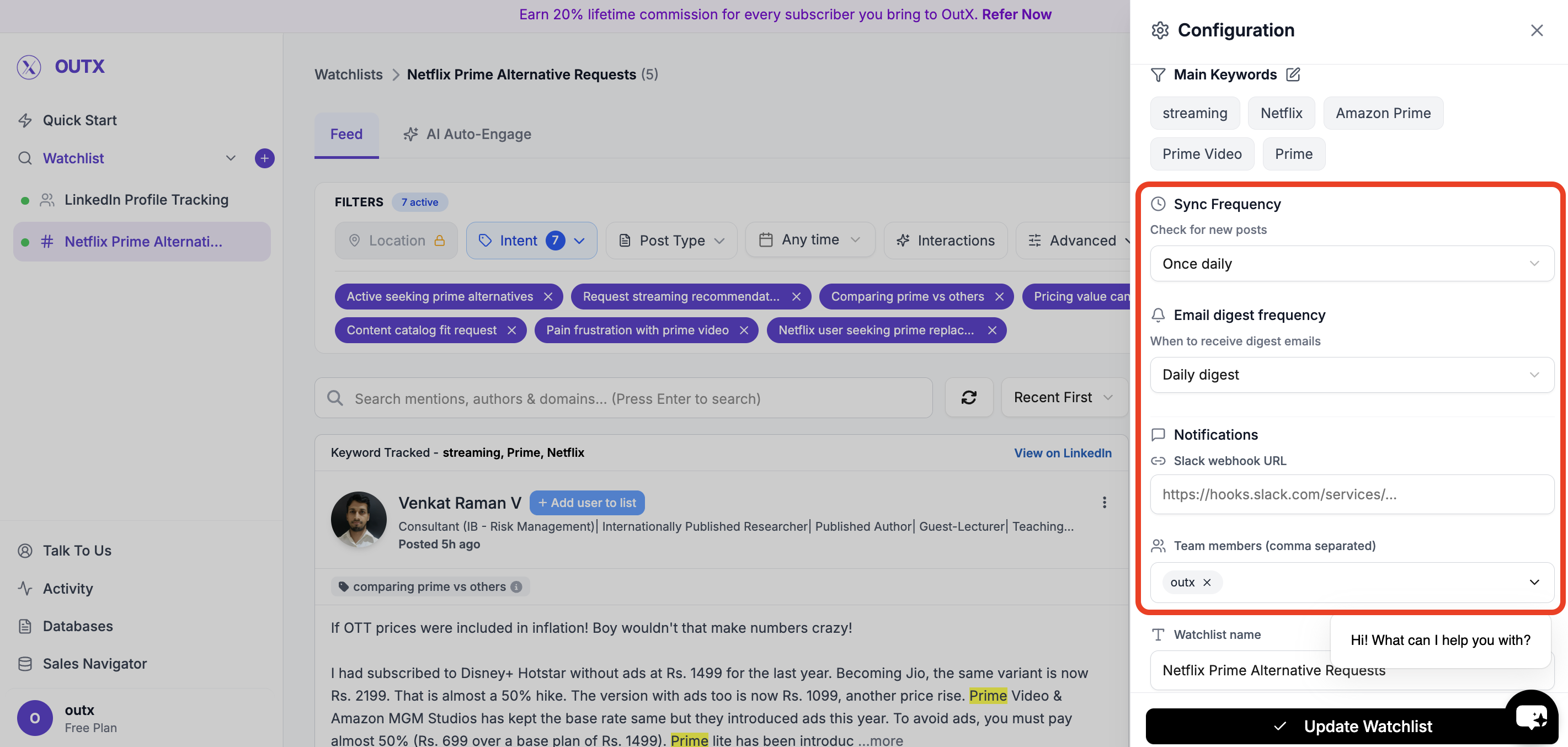 ***
### 6. Feed
Finally you have a live feed where you can posts with your targeted keywords.
***
### 6. Feed
Finally you have a live feed where you can posts with your targeted keywords.
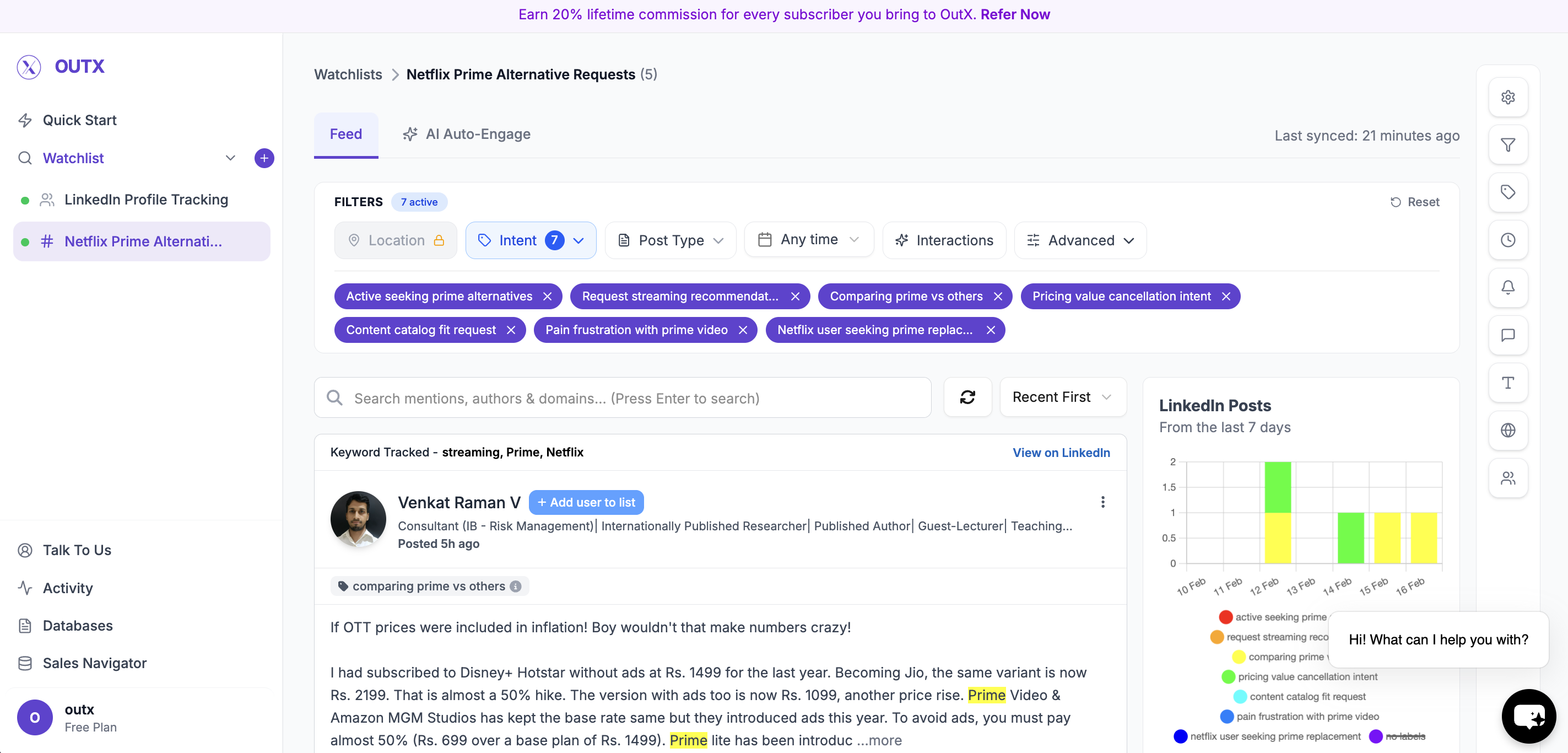 You can use filters to figure on left side to narrow down on your posts, to learn more about filters click here
***
## How to edit Keyword watchlist
### 1. Open Watchlist
Navigate to **Watchlist you want to update** from the main dashboard. Click the **configuration(Gear icon)** on right side panel.
You can use filters to figure on left side to narrow down on your posts, to learn more about filters click here
***
## How to edit Keyword watchlist
### 1. Open Watchlist
Navigate to **Watchlist you want to update** from the main dashboard. Click the **configuration(Gear icon)** on right side panel.
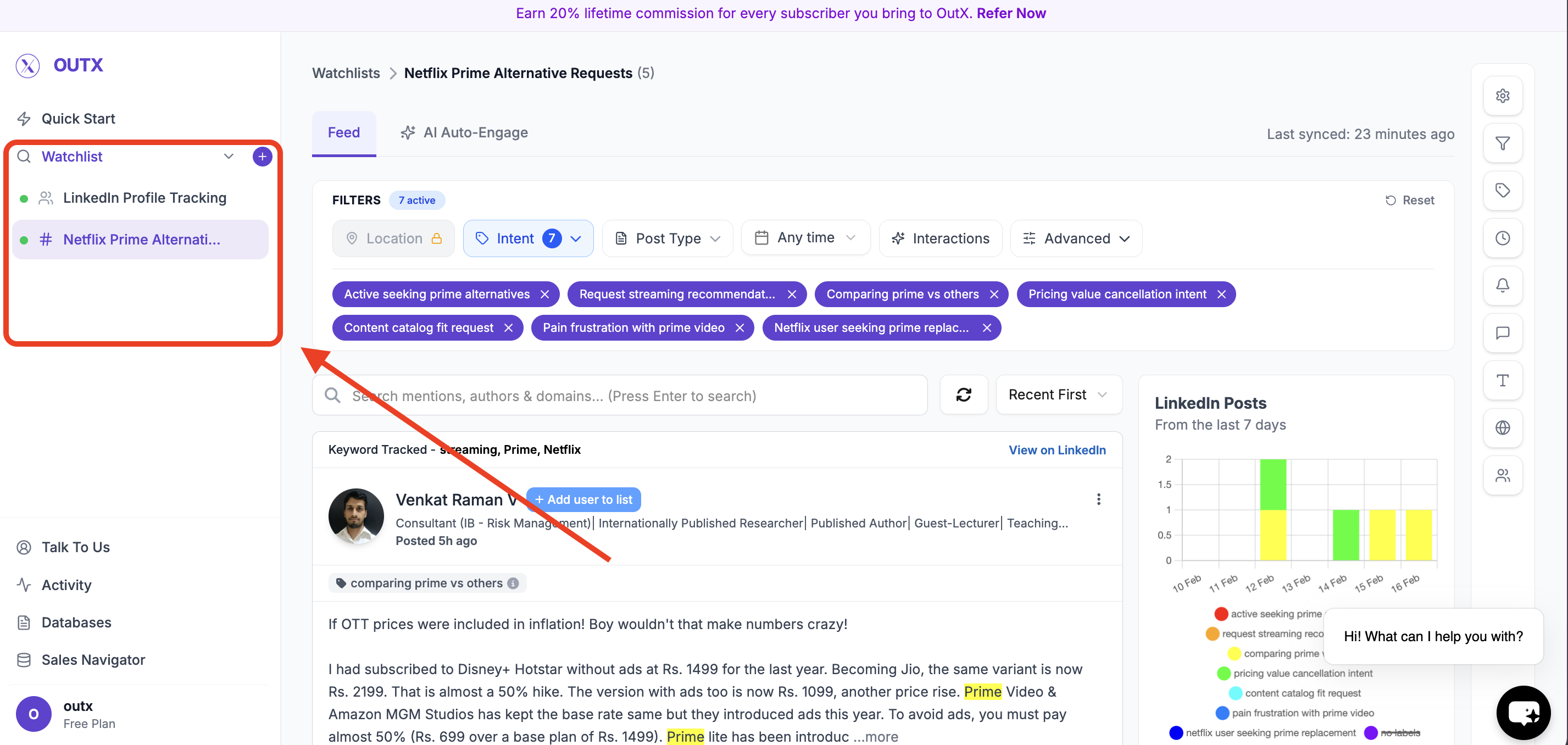 ***
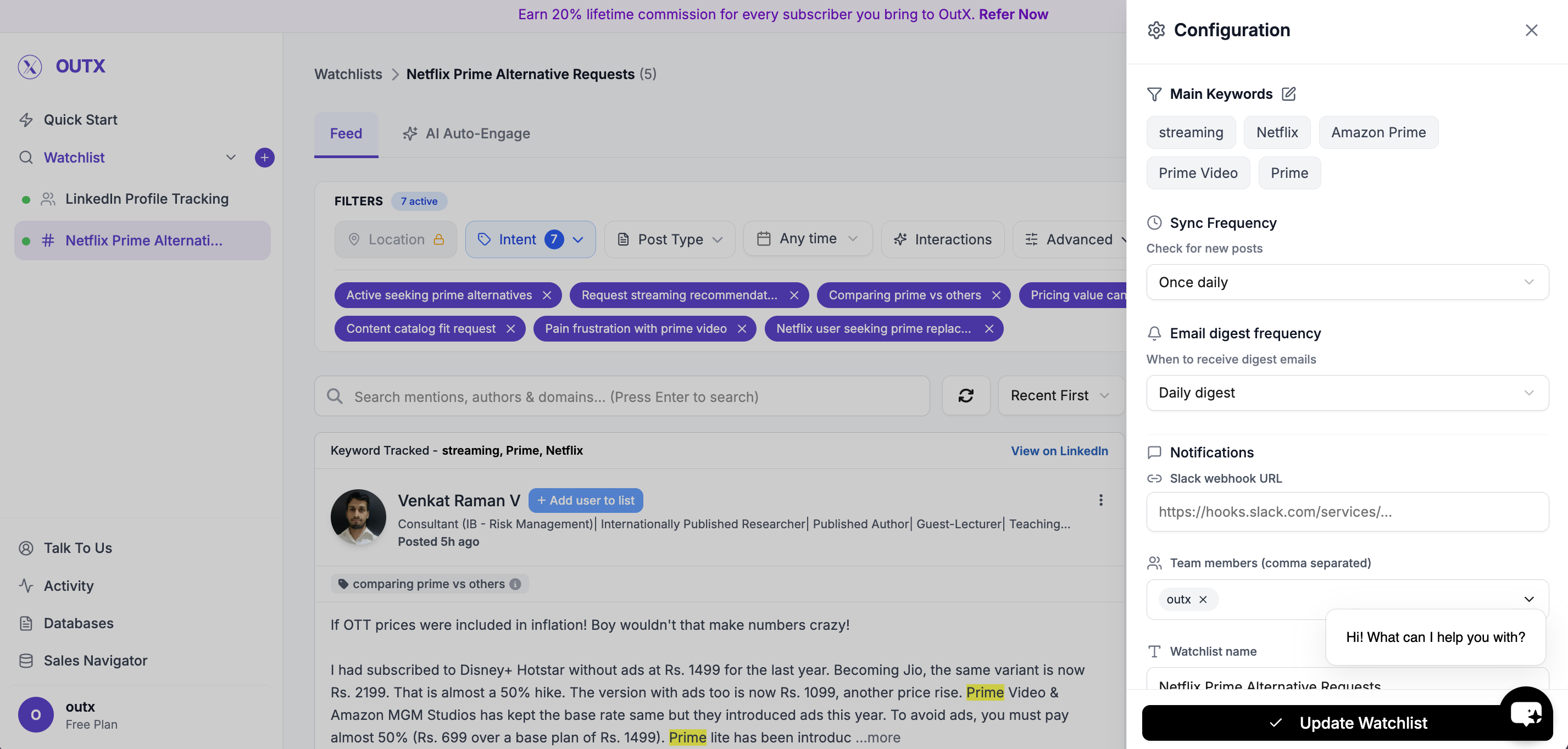
### 2. Edit Watchlist Configuration
Clicking the gear icon, you will be taken to the watchlist configuration screen.
***
### 2. Edit Watchlist Configuration
Clicking the gear icon, you will be taken to the watchlist configuration screen.
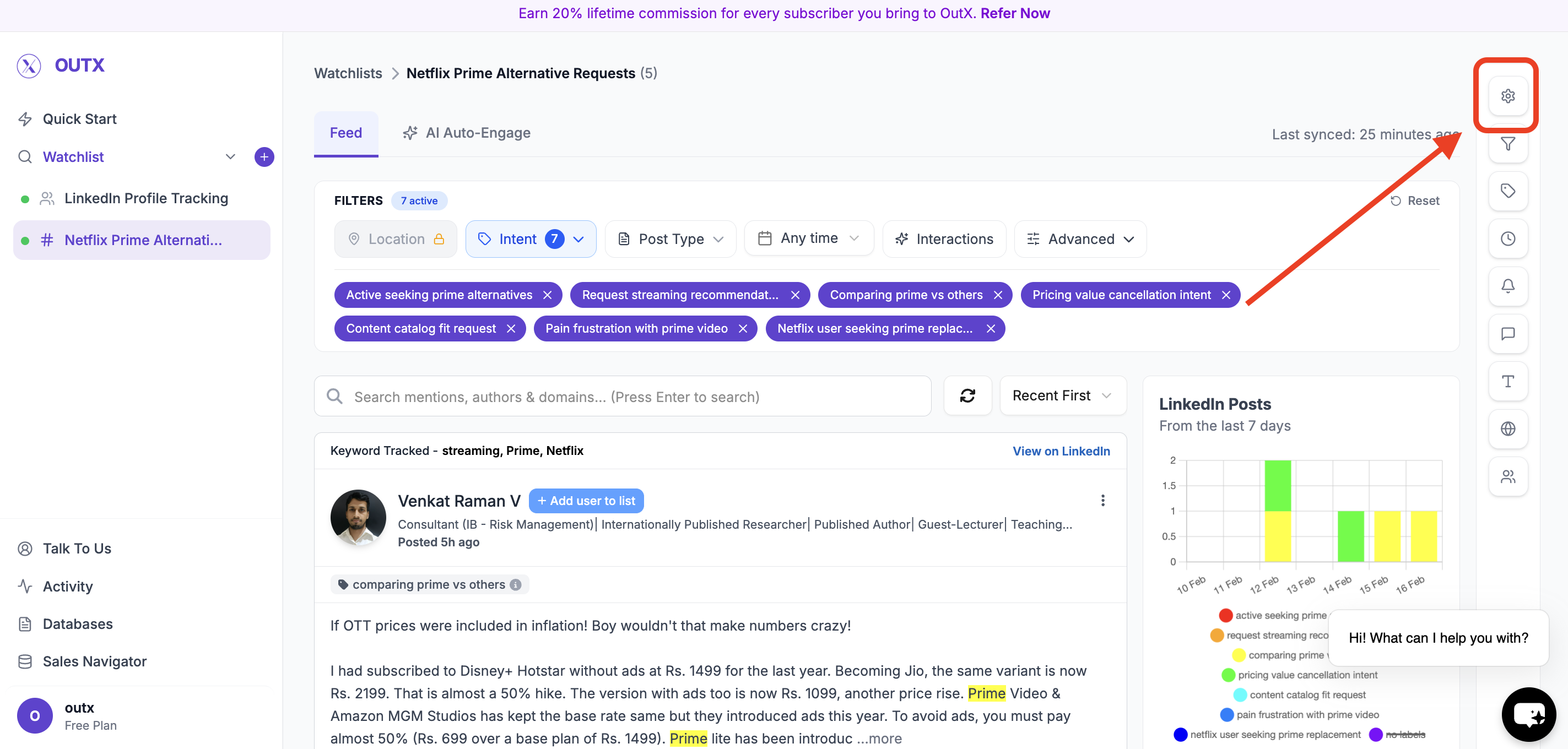 From here, follow the **same steps used when creating a keyword watchlist**, including:
* Adding, removing, or modifying keywords
From here, follow the **same steps used when creating a keyword watchlist**, including:
* Adding, removing, or modifying keywords
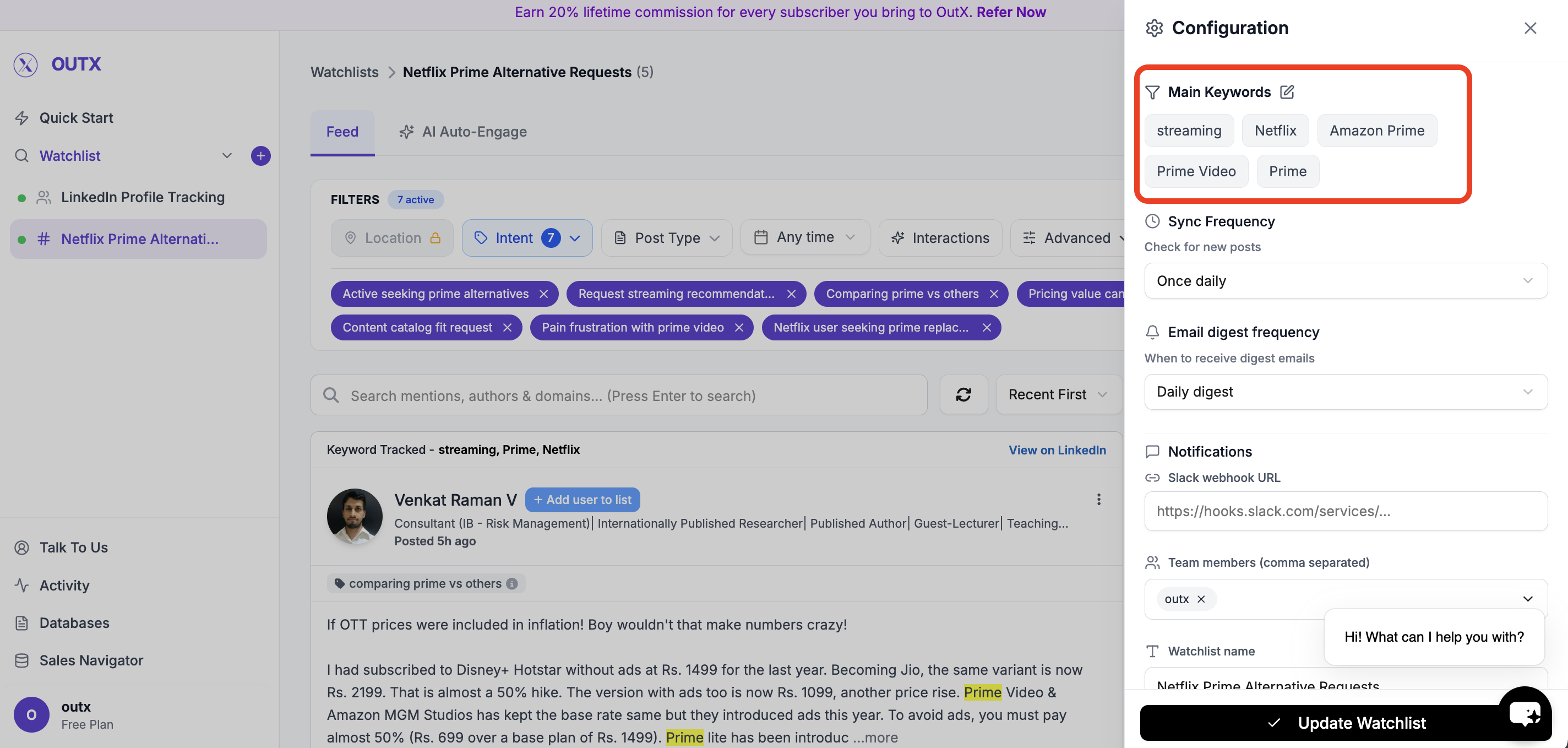 * Updating intents
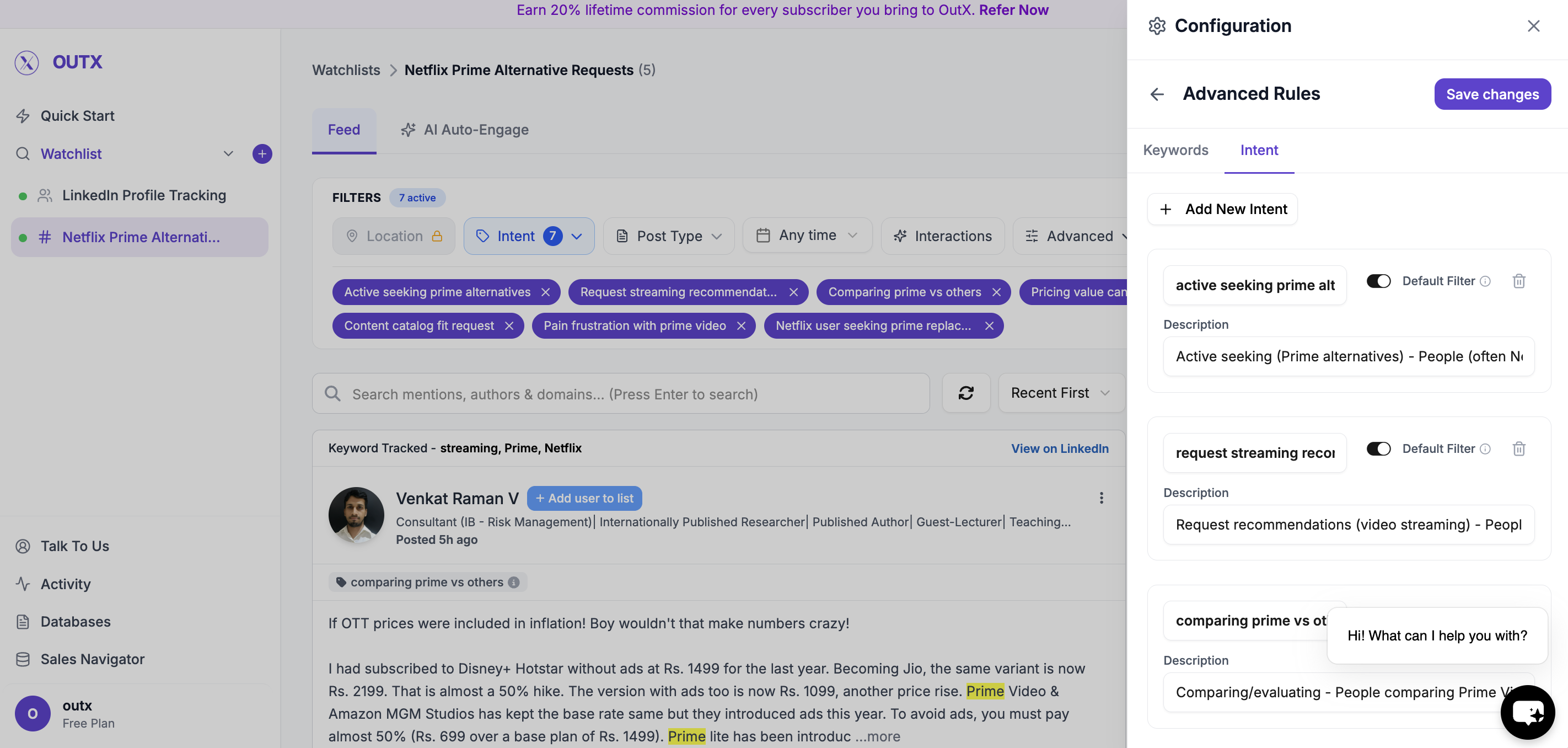 * Adjusting any alert or tracking settings
 ***
### 4. Save Changes
Click Update watchlist to apply your updates.
The watchlist will immediately start tracking data based on the updated configuration.
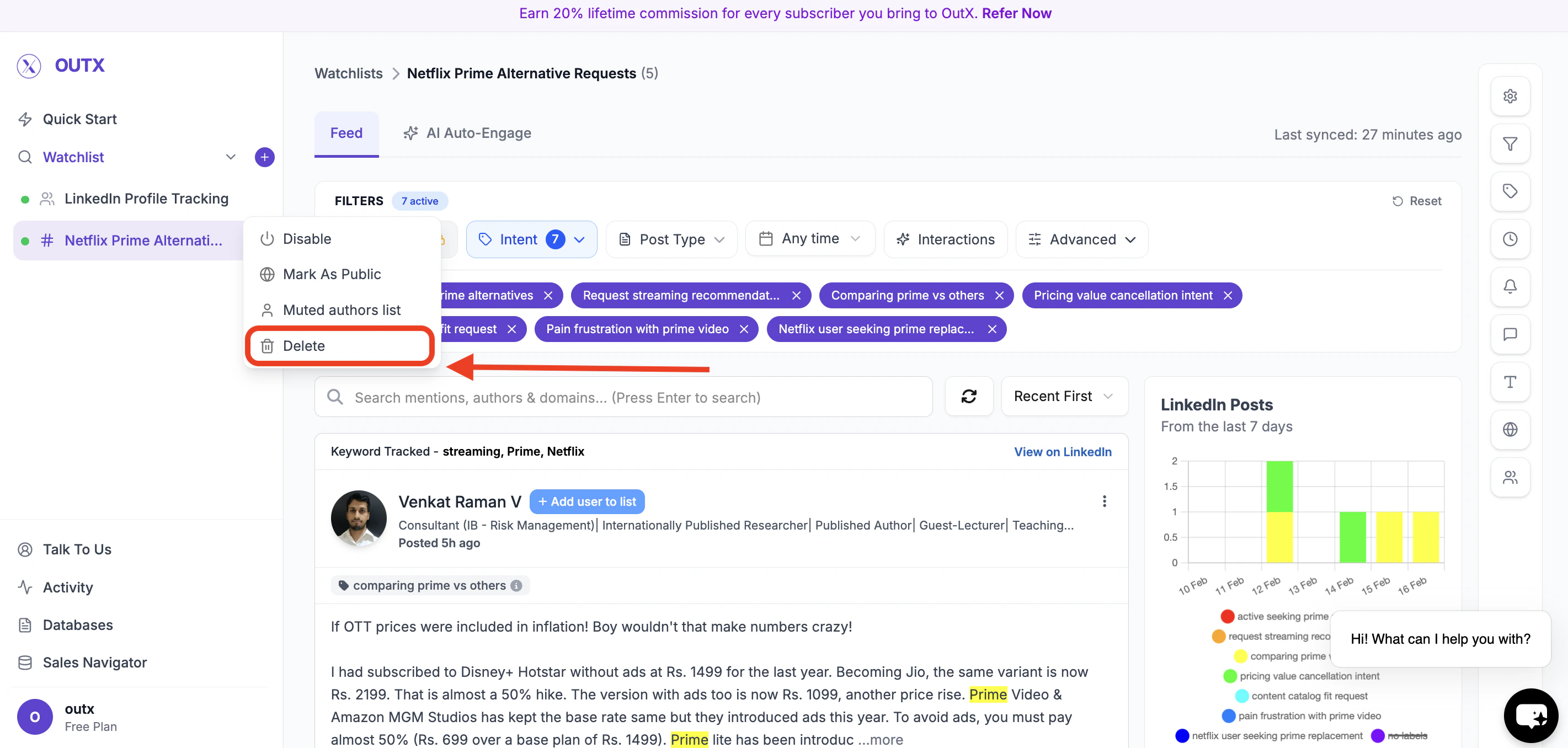
**How to delete a keyword watchlist?** Click on the three dots menu, then click the delete button.
***
### 4. Save Changes
Click Update watchlist to apply your updates.
The watchlist will immediately start tracking data based on the updated configuration.
**How to delete a keyword watchlist?** Click on the three dots menu, then click the delete button.
 ***
## Frequently Asked Questions
Yes! OutX's keyword module supports hashtags as keywords.
OutX supports partial matching, so minor misspellings often still match.
Yes. Put the full phrase in the "must also include" category to track exact multi-word keywords.
Add keywords you don't want to track in the excluded keywords section. Posts containing those keywords won't be tracked.
Yes. You can monitor comments from a set of LinkedIn profiles. Comment tracking is available on Expert and Ultimate plans.
Edit the watchlist anytime and delete keywords or labels as needed.
No. There is no cap on how many keywords a single watchlist can hold. Your plan caps how many watchlists you can have, not the keywords inside one.
Yes, you can filter posts based on location if the post mentions the country you are targeting.
All posts associated with that keyword will be **permanently removed** from the watchlist results.
New posts will start appearing from the moment the keyword is added. Previously published posts will not be backfilled.
No. Editing a watchlist does **not reset the entire watchlist**. Only data related to removed keywords is deleted.
Yes. You can edit a keyword watchlist at any time, and changes apply after you save.
The configuration steps are the same. The only difference is that editing starts by clicking the **pencil icon** on an existing watchlist instead of creating a new one.
Yes. Open the watchlist configuration (gear icon), click the edit icon next to the **Prompt** section, change the text and click **Update**.
Updating the prompt replaces the whole setup: OutX re-runs the AI analysis and generates a new keyword set, new intent labels and a new relevance objective, discarding the old ones. There is no merge option, so if you only want to add a keyword, edit the keyword list directly instead of rewriting the prompt.
Posts you already collected are kept, and OutX re-classifies the recent ones against the new labels automatically. Note that the API works differently: a prompt update through [`PUT /api-keyword-watchlist`](/docs/api-reference/watchlist/keyword/update) regenerates keywords and labels but does not re-classify older posts.
Yes. On **Expert** and **Ultimate** plans, the **Location Filter** is available in the feed sidebar. This filter works by detecting country names mentioned in post content. Go to your watchlist feed, open the filters panel on the left, and select the countries you want to focus on. Note: this filters by content mentions, not by the author's profile location.
Yes. OutX tracks public LinkedIn posts across the platform, not just from your connections. It scans posts based on your keywords regardless of whether you're connected to the author.
When you create a watchlist using a prompt, OutX generates an **objective** from your prompt and scores each post 1-10 on relevance to that objective. The default sort for prompt-based watchlists is **Relevance**, showing the most relevant posts first. You can switch to **Popularity** (by engagement) or **Recent** (by post date) using the sort dropdown.
If your watchlist returns too many irrelevant posts, try these fixes:
* Add **excluded keywords** to filter out noise (e.g., "hiring", "internship", "freelance")
* Add **must-also-include keywords** to require multiple conditions
* Make your primary keywords more specific
* Use the **Intent** filter in the feed sidebar to focus on specific categories
## Learn More
* [Keyword Tracking Guide](https://www.outx.ai/blog/keyword-tracking-guide)
* [LinkedIn Social Listening Guide](https://www.outx.ai/blog/guide-social-listening-linkedin)
* [LinkedIn Monitoring Guide](https://www.outx.ai/blog/linkedin-monitoring-guide-2025)
* [Track LinkedIn Mentions](https://www.outx.ai/blog/track-linkedin-mentions)
* [LinkedIn Social Listening Platform](https://www.outx.ai/social-listening-linkedin)
***
# People Watchlist
Source: [https://outx.ai/docs/documentation/linkedin-social-listening/people-tracking](https://outx.ai/docs/documentation/linkedin-social-listening/people-tracking)
**OutXAI's LinkedIn profile tracking** monitors selected profiles automatically and delivers organized updates.
### How It Works
* Add LinkedIn profiles to monitor
* OutXAI scans profiles every 12 hours
* Get clean feeds of posts, updates, and activity
* Organize with watchlists, labels, and notifications
**Track:** CEOs, CTOs, competitors, customers, influencers - all in one place.
> Too Long? Check out this Video →
***
## Quick Setup Guide
### **1. Create Watchlist**
Click "**+"** along with watchlist to create a new watchlist and click on people
A people watchlist lets you **track specific LinkedIn profiles** and get notified when something changes like new posts, job updates, or activity.
***
### **2. Add Profiles**
This step defines **which LinkedIn profiles OutX.ai should monitor**.
Examples:
* *Key Prospects*
* *Target Founders*
* *Hiring Managers – US*
This helps when you manage multiple people watchlists.
***
## Frequently Asked Questions
Yes! OutX's keyword module supports hashtags as keywords.
OutX supports partial matching, so minor misspellings often still match.
Yes. Put the full phrase in the "must also include" category to track exact multi-word keywords.
Add keywords you don't want to track in the excluded keywords section. Posts containing those keywords won't be tracked.
Yes. You can monitor comments from a set of LinkedIn profiles. Comment tracking is available on Expert and Ultimate plans.
Edit the watchlist anytime and delete keywords or labels as needed.
No. There is no cap on how many keywords a single watchlist can hold. Your plan caps how many watchlists you can have, not the keywords inside one.
Yes, you can filter posts based on location if the post mentions the country you are targeting.
All posts associated with that keyword will be **permanently removed** from the watchlist results.
New posts will start appearing from the moment the keyword is added. Previously published posts will not be backfilled.
No. Editing a watchlist does **not reset the entire watchlist**. Only data related to removed keywords is deleted.
Yes. You can edit a keyword watchlist at any time, and changes apply after you save.
The configuration steps are the same. The only difference is that editing starts by clicking the **pencil icon** on an existing watchlist instead of creating a new one.
Yes. Open the watchlist configuration (gear icon), click the edit icon next to the **Prompt** section, change the text and click **Update**.
Updating the prompt replaces the whole setup: OutX re-runs the AI analysis and generates a new keyword set, new intent labels and a new relevance objective, discarding the old ones. There is no merge option, so if you only want to add a keyword, edit the keyword list directly instead of rewriting the prompt.
Posts you already collected are kept, and OutX re-classifies the recent ones against the new labels automatically. Note that the API works differently: a prompt update through [`PUT /api-keyword-watchlist`](/docs/api-reference/watchlist/keyword/update) regenerates keywords and labels but does not re-classify older posts.
Yes. On **Expert** and **Ultimate** plans, the **Location Filter** is available in the feed sidebar. This filter works by detecting country names mentioned in post content. Go to your watchlist feed, open the filters panel on the left, and select the countries you want to focus on. Note: this filters by content mentions, not by the author's profile location.
Yes. OutX tracks public LinkedIn posts across the platform, not just from your connections. It scans posts based on your keywords regardless of whether you're connected to the author.
When you create a watchlist using a prompt, OutX generates an **objective** from your prompt and scores each post 1-10 on relevance to that objective. The default sort for prompt-based watchlists is **Relevance**, showing the most relevant posts first. You can switch to **Popularity** (by engagement) or **Recent** (by post date) using the sort dropdown.
If your watchlist returns too many irrelevant posts, try these fixes:
* Add **excluded keywords** to filter out noise (e.g., "hiring", "internship", "freelance")
* Add **must-also-include keywords** to require multiple conditions
* Make your primary keywords more specific
* Use the **Intent** filter in the feed sidebar to focus on specific categories
## Learn More
* [Keyword Tracking Guide](https://www.outx.ai/blog/keyword-tracking-guide)
* [LinkedIn Social Listening Guide](https://www.outx.ai/blog/guide-social-listening-linkedin)
* [LinkedIn Monitoring Guide](https://www.outx.ai/blog/linkedin-monitoring-guide-2025)
* [Track LinkedIn Mentions](https://www.outx.ai/blog/track-linkedin-mentions)
* [LinkedIn Social Listening Platform](https://www.outx.ai/social-listening-linkedin)
***
# People Watchlist
Source: [https://outx.ai/docs/documentation/linkedin-social-listening/people-tracking](https://outx.ai/docs/documentation/linkedin-social-listening/people-tracking)
**OutXAI's LinkedIn profile tracking** monitors selected profiles automatically and delivers organized updates.
### How It Works
* Add LinkedIn profiles to monitor
* OutXAI scans profiles every 12 hours
* Get clean feeds of posts, updates, and activity
* Organize with watchlists, labels, and notifications
**Track:** CEOs, CTOs, competitors, customers, influencers - all in one place.
> Too Long? Check out this Video →
***
## Quick Setup Guide
### **1. Create Watchlist**
Click "**+"** along with watchlist to create a new watchlist and click on people
A people watchlist lets you **track specific LinkedIn profiles** and get notified when something changes like new posts, job updates, or activity.
***
### **2. Add Profiles**
This step defines **which LinkedIn profiles OutX.ai should monitor**.
Examples:
* *Key Prospects*
* *Target Founders*
* *Hiring Managers – US*
This helps when you manage multiple people watchlists.
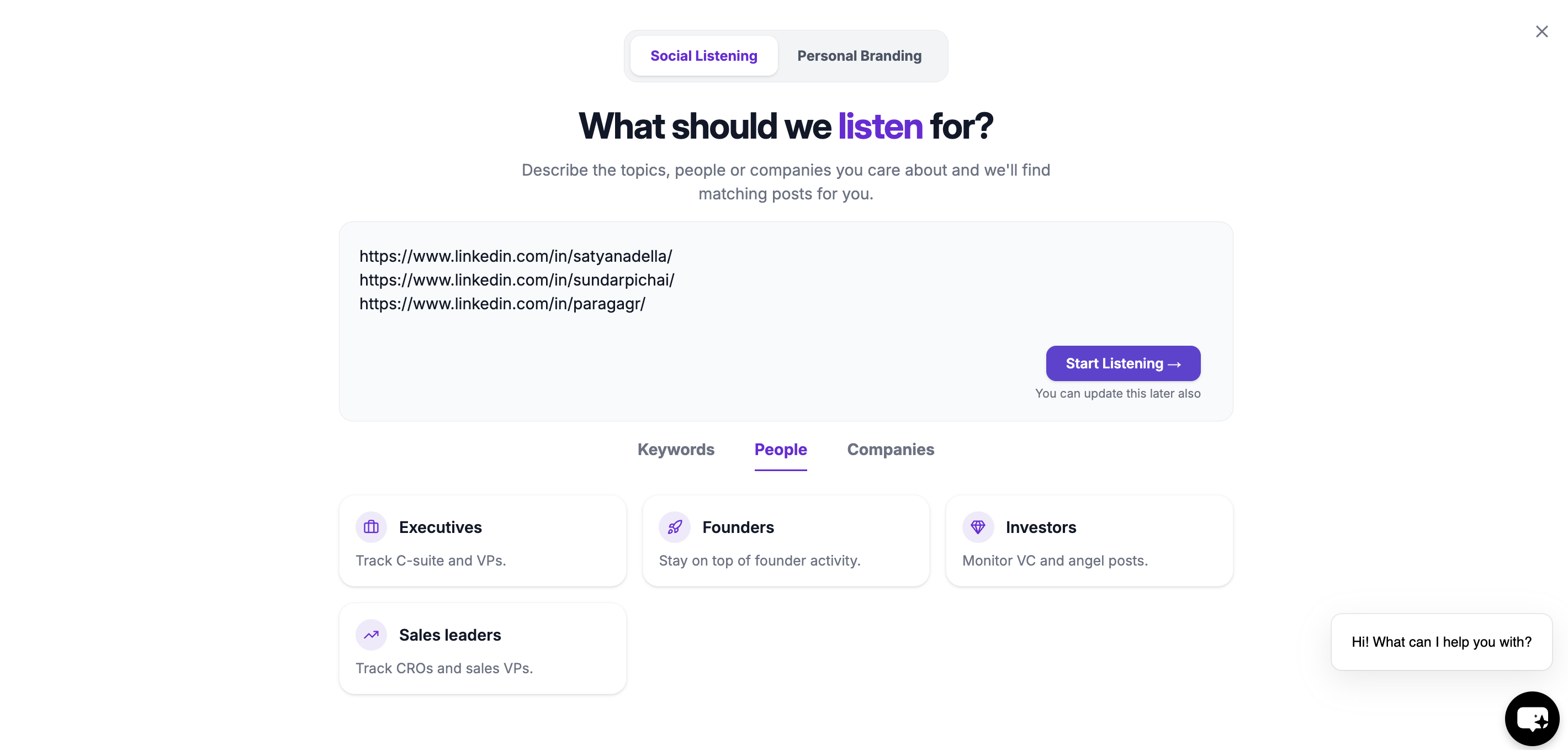 This will create your people watchlist
***
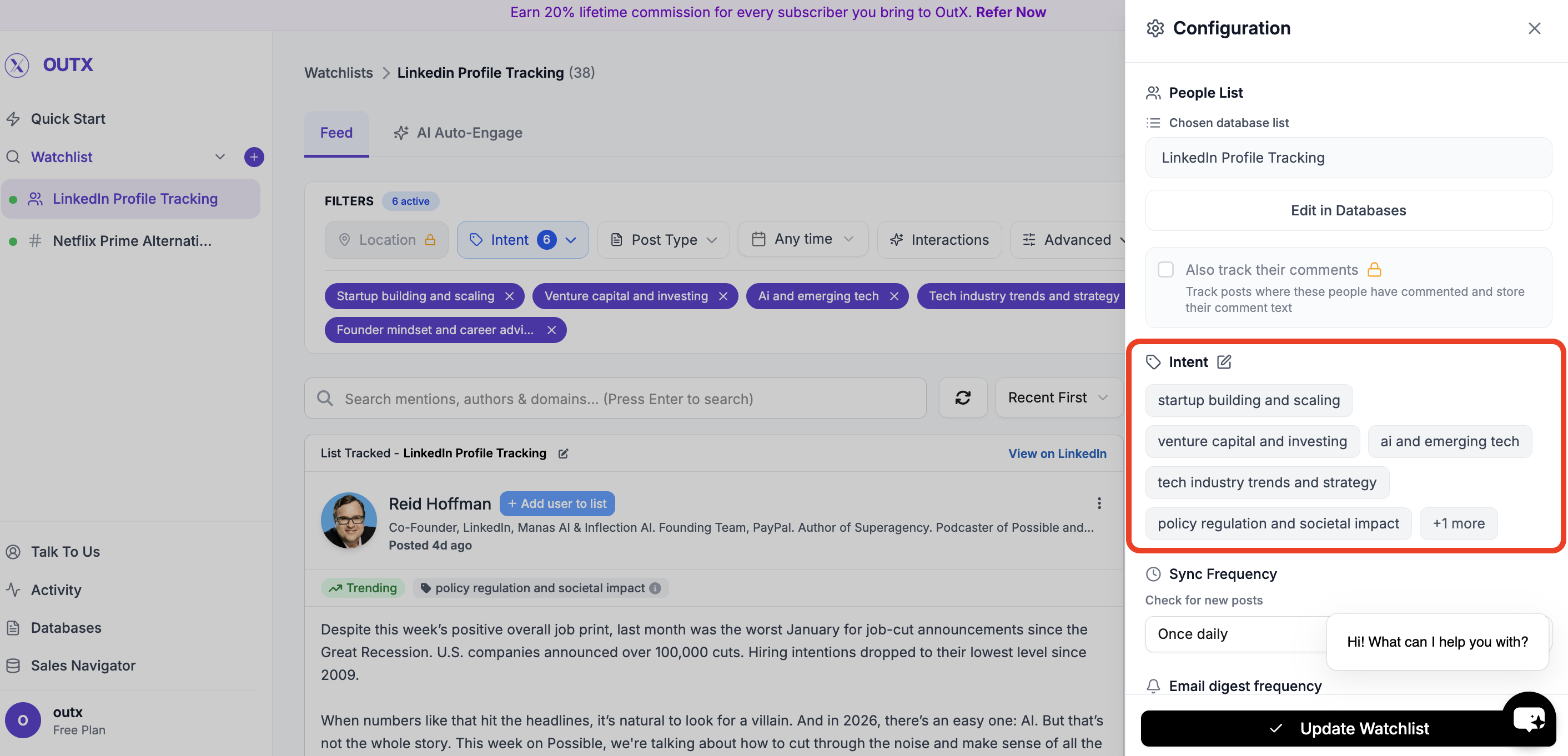
### **3. Set Intents**
Intents help you **group people's post inside a watchlist**.
Instead of tracking everyone the same way, labels let you:
* Segment posts by role, intent, or priority
* Filter updates more easily
* Understand *why* someone is being tracked
**Intent Name**
A short category name such as:
* *Startup Mentors*
* *High-Intent Leads*
* *Decision Makers*
**Intent Description**
Add a short note explaining who belongs in this label.
This makes it easier for you and your team to stay aligned.
This will create your people watchlist
***
### **3. Set Intents**
Intents help you **group people's post inside a watchlist**.
Instead of tracking everyone the same way, labels let you:
* Segment posts by role, intent, or priority
* Filter updates more easily
* Understand *why* someone is being tracked
**Intent Name**
A short category name such as:
* *Startup Mentors*
* *High-Intent Leads*
* *Decision Makers*
**Intent Description**
Add a short note explaining who belongs in this label.
This makes it easier for you and your team to stay aligned.
 ***
### **4. Advanced Watchlist Settings & Notifications**
Fine-tune how and when you're notified:
* **Fetch frequency**: How often OutX.ai scans LinkedIn (e.g., every 12 hours)
* **Team access**: Add teammates to the watchlist
* **Slack integration**: Drop in your webhook URL to receive real-time alerts
***
### **4. Advanced Watchlist Settings & Notifications**
Fine-tune how and when you're notified:
* **Fetch frequency**: How often OutX.ai scans LinkedIn (e.g., every 12 hours)
* **Team access**: Add teammates to the watchlist
* **Slack integration**: Drop in your webhook URL to receive real-time alerts
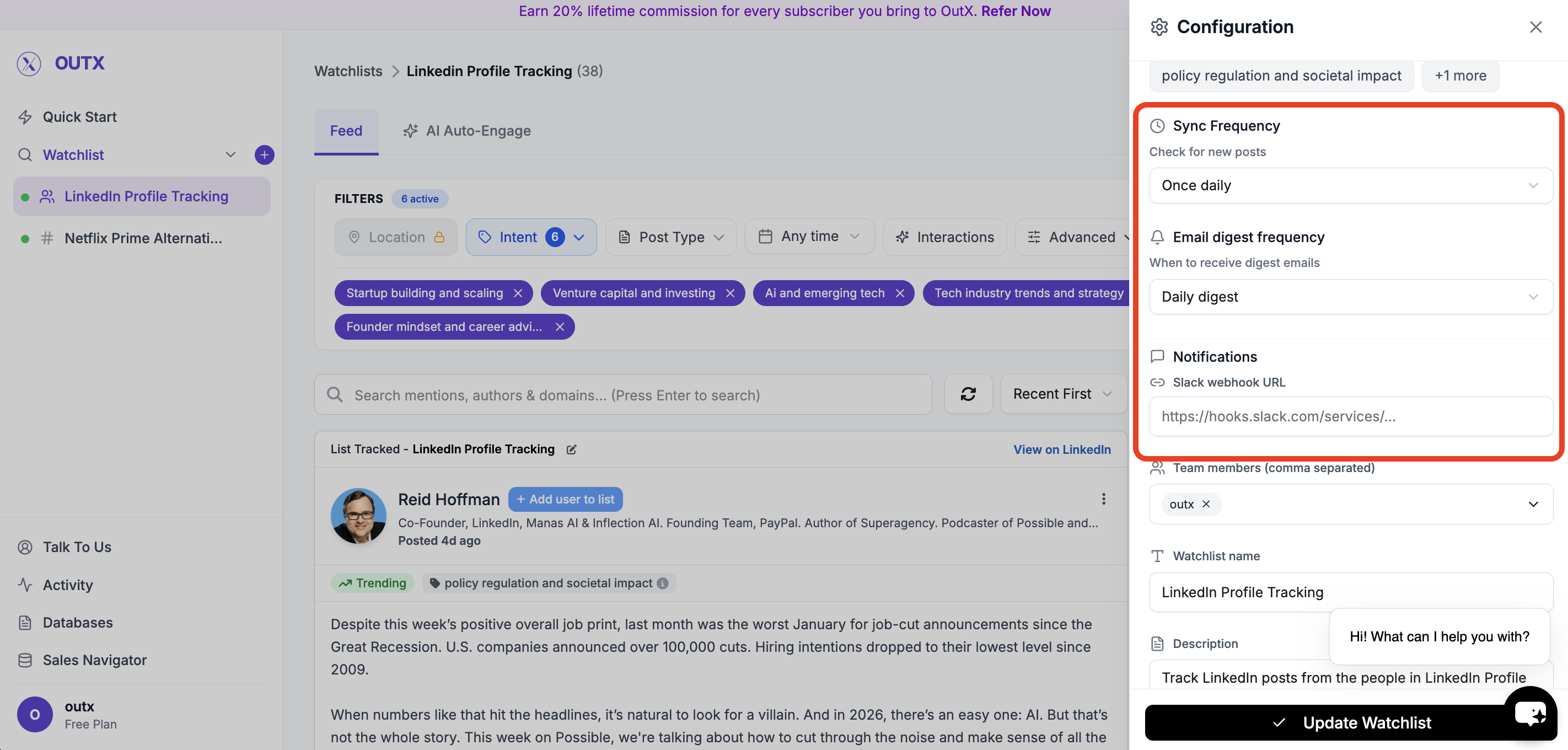 ### Feed
OutX.ai now tracks all selected LinkedIn profiles automatically, delivering relevant updates without manual checking.
### Feed
OutX.ai now tracks all selected LinkedIn profiles automatically, delivering relevant updates without manual checking.
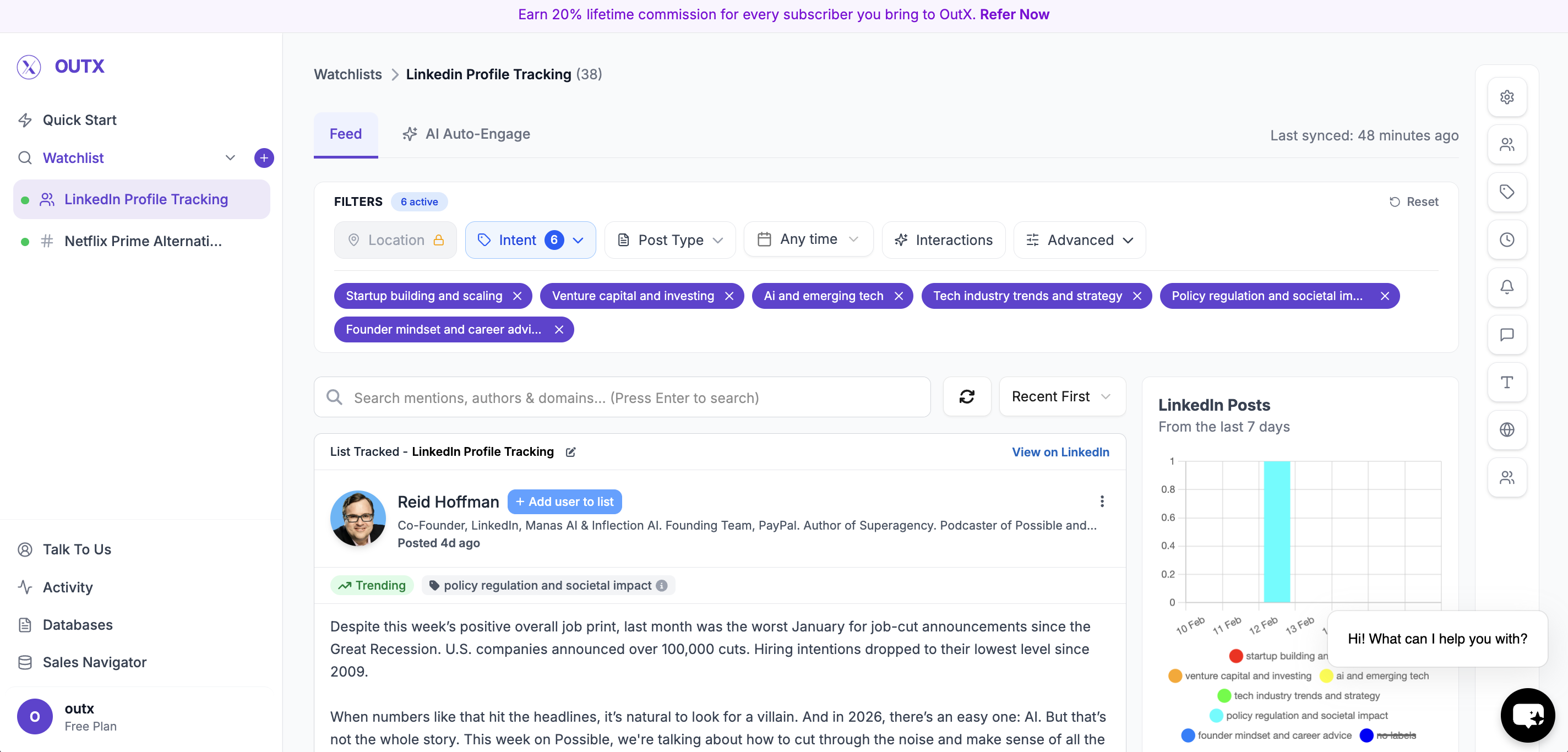 You can use filters to figure on left side to narrow down on your posts, to learn more about filters click here.
***
## How to edit people watchlist?
### 1. Open Watchlist
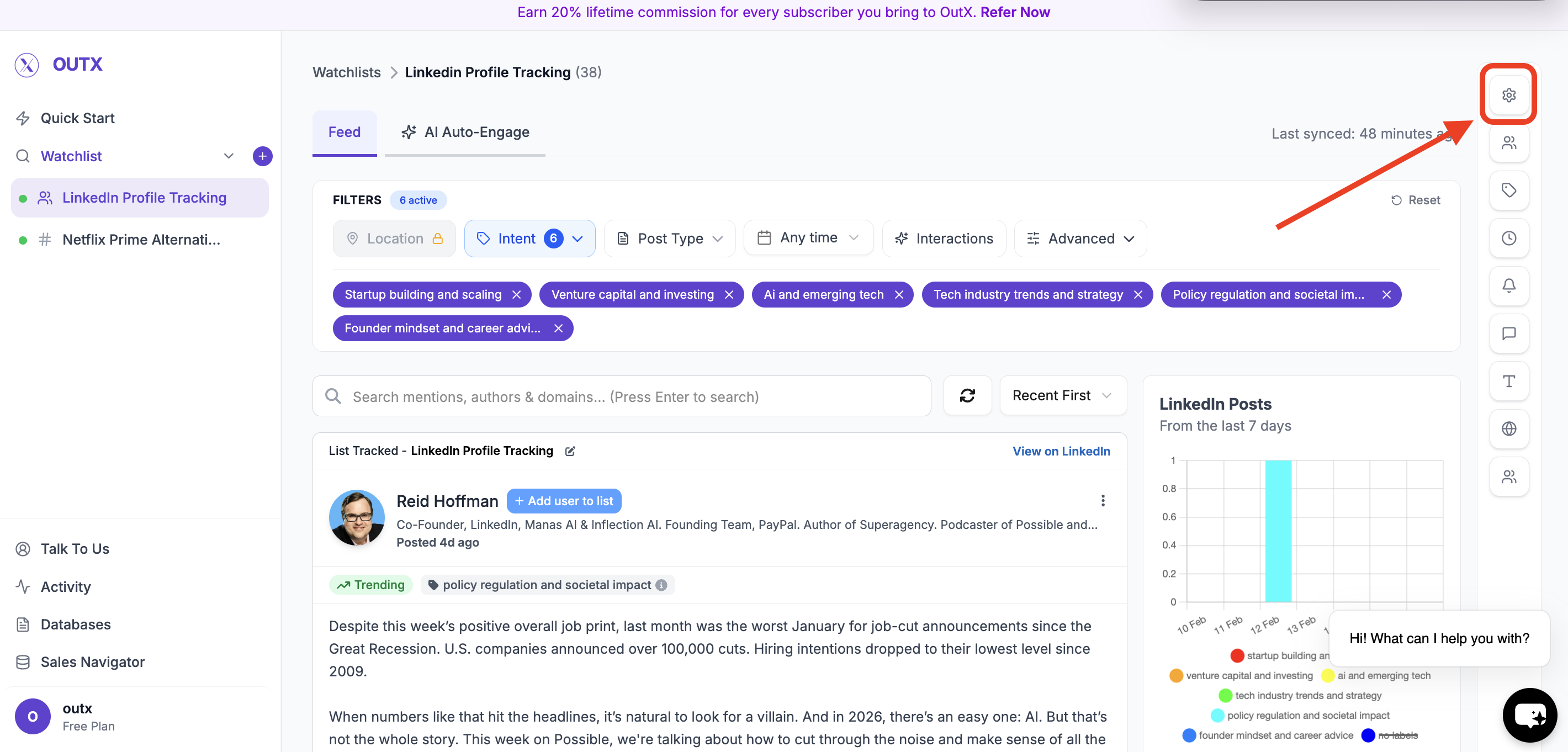
Navigate to **Watchlist you want to update** from the main dashboard. Click the **configuration(Gear icon)** on right side panel.
You can use filters to figure on left side to narrow down on your posts, to learn more about filters click here.
***
## How to edit people watchlist?
### 1. Open Watchlist
Navigate to **Watchlist you want to update** from the main dashboard. Click the **configuration(Gear icon)** on right side panel.
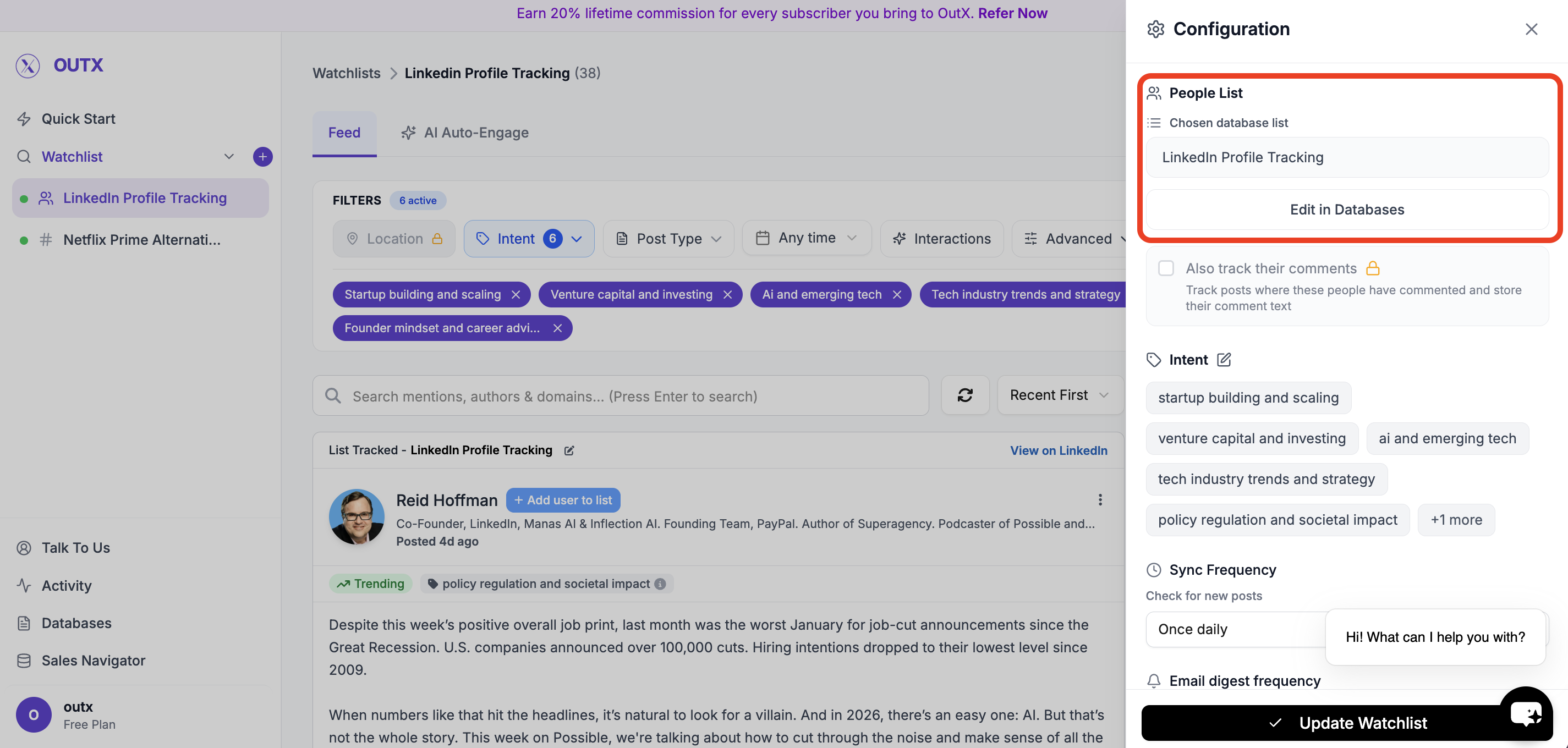
 ### 2. Edit in database
Click on edit in database then add people in selected list.
### 2. Edit in database
Click on edit in database then add people in selected list.
 ***
### 3. Import Profiles
Within the list, click the **three dots (⋯)** in the **top right corner**, and then select **Import**.
***
### 3. Import Profiles
Within the list, click the **three dots (⋯)** in the **top right corner**, and then select **Import**.
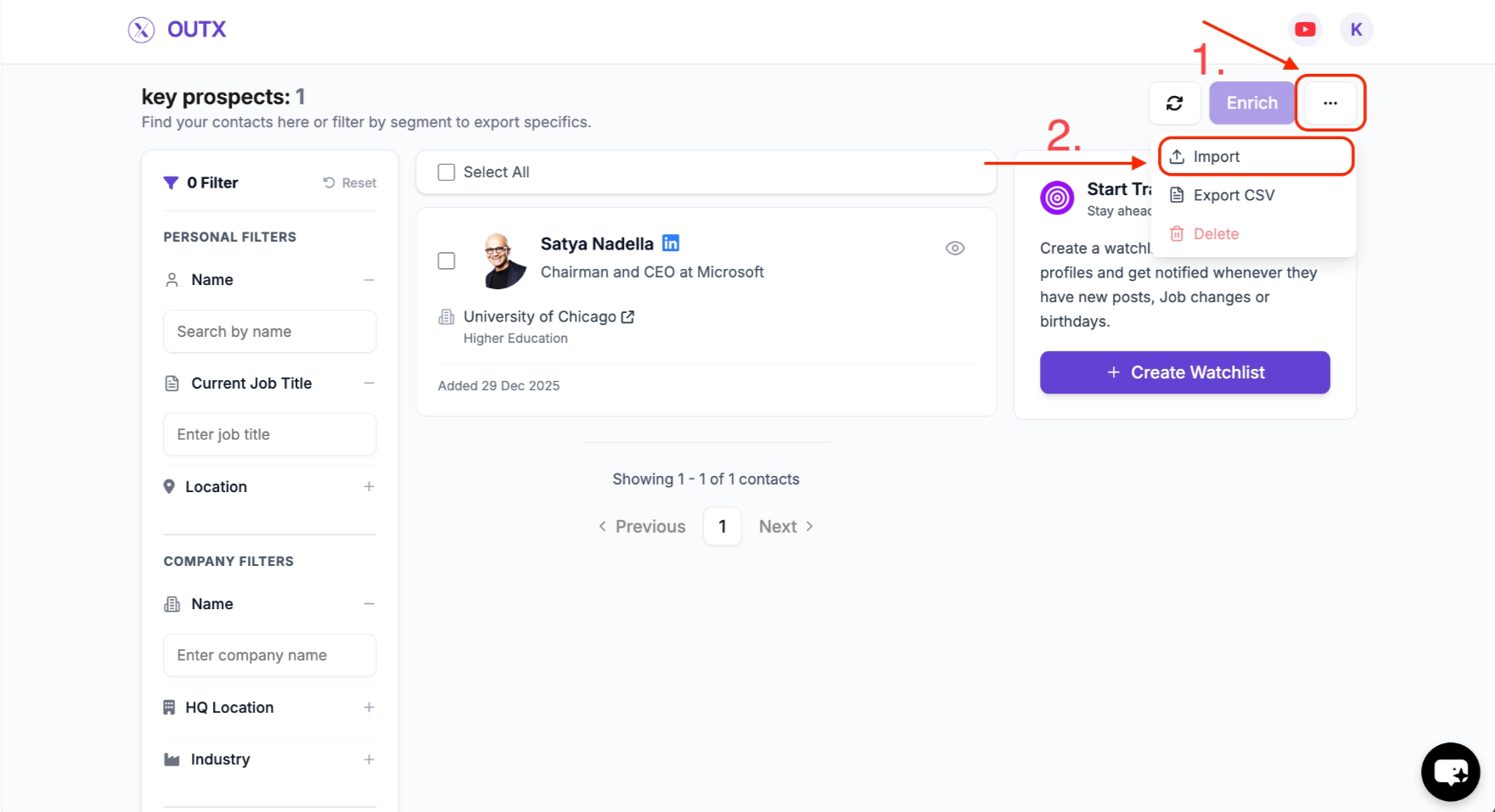 ***
### 4. Add or Update Profiles
You can now update the list of people to be tracked in two ways:
* **Manual Import** – Paste LinkedIn profile URLs or enter them one-by-one.
* **CSV Import** – Upload a CSV file containing LinkedIn profile URLs.
***
### 4. Add or Update Profiles
You can now update the list of people to be tracked in two ways:
* **Manual Import** – Paste LinkedIn profile URLs or enter them one-by-one.
* **CSV Import** – Upload a CSV file containing LinkedIn profile URLs.
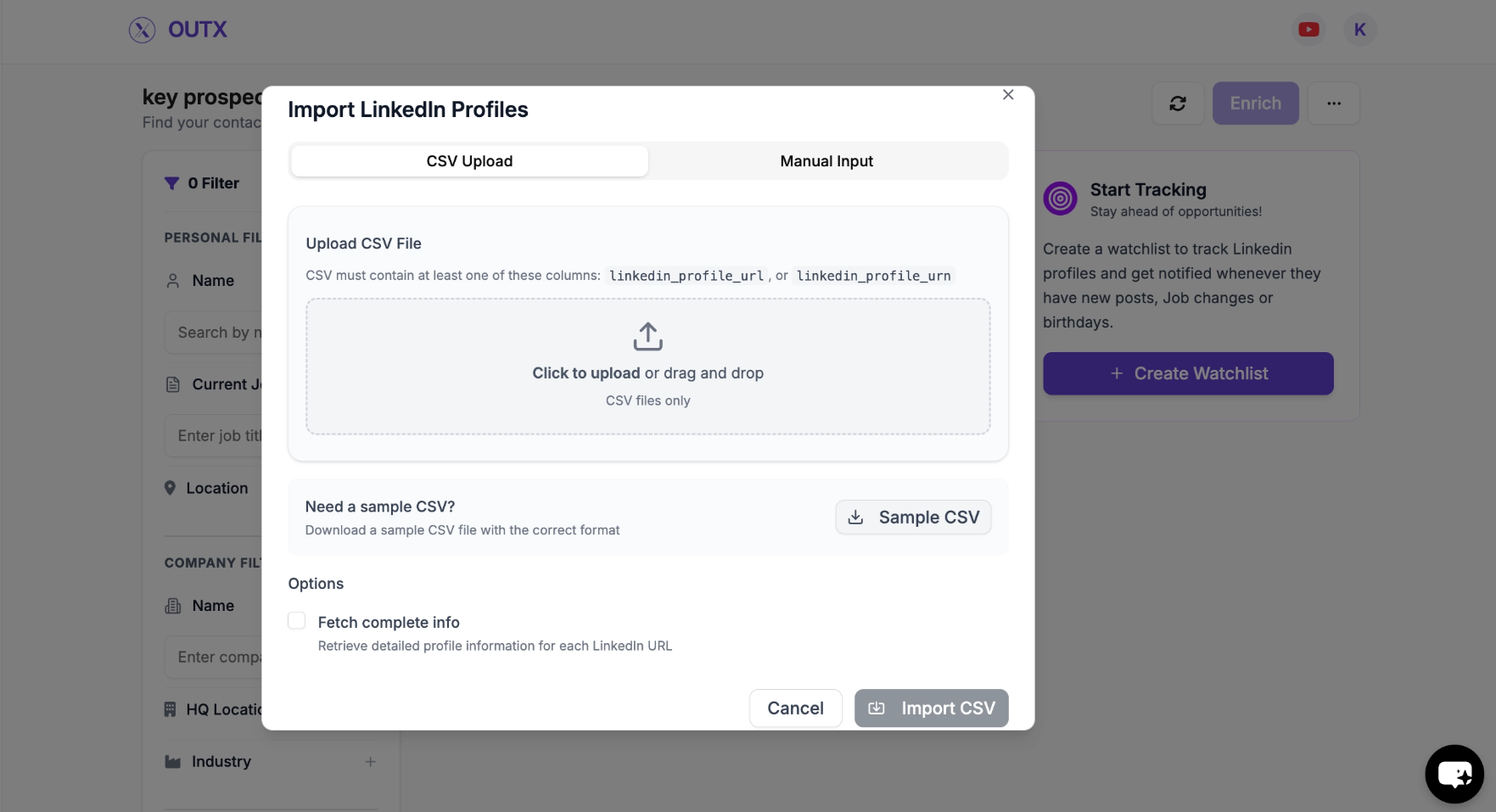 Make any additions or removals needed.
💡
### How to delete People watchlist?
* Click on three dots and then click on delete button
Make any additions or removals needed.
💡
### How to delete People watchlist?
* Click on three dots and then click on delete button
 ***
## Frequently Asked Questions
No, OutX only tracks publicly available data to stay compliant with LinkedIn's rules.
No, LinkedIn does not allow third-party tools to access private connection data.
If a user blocks you on LinkedIn, OutX cannot fetch their posts anymore.
Two limits apply together.
**200 profiles per watchlist**, on every plan.
**A total across all your watchlists, set by your plan**: 400 on Free, 1,000 on Growth, 4,000 on Expert, 20,000 on Ultimate. This counts every profile and company you track anywhere in the account, so creating extra watchlists does not raise it. To follow more people than your plan allows, upgrade or stop tracking the ones you no longer need.
Yes, OutX supports this in the profile tracking module.
Yes, you can filter posts based on location if the post mentions the country you are targeting.
Removing a profile will stop tracking that person going forward. Previously collected activity for that profile may be retained depending on your plan and retention settings.
Yes. You can import multiple LinkedIn profiles at once using a **CSV** file via the import option. This is useful when updating large lists.
The core setup steps are the same as creating a watchlist. The only extra actions are:
1. Clicking the **edit (pencil) icon** to open the existing watchlist.
2. Navigating to the associated list and using the **import** option to update profiles.
Yes. You can update a People Watchlist as often as needed. Changes apply once you save the updated list.
Yes. OutX can track public LinkedIn posts from any profile, regardless of whether you are connected to them. However, some profiles with strict privacy settings may have limited visibility.
The fetch frequency depends on your watchlist settings and plan. Growth plans refresh every 24 hours, Expert plans every 12 hours, and Ultimate plans can refresh as frequently as every 6 hours.
Yes, up to the 200-profile ceiling for that watchlist. Use the CSV import in the list's Import option to add a batch at once.
Yes. OutX detects job changes for tracked profiles. When a tracked person updates their LinkedIn title or moves to a new company, this shows up in your feed as a signal you can act on.
***
## Learn More
* [People Tracking Guide](https://www.outx.ai/blog/people-tracking-guide)
* [LinkedIn Prospecting Guide](https://www.outx.ai/blog/linkedin-prospecting-2025-guide)
* [LinkedIn Monitoring Guide](https://www.outx.ai/blog/linkedin-monitoring-guide-2025)
***
# Company Watchlist
Source: [https://outx.ai/docs/documentation/linkedin-social-listening/company-watchlist](https://outx.ai/docs/documentation/linkedin-social-listening/company-watchlist)
## How It Works
* Add LinkedIn companies to monitor
* OutXAI scans companies every 12 hours
* Get clean feeds of posts, updates, and activity
* Organize with watchlists, labels, and notifications"
## Quick Setup Guide
### **1. Create Watchlist**
Click "**+"** along with watchlist to create a new watchlist and click on company
A company watchlist lets you **track specific LinkedIn company** and get notified when something changes like new posts, job updates, or activity.
***
### **2. Add Company**
This step defines **which LinkedIn company OutX.ai should monitor** then click on start listening
Examples:
* *Key companies*
This helps when you manage multiple company watchlists.
***
## Frequently Asked Questions
No, OutX only tracks publicly available data to stay compliant with LinkedIn's rules.
No, LinkedIn does not allow third-party tools to access private connection data.
If a user blocks you on LinkedIn, OutX cannot fetch their posts anymore.
Two limits apply together.
**200 profiles per watchlist**, on every plan.
**A total across all your watchlists, set by your plan**: 400 on Free, 1,000 on Growth, 4,000 on Expert, 20,000 on Ultimate. This counts every profile and company you track anywhere in the account, so creating extra watchlists does not raise it. To follow more people than your plan allows, upgrade or stop tracking the ones you no longer need.
Yes, OutX supports this in the profile tracking module.
Yes, you can filter posts based on location if the post mentions the country you are targeting.
Removing a profile will stop tracking that person going forward. Previously collected activity for that profile may be retained depending on your plan and retention settings.
Yes. You can import multiple LinkedIn profiles at once using a **CSV** file via the import option. This is useful when updating large lists.
The core setup steps are the same as creating a watchlist. The only extra actions are:
1. Clicking the **edit (pencil) icon** to open the existing watchlist.
2. Navigating to the associated list and using the **import** option to update profiles.
Yes. You can update a People Watchlist as often as needed. Changes apply once you save the updated list.
Yes. OutX can track public LinkedIn posts from any profile, regardless of whether you are connected to them. However, some profiles with strict privacy settings may have limited visibility.
The fetch frequency depends on your watchlist settings and plan. Growth plans refresh every 24 hours, Expert plans every 12 hours, and Ultimate plans can refresh as frequently as every 6 hours.
Yes, up to the 200-profile ceiling for that watchlist. Use the CSV import in the list's Import option to add a batch at once.
Yes. OutX detects job changes for tracked profiles. When a tracked person updates their LinkedIn title or moves to a new company, this shows up in your feed as a signal you can act on.
***
## Learn More
* [People Tracking Guide](https://www.outx.ai/blog/people-tracking-guide)
* [LinkedIn Prospecting Guide](https://www.outx.ai/blog/linkedin-prospecting-2025-guide)
* [LinkedIn Monitoring Guide](https://www.outx.ai/blog/linkedin-monitoring-guide-2025)
***
# Company Watchlist
Source: [https://outx.ai/docs/documentation/linkedin-social-listening/company-watchlist](https://outx.ai/docs/documentation/linkedin-social-listening/company-watchlist)
## How It Works
* Add LinkedIn companies to monitor
* OutXAI scans companies every 12 hours
* Get clean feeds of posts, updates, and activity
* Organize with watchlists, labels, and notifications"
## Quick Setup Guide
### **1. Create Watchlist**
Click "**+"** along with watchlist to create a new watchlist and click on company
A company watchlist lets you **track specific LinkedIn company** and get notified when something changes like new posts, job updates, or activity.
***
### **2. Add Company**
This step defines **which LinkedIn company OutX.ai should monitor** then click on start listening
Examples:
* *Key companies*
This helps when you manage multiple company watchlists.
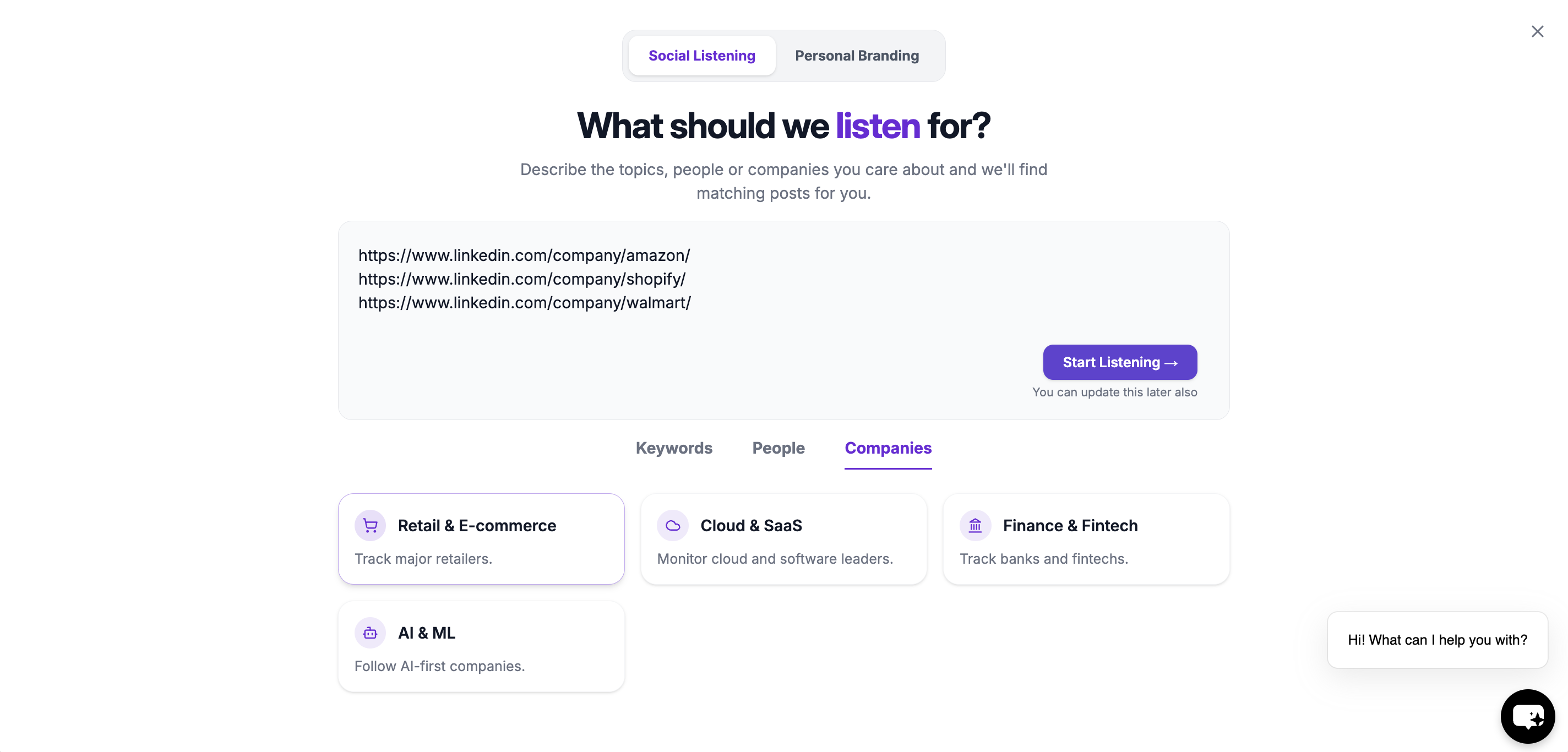 This will create your company watchlist
***
### **3. Set Intents**
Intents help you **group company's post inside a watchlist**.
Instead of tracking everyone the same way, labels let you:
* Segment posts by role, intent, or priority
* Filter updates more easily
* Understand *why* someone is being tracked
**Intent Name**
A short category name such as:
* *Startup*
* *High-Intent Leads*
* *Decision Makers*
**Intent Description**
Add a short note explaining who belongs in this label.
This makes it easier for you and your team to stay aligned.
***
### **4. Advanced Watchlist Settings & Notifications**
Fine-tune how and when you're notified:
* **Fetch frequency**: How often OutX.ai scans LinkedIn (e.g., every 12 hours)
* **Team access**: Add teammates to the watchlist
* **Slack integration**: Drop in your webhook URL to receive real-time alerts
### Feed
OutX.ai now tracks all selected LinkedIn company automatically, delivering relevant updates without manual checking.
This will create your company watchlist
***
### **3. Set Intents**
Intents help you **group company's post inside a watchlist**.
Instead of tracking everyone the same way, labels let you:
* Segment posts by role, intent, or priority
* Filter updates more easily
* Understand *why* someone is being tracked
**Intent Name**
A short category name such as:
* *Startup*
* *High-Intent Leads*
* *Decision Makers*
**Intent Description**
Add a short note explaining who belongs in this label.
This makes it easier for you and your team to stay aligned.
***
### **4. Advanced Watchlist Settings & Notifications**
Fine-tune how and when you're notified:
* **Fetch frequency**: How often OutX.ai scans LinkedIn (e.g., every 12 hours)
* **Team access**: Add teammates to the watchlist
* **Slack integration**: Drop in your webhook URL to receive real-time alerts
### Feed
OutX.ai now tracks all selected LinkedIn company automatically, delivering relevant updates without manual checking.
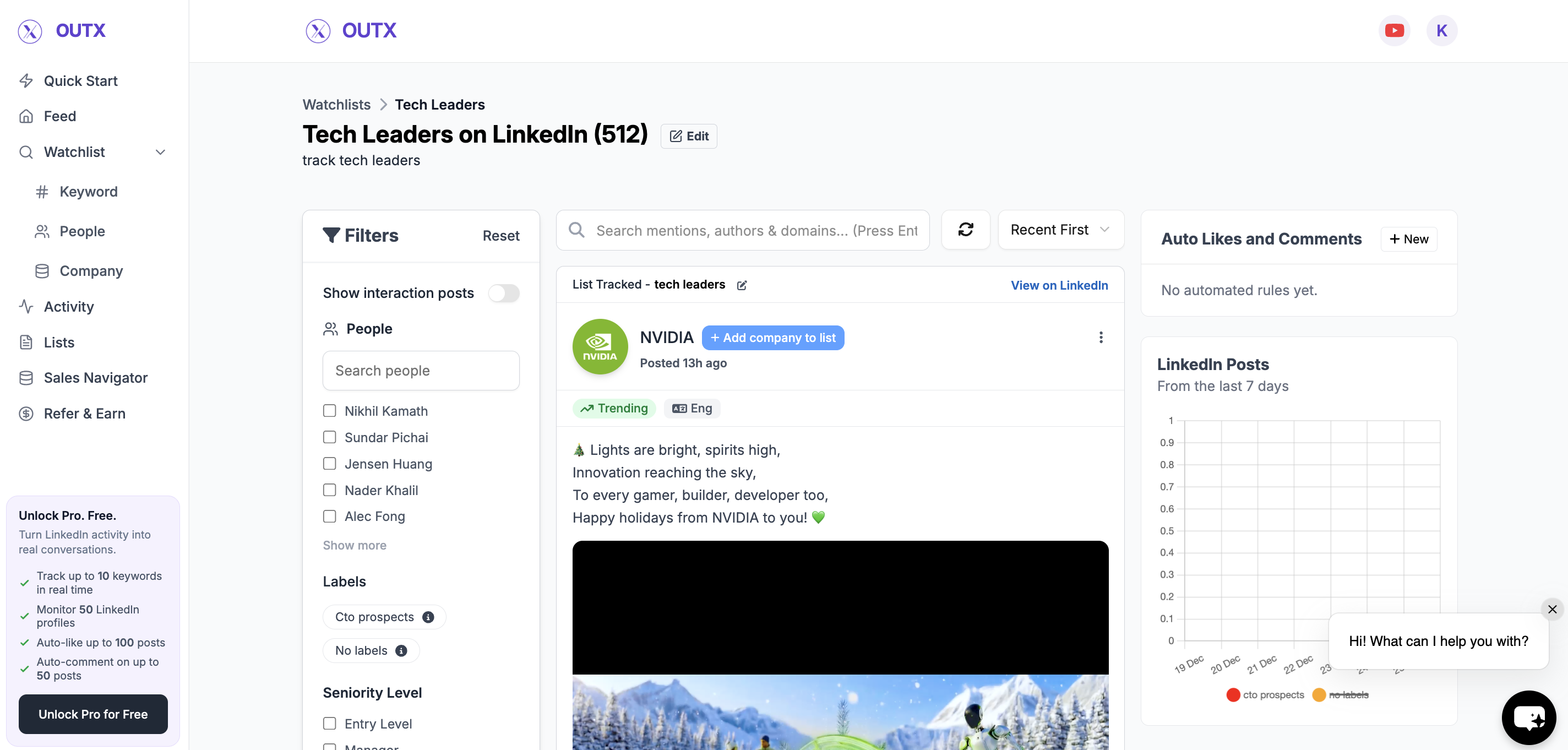 You can use filters to figure on left side to narrow down on your posts, to learn more about filters click here.
***
## How to edit company watchlist?
### 1. Open Watchlist
Navigate to **Watchlist you want to update** from the main dashboard. Click the **configuration(Gear icon)** on right side panel.
### 2. Edit in database
Click on edit in database then add company in selected list.
***
### 3. Import Profiles
Within the list, click the **three dots (⋯)** in the **top right corner**, and then select **Import**.
You can use filters to figure on left side to narrow down on your posts, to learn more about filters click here.
***
## How to edit company watchlist?
### 1. Open Watchlist
Navigate to **Watchlist you want to update** from the main dashboard. Click the **configuration(Gear icon)** on right side panel.
### 2. Edit in database
Click on edit in database then add company in selected list.
***
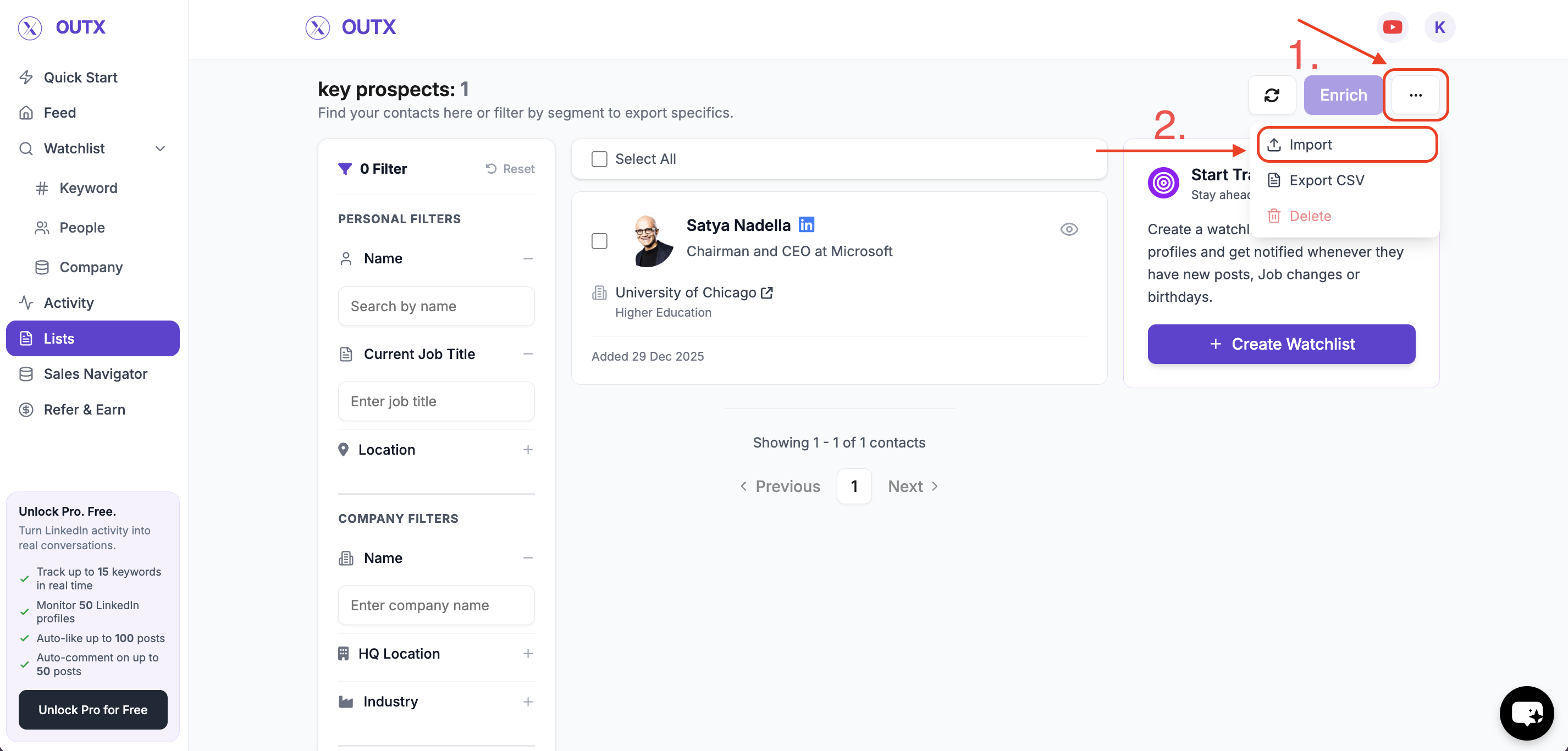
### 3. Import Profiles
Within the list, click the **three dots (⋯)** in the **top right corner**, and then select **Import**.
 ***
### 4. Add or Update company
You can now update the list of company to be tracked in two ways:
* **Manual Import** – Paste LinkedIn company URLs or enter them one-by-one.
* **CSV Import** – Upload a CSV file containing LinkedIn company URLs.
***
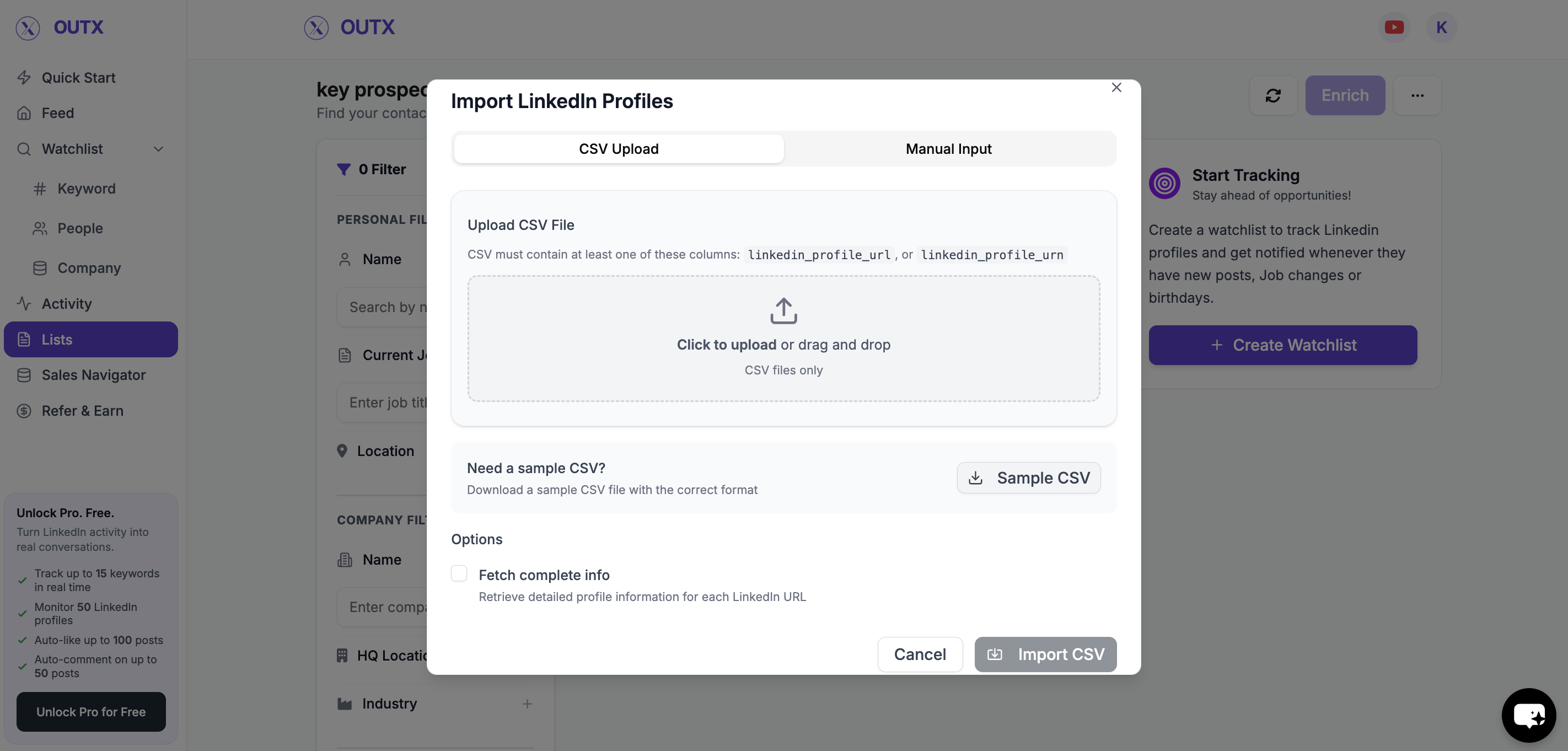
### 4. Add or Update company
You can now update the list of company to be tracked in two ways:
* **Manual Import** – Paste LinkedIn company URLs or enter them one-by-one.
* **CSV Import** – Upload a CSV file containing LinkedIn company URLs.
 Make any additions or removals needed.
💡
### How to delete company watchlist?
* Click on three dots and then click on delete button
***
## Frequently Asked Questions
No, OutX only tracks publicly available data to stay compliant with LinkedIn's rules.
No, LinkedIn does not allow third-party tools to access private connection data.
If a user blocks you on LinkedIn, OutX cannot fetch their posts anymore.
Two limits apply together. **200 companies per watchlist**, on every plan. And **a total across all your watchlists, set by your plan**: 400 on Free, 1,000 on Growth, 4,000 on Expert, 20,000 on Ultimate. That total counts every company and profile you track anywhere in the account, so creating extra watchlists does not raise it.
Yes, OutX supports this in the company tracking module.
Yes, you can filter posts based on location if the post mentions the country you are targeting for.
Removing a company will stop tracking that company going forward. Previously collected activity for that company may be retained depending on your plan and retention settings.
Yes you can import multiple LinkedIn companies at once using a **CSV** file via the import option. This is useful when updating large lists.
Yes you can update a company Watchlist as often as needed. Changes apply once you save the updated list.
***
## Learn More
* [Company Tracking Guide](https://www.outx.ai/blog/company-tracking-guide)
* [LinkedIn Social Listening Guide](https://www.outx.ai/blog/guide-social-listening-linkedin)
* [LinkedIn Monitoring Guide](https://www.outx.ai/blog/linkedin-monitoring-guide-2025)
***
# Feed & Filters
Source: [https://outx.ai/docs/documentation/linkedin-social-listening/feed-and-filters](https://outx.ai/docs/documentation/linkedin-social-listening/feed-and-filters)
## **What the Feed Shows**
Your feed displays LinkedIn activity captured from:
* **Keyword tracking**
* Posts mentioning tracked keywords
* Conversations around competitors, features, pricing, or topics
* **People tracking**
* Posts from tracked profiles
* Job changes and role updates
* Company posts shared by tracked people
* Birthday updates
Make any additions or removals needed.
💡
### How to delete company watchlist?
* Click on three dots and then click on delete button
***
## Frequently Asked Questions
No, OutX only tracks publicly available data to stay compliant with LinkedIn's rules.
No, LinkedIn does not allow third-party tools to access private connection data.
If a user blocks you on LinkedIn, OutX cannot fetch their posts anymore.
Two limits apply together. **200 companies per watchlist**, on every plan. And **a total across all your watchlists, set by your plan**: 400 on Free, 1,000 on Growth, 4,000 on Expert, 20,000 on Ultimate. That total counts every company and profile you track anywhere in the account, so creating extra watchlists does not raise it.
Yes, OutX supports this in the company tracking module.
Yes, you can filter posts based on location if the post mentions the country you are targeting for.
Removing a company will stop tracking that company going forward. Previously collected activity for that company may be retained depending on your plan and retention settings.
Yes you can import multiple LinkedIn companies at once using a **CSV** file via the import option. This is useful when updating large lists.
Yes you can update a company Watchlist as often as needed. Changes apply once you save the updated list.
***
## Learn More
* [Company Tracking Guide](https://www.outx.ai/blog/company-tracking-guide)
* [LinkedIn Social Listening Guide](https://www.outx.ai/blog/guide-social-listening-linkedin)
* [LinkedIn Monitoring Guide](https://www.outx.ai/blog/linkedin-monitoring-guide-2025)
***
# Feed & Filters
Source: [https://outx.ai/docs/documentation/linkedin-social-listening/feed-and-filters](https://outx.ai/docs/documentation/linkedin-social-listening/feed-and-filters)
## **What the Feed Shows**
Your feed displays LinkedIn activity captured from:
* **Keyword tracking**
* Posts mentioning tracked keywords
* Conversations around competitors, features, pricing, or topics
* **People tracking**
* Posts from tracked profiles
* Job changes and role updates
* Company posts shared by tracked people
* Birthday updates
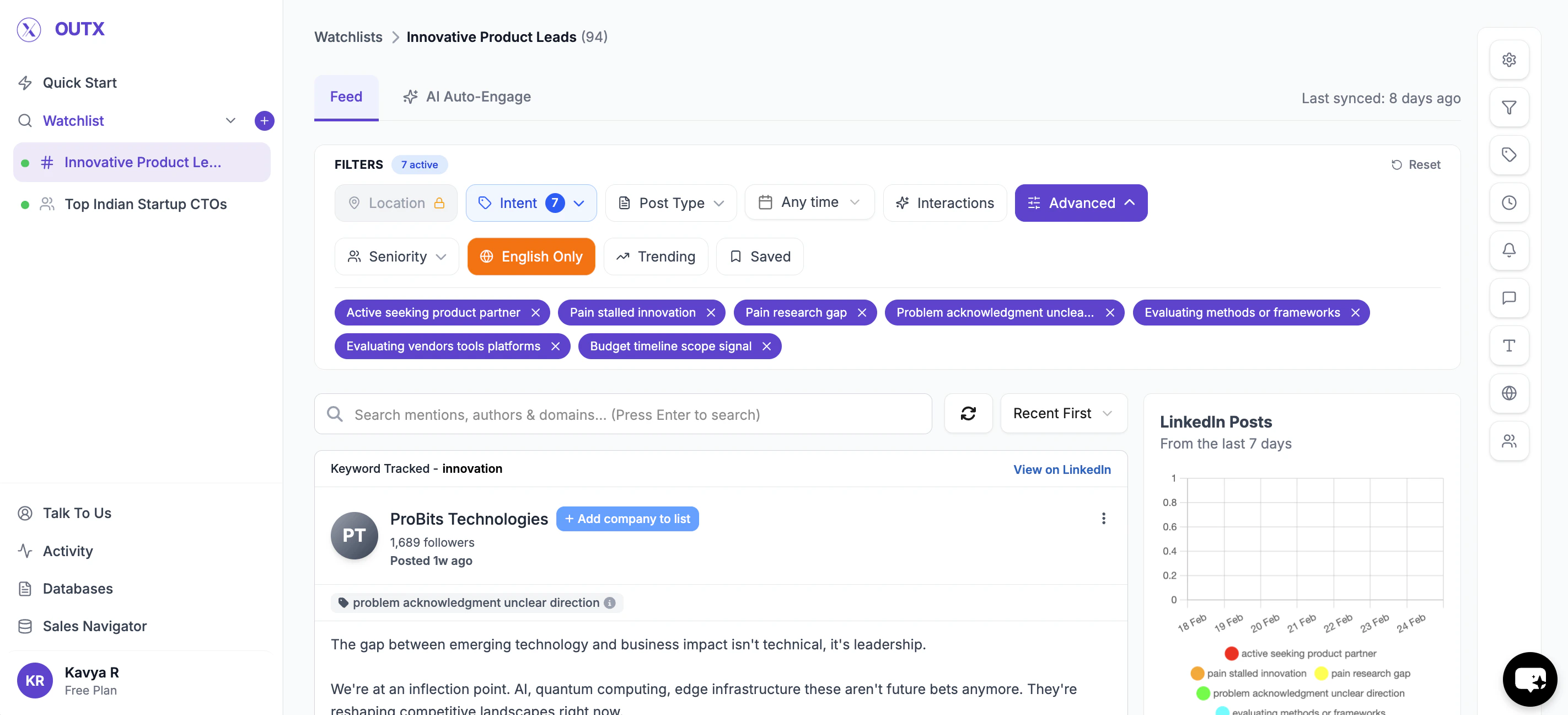 Only content that matches your **watchlists** appears in the feed.
***
## **Why Filters Matter**
As you track more keywords and people, the volume of updates increases.
Filters help you:
* Reduce noise
* Focus on high-intent conversations
* Prioritize the right people or posts
* Decide what to engage with first
Think of filters as a way to **turn a live feed into an actionable workspace**.
***
## **Feed Filters (Explained)**
These filters work across both **keyword-based** and **people-based** feeds.
***
### **1. Interactions**
Use this to show posts that already have engagement.
Helpful when you want to:
* Join active conversations
* Avoid engaging on posts with no visibility
***
### **2. People Filter** *(People tracking only)*
Use this filter to focus on **specific individuals**.
You can:
* Search for a person by name
* Select one or more tracked profiles
Useful when:
* Preparing for outreach
* Focusing on a single prospect or account
***
### **3. Intents**
Intents are the most powerful way to organize your feed.
**Intents** are applied to:
* **Keyword posts** (based on intent or topic)
* **Tracked people** (based on role, priority, or segment)
Examples:
* Competitor Reviews
* Pricing Analysis
* CTO Prospects
* Customers
Use Intents to:
* Group posts or people by intent
* Quickly understand *why* something appeared
* Apply different engagement strategies
**Tip:**
Start with Intents before applying other filters.
***
### **4. Seniority Level**
Filter feed items based on who is posting.
Available levels:
* Entry Level
* Manager
* Senior
* Director
* VP
* CXO / Founder
Useful when:
* You want decision-maker conversations only
* You want to tailor engagement by role
***
### **5. Post Type**
Control what kind of updates you see.
Filter by:
* People posts
* Company posts
* Job updates
* Birthday updates
Examples:
* Only track hiring-related updates
* Only engage with original posts
***
### **6. Posted Date**
Filter updates by recency.
Use this when:
* You want to engage early
* You only care about recent activity
***
### **7. Language Filter**
Use **Show only English posts** to:
* Reduce language noise
* Keep engagement consistent
Especially useful for global tracking.
***
### **8. Trending Posts**
Use **Show only trending posts** to:
* Focus on posts gaining traction
* Prioritize high-visibility conversations
Helpful for personal branding and visibility.
***
### **9. Saved Posts**
Use **Show only saved posts** to:
* Revisit important conversations
* Follow up later without losing context
This works like a lightweight task list inside the feed.
***
### **10. Location Filter** *(Expert & Ultimate plans only)*
Use this filter to see posts based on **location of the poster**.
You can filter by:
* Country
Helpful when you want to:
* Track conversations in a specific market
* Focus on regional demand or hiring trends
* Engage with prospects in target geographies
Examples:
* Only see posts from the US or Europe
* Track keyword conversations happening in India
* Focus on regional competitor mentions
**Note:**
Geolocation filtering is available only on the **Expert** and **Ultimate** plans.
***
## Frequently Asked Questions
The feed is where all LinkedIn activity tracked by OutX.ai appears in one place, including posts from tracked keywords and people.
No. The feed only shows content that matches your watchlists, either keywords you track or people you follow.
Keyword feed shows posts that mention specific topics or phrases. People feed shows updates from specific LinkedIn profiles you track. Both appear in the same feed and can be filtered separately.
Filters help reduce noise and let you focus on posts that matter most, by intent, role, post type, or recency.
Labels help categorize posts or people by intent or priority. They make it easier to understand *why* a post appears and help you focus on specific use cases like buying intent or hiring.
Yes. You can filter posts by seniority level such as Manager, Director, VP, or CXO to focus on decision-makers.
It shows posts that already have likes or comments. This is useful when you want to join active conversations instead of engaging on low-visibility posts.
It highlights posts that are gaining traction, helping you prioritize high-visibility conversations for engagement or branding.
Yes. You can save posts and use the "Show only saved posts" filter to revisit them later for follow-ups.
No. Filters only change what you see in the feed. They do not affect tracking, watchlists, or engagement rules.
Yes. You can combine multiple filters, labels, seniority, post type, and date, to create a focused view of the feed.
The feed updates automatically based on your watchlist settings and fetch frequency.
Yes. You can like, comment (manually or with AI), save posts, or let auto-engagement handle it based on your rules.
Use filters to narrow the feed, review high-intent posts first, and engage where context and timing matter most.
When you create a watchlist using a natural language prompt, OutX extracts an **objective** from your prompt and generates AI categories. Each incoming post is then scored **1-10 on relevance** to that objective.
The feed offers three sort options:
* **Relevance** (default for prompt-based watchlists), Shows the most relevant posts first, scored by AI against your watchlist objective
* **Popularity**, Sorts by engagement (likes + comments)
* **Recent**, Shows the newest posts first
You can switch between sort modes using the dropdown at the top of your feed.
The total post count is displayed at the top of your feed view. When using the API, the `GET /api-posts` endpoint returns a `count` field in the response showing the total number of matching posts across all pages.
Yes, on **Expert** and **Ultimate** plans. The Location Filter in the feed sidebar lets you filter by countries mentioned in post content. This works by detecting country references within the text, not by the author's profile location.
Use the **People filter** in the sidebar to select specific profiles. This shows only posts from the selected people within your watchlist, making it easy to focus on key prospects or thought leaders.
***
## Learn More
* [LinkedIn Social Listening Guide](https://www.outx.ai/blog/guide-social-listening-linkedin)
* [LinkedIn Monitoring Guide](https://www.outx.ai/blog/linkedin-monitoring-guide-2025)
* [Best LinkedIn Analytics Tools](https://www.outx.ai/blog/best-linkedin-analytics-tools)
***
# Auto like and Auto comment
Source: [https://outx.ai/docs/documentation/linkedin-social-listening/auto-engagement](https://outx.ai/docs/documentation/linkedin-social-listening/auto-engagement)
### Auto Engagement via Watchlists
When Auto Engagement is enabled on a watchlist, OutX.ai monitors new posts in real time.
* Posts are picked only if they match your keywords or tracked profiles
* You can auto-like, auto-comment, or both
* Engagement happens shortly after the post goes live, not days later
* This helps you stay visible without checking LinkedIn all day
***
## Step 1: Open a Watchlist
Auto Engagement always runs on a **watchlist**.
1. Go to **Watchlists**
Only content that matches your **watchlists** appears in the feed.
***
## **Why Filters Matter**
As you track more keywords and people, the volume of updates increases.
Filters help you:
* Reduce noise
* Focus on high-intent conversations
* Prioritize the right people or posts
* Decide what to engage with first
Think of filters as a way to **turn a live feed into an actionable workspace**.
***
## **Feed Filters (Explained)**
These filters work across both **keyword-based** and **people-based** feeds.
***
### **1. Interactions**
Use this to show posts that already have engagement.
Helpful when you want to:
* Join active conversations
* Avoid engaging on posts with no visibility
***
### **2. People Filter** *(People tracking only)*
Use this filter to focus on **specific individuals**.
You can:
* Search for a person by name
* Select one or more tracked profiles
Useful when:
* Preparing for outreach
* Focusing on a single prospect or account
***
### **3. Intents**
Intents are the most powerful way to organize your feed.
**Intents** are applied to:
* **Keyword posts** (based on intent or topic)
* **Tracked people** (based on role, priority, or segment)
Examples:
* Competitor Reviews
* Pricing Analysis
* CTO Prospects
* Customers
Use Intents to:
* Group posts or people by intent
* Quickly understand *why* something appeared
* Apply different engagement strategies
**Tip:**
Start with Intents before applying other filters.
***
### **4. Seniority Level**
Filter feed items based on who is posting.
Available levels:
* Entry Level
* Manager
* Senior
* Director
* VP
* CXO / Founder
Useful when:
* You want decision-maker conversations only
* You want to tailor engagement by role
***
### **5. Post Type**
Control what kind of updates you see.
Filter by:
* People posts
* Company posts
* Job updates
* Birthday updates
Examples:
* Only track hiring-related updates
* Only engage with original posts
***
### **6. Posted Date**
Filter updates by recency.
Use this when:
* You want to engage early
* You only care about recent activity
***
### **7. Language Filter**
Use **Show only English posts** to:
* Reduce language noise
* Keep engagement consistent
Especially useful for global tracking.
***
### **8. Trending Posts**
Use **Show only trending posts** to:
* Focus on posts gaining traction
* Prioritize high-visibility conversations
Helpful for personal branding and visibility.
***
### **9. Saved Posts**
Use **Show only saved posts** to:
* Revisit important conversations
* Follow up later without losing context
This works like a lightweight task list inside the feed.
***
### **10. Location Filter** *(Expert & Ultimate plans only)*
Use this filter to see posts based on **location of the poster**.
You can filter by:
* Country
Helpful when you want to:
* Track conversations in a specific market
* Focus on regional demand or hiring trends
* Engage with prospects in target geographies
Examples:
* Only see posts from the US or Europe
* Track keyword conversations happening in India
* Focus on regional competitor mentions
**Note:**
Geolocation filtering is available only on the **Expert** and **Ultimate** plans.
***
## Frequently Asked Questions
The feed is where all LinkedIn activity tracked by OutX.ai appears in one place, including posts from tracked keywords and people.
No. The feed only shows content that matches your watchlists, either keywords you track or people you follow.
Keyword feed shows posts that mention specific topics or phrases. People feed shows updates from specific LinkedIn profiles you track. Both appear in the same feed and can be filtered separately.
Filters help reduce noise and let you focus on posts that matter most, by intent, role, post type, or recency.
Labels help categorize posts or people by intent or priority. They make it easier to understand *why* a post appears and help you focus on specific use cases like buying intent or hiring.
Yes. You can filter posts by seniority level such as Manager, Director, VP, or CXO to focus on decision-makers.
It shows posts that already have likes or comments. This is useful when you want to join active conversations instead of engaging on low-visibility posts.
It highlights posts that are gaining traction, helping you prioritize high-visibility conversations for engagement or branding.
Yes. You can save posts and use the "Show only saved posts" filter to revisit them later for follow-ups.
No. Filters only change what you see in the feed. They do not affect tracking, watchlists, or engagement rules.
Yes. You can combine multiple filters, labels, seniority, post type, and date, to create a focused view of the feed.
The feed updates automatically based on your watchlist settings and fetch frequency.
Yes. You can like, comment (manually or with AI), save posts, or let auto-engagement handle it based on your rules.
Use filters to narrow the feed, review high-intent posts first, and engage where context and timing matter most.
When you create a watchlist using a natural language prompt, OutX extracts an **objective** from your prompt and generates AI categories. Each incoming post is then scored **1-10 on relevance** to that objective.
The feed offers three sort options:
* **Relevance** (default for prompt-based watchlists), Shows the most relevant posts first, scored by AI against your watchlist objective
* **Popularity**, Sorts by engagement (likes + comments)
* **Recent**, Shows the newest posts first
You can switch between sort modes using the dropdown at the top of your feed.
The total post count is displayed at the top of your feed view. When using the API, the `GET /api-posts` endpoint returns a `count` field in the response showing the total number of matching posts across all pages.
Yes, on **Expert** and **Ultimate** plans. The Location Filter in the feed sidebar lets you filter by countries mentioned in post content. This works by detecting country references within the text, not by the author's profile location.
Use the **People filter** in the sidebar to select specific profiles. This shows only posts from the selected people within your watchlist, making it easy to focus on key prospects or thought leaders.
***
## Learn More
* [LinkedIn Social Listening Guide](https://www.outx.ai/blog/guide-social-listening-linkedin)
* [LinkedIn Monitoring Guide](https://www.outx.ai/blog/linkedin-monitoring-guide-2025)
* [Best LinkedIn Analytics Tools](https://www.outx.ai/blog/best-linkedin-analytics-tools)
***
# Auto like and Auto comment
Source: [https://outx.ai/docs/documentation/linkedin-social-listening/auto-engagement](https://outx.ai/docs/documentation/linkedin-social-listening/auto-engagement)
### Auto Engagement via Watchlists
When Auto Engagement is enabled on a watchlist, OutX.ai monitors new posts in real time.
* Posts are picked only if they match your keywords or tracked profiles
* You can auto-like, auto-comment, or both
* Engagement happens shortly after the post goes live, not days later
* This helps you stay visible without checking LinkedIn all day
***
## Step 1: Open a Watchlist
Auto Engagement always runs on a **watchlist**.
1. Go to **Watchlists**
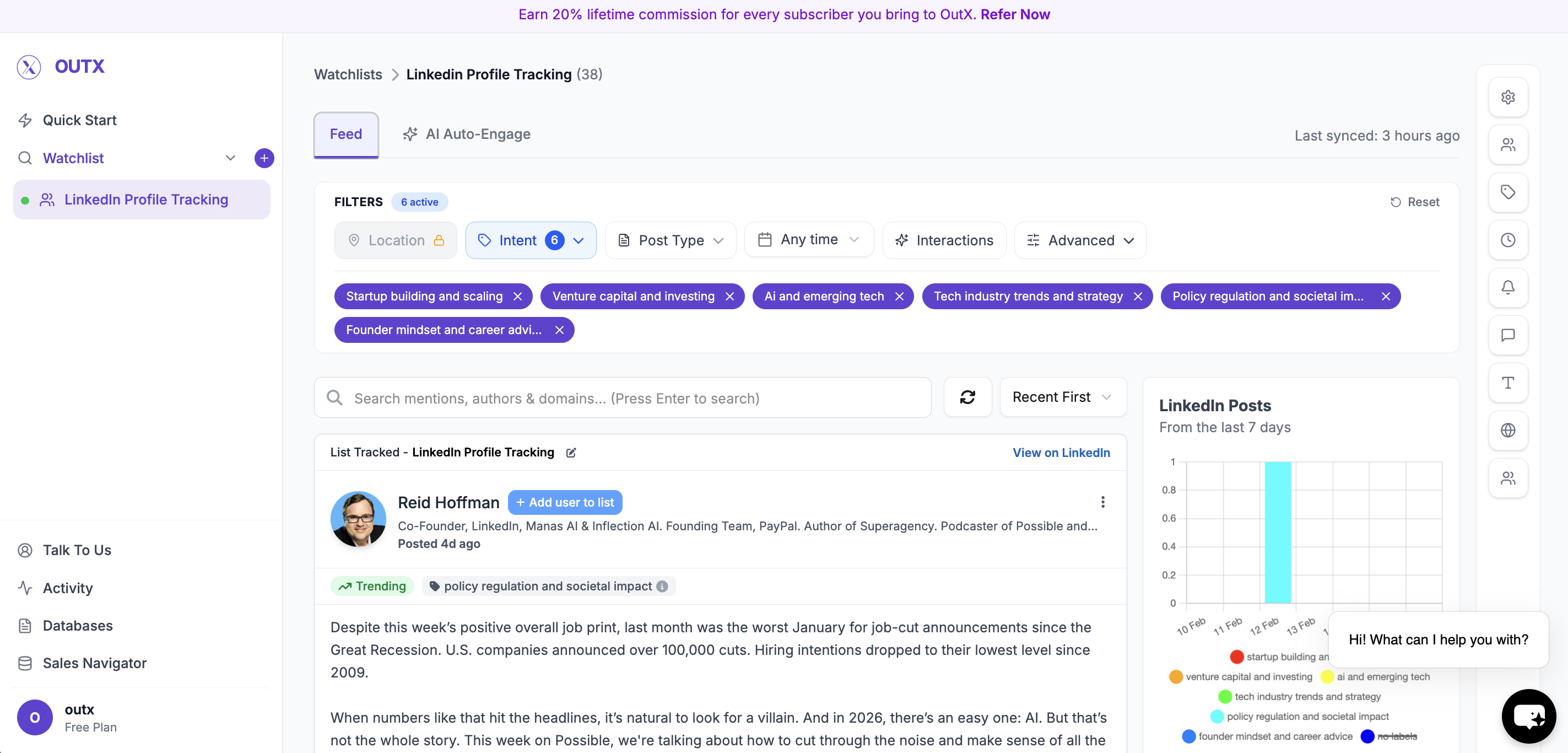 2. Click **AI Auto-Engage**
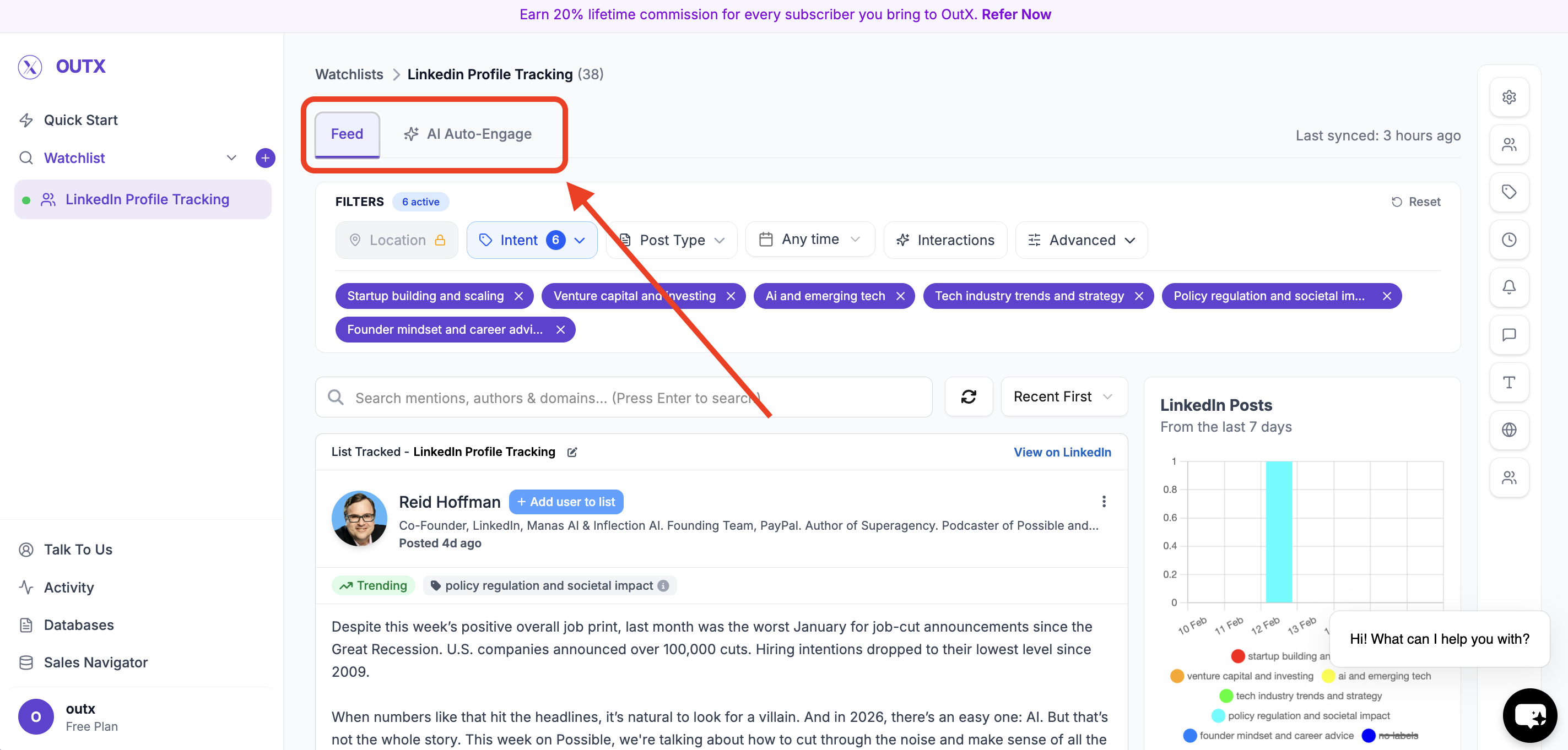 3. Click **Add Your First Rule**
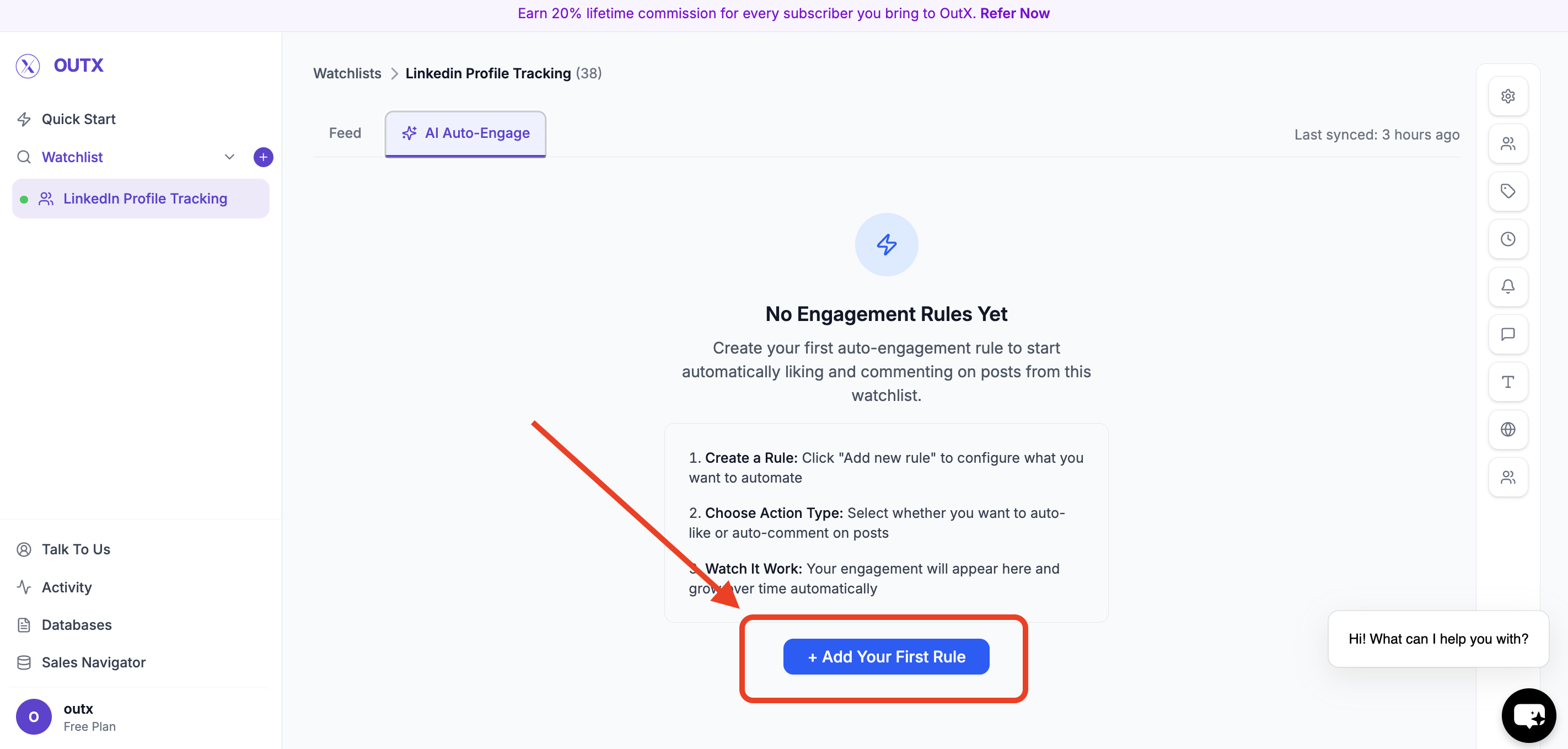 Engagement will only happen on posts that appear inside this watchlist.
***
## Step 2: Create Engagement Rule
You'll see the **Create Engagement Rule** modal.
This is where you define how OutX.ai should engage.
Engagement will only happen on posts that appear inside this watchlist.
***
## Step 2: Create Engagement Rule
You'll see the **Create Engagement Rule** modal.
This is where you define how OutX.ai should engage.
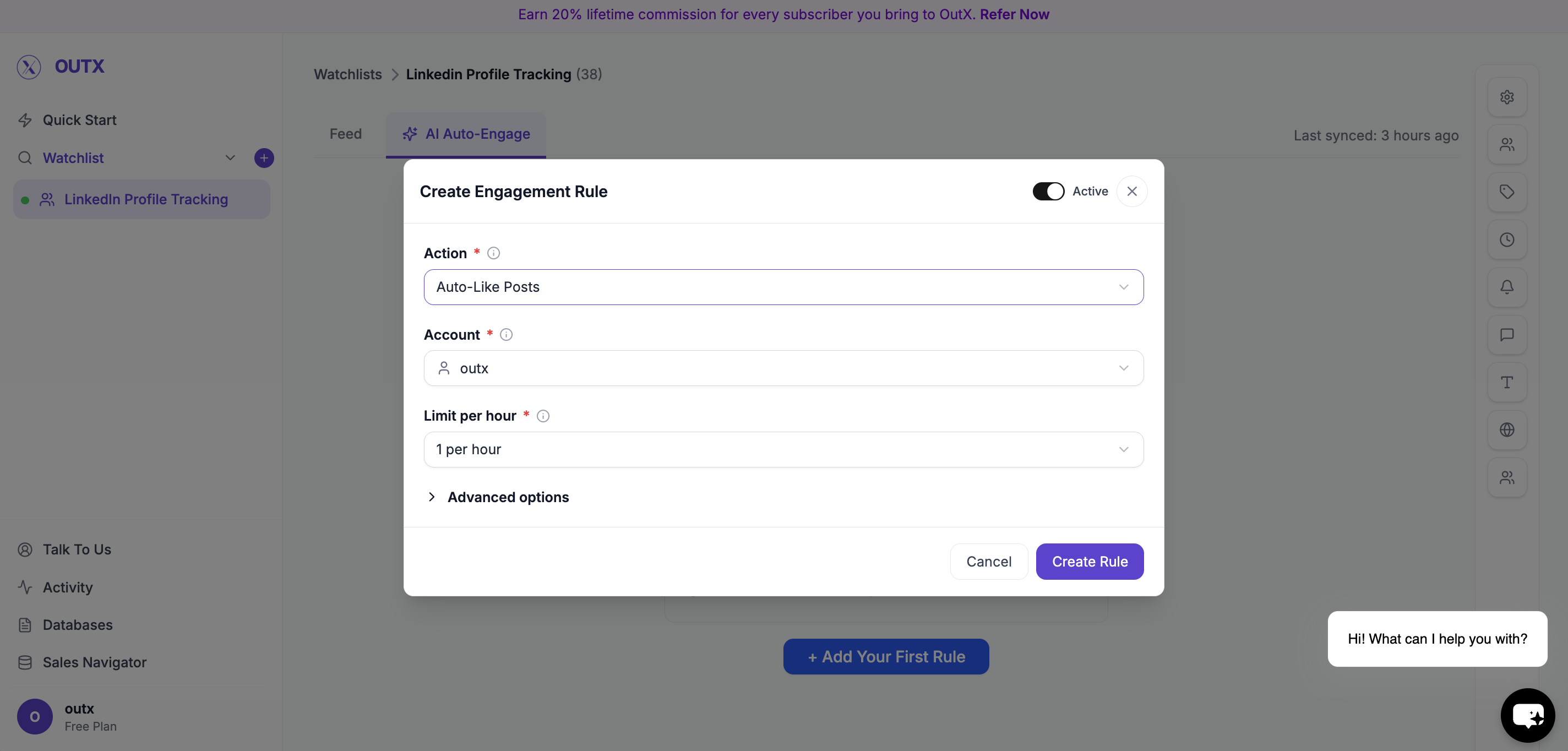 ***
### Choose Action
Select what OutX.ai should do:
* Auto-Like Posts
* Auto-Comment on Posts
***
### Choose Action
Select what OutX.ai should do:
* Auto-Like Posts
* Auto-Comment on Posts
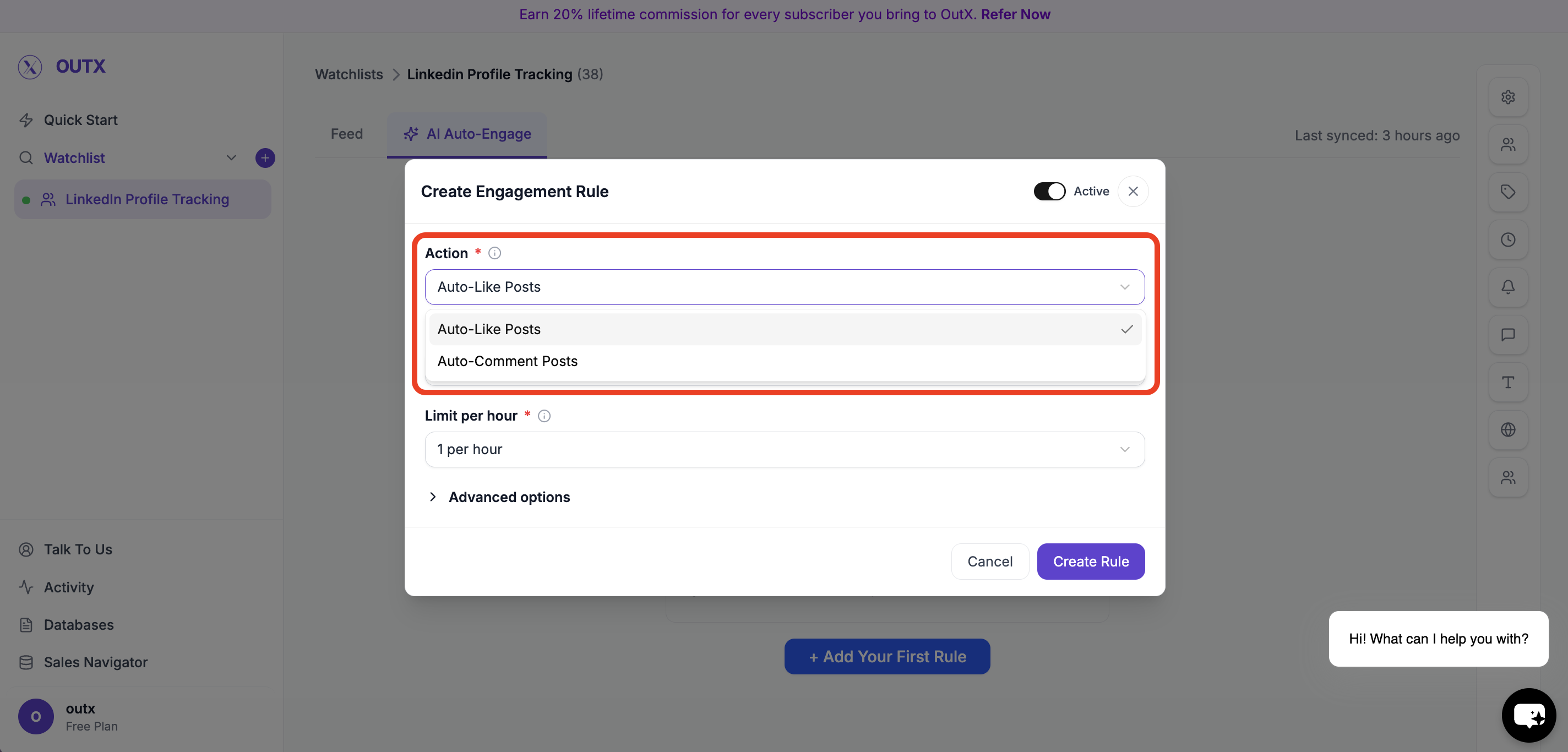 ***
### Choose Account
Select which LinkedIn account will be used:
* Your personal LinkedIn account
* Your connected company page
***
### Choose Account
Select which LinkedIn account will be used:
* Your personal LinkedIn account
* Your connected company page
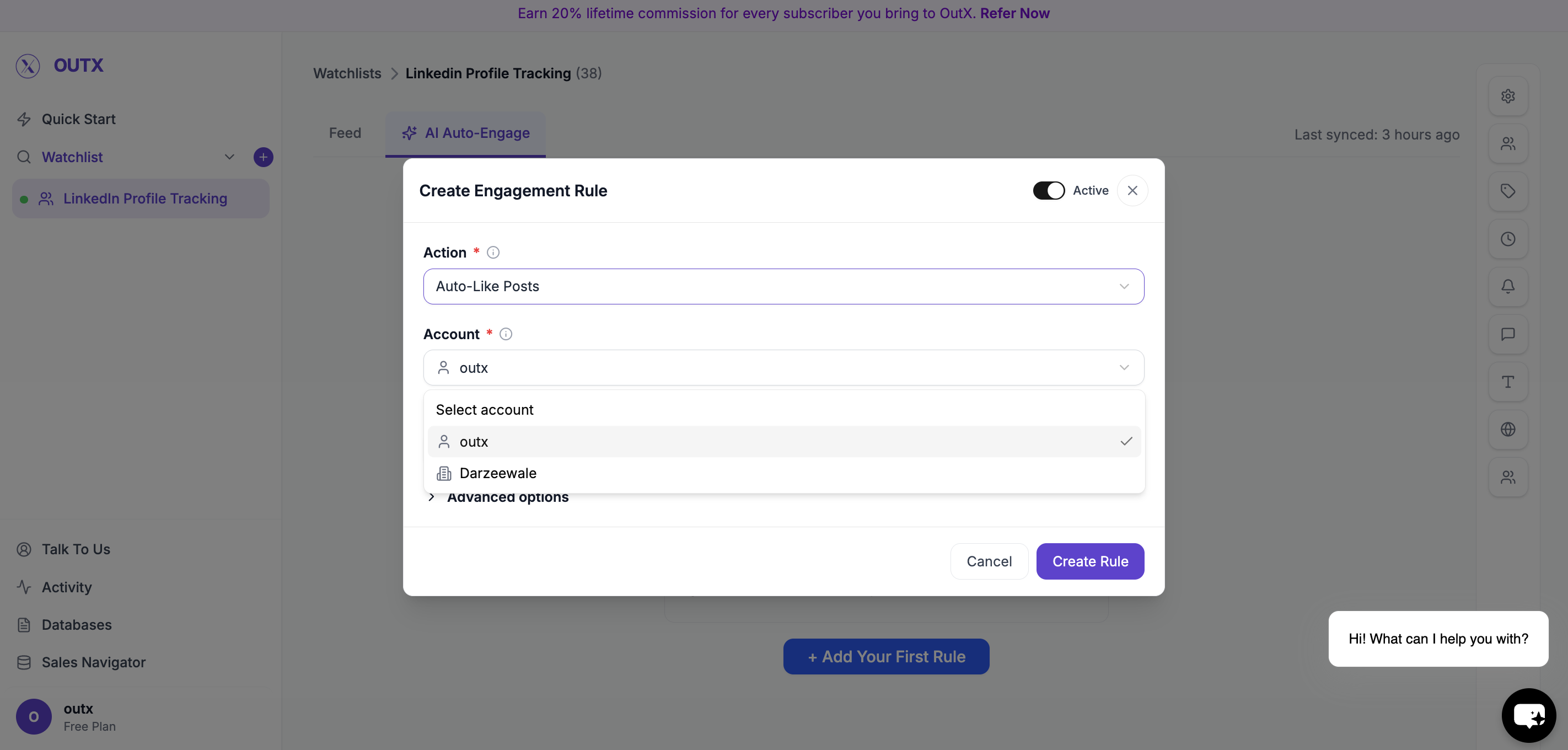 ***
### Set Limit Per Hour
Control how many actions can happen per hour.
Examples:
* 1 per hour
* 5 per hour
* 10 per hour
***
### Set Limit Per Hour
Control how many actions can happen per hour.
Examples:
* 1 per hour
* 5 per hour
* 10 per hour
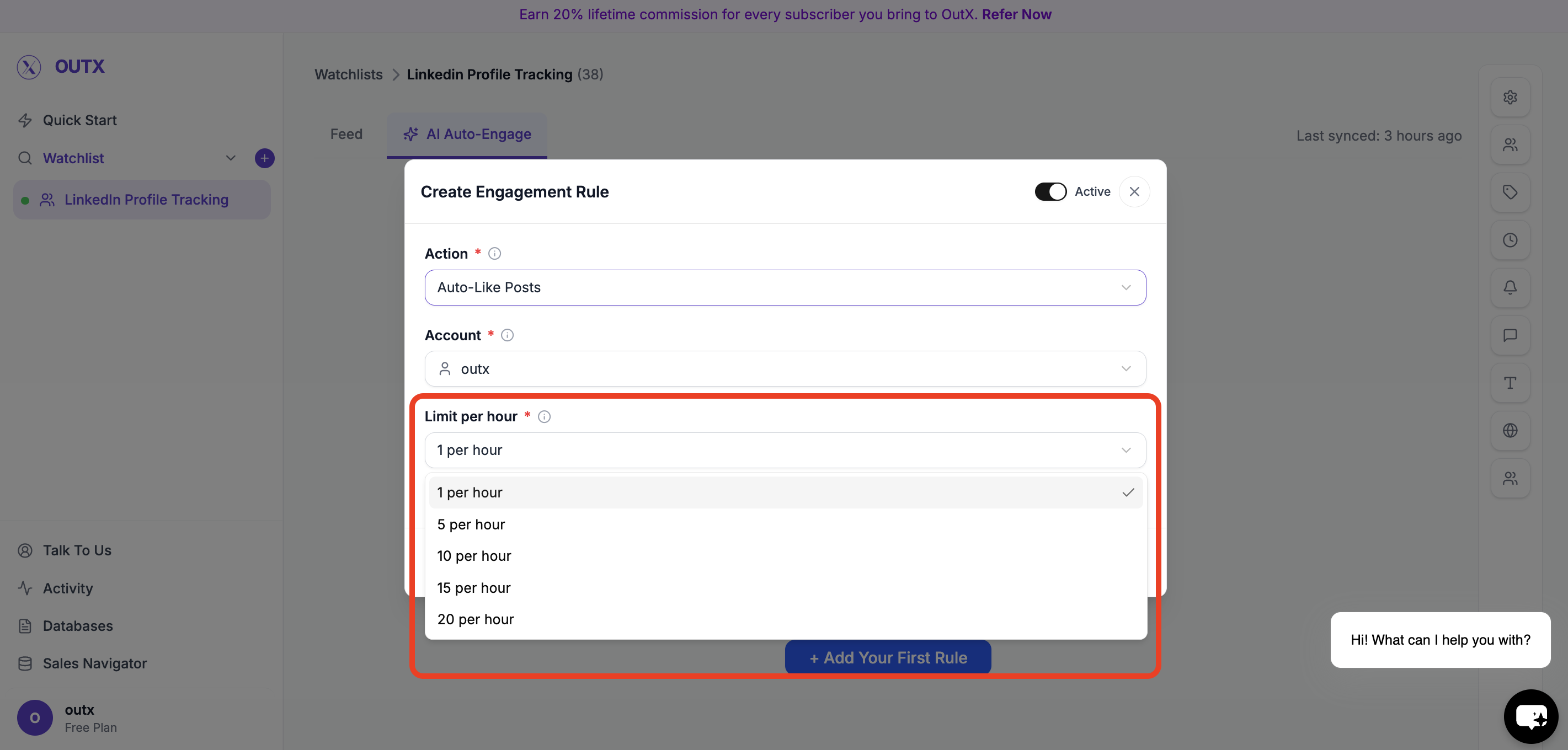 This keeps engagement natural and safe.
***
## Step 4: Advanced Options (Optional)
Use advanced filters to control **which posts qualify for engagement**.
You can refine engagement using:
* **Filter Intent** – Engage only on posts matching selected intent types (e.g., buying intent, hiring, announcements)
* **Filter Profiles** – Limit engagement to specific profiles or profile categories
* **Filter Seniority Levels** – Engage only with posts from certain seniority levels (e.g., Founder, VP, Manager)
* **Filter Post Types** – Choose which types of posts to engage with (text posts, image posts, job posts, etc.)
* **LinkedIn Posted At** – Engage only on posts published within a selected time range
These filters help ensure engagement stays **relevant, targeted, and high-quality**.
This keeps engagement natural and safe.
***
## Step 4: Advanced Options (Optional)
Use advanced filters to control **which posts qualify for engagement**.
You can refine engagement using:
* **Filter Intent** – Engage only on posts matching selected intent types (e.g., buying intent, hiring, announcements)
* **Filter Profiles** – Limit engagement to specific profiles or profile categories
* **Filter Seniority Levels** – Engage only with posts from certain seniority levels (e.g., Founder, VP, Manager)
* **Filter Post Types** – Choose which types of posts to engage with (text posts, image posts, job posts, etc.)
* **LinkedIn Posted At** – Engage only on posts published within a selected time range
These filters help ensure engagement stays **relevant, targeted, and high-quality**.
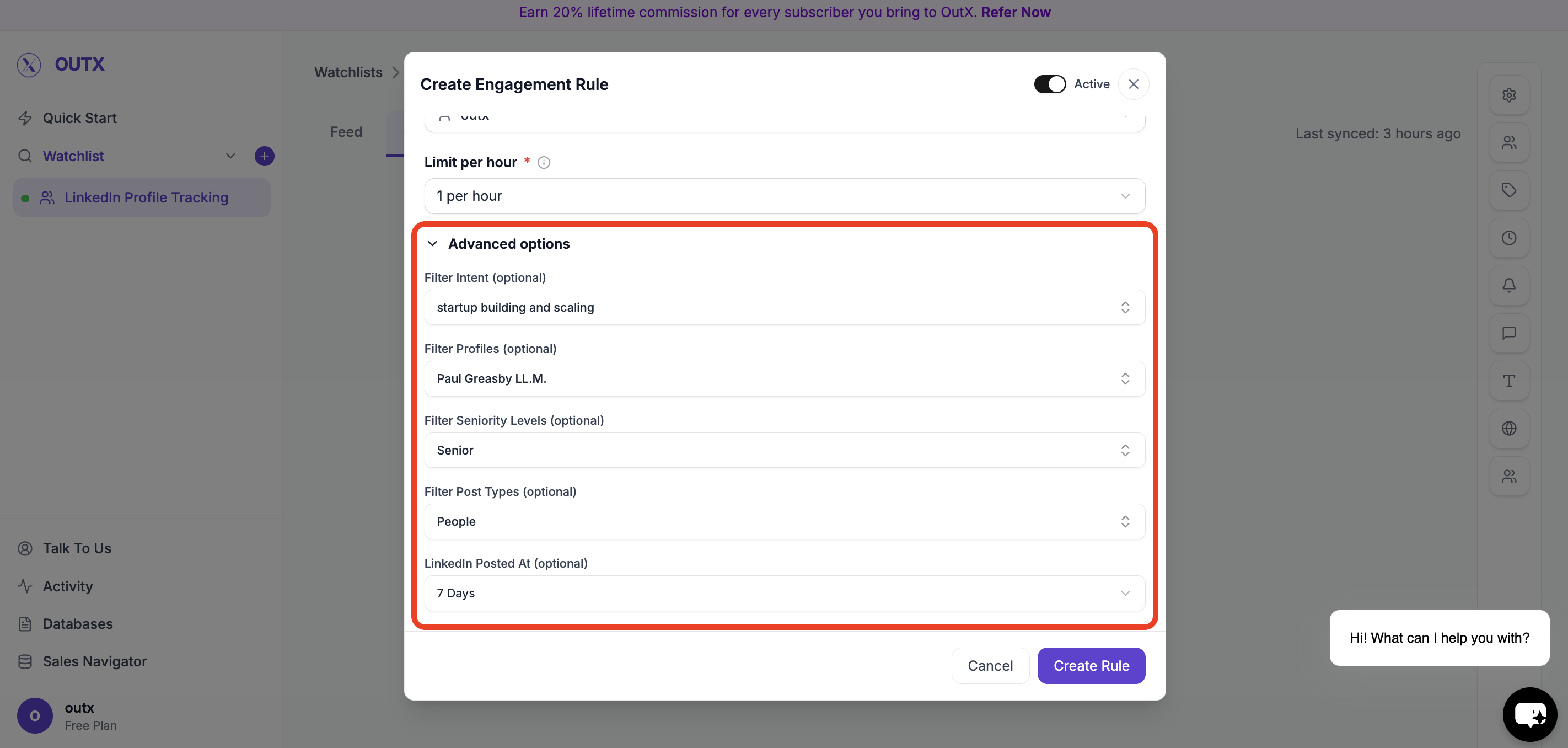 ***
## Step 5: Activate Rule
Turn the rule **Active** and click **Create Rule**.
OutX.ai will start liking and/or commenting automatically based on your rule.
***
### Manual Engagement with AI Comments
For posts that matter more, you can engage manually with help from AI.
* View all tracked posts in one place
* Click **Generate Comment** to get a relevant, natural reply
* Edit the comment before posting
* Post only when you are confident with the message
This works well for high-value prospects, founders, or personal branding.
## **Step-by-Step: Comment Manually Using AI**
### **Step 1: Open a Tracked Post**
Go to any post inside your watchlist feed.
This includes posts captured from:
* Keywords
* Tracked people
* Tracked companies
***
### **Step 2: Click on Comment**
Open the comment action for the post you want to respond to.
This keeps the interaction contextual and focused on that post.
***
## Step 5: Activate Rule
Turn the rule **Active** and click **Create Rule**.
OutX.ai will start liking and/or commenting automatically based on your rule.
***
### Manual Engagement with AI Comments
For posts that matter more, you can engage manually with help from AI.
* View all tracked posts in one place
* Click **Generate Comment** to get a relevant, natural reply
* Edit the comment before posting
* Post only when you are confident with the message
This works well for high-value prospects, founders, or personal branding.
## **Step-by-Step: Comment Manually Using AI**
### **Step 1: Open a Tracked Post**
Go to any post inside your watchlist feed.
This includes posts captured from:
* Keywords
* Tracked people
* Tracked companies
***
### **Step 2: Click on Comment**
Open the comment action for the post you want to respond to.
This keeps the interaction contextual and focused on that post.
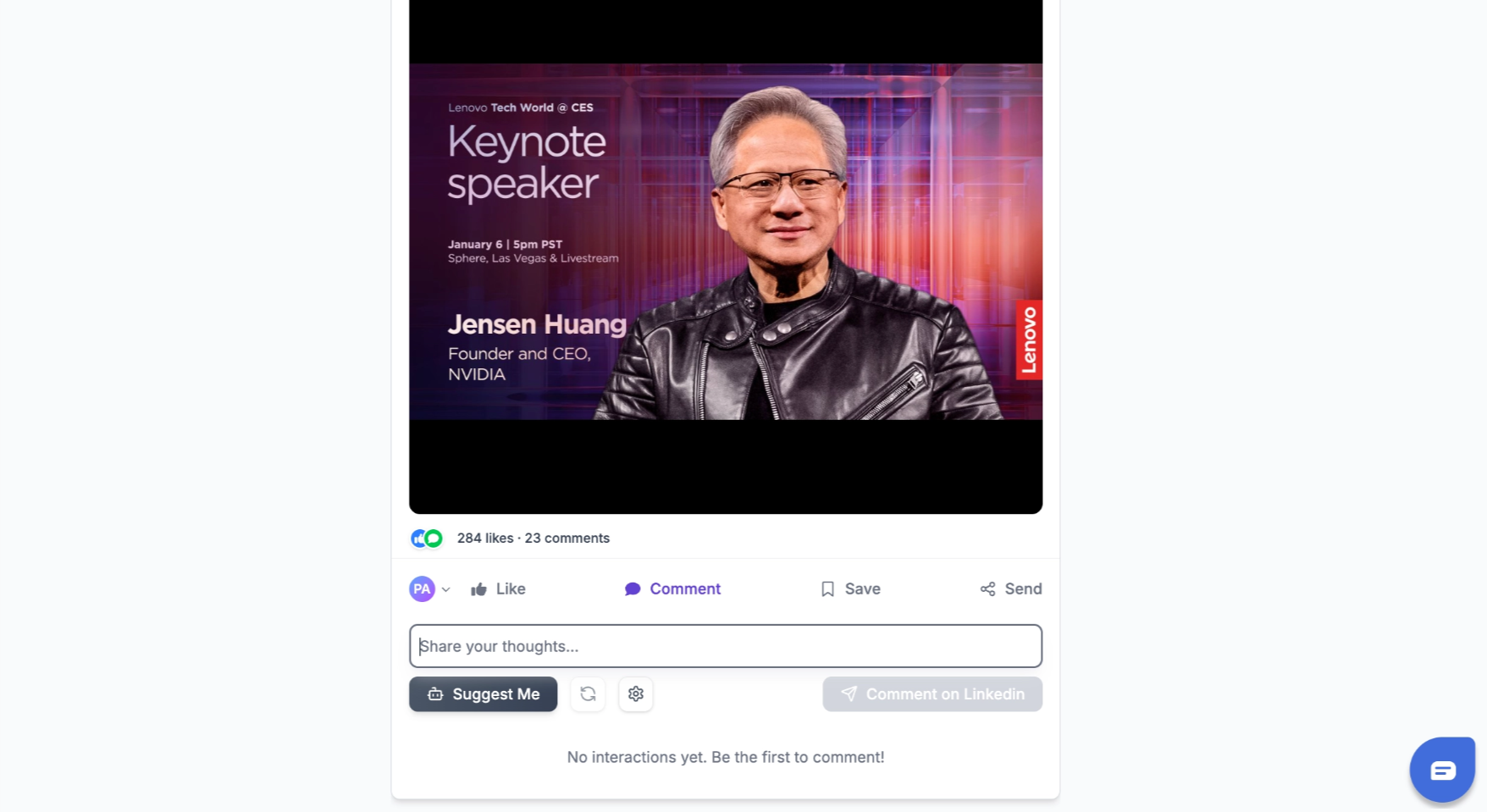 ***
### **Step 3: Click "Suggest Me"**
Click **Suggest Me** to generate an AI-written comment.
The suggestion is based on:
* The post content
* Your tracking context
* A natural, professional tone
***
### **Step 3: Click "Suggest Me"**
Click **Suggest Me** to generate an AI-written comment.
The suggestion is based on:
* The post content
* Your tracking context
* A natural, professional tone
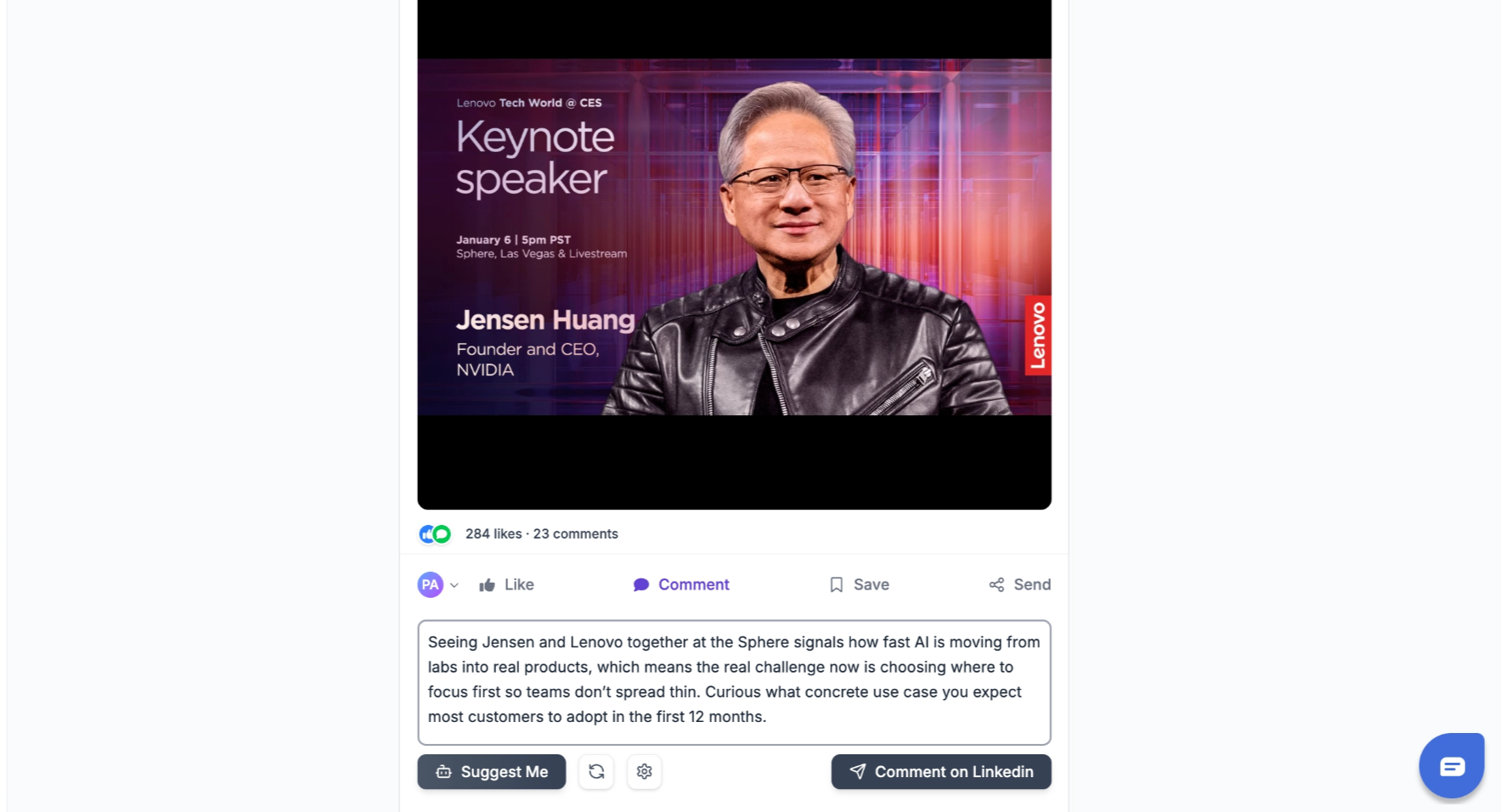 ### Customizing Comment Tone and Style
You can control how AI-generated comments sound by editing the **Comment prompt** (this is the same thing as "Custom Instructions" - they refer to the same setting).
**To find it:** Click the **Gear icon** next to the comment input area:
### Customizing Comment Tone and Style
You can control how AI-generated comments sound by editing the **Comment prompt** (this is the same thing as "Custom Instructions" - they refer to the same setting).
**To find it:** Click the **Gear icon** next to the comment input area:
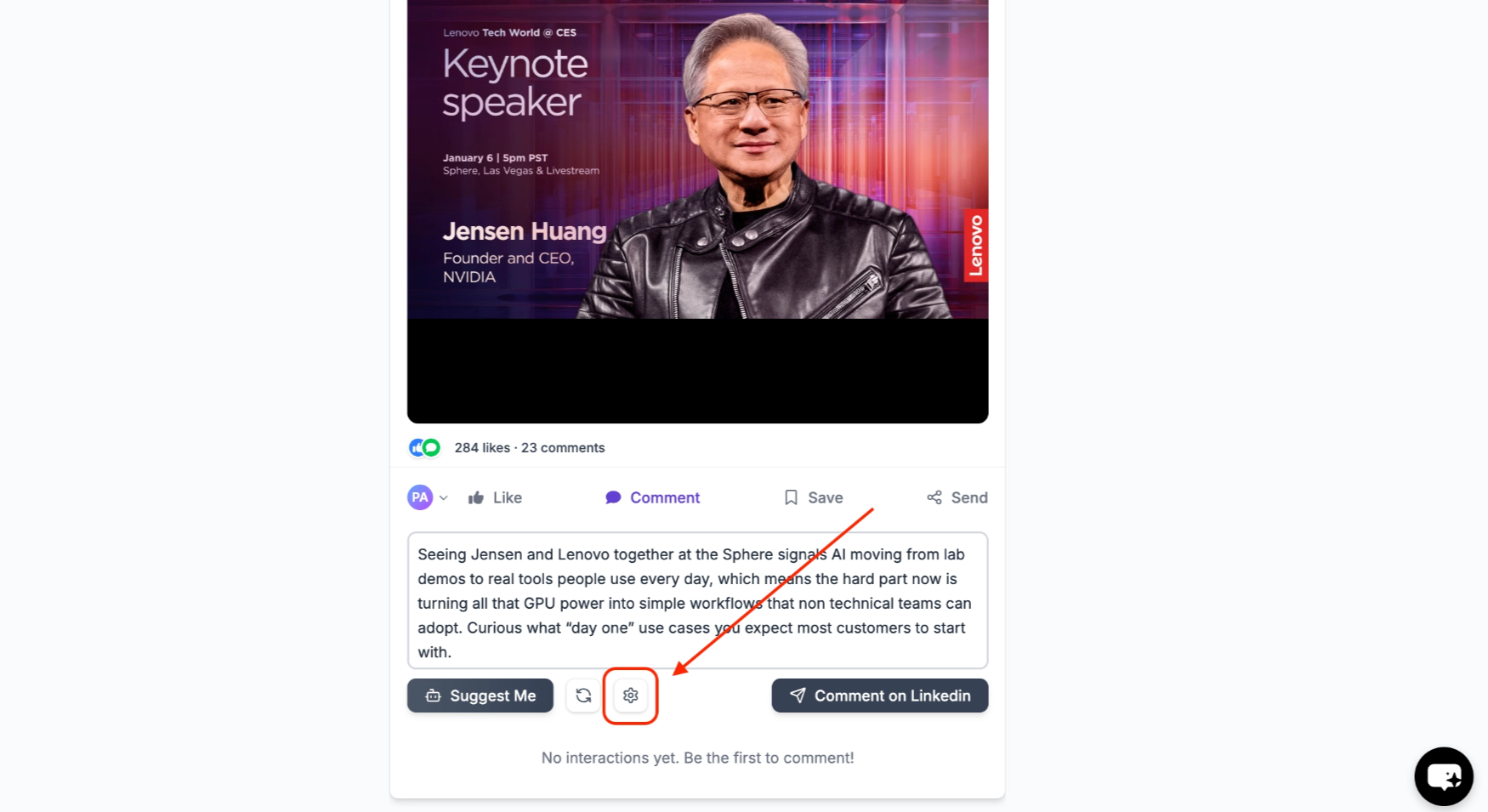 Click **Edit** to update the instruction that controls your AI comment tone and style:
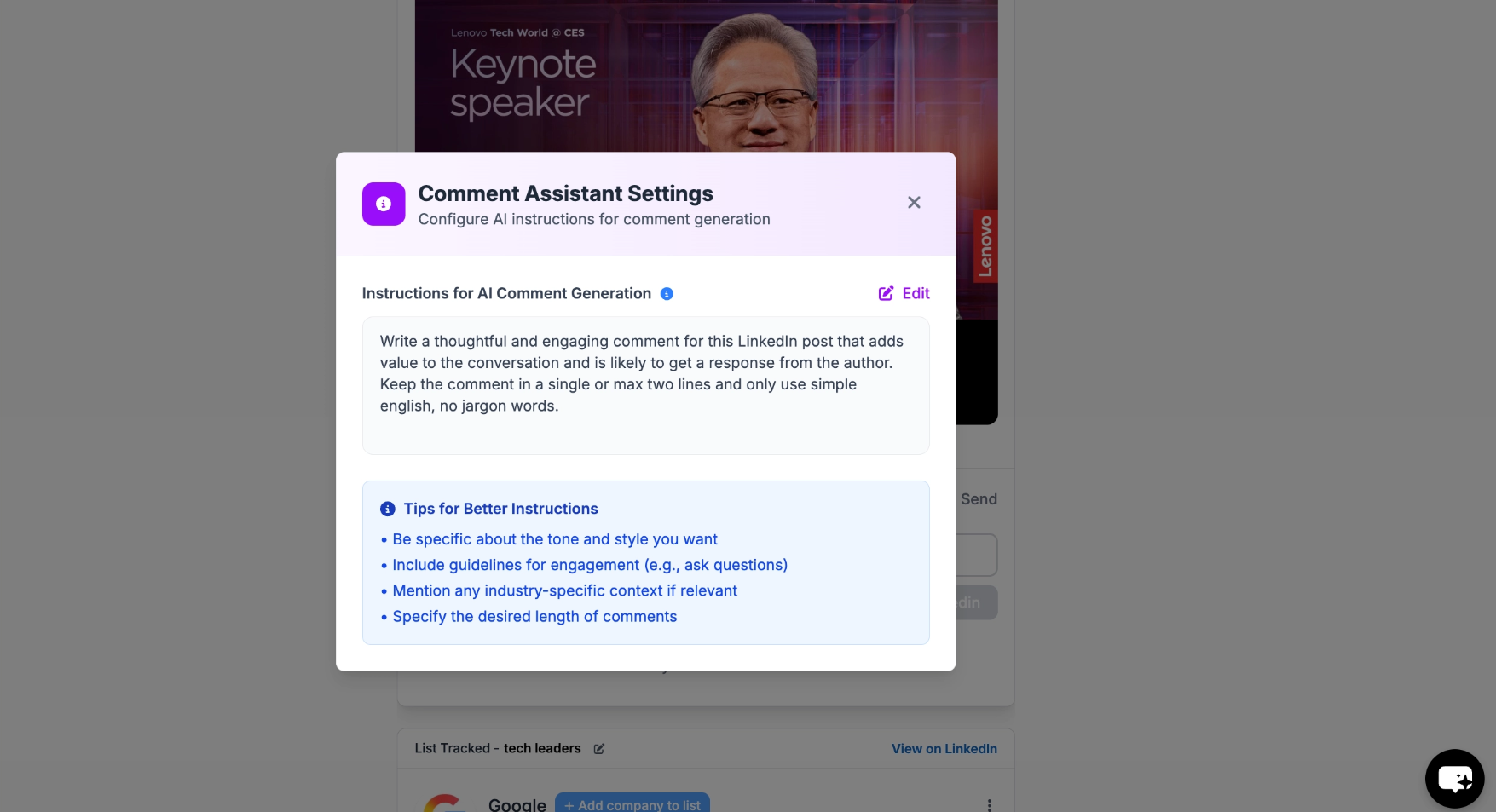 **Example comment prompts you can use:**
* "Write casual, friendly comments. Keep it to 1-2 sentences."
* "Be professional and insightful. Reference specific points from the post."
* "Write from the perspective of a SaaS founder. Be authentic, not salesy."
This setting applies to ALL AI-generated comments on your account.
***
### **Step 4: Post When Ready**
Once satisfied, post the comment directly on LinkedIn.
If it doesn't feel right, you can simply skip it.
***
### Use Both Together
Most teams use both options together:
* Auto Engagement for daily visibility
* Manual AI comments for important conversations
You stay active, relevant, and in control-without turning LinkedIn into a full-time task.
***
## Frequently Asked Questions
No. The OutX Chrome extension must be running in your browser for auto-engagement to work. If you close the browser or shut down your computer, auto-engagement pauses and resumes when you open the browser again. Keep Chrome open with the extension enabled for continuous engagement.
Click the **Gear icon** next to the comment input when viewing a post. You'll see a field called **"Comment prompt (optional)"**, this is where you write instructions for the AI. For example: "Write casual, friendly comments in 1-2 sentences" or "Be professional and reference specific points from the post." This applies to all AI-generated comments on your account.
Yes. When creating an engagement rule, you can choose between your personal LinkedIn account or a connected company page as the actor.
Start with **1-5 likes per hour** and **1-3 comments per hour**. OutX has built-in rate limiting to keep your activity natural and safe. Avoid setting very high limits to prevent LinkedIn from flagging your account.
Yes. Use the **Advanced Options** when creating a rule to filter by Intent, specific Profiles, Seniority Levels, Post Types, and time range. This ensures engagement stays targeted and relevant.
Comments are posted from the team member selected in the engagement rule. Check which account is set in the rule settings, it may be using a different team member's LinkedIn account. Admin can change this in the rule configuration.
No. OutX does not sell likes. It automates engagement from real accounts you control on posts that match your watchlists.
***
## Learn More
* [Automate LinkedIn Likes & Comments](https://www.outx.ai/blog/automate-linkedin-likes-comments)
* [How to Automate LinkedIn Likes Safely](https://www.outx.ai/blog/linkedin-auto-liker)
* [How to Automate LinkedIn Comments](https://www.outx.ai/blog/linkedin-auto-commentor)
* [LinkedIn Automation Safety Guide](https://www.outx.ai/blog/linkedin-automation-safety-guide-best-practices-2026)
***
# Reddit Tracking
Source: [https://outx.ai/docs/documentation/linkedin-social-listening/reddit-tracking](https://outx.ai/docs/documentation/linkedin-social-listening/reddit-tracking)
OutX supports Reddit as a social listening channel alongside LinkedIn. You track keyword-based conversations on Reddit in a Reddit watchlist, which has its own feed next to your LinkedIn ones.
***
## Why Track Reddit?
Reddit is where many professionals, developers, and buyers discuss tools, share opinions, and ask for recommendations - often more candidly than on LinkedIn.
Tracking Reddit helps you:
* Catch buying intent ("looking for a tool that does X")
* Monitor brand and competitor mentions
* Discover product feedback and feature requests
* Find community discussions relevant to your market
***
## How Reddit Tracking Works
A Reddit watchlist is its own watchlist, with its own keywords, its own intent labels and its own feed. It is created from the same Keywords flow as a LinkedIn watchlist, and picking both platforms there creates **two** watchlists, one per platform.
1. **Create a keyword watchlist** and pick Reddit as a platform
2. OutX monitors Reddit for posts and comments matching your keywords
3. Matching posts appear in the **Reddit watchlist's own feed**, listed separately in the sidebar
4. Editing keywords, labels or sync frequency on one platform does not touch the other
There is no combined LinkedIn plus Reddit feed and no platform filter inside one feed. The two watchlists are independent: separate keywords, separate labels, separate sync schedules. Compare them side by side rather than expecting one merged view.
***
## Setting Up Reddit Tracking
### Step 1: Start a Keyword Watchlist
Follow the same steps as creating a [LinkedIn keyword watchlist](/docs/documentation/linkedin-social-listening/keyword-watchlist):
1. Click **"+"** to create a new watchlist and choose **Keywords**
2. Enter your tracking prompt or keywords
3. Configure must-include and excluded keywords
### Step 2: Pick Reddit as a platform
In the **Platforms** row of the create form, LinkedIn and Reddit are both selected by default. Leave both on to track the topic on both, or click one off to track a single platform.
Leaving both on creates two watchlists from one form: a LinkedIn one and a Reddit one, each generated for its own platform.
### Step 3: View Reddit Posts
Reddit watchlists appear in the sidebar under **Reddit Watchlist**, alongside your keyword watchlists. Open one to read its feed.
### Step 4: Set the sync frequency
Open the watchlist configuration (gear icon) and find **Sync Frequency** under **Advanced Settings**. The options available depend on your plan, with the more frequent ones reserved for higher plans.
***
## Reddit vs LinkedIn Tracking
| Feature | LinkedIn | Reddit |
| ----------------------------- | ------------ | ------------------------------ |
| Keyword monitoring | Yes | Yes |
| Post content tracking | Yes | Yes, posts and comments |
| Intent labels | Yes | Yes |
| Profile tracking | Yes | No |
| Company tracking | Yes | No |
| Auto-like | Yes | No |
| Auto-comment | Yes | No |
| Sync frequency | Configurable | Configurable |
| Fills in past posts on create | Yes | No, from the first sync onward |
***
## Frequently Asked Questions
**Can I track specific subreddits?**
Reddit tracking works through keyword matching across Reddit, not by subscribing to specific subreddits. Posts are matched based on your watchlist keywords regardless of which subreddit they appear in.
***
**Can I auto-engage on Reddit posts?**
No. Auto-like and auto-comment features are currently available only for LinkedIn posts. Reddit posts are tracked for monitoring and intelligence purposes.
***
**How often are Reddit posts fetched?**
On the schedule you set in **Sync Frequency**, under Advanced Settings in the watchlist configuration. Which intervals you can pick depends on your plan.
***
**Do Reddit and LinkedIn posts share one feed?**
No. Tracking a topic on both platforms gives you two watchlists with two feeds. They are separate everywhere: keywords, intent labels, sync frequency and results.
***
**Will a new Reddit watchlist show older posts?**
No. Reddit watchlists start collecting from their first sync onward, so the feed is empty until then. LinkedIn keyword watchlists do fill in recent past posts on creation.
***
**Do I need a Reddit account for tracking?**
No. Reddit tracking works without needing a Reddit account connected to OutX.
***
**Can I export Reddit posts?**
Reddit posts appear in your watchlist feed and can be viewed alongside LinkedIn posts. Export options follow the same rules as your plan's CSV export capabilities.
***
# Get started in 10 minutes
Source: [https://outx.ai/docs/documentation/personal-branding/get-started-in-10-minutes](https://outx.ai/docs/documentation/personal-branding/get-started-in-10-minutes)
Instead of manually liking and commenting on posts, you tell OutX.ai:
* **Where** to engage (keywords, people, or companies)
* **What** to do (like, comment, or both)
* **How often** to engage
OutX.ai handles the rest.
***
## Why Use Auto Engagement?
Consistency and timing are critical on LinkedIn.
Auto Engagement helps you:
* Show up early on relevant posts
* Stay visible without daily effort
* Build relationships at scale
* Grow your personal brand naturally
***
## How Auto Engagement Works
Auto Engagement always runs on a **watchlist**.
**Example comment prompts you can use:**
* "Write casual, friendly comments. Keep it to 1-2 sentences."
* "Be professional and insightful. Reference specific points from the post."
* "Write from the perspective of a SaaS founder. Be authentic, not salesy."
This setting applies to ALL AI-generated comments on your account.
***
### **Step 4: Post When Ready**
Once satisfied, post the comment directly on LinkedIn.
If it doesn't feel right, you can simply skip it.
***
### Use Both Together
Most teams use both options together:
* Auto Engagement for daily visibility
* Manual AI comments for important conversations
You stay active, relevant, and in control-without turning LinkedIn into a full-time task.
***
## Frequently Asked Questions
No. The OutX Chrome extension must be running in your browser for auto-engagement to work. If you close the browser or shut down your computer, auto-engagement pauses and resumes when you open the browser again. Keep Chrome open with the extension enabled for continuous engagement.
Click the **Gear icon** next to the comment input when viewing a post. You'll see a field called **"Comment prompt (optional)"**, this is where you write instructions for the AI. For example: "Write casual, friendly comments in 1-2 sentences" or "Be professional and reference specific points from the post." This applies to all AI-generated comments on your account.
Yes. When creating an engagement rule, you can choose between your personal LinkedIn account or a connected company page as the actor.
Start with **1-5 likes per hour** and **1-3 comments per hour**. OutX has built-in rate limiting to keep your activity natural and safe. Avoid setting very high limits to prevent LinkedIn from flagging your account.
Yes. Use the **Advanced Options** when creating a rule to filter by Intent, specific Profiles, Seniority Levels, Post Types, and time range. This ensures engagement stays targeted and relevant.
Comments are posted from the team member selected in the engagement rule. Check which account is set in the rule settings, it may be using a different team member's LinkedIn account. Admin can change this in the rule configuration.
No. OutX does not sell likes. It automates engagement from real accounts you control on posts that match your watchlists.
***
## Learn More
* [Automate LinkedIn Likes & Comments](https://www.outx.ai/blog/automate-linkedin-likes-comments)
* [How to Automate LinkedIn Likes Safely](https://www.outx.ai/blog/linkedin-auto-liker)
* [How to Automate LinkedIn Comments](https://www.outx.ai/blog/linkedin-auto-commentor)
* [LinkedIn Automation Safety Guide](https://www.outx.ai/blog/linkedin-automation-safety-guide-best-practices-2026)
***
# Reddit Tracking
Source: [https://outx.ai/docs/documentation/linkedin-social-listening/reddit-tracking](https://outx.ai/docs/documentation/linkedin-social-listening/reddit-tracking)
OutX supports Reddit as a social listening channel alongside LinkedIn. You track keyword-based conversations on Reddit in a Reddit watchlist, which has its own feed next to your LinkedIn ones.
***
## Why Track Reddit?
Reddit is where many professionals, developers, and buyers discuss tools, share opinions, and ask for recommendations - often more candidly than on LinkedIn.
Tracking Reddit helps you:
* Catch buying intent ("looking for a tool that does X")
* Monitor brand and competitor mentions
* Discover product feedback and feature requests
* Find community discussions relevant to your market
***
## How Reddit Tracking Works
A Reddit watchlist is its own watchlist, with its own keywords, its own intent labels and its own feed. It is created from the same Keywords flow as a LinkedIn watchlist, and picking both platforms there creates **two** watchlists, one per platform.
1. **Create a keyword watchlist** and pick Reddit as a platform
2. OutX monitors Reddit for posts and comments matching your keywords
3. Matching posts appear in the **Reddit watchlist's own feed**, listed separately in the sidebar
4. Editing keywords, labels or sync frequency on one platform does not touch the other
There is no combined LinkedIn plus Reddit feed and no platform filter inside one feed. The two watchlists are independent: separate keywords, separate labels, separate sync schedules. Compare them side by side rather than expecting one merged view.
***
## Setting Up Reddit Tracking
### Step 1: Start a Keyword Watchlist
Follow the same steps as creating a [LinkedIn keyword watchlist](/docs/documentation/linkedin-social-listening/keyword-watchlist):
1. Click **"+"** to create a new watchlist and choose **Keywords**
2. Enter your tracking prompt or keywords
3. Configure must-include and excluded keywords
### Step 2: Pick Reddit as a platform
In the **Platforms** row of the create form, LinkedIn and Reddit are both selected by default. Leave both on to track the topic on both, or click one off to track a single platform.
Leaving both on creates two watchlists from one form: a LinkedIn one and a Reddit one, each generated for its own platform.
### Step 3: View Reddit Posts
Reddit watchlists appear in the sidebar under **Reddit Watchlist**, alongside your keyword watchlists. Open one to read its feed.
### Step 4: Set the sync frequency
Open the watchlist configuration (gear icon) and find **Sync Frequency** under **Advanced Settings**. The options available depend on your plan, with the more frequent ones reserved for higher plans.
***
## Reddit vs LinkedIn Tracking
| Feature | LinkedIn | Reddit |
| ----------------------------- | ------------ | ------------------------------ |
| Keyword monitoring | Yes | Yes |
| Post content tracking | Yes | Yes, posts and comments |
| Intent labels | Yes | Yes |
| Profile tracking | Yes | No |
| Company tracking | Yes | No |
| Auto-like | Yes | No |
| Auto-comment | Yes | No |
| Sync frequency | Configurable | Configurable |
| Fills in past posts on create | Yes | No, from the first sync onward |
***
## Frequently Asked Questions
**Can I track specific subreddits?**
Reddit tracking works through keyword matching across Reddit, not by subscribing to specific subreddits. Posts are matched based on your watchlist keywords regardless of which subreddit they appear in.
***
**Can I auto-engage on Reddit posts?**
No. Auto-like and auto-comment features are currently available only for LinkedIn posts. Reddit posts are tracked for monitoring and intelligence purposes.
***
**How often are Reddit posts fetched?**
On the schedule you set in **Sync Frequency**, under Advanced Settings in the watchlist configuration. Which intervals you can pick depends on your plan.
***
**Do Reddit and LinkedIn posts share one feed?**
No. Tracking a topic on both platforms gives you two watchlists with two feeds. They are separate everywhere: keywords, intent labels, sync frequency and results.
***
**Will a new Reddit watchlist show older posts?**
No. Reddit watchlists start collecting from their first sync onward, so the feed is empty until then. LinkedIn keyword watchlists do fill in recent past posts on creation.
***
**Do I need a Reddit account for tracking?**
No. Reddit tracking works without needing a Reddit account connected to OutX.
***
**Can I export Reddit posts?**
Reddit posts appear in your watchlist feed and can be viewed alongside LinkedIn posts. Export options follow the same rules as your plan's CSV export capabilities.
***
# Get started in 10 minutes
Source: [https://outx.ai/docs/documentation/personal-branding/get-started-in-10-minutes](https://outx.ai/docs/documentation/personal-branding/get-started-in-10-minutes)
Instead of manually liking and commenting on posts, you tell OutX.ai:
* **Where** to engage (keywords, people, or companies)
* **What** to do (like, comment, or both)
* **How often** to engage
OutX.ai handles the rest.
***
## Why Use Auto Engagement?
Consistency and timing are critical on LinkedIn.
Auto Engagement helps you:
* Show up early on relevant posts
* Stay visible without daily effort
* Build relationships at scale
* Grow your personal brand naturally
***
## How Auto Engagement Works
Auto Engagement always runs on a **watchlist**.
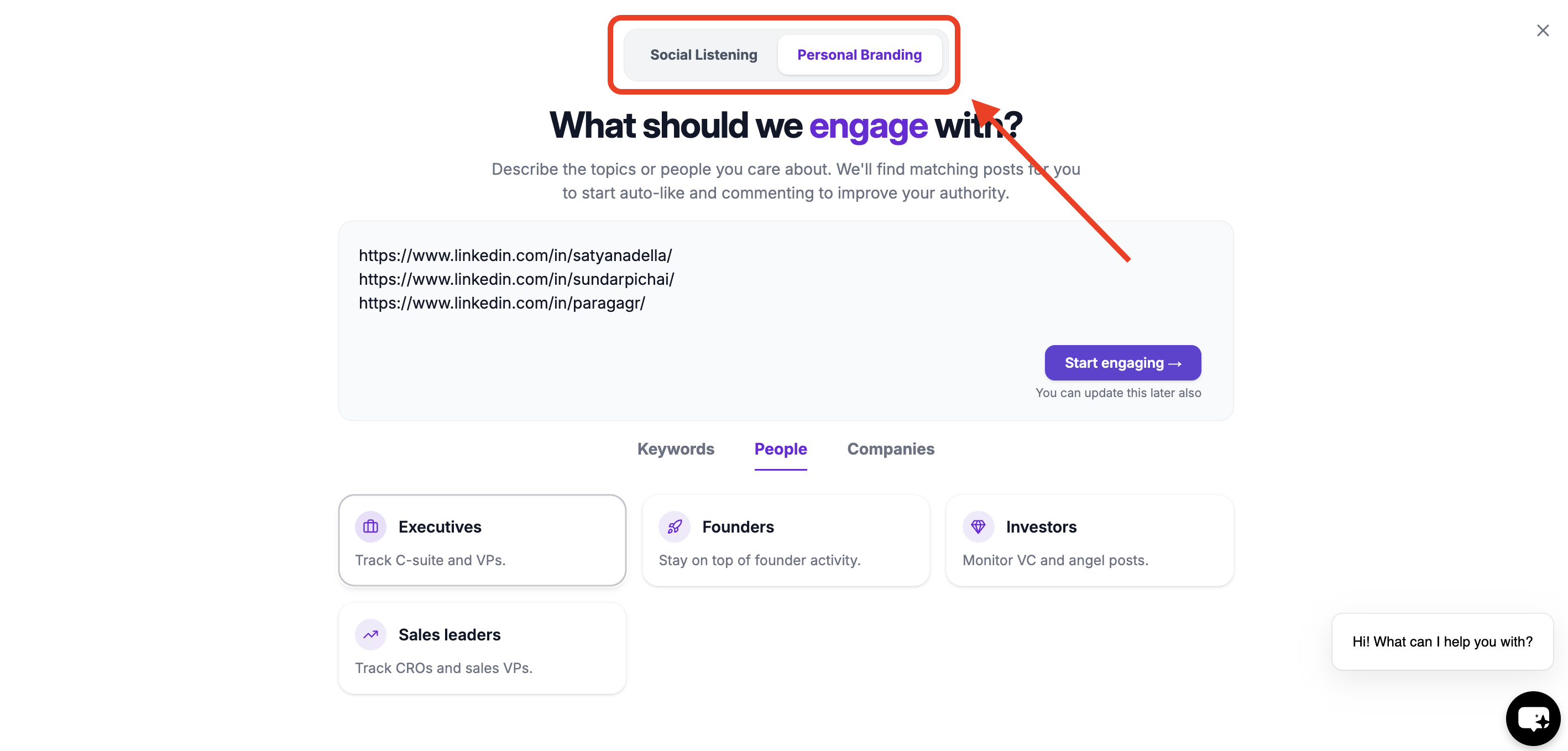 During onboarding (or later), you:
1. Select **Personal Branding**
2. Choose where you want to auto-engage:
* Keyword watchlists
* People watchlists
* Company watchlists
During onboarding (or later), you:
1. Select **Personal Branding**
2. Choose where you want to auto-engage:
* Keyword watchlists
* People watchlists
* Company watchlists
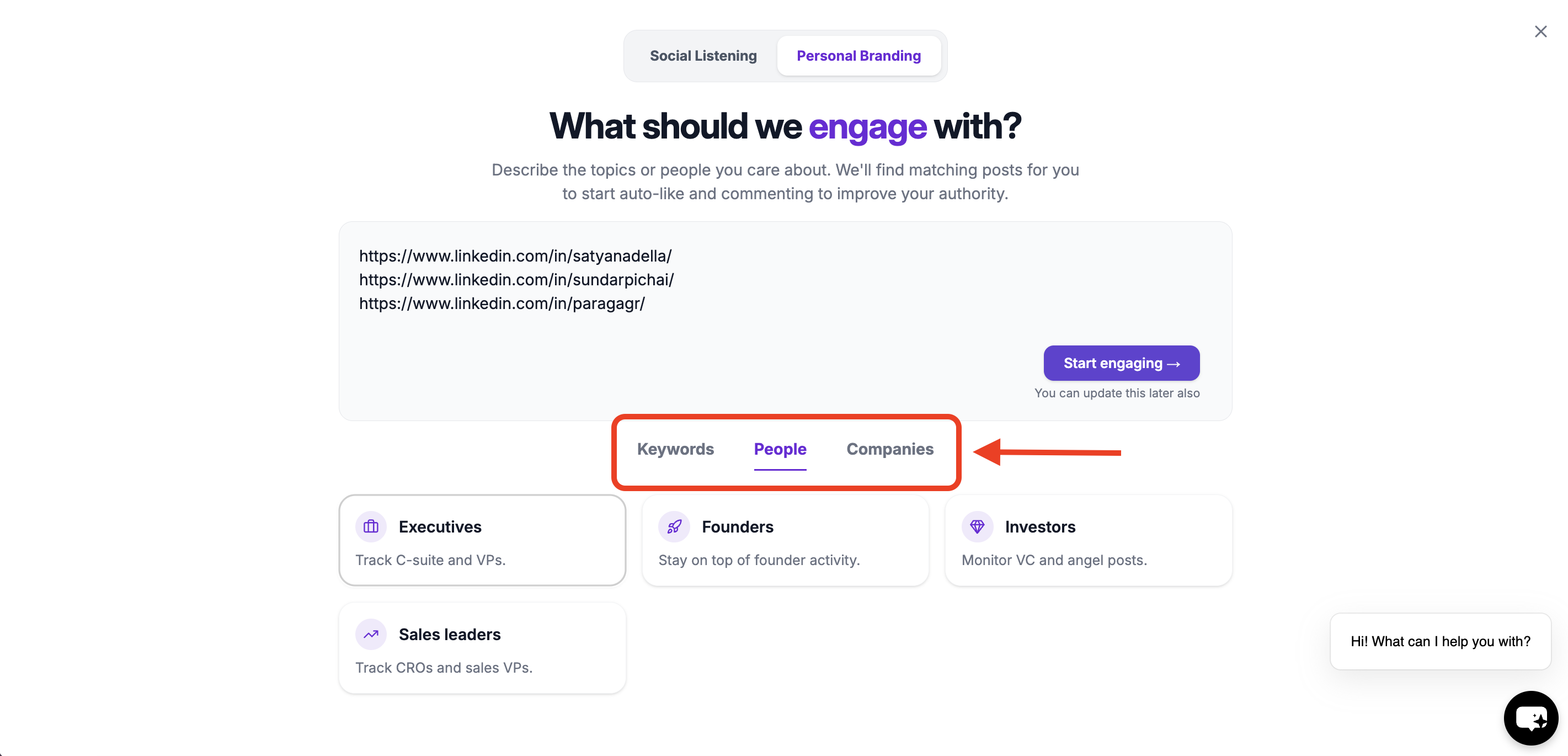 3. Create engagement rules
OutX.ai then monitors posts and applies your rules automatically.
***
# Choose Where You Want to Auto-Engage
You can enable Auto Engagement on one or more of the following:
### Keyword Watchlists
Engage with posts related to specific topics or conversations.
Best for:
* Personal branding
* Thought leadership
* Industry conversations
***
### People Watchlists
Engage as soon as specific people post.
Best for:
* Sales & outbound
* Relationship building
* Staying top-of-mind
***
### Company Watchlists
Engage with posts from specific companies.
Best for:
* Target accounts
* Competitor pages
* Partner companies
***
# Create Your Engagement Rule
Once you choose a watchlist, click **Add Your First Rule**.
You'll see the **Create Engagement Rule** screen.
***
## Step 1: Choose an Action
Select what OutX.ai should do:
* Auto-Like Posts
* Auto-Comment on Posts
***
## Step 2: Choose Account
Select which LinkedIn account will be used:
* Your personal account
* Your company page (if connected)
***
## Step 3: Set Limit Per Hour
Control how many actions happen per hour.
Examples:
* 1 per hour
* 5 per hour
* 10 per hour
This keeps activity safe and natural.
***
## Step 4: Advanced Options (Optional)
Use advanced filters to control **which posts qualify for engagement**.
You can refine engagement using:
* **Filter Intent** – Engage only on posts matching selected intent types (e.g., buying intent, hiring, announcements)
* **Filter Profiles** – Limit engagement to specific profiles or profile categories
* **Filter Seniority Levels** – Engage only with posts from certain seniority levels (e.g., Founder, VP, Manager)
* **Filter Post Types** – Choose which types of posts to engage with (text posts, image posts, job posts, etc.)
* **LinkedIn Posted At** – Engage only on posts published within a selected time range
These filters help ensure engagement stays **relevant, targeted, and high-quality**.
***
## Step 5: Activate Rule
Turn the rule **Active** and click **Create Rule**.
OutX.ai will start liking and/or commenting automatically based on your rule.
***
# What Happens After Setup
Once enabled:
* OutX.ai monitors posts in real time
* Applies your engagement rules
* Likes or comments automatically
* Logs every action
You can pause, edit, or delete rules anytime.
***
# You're Live
In under 10 minutes, you've:
* Chosen where to auto-engage
* Created engagement rules
* Enabled automation
* Started building your LinkedIn presence
OutX.ai now grows your visibility in the background so you don't have to.
## Frequently Asked Questions
Yes. When creating an engagement rule, you can select your company page as the account to use. Comments and likes will then be posted as the company rather than your personal profile.
Start conservatively with 1-5 likes per hour and 1-3 comments per hour. These limits help keep your activity looking natural and reduce the risk of LinkedIn flagging your account. You can adjust limits over time as you monitor results.
***
# How to Automate Likes & Comments?
Source: [https://outx.ai/docs/documentation/personal-branding/how-to-automate-likes-comments-to-boost-engagement](https://outx.ai/docs/documentation/personal-branding/how-to-automate-likes-comments-to-boost-engagement)
Auto-engagement lets your team auto-like and auto-comment on LinkedIn posts that match your watchlists, keeping you active and visible without manual effort.
> Too Long? Watch this →
## How It Works
1. **Create a watchlist** with keywords, people, or companies you want to engage with
2. **Set up an engagement rule**, choose auto-like, auto-comment, or both
3. **Pick the account**, your personal LinkedIn or your company page
4. **Set a safe limit**, control how many actions per hour (start with 1–5)
5. **Activate**, OutX handles the rest automatically
For the detailed step-by-step guide with screenshots, see [Auto Engagement Setup →](/docs/documentation/linkedin-social-listening/auto-engagement)
## Key Settings
| Setting | What It Does |
| -------------------- | ---------------------------------------------------- |
| **Action** | Auto-Like, Auto-Comment, or both |
| **Account** | Personal LinkedIn or Company Page |
| **Limit per hour** | Controls engagement frequency (1–10 per hour) |
| **Intent filter** | Engage only on posts matching specific intents |
| **Profile filter** | Limit engagement to specific profiles |
| **Seniority filter** | Engage only with posts from certain seniority levels |
| **Post type filter** | Choose text, image, video, or job posts |
## Customizing Comment Tone
You can control how AI-generated comments sound by editing the **Comment prompt**. Click the **Gear icon** next to the comment input when viewing a post.
Example prompts:
* "Write casual, friendly comments. Keep it to 1-2 sentences."
* "Be professional and insightful. Reference specific points from the post."
* "Write from the perspective of a SaaS founder. Be authentic, not salesy."
This setting applies to all AI-generated comments on your account.
## Best Practices
* Start with low limits (1–3 likes per hour, 1–2 comments per hour)
* Keep Chrome open, auto-engagement only works while the extension is active
* Use intent and seniority filters to keep engagement targeted
* Review your [Activity log](/docs/documentation/personal-branding/activity) regularly
## Frequently Asked Questions
No. The Chrome extension must be running for auto-engagement to work. If you close Chrome or shut down your computer, engagement pauses and resumes when you reopen Chrome.
Click the Gear icon next to the comment input when viewing a post. Edit the "Comment prompt" field with instructions for tone and style. This applies to all AI comments on your account.
Yes. When creating a rule, choose your company page as the account. You can have separate rules for personal and company engagement.
Start with 1-5 likes per hour and 1-3 comments per hour. OutX has built-in rate limiting, but keeping limits moderate ensures natural activity. See [LinkedIn Safety](/docs/resources/linkedin-safety).
No. OutX does not sell likes. It only automates engagement from real accounts you control on posts that match your watchlists.
OutX runs through your browser and simulates normal browsing behavior. The risk is minimal when you use moderate limits. See [LinkedIn Safety](/docs/resources/linkedin-safety).
Comments are posted from the team member selected in the engagement rule. Check which account is set in the rule, it may be a different team member's account. Admin can change this in the rule settings.
***
# How OutX.ai Analyzes Likes & Comments
Source: [https://outx.ai/docs/documentation/personal-branding/how-outx-analyzes-likes-and-comments](https://outx.ai/docs/documentation/personal-branding/how-outx-analyzes-likes-and-comments)
## What We Listen To
OutX.ai continuously monitors engagement activity on LinkedIn posts, including:
* Comments on posts
* Likes and reactions
* The people interacting with specific content
* The context of the post being engaged with
This allows us to go beyond *what people post* and focus on *what they interact with*.
***
## How OutX.ai Processes Engagement
Here's how the Engager works behind the scenes:
1. **Post Identification**
We identify relevant LinkedIn posts based on keywords, people, or companies you track.
3. Create engagement rules
OutX.ai then monitors posts and applies your rules automatically.
***
# Choose Where You Want to Auto-Engage
You can enable Auto Engagement on one or more of the following:
### Keyword Watchlists
Engage with posts related to specific topics or conversations.
Best for:
* Personal branding
* Thought leadership
* Industry conversations
***
### People Watchlists
Engage as soon as specific people post.
Best for:
* Sales & outbound
* Relationship building
* Staying top-of-mind
***
### Company Watchlists
Engage with posts from specific companies.
Best for:
* Target accounts
* Competitor pages
* Partner companies
***
# Create Your Engagement Rule
Once you choose a watchlist, click **Add Your First Rule**.
You'll see the **Create Engagement Rule** screen.
***
## Step 1: Choose an Action
Select what OutX.ai should do:
* Auto-Like Posts
* Auto-Comment on Posts
***
## Step 2: Choose Account
Select which LinkedIn account will be used:
* Your personal account
* Your company page (if connected)
***
## Step 3: Set Limit Per Hour
Control how many actions happen per hour.
Examples:
* 1 per hour
* 5 per hour
* 10 per hour
This keeps activity safe and natural.
***
## Step 4: Advanced Options (Optional)
Use advanced filters to control **which posts qualify for engagement**.
You can refine engagement using:
* **Filter Intent** – Engage only on posts matching selected intent types (e.g., buying intent, hiring, announcements)
* **Filter Profiles** – Limit engagement to specific profiles or profile categories
* **Filter Seniority Levels** – Engage only with posts from certain seniority levels (e.g., Founder, VP, Manager)
* **Filter Post Types** – Choose which types of posts to engage with (text posts, image posts, job posts, etc.)
* **LinkedIn Posted At** – Engage only on posts published within a selected time range
These filters help ensure engagement stays **relevant, targeted, and high-quality**.
***
## Step 5: Activate Rule
Turn the rule **Active** and click **Create Rule**.
OutX.ai will start liking and/or commenting automatically based on your rule.
***
# What Happens After Setup
Once enabled:
* OutX.ai monitors posts in real time
* Applies your engagement rules
* Likes or comments automatically
* Logs every action
You can pause, edit, or delete rules anytime.
***
# You're Live
In under 10 minutes, you've:
* Chosen where to auto-engage
* Created engagement rules
* Enabled automation
* Started building your LinkedIn presence
OutX.ai now grows your visibility in the background so you don't have to.
## Frequently Asked Questions
Yes. When creating an engagement rule, you can select your company page as the account to use. Comments and likes will then be posted as the company rather than your personal profile.
Start conservatively with 1-5 likes per hour and 1-3 comments per hour. These limits help keep your activity looking natural and reduce the risk of LinkedIn flagging your account. You can adjust limits over time as you monitor results.
***
# How to Automate Likes & Comments?
Source: [https://outx.ai/docs/documentation/personal-branding/how-to-automate-likes-comments-to-boost-engagement](https://outx.ai/docs/documentation/personal-branding/how-to-automate-likes-comments-to-boost-engagement)
Auto-engagement lets your team auto-like and auto-comment on LinkedIn posts that match your watchlists, keeping you active and visible without manual effort.
> Too Long? Watch this →
## How It Works
1. **Create a watchlist** with keywords, people, or companies you want to engage with
2. **Set up an engagement rule**, choose auto-like, auto-comment, or both
3. **Pick the account**, your personal LinkedIn or your company page
4. **Set a safe limit**, control how many actions per hour (start with 1–5)
5. **Activate**, OutX handles the rest automatically
For the detailed step-by-step guide with screenshots, see [Auto Engagement Setup →](/docs/documentation/linkedin-social-listening/auto-engagement)
## Key Settings
| Setting | What It Does |
| -------------------- | ---------------------------------------------------- |
| **Action** | Auto-Like, Auto-Comment, or both |
| **Account** | Personal LinkedIn or Company Page |
| **Limit per hour** | Controls engagement frequency (1–10 per hour) |
| **Intent filter** | Engage only on posts matching specific intents |
| **Profile filter** | Limit engagement to specific profiles |
| **Seniority filter** | Engage only with posts from certain seniority levels |
| **Post type filter** | Choose text, image, video, or job posts |
## Customizing Comment Tone
You can control how AI-generated comments sound by editing the **Comment prompt**. Click the **Gear icon** next to the comment input when viewing a post.
Example prompts:
* "Write casual, friendly comments. Keep it to 1-2 sentences."
* "Be professional and insightful. Reference specific points from the post."
* "Write from the perspective of a SaaS founder. Be authentic, not salesy."
This setting applies to all AI-generated comments on your account.
## Best Practices
* Start with low limits (1–3 likes per hour, 1–2 comments per hour)
* Keep Chrome open, auto-engagement only works while the extension is active
* Use intent and seniority filters to keep engagement targeted
* Review your [Activity log](/docs/documentation/personal-branding/activity) regularly
## Frequently Asked Questions
No. The Chrome extension must be running for auto-engagement to work. If you close Chrome or shut down your computer, engagement pauses and resumes when you reopen Chrome.
Click the Gear icon next to the comment input when viewing a post. Edit the "Comment prompt" field with instructions for tone and style. This applies to all AI comments on your account.
Yes. When creating a rule, choose your company page as the account. You can have separate rules for personal and company engagement.
Start with 1-5 likes per hour and 1-3 comments per hour. OutX has built-in rate limiting, but keeping limits moderate ensures natural activity. See [LinkedIn Safety](/docs/resources/linkedin-safety).
No. OutX does not sell likes. It only automates engagement from real accounts you control on posts that match your watchlists.
OutX runs through your browser and simulates normal browsing behavior. The risk is minimal when you use moderate limits. See [LinkedIn Safety](/docs/resources/linkedin-safety).
Comments are posted from the team member selected in the engagement rule. Check which account is set in the rule, it may be a different team member's account. Admin can change this in the rule settings.
***
# How OutX.ai Analyzes Likes & Comments
Source: [https://outx.ai/docs/documentation/personal-branding/how-outx-analyzes-likes-and-comments](https://outx.ai/docs/documentation/personal-branding/how-outx-analyzes-likes-and-comments)
## What We Listen To
OutX.ai continuously monitors engagement activity on LinkedIn posts, including:
* Comments on posts
* Likes and reactions
* The people interacting with specific content
* The context of the post being engaged with
This allows us to go beyond *what people post* and focus on *what they interact with*.
***
## How OutX.ai Processes Engagement
Here's how the Engager works behind the scenes:
1. **Post Identification**
We identify relevant LinkedIn posts based on keywords, people, or companies you track.
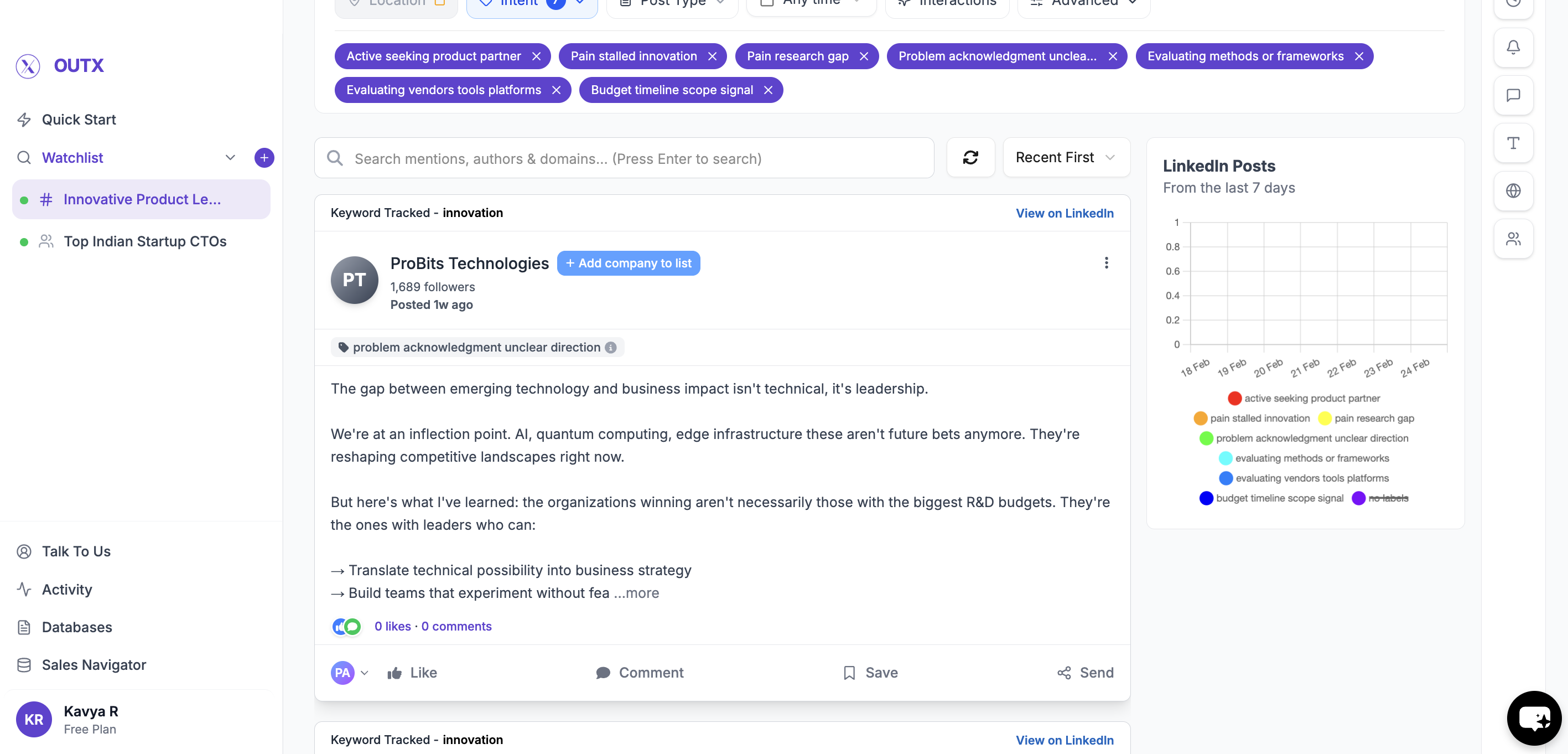 2. **Engagement Capture**
OutX.ai captures:
* Who liked the post
* Who commented
2. **Engagement Capture**
OutX.ai captures:
* Who liked the post
* Who commented
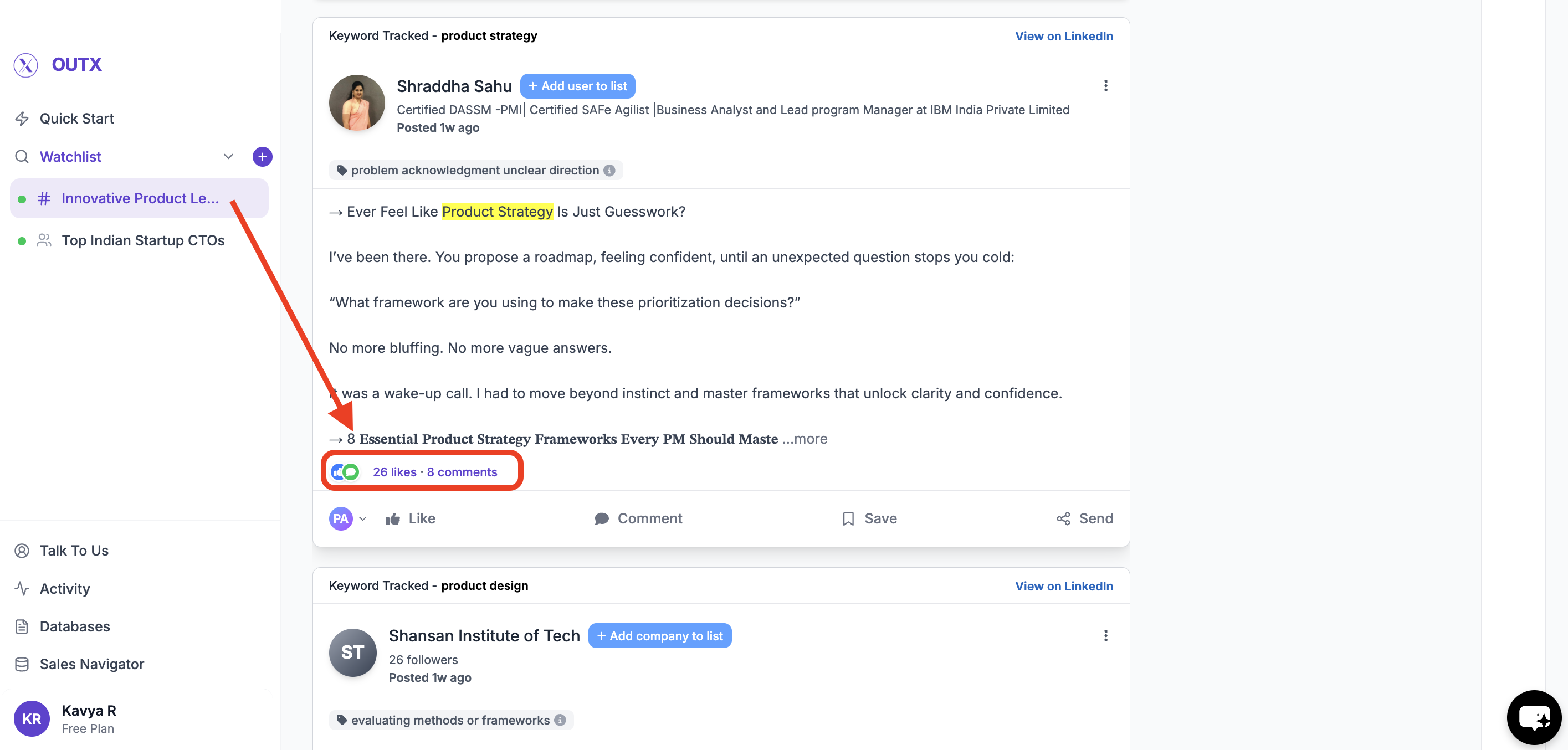 3. **Signal Creation**
These interactions are converted into structured list you can later act on.
3. **Signal Creation**
These interactions are converted into structured list you can later act on.
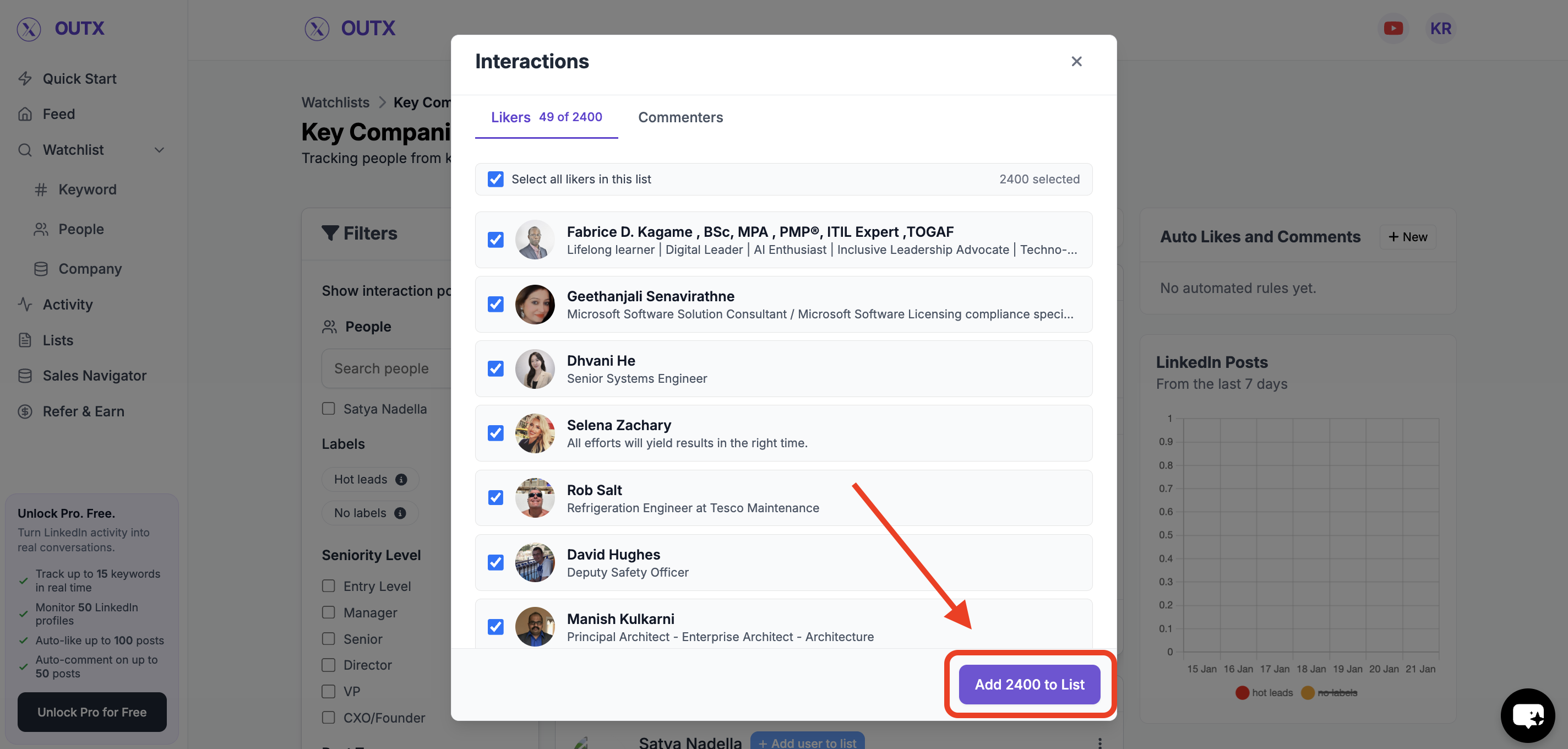 4. **Import the List**
* Click on Add people to list
4. **Import the List**
* Click on Add people to list
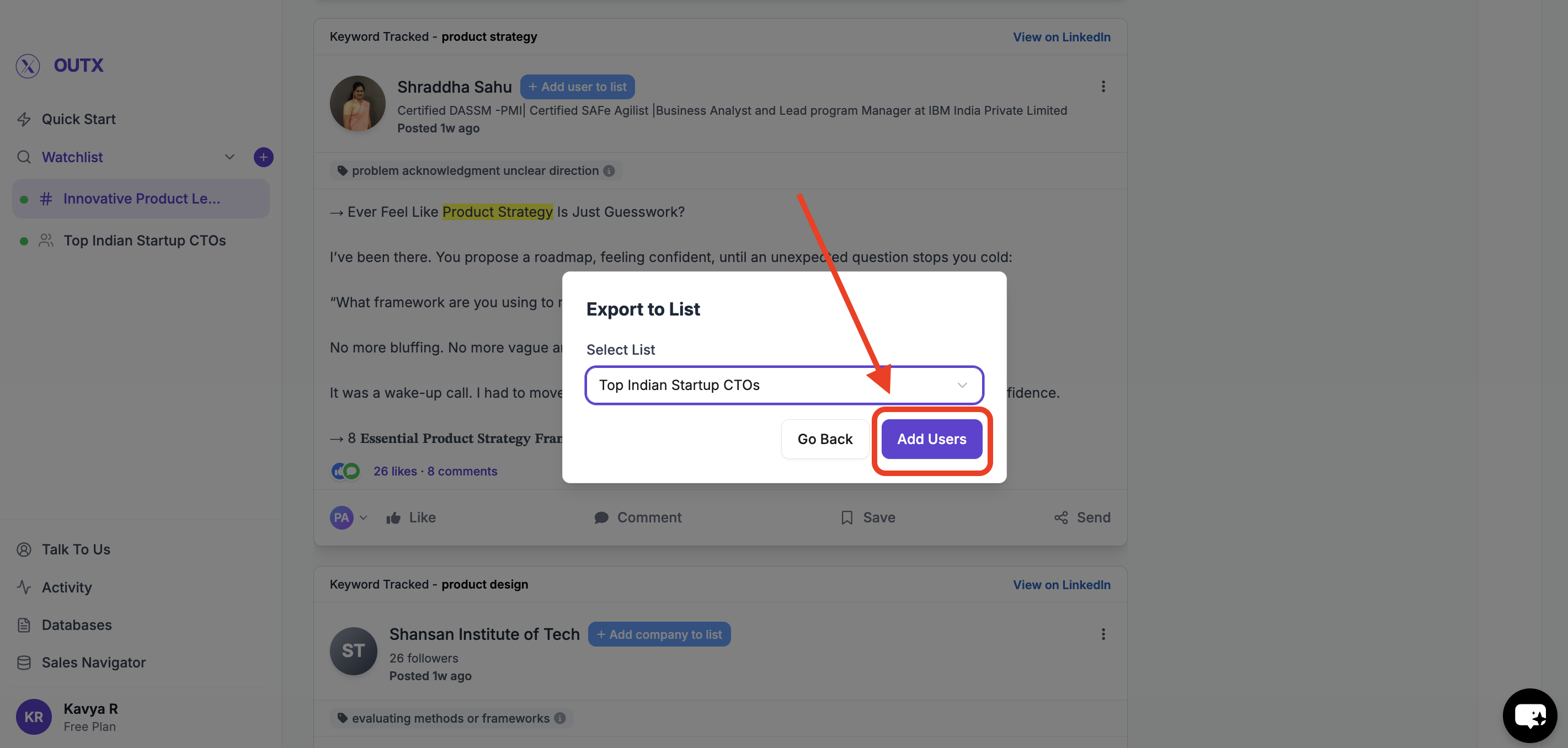 ***
## What You Can Do With This Data
Using Engager insights, you can:
* Identify high-intent prospects earlier
* Spot buyers who don't create posts but actively engage
* Understand what topics your ICP reacts to
* Prioritize outreach based on real interest
***
## How This Fits Into OutX.ai
The Engager works alongside:
* Keyword tracking
* People and company tracking
Together, they help you see **not just content**, but **behavior**.
> ⚠️ Note: The Engager experience is still evolving.
***
## FAQs
**Q1: What does Engager do?**
It analyzes likes and comments on LinkedIn posts to surface intent signals.
***
**Q2: What kind of engagement is tracked?**
Likes, reactions, and comments on relevant LinkedIn posts.
***
**Q3: Why analyze engagement instead of just posts?**
Many high-intent users don't post but actively like or comment.
***
**Q4: Does it read comment text?**
Yes, when available, comment content is analyzed with post context.
***
**Q5: Does Engager auto-like or comment?**
No. It only listens and analyzes engagement.
***
**Q6: Is this safe for my LinkedIn account?**
Yes. Engager focuses on analysis, not automation.
***
**Q7: Is it live for everyone?**
Availability may vary as the feature rolls out.
***
# Activity
Source: [https://outx.ai/docs/documentation/personal-branding/activity](https://outx.ai/docs/documentation/personal-branding/activity)
## **Why the Activity Section Exists**
When engagement is automated, visibility becomes important.
The Activity page helps you:
* See exactly **what actions were taken**
* Track **likes vs comments**
* Review engagement by **team member**
* Stay confident and in control of automation
Think of it as an audit trail for your LinkedIn activity.
***
## **What You'll See in the Activity Page**
The Activity page shows:
* Posts you've **liked**
* Posts you've **commented on**
* Engagement done via:
* Auto-engagement rules
* Manual actions
* Engagement from:
* Your personal account
* Team members (if applicable)
***
## What You Can Do With This Data
Using Engager insights, you can:
* Identify high-intent prospects earlier
* Spot buyers who don't create posts but actively engage
* Understand what topics your ICP reacts to
* Prioritize outreach based on real interest
***
## How This Fits Into OutX.ai
The Engager works alongside:
* Keyword tracking
* People and company tracking
Together, they help you see **not just content**, but **behavior**.
> ⚠️ Note: The Engager experience is still evolving.
***
## FAQs
**Q1: What does Engager do?**
It analyzes likes and comments on LinkedIn posts to surface intent signals.
***
**Q2: What kind of engagement is tracked?**
Likes, reactions, and comments on relevant LinkedIn posts.
***
**Q3: Why analyze engagement instead of just posts?**
Many high-intent users don't post but actively like or comment.
***
**Q4: Does it read comment text?**
Yes, when available, comment content is analyzed with post context.
***
**Q5: Does Engager auto-like or comment?**
No. It only listens and analyzes engagement.
***
**Q6: Is this safe for my LinkedIn account?**
Yes. Engager focuses on analysis, not automation.
***
**Q7: Is it live for everyone?**
Availability may vary as the feature rolls out.
***
# Activity
Source: [https://outx.ai/docs/documentation/personal-branding/activity](https://outx.ai/docs/documentation/personal-branding/activity)
## **Why the Activity Section Exists**
When engagement is automated, visibility becomes important.
The Activity page helps you:
* See exactly **what actions were taken**
* Track **likes vs comments**
* Review engagement by **team member**
* Stay confident and in control of automation
Think of it as an audit trail for your LinkedIn activity.
***
## **What You'll See in the Activity Page**
The Activity page shows:
* Posts you've **liked**
* Posts you've **commented on**
* Engagement done via:
* Auto-engagement rules
* Manual actions
* Engagement from:
* Your personal account
* Team members (if applicable)
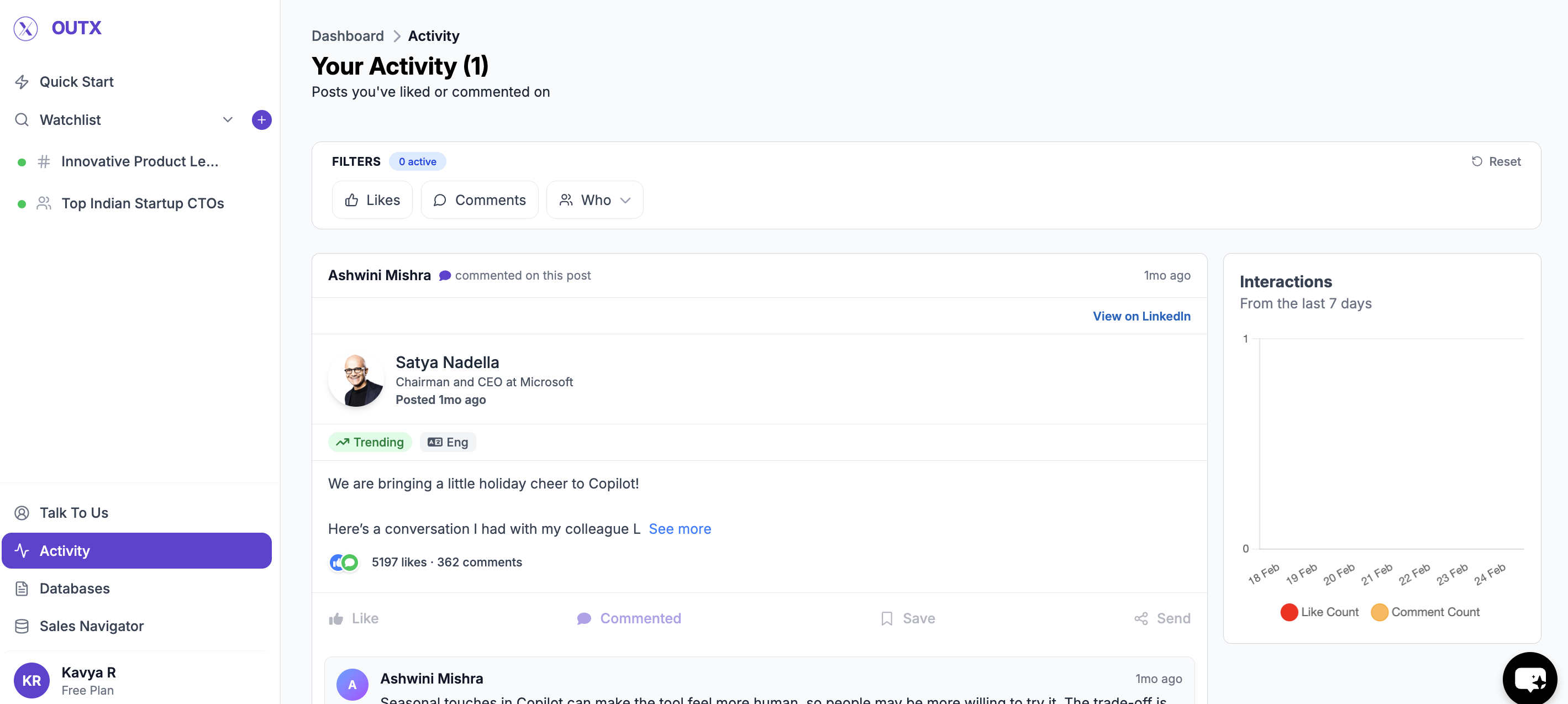 If no actions have been taken yet, you'll see a simple empty state indicating no activity.
***
## **Activity Feed**
At the center of the page is the **activity feed**.
This feed lists:
* The LinkedIn post
* The type of interaction (like or comment)
* When the action happened
This makes it easy to review past engagement or confirm that rules are working as expected.
If no actions have been taken yet, you'll see a simple empty state indicating no activity.
***
## **Activity Feed**
At the center of the page is the **activity feed**.
This feed lists:
* The LinkedIn post
* The type of interaction (like or comment)
* When the action happened
This makes it easy to review past engagement or confirm that rules are working as expected.
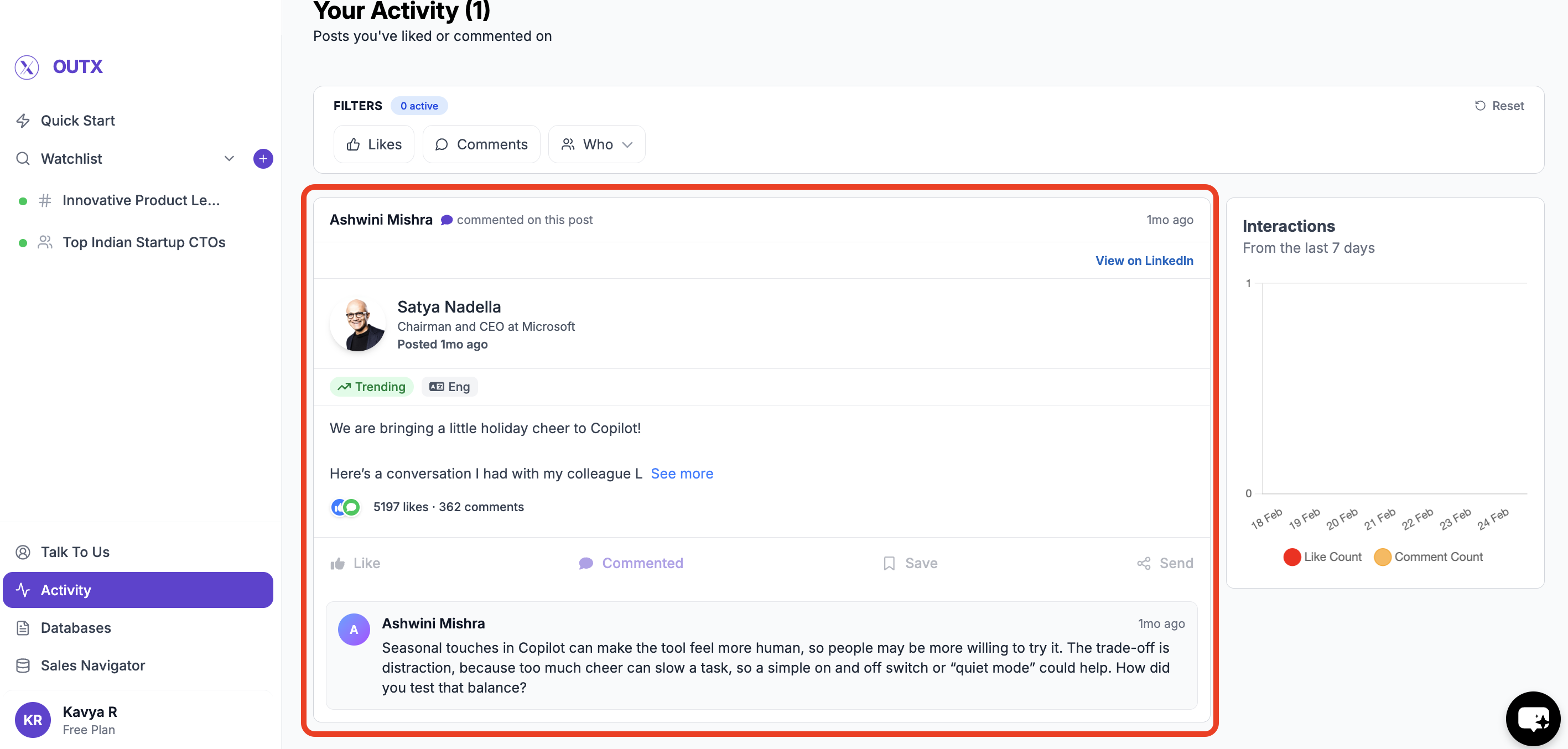 ***
## **Filters in the Activity Section**
Filters help you narrow down activity quickly.
### **Interaction Type**
Use this to filter by:
* Likes
* Comments
Helpful when you want to:
* Review only comments
* Audit likes separately
***
## **Filters in the Activity Section**
Filters help you narrow down activity quickly.
### **Interaction Type**
Use this to filter by:
* Likes
* Comments
Helpful when you want to:
* Review only comments
* Audit likes separately
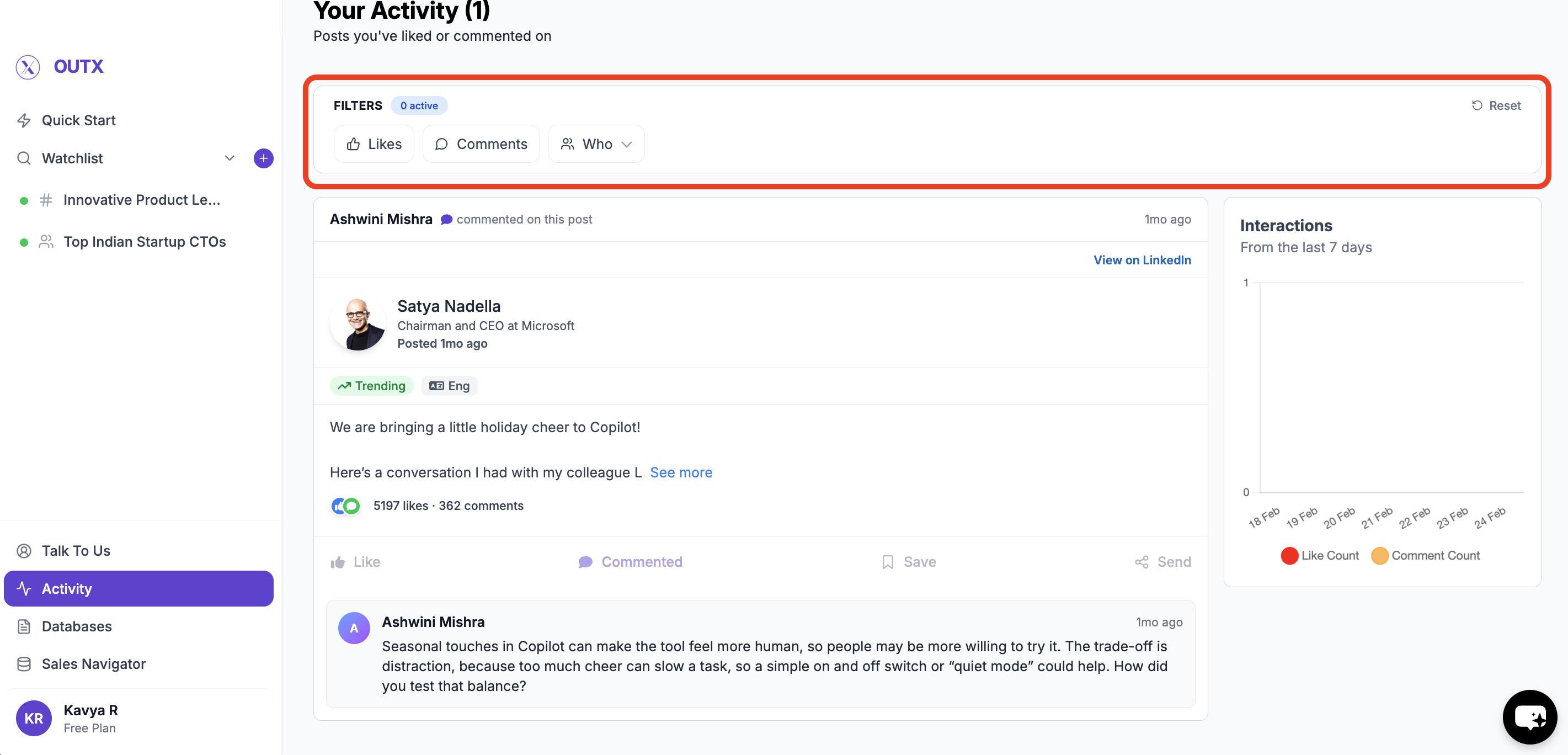 ***
### **Team Member Filter**
If you're working with a team, you can filter activity by:
* A specific team member
* Your own account
This helps understand **who engaged with what**, especially in shared workflows.
***
### **Reset Filters**
Use **Reset** to clear all filters and return to the full activity view.
***
## **Engagement Insights (Right Panel)**
On the right side, you'll see a simple **activity summary**.
This shows:
* Total likes over time
* Total comments over time
* Activity from the last few days
It gives a quick snapshot of how active your LinkedIn engagement has been.
***
## **How This Helps You Day-to-Day**
The Activity section is useful when you want to:
* Verify that auto-engagement rules are running
* Review comments for quality and tone
* Track team-level engagement
* Monitor consistency over time
You don't need to guess - everything is visible.
## Frequently Asked Questions
Yes. The Activity page shows the engagement type for each action, including whether it was performed by an auto-engagement rule or manually. It also displays which account performed the action.
Yes. You can filter the activity feed by team member to see who engaged with what. This is especially useful for teams running shared engagement workflows across multiple LinkedIn accounts.
***
# Get Started in 10 Minutes
Source: [https://outx.ai/docs/documentation/data-export/get-started-in-10-minutes](https://outx.ai/docs/documentation/data-export/get-started-in-10-minutes)
## **Why Use Data Export?**
Finding the right people on LinkedIn is easy, but turning searches into usable data is slow and manual.
Data Export helps you move faster from LinkedIn search results to outreach-ready lists.
***
## **How OutX.ai Helps with Data Export**
OutX.ai extracts structured profile data directly from LinkedIn searches.
You get clean lists that can be enriched, filtered, and exported-ready for sales or recruiting workflows.
***
## **Choose How You Want to Export Data**
OutX.ai supports **two ways to export LinkedIn data**.
Choose the one that fits how you search on LinkedIn.
***
### **Team Member Filter**
If you're working with a team, you can filter activity by:
* A specific team member
* Your own account
This helps understand **who engaged with what**, especially in shared workflows.
***
### **Reset Filters**
Use **Reset** to clear all filters and return to the full activity view.
***
## **Engagement Insights (Right Panel)**
On the right side, you'll see a simple **activity summary**.
This shows:
* Total likes over time
* Total comments over time
* Activity from the last few days
It gives a quick snapshot of how active your LinkedIn engagement has been.
***
## **How This Helps You Day-to-Day**
The Activity section is useful when you want to:
* Verify that auto-engagement rules are running
* Review comments for quality and tone
* Track team-level engagement
* Monitor consistency over time
You don't need to guess - everything is visible.
## Frequently Asked Questions
Yes. The Activity page shows the engagement type for each action, including whether it was performed by an auto-engagement rule or manually. It also displays which account performed the action.
Yes. You can filter the activity feed by team member to see who engaged with what. This is especially useful for teams running shared engagement workflows across multiple LinkedIn accounts.
***
# Get Started in 10 Minutes
Source: [https://outx.ai/docs/documentation/data-export/get-started-in-10-minutes](https://outx.ai/docs/documentation/data-export/get-started-in-10-minutes)
## **Why Use Data Export?**
Finding the right people on LinkedIn is easy, but turning searches into usable data is slow and manual.
Data Export helps you move faster from LinkedIn search results to outreach-ready lists.
***
## **How OutX.ai Helps with Data Export**
OutX.ai extracts structured profile data directly from LinkedIn searches.
You get clean lists that can be enriched, filtered, and exported-ready for sales or recruiting workflows.
***
## **Choose How You Want to Export Data**
OutX.ai supports **two ways to export LinkedIn data**.
Choose the one that fits how you search on LinkedIn.
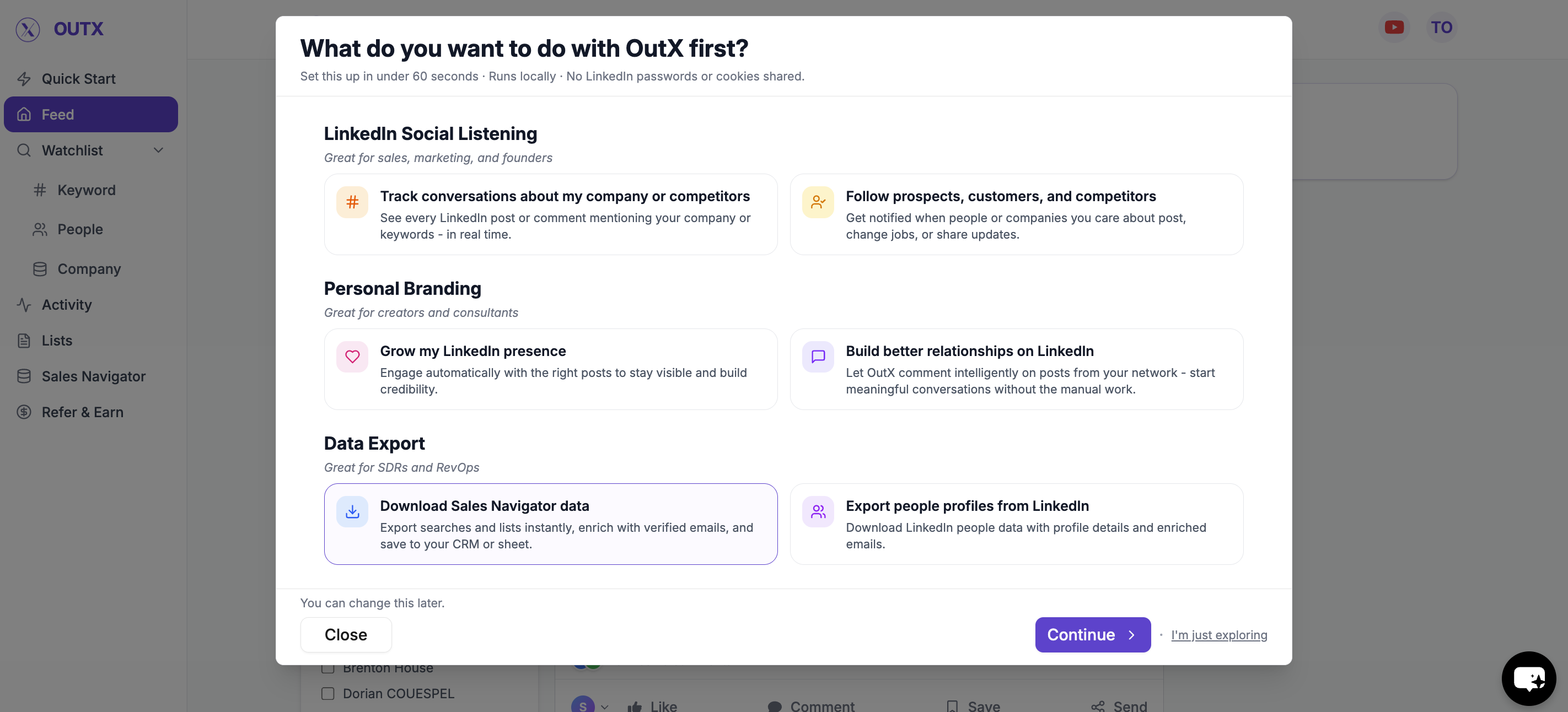 ***
## **Option 1: Download Sales Navigator data**
Use this when you already rely on **LinkedIn Sales Navigator** for prospecting.
### **What this is best for**
* Advanced filters and ICP targeting
* Account-based or role-based searches
* High-quality outbound lists
***
### **How to download via Sales Navigator**
1. Open a **Sales Navigator search**
2. Paste the search URL into OutX.ai
3. Review the number of profiles detected
4. Start the export
OutX.ai pulls profiles from the search and saves them into a list.
You can export large result sets in one go.
***
## **Option 2: Export from LinkedIn People Search**
Use this when you don't use Sales Navigator and rely on **standard LinkedIn search**.
### **What this is best for**
* Simple people searches
* Smaller, focused lists
* Quick exports without Sales Navigator
***
## **Option 1: Download Sales Navigator data**
Use this when you already rely on **LinkedIn Sales Navigator** for prospecting.
### **What this is best for**
* Advanced filters and ICP targeting
* Account-based or role-based searches
* High-quality outbound lists
***
### **How to download via Sales Navigator**
1. Open a **Sales Navigator search**
2. Paste the search URL into OutX.ai
3. Review the number of profiles detected
4. Start the export
OutX.ai pulls profiles from the search and saves them into a list.
You can export large result sets in one go.
***
## **Option 2: Export from LinkedIn People Search**
Use this when you don't use Sales Navigator and rely on **standard LinkedIn search**.
### **What this is best for**
* Simple people searches
* Smaller, focused lists
* Quick exports without Sales Navigator
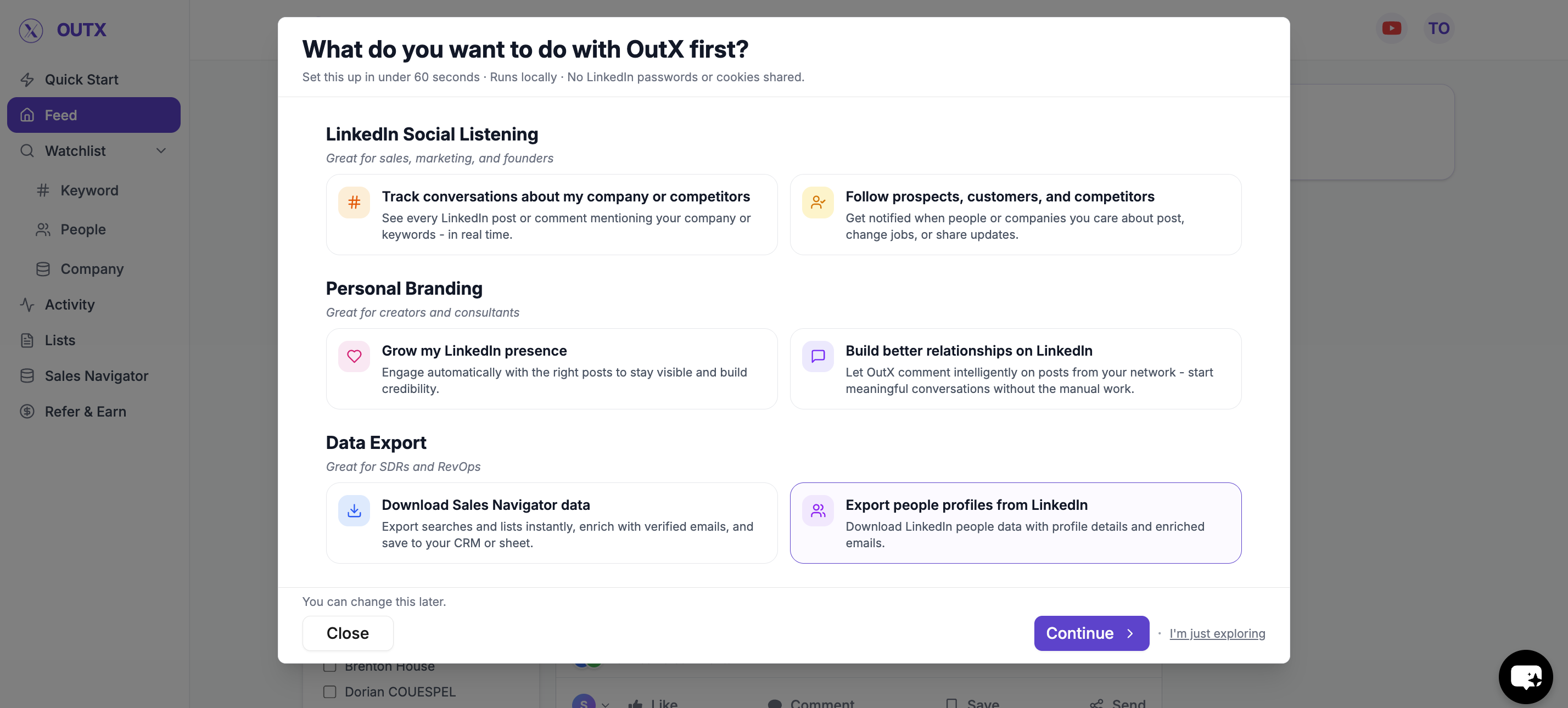 ***
### **How to Export via People Search**
1. Run a **LinkedIn People Search**
2. Copy the search URL
3. Paste it into OutX.ai
4. Start the export
OutX.ai extracts all visible profiles and stores them in a list.
***
## **What Data You Get**
Each exported profile is converted into structured fields such as:
* Name
* LinkedIn profile URL
* Current role and company
* Location
* Company details
The data is clean and consistent, ready to use immediately.
***
### **How to Export via People Search**
1. Run a **LinkedIn People Search**
2. Copy the search URL
3. Paste it into OutX.ai
4. Start the export
OutX.ai extracts all visible profiles and stores them in a list.
***
## **What Data You Get**
Each exported profile is converted into structured fields such as:
* Name
* LinkedIn profile URL
* Current role and company
* Location
* Company details
The data is clean and consistent, ready to use immediately.
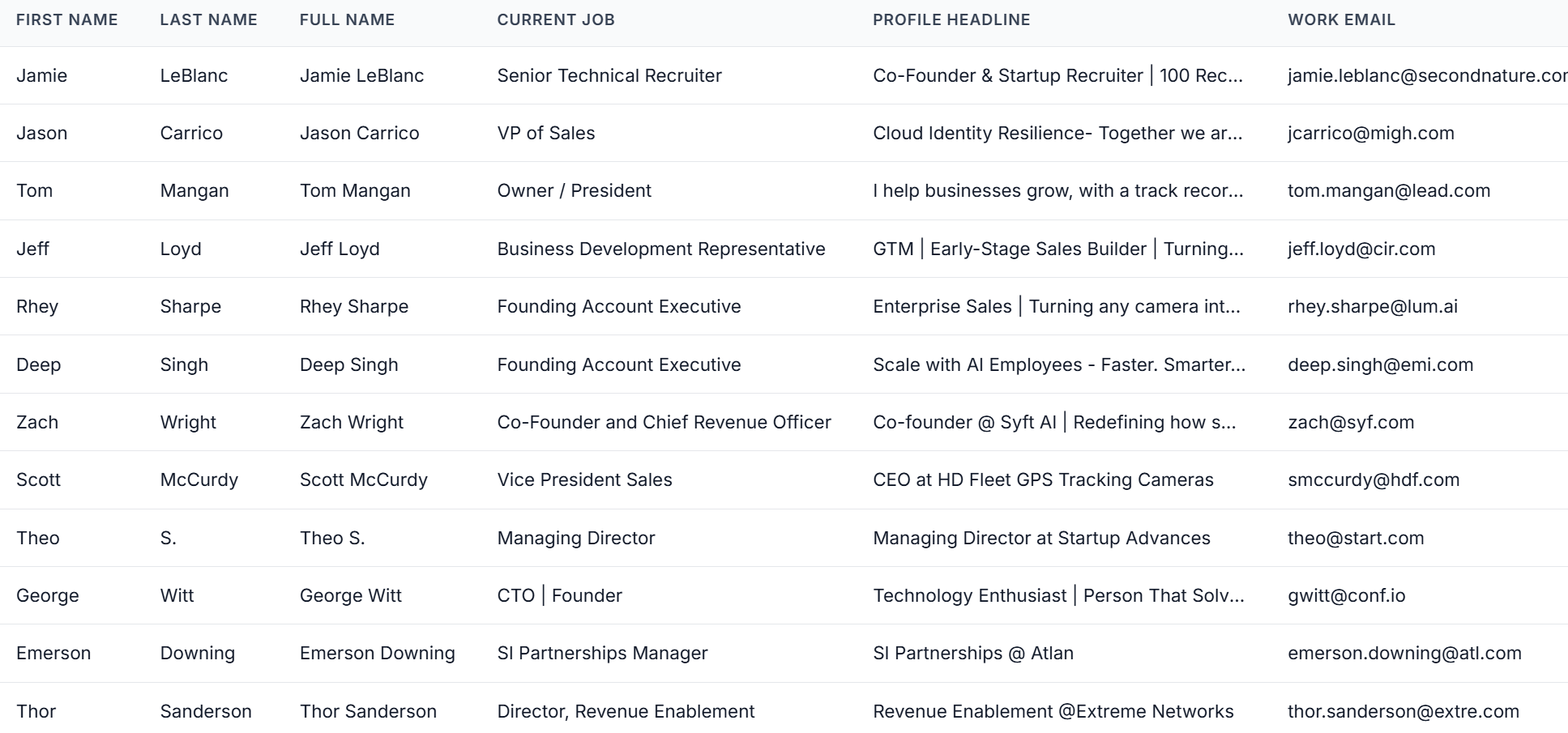 ***
## **Email & Data Enrichment (Optional)**
After export, you can enrich profiles if needed.
You can add:
* Work emails
* Additional company information
* Other contact fields
This prepares your list for:
* CRM imports
* Email outreach
* Sales or recruiting workflows
You choose when and what to enrich.
***
## **How Data Export Works with Social Listening**
Data Export works best when combined with signals.
A common workflow:
1. Track hiring or buying intent using social listening
2. Identify relevant people or roles
3. Export them into a list
4. Reach out with context
This helps avoid cold, generic outreach.
## Frequently Asked Questions
Only if you want to export from Sales Navigator searches. The People Search export works with standard LinkedIn search and does not require a Sales Navigator subscription.
Usually 5-10 minutes depending on the number of results. Smaller exports complete faster. The Chrome extension must remain active during the export process.
***
# LinkedIn Sales Navigator Export
Source: [https://outx.ai/docs/documentation/data-export/linkedin-sales-navigator](https://outx.ai/docs/documentation/data-export/linkedin-sales-navigator)
## 1. Select the "Type of export"
Select what you want to export from LinkedIn
### Sales navigator export
* Using this you can scrape the profiles from LinkedIn sales navigator scraper
* You can Copy the sales navigator URL or press export on the page.
***
## **Email & Data Enrichment (Optional)**
After export, you can enrich profiles if needed.
You can add:
* Work emails
* Additional company information
* Other contact fields
This prepares your list for:
* CRM imports
* Email outreach
* Sales or recruiting workflows
You choose when and what to enrich.
***
## **How Data Export Works with Social Listening**
Data Export works best when combined with signals.
A common workflow:
1. Track hiring or buying intent using social listening
2. Identify relevant people or roles
3. Export them into a list
4. Reach out with context
This helps avoid cold, generic outreach.
## Frequently Asked Questions
Only if you want to export from Sales Navigator searches. The People Search export works with standard LinkedIn search and does not require a Sales Navigator subscription.
Usually 5-10 minutes depending on the number of results. Smaller exports complete faster. The Chrome extension must remain active during the export process.
***
# LinkedIn Sales Navigator Export
Source: [https://outx.ai/docs/documentation/data-export/linkedin-sales-navigator](https://outx.ai/docs/documentation/data-export/linkedin-sales-navigator)
## 1. Select the "Type of export"
Select what you want to export from LinkedIn
### Sales navigator export
* Using this you can scrape the profiles from LinkedIn sales navigator scraper
* You can Copy the sales navigator URL or press export on the page.
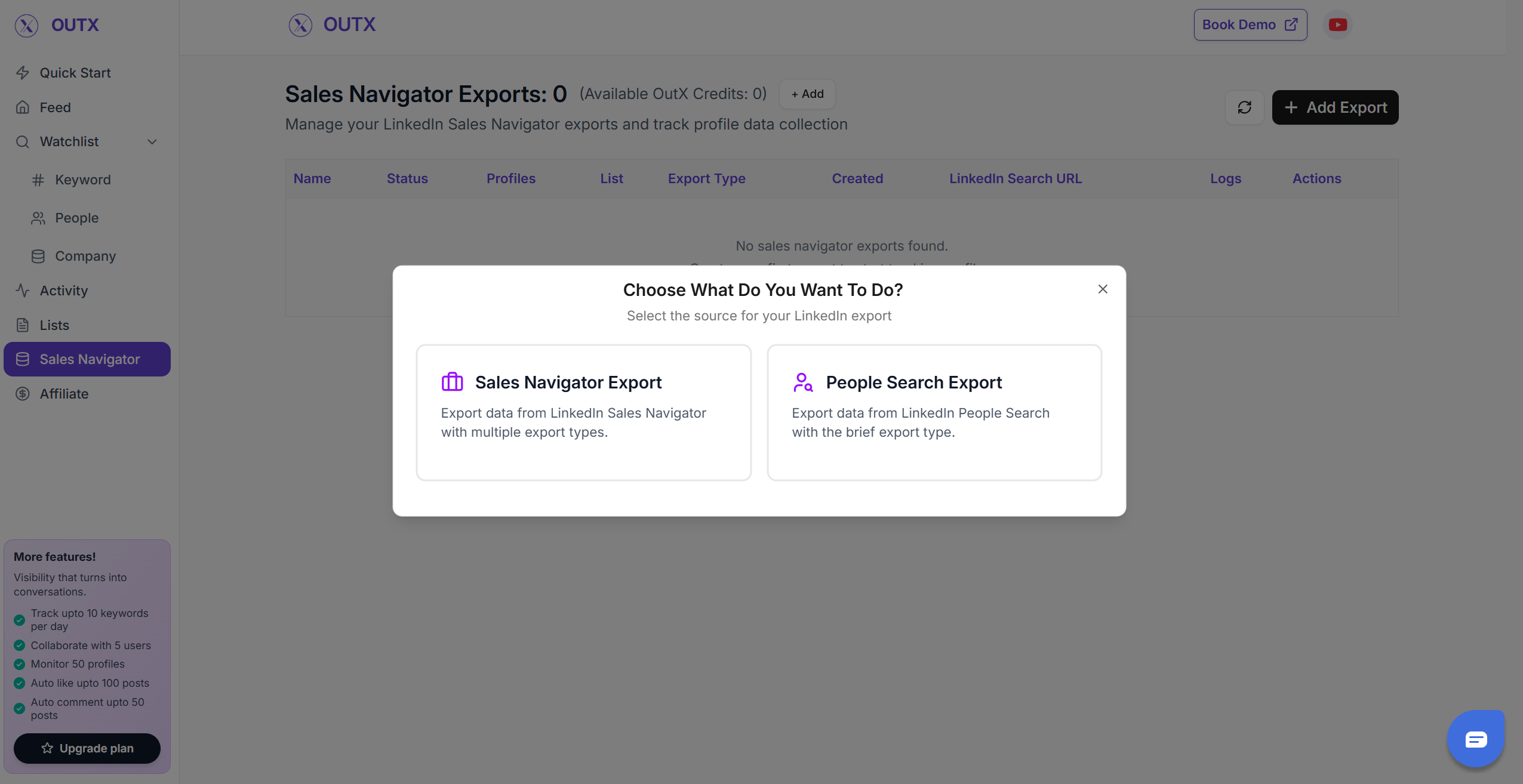 ## **2. Create your Sales Navigator lead list**
Once the Chrome extension is installed, go to the list of leads you want to export. It can be:
1. Brief Download
2. Detailed Download With No Emails
3. Detailed Download With Emails
[OutX](https://outx.ai) handles all the use cases.
## **2. Create your Sales Navigator lead list**
Once the Chrome extension is installed, go to the list of leads you want to export. It can be:
1. Brief Download
2. Detailed Download With No Emails
3. Detailed Download With Emails
[OutX](https://outx.ai) handles all the use cases.
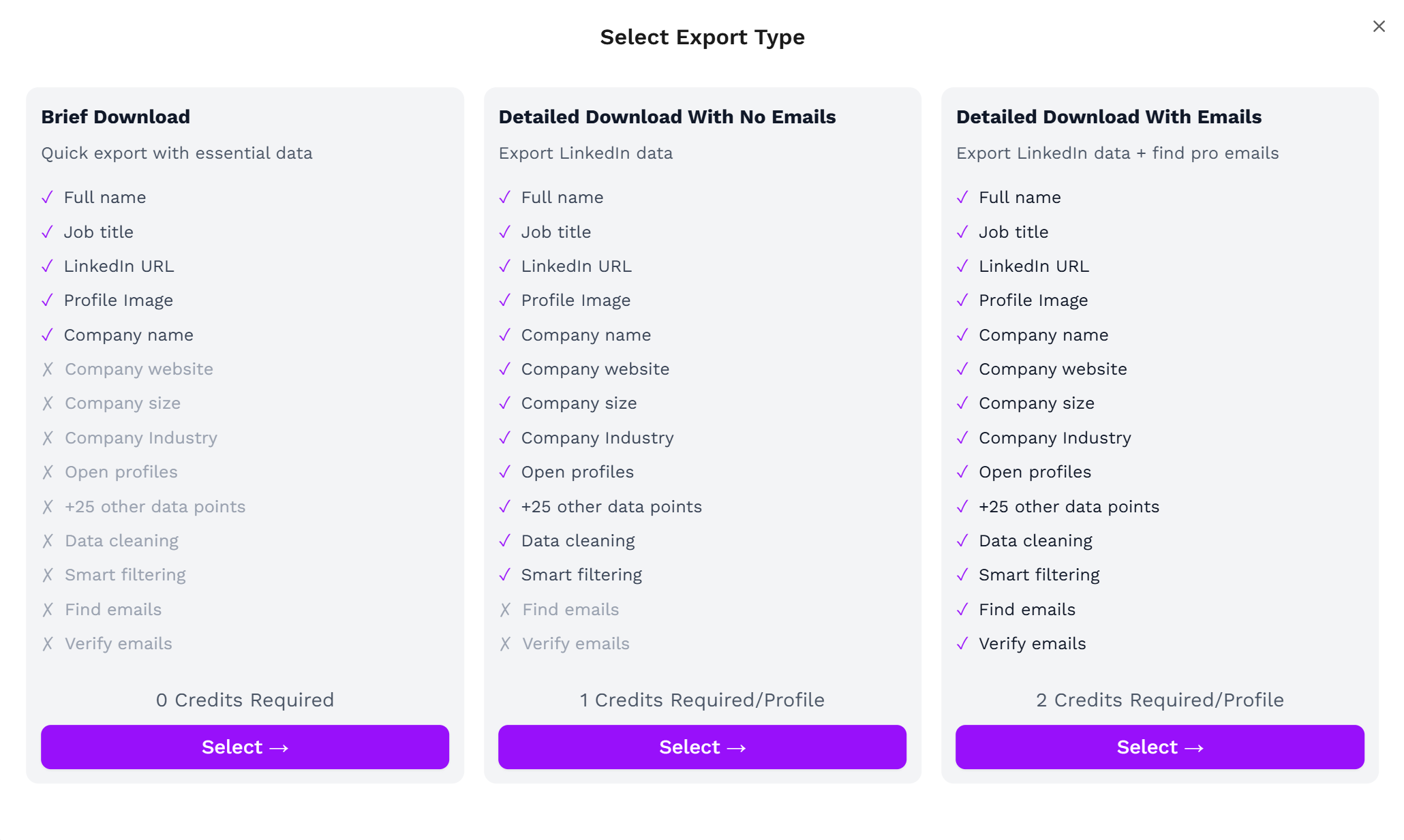 Fill out all the information in the form
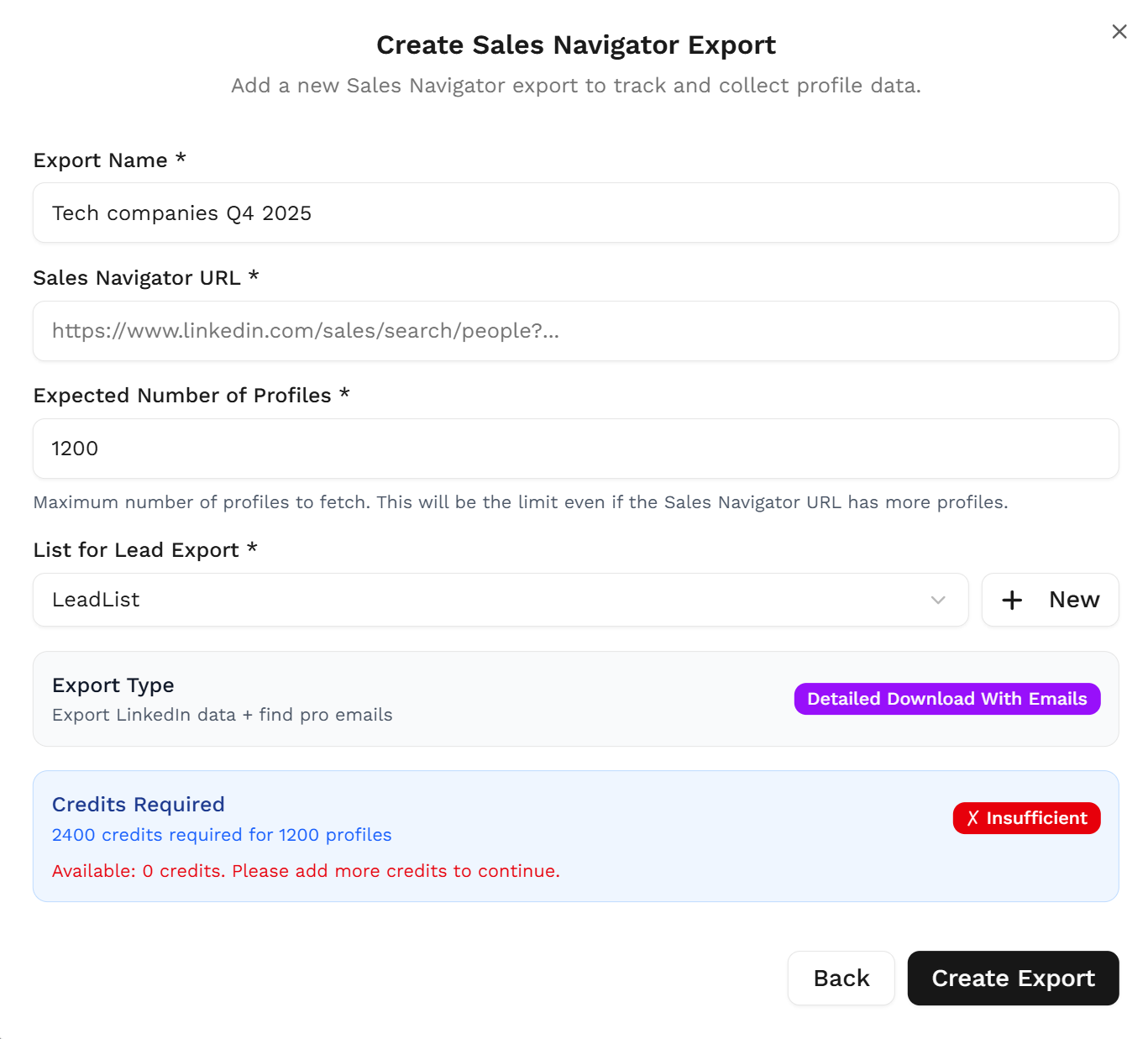 Outx.ai will export all these leads in real-time.
That makes your lead generation process **GDPR-compliant**, in opposition to using databases.
## **3. Download your cleaned list**
After the extraction is done, you will get an email. This email will have a link to download your lead list in a CSV file.
Outx.ai will export all these leads in real-time.
That makes your lead generation process **GDPR-compliant**, in opposition to using databases.
## **3. Download your cleaned list**
After the extraction is done, you will get an email. This email will have a link to download your lead list in a CSV file.
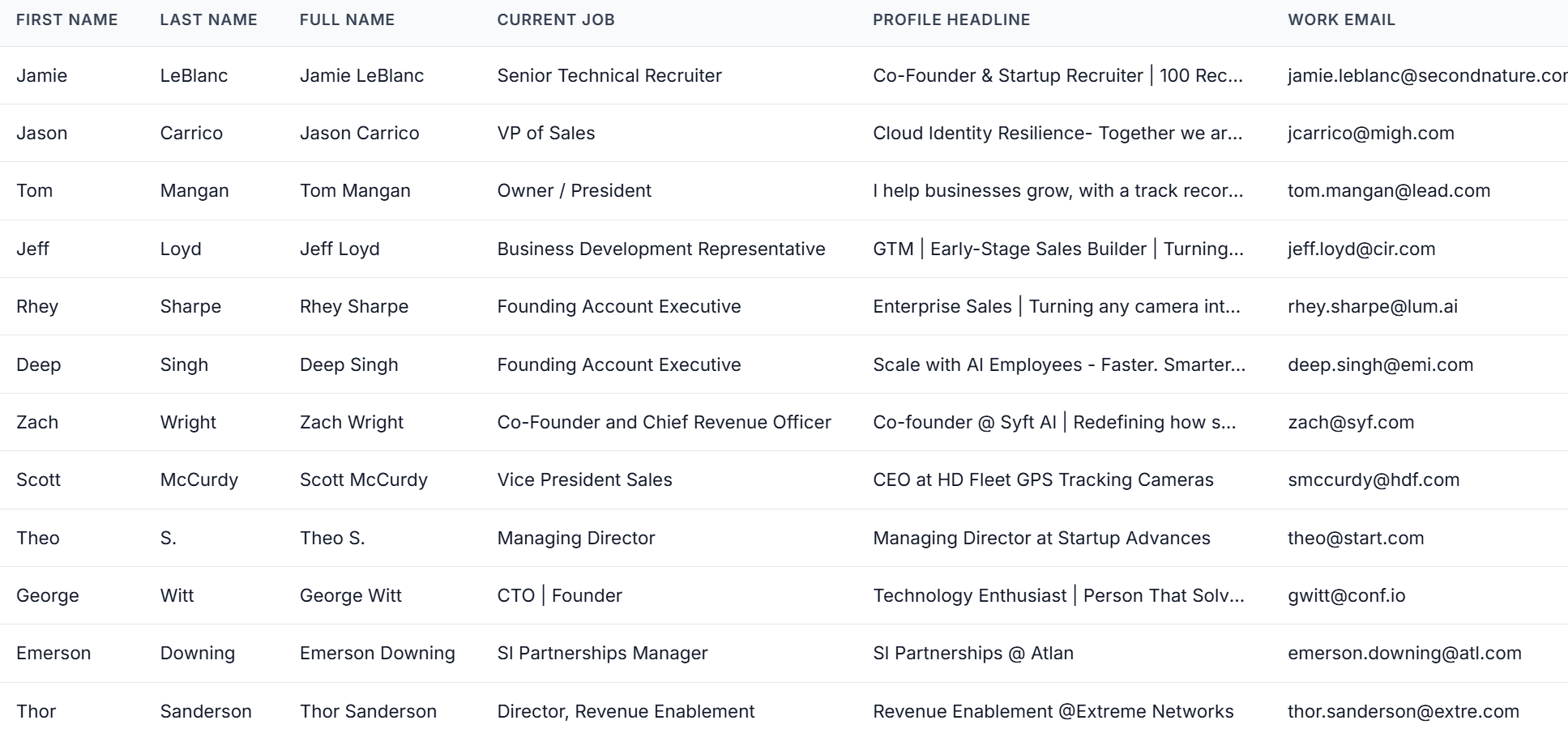 Outx.ai does much more than export your list. It also **cleans all the names and company names** of your LinkedIn contacts.
The data on **LinkedIn is not clean.**
Cleaning data from your sales navigator export can take hours if you do it manually.
The **Outx.ai cleaning algorithm** takes care of all this work for you by automatically cleaning:
1. First names
2. Last names
3. Company names
4. Job titles
Nobody wants to spend hours cleaning Excel files. Better let robots do this boring job.
## Frequently Asked Questions
Yes. OutX extracts data directly from your Sales Navigator searches and lists, so you must have an active subscription.
No. Sales Navigator does not offer built-in export. OutX enables safe exporting through its Chrome Extension.
OutX can export **up to 2,500 results per Sales Navigator search**. For standard LinkedIn People Search, exports support up to 2,500 results per search as well.
Yes. All data comes directly from your own LinkedIn session, keeping the workflow **GDPR-compliant** and secure.
Yes. The Chrome Extension powers the on-page *Export* button and allows OutX to fetch data in real time.
Exports are delivered as **CSV files**, ready for CRMs, enrichment tools, or cold email sequences.
Yes. OutX automatically cleans first names, last names, job titles, and company names to deliver a polished dataset.
Yes. Choose **Detailed Download With Emails** if you want email fields included (availability depends on LinkedIn visibility).
On an average it takes 5-10 minutes to export a LinkedIn sales navigator list.
If your Sales Navigator export is stuck at 0%, try the following:
1. **Check your Sales Navigator subscription** - You need an active LinkedIn Sales Navigator subscription for this feature to work
2. **Check the Chrome extension** - Make sure the OutX extension is installed, enabled, and your browser is open
3. **Check LinkedIn login** - Ensure you are logged into LinkedIn in the same browser where the extension is running
4. **Try refreshing** - Close and reopen the export page, then try again
5. **Try a smaller search** - If your search has thousands of results, try narrowing it down and exporting a smaller batch first
6. **Contact support** - If none of the above works, email **[support@outx.ai](mailto:support@outx.ai)** with your export URL and we'll investigate
Currently, OutX supports exporting **leads** (people) from Sales Navigator. Company/account-level export from Sales Navigator is not yet available but is on our roadmap.
***
## Learn More
* [LinkedIn Sales Navigator Guide](https://www.outx.ai/blog/linkedin-sales-navigator)
* [Sales Navigator Filters Guide](https://www.outx.ai/blog/linkedin-sales-navigator-filter)
* [Build a Targeted Lead List with Sales Navigator](https://www.outx.ai/blog/build-targeted-lead-list-linkedin-sales-navigator)
* [Get Emails from Sales Navigator](https://www.outx.ai/blog/get-emails-linkedin-sales-navigator)
***
# People Search Export
Source: [https://outx.ai/docs/documentation/data-export/people-search-export](https://outx.ai/docs/documentation/data-export/people-search-export)
## 1. Select the "Type of export"
Select what you want to export from LinkedIn
### People Search Export
* Using this you can scrape the profiles from LinkedIn Search results
Outx.ai does much more than export your list. It also **cleans all the names and company names** of your LinkedIn contacts.
The data on **LinkedIn is not clean.**
Cleaning data from your sales navigator export can take hours if you do it manually.
The **Outx.ai cleaning algorithm** takes care of all this work for you by automatically cleaning:
1. First names
2. Last names
3. Company names
4. Job titles
Nobody wants to spend hours cleaning Excel files. Better let robots do this boring job.
## Frequently Asked Questions
Yes. OutX extracts data directly from your Sales Navigator searches and lists, so you must have an active subscription.
No. Sales Navigator does not offer built-in export. OutX enables safe exporting through its Chrome Extension.
OutX can export **up to 2,500 results per Sales Navigator search**. For standard LinkedIn People Search, exports support up to 2,500 results per search as well.
Yes. All data comes directly from your own LinkedIn session, keeping the workflow **GDPR-compliant** and secure.
Yes. The Chrome Extension powers the on-page *Export* button and allows OutX to fetch data in real time.
Exports are delivered as **CSV files**, ready for CRMs, enrichment tools, or cold email sequences.
Yes. OutX automatically cleans first names, last names, job titles, and company names to deliver a polished dataset.
Yes. Choose **Detailed Download With Emails** if you want email fields included (availability depends on LinkedIn visibility).
On an average it takes 5-10 minutes to export a LinkedIn sales navigator list.
If your Sales Navigator export is stuck at 0%, try the following:
1. **Check your Sales Navigator subscription** - You need an active LinkedIn Sales Navigator subscription for this feature to work
2. **Check the Chrome extension** - Make sure the OutX extension is installed, enabled, and your browser is open
3. **Check LinkedIn login** - Ensure you are logged into LinkedIn in the same browser where the extension is running
4. **Try refreshing** - Close and reopen the export page, then try again
5. **Try a smaller search** - If your search has thousands of results, try narrowing it down and exporting a smaller batch first
6. **Contact support** - If none of the above works, email **[support@outx.ai](mailto:support@outx.ai)** with your export URL and we'll investigate
Currently, OutX supports exporting **leads** (people) from Sales Navigator. Company/account-level export from Sales Navigator is not yet available but is on our roadmap.
***
## Learn More
* [LinkedIn Sales Navigator Guide](https://www.outx.ai/blog/linkedin-sales-navigator)
* [Sales Navigator Filters Guide](https://www.outx.ai/blog/linkedin-sales-navigator-filter)
* [Build a Targeted Lead List with Sales Navigator](https://www.outx.ai/blog/build-targeted-lead-list-linkedin-sales-navigator)
* [Get Emails from Sales Navigator](https://www.outx.ai/blog/get-emails-linkedin-sales-navigator)
***
# People Search Export
Source: [https://outx.ai/docs/documentation/data-export/people-search-export](https://outx.ai/docs/documentation/data-export/people-search-export)
## 1. Select the "Type of export"
Select what you want to export from LinkedIn
### People Search Export
* Using this you can scrape the profiles from LinkedIn Search results
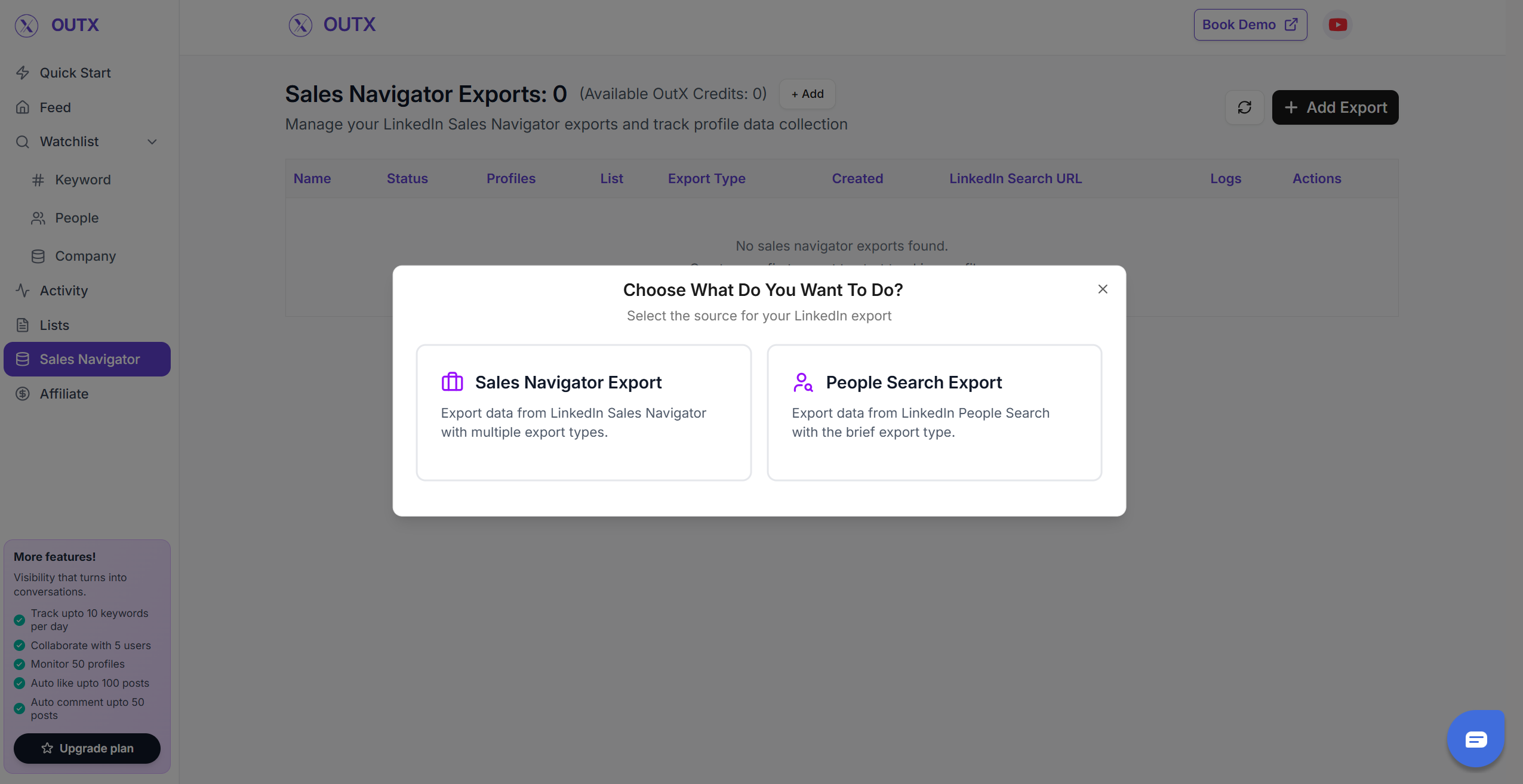 ### 2. LinkedIn People search URL
* You can Copy the people search URL
* You can also directly press export to take the results straight to Outx.ai
### 2. LinkedIn People search URL
* You can Copy the people search URL
* You can also directly press export to take the results straight to Outx.ai
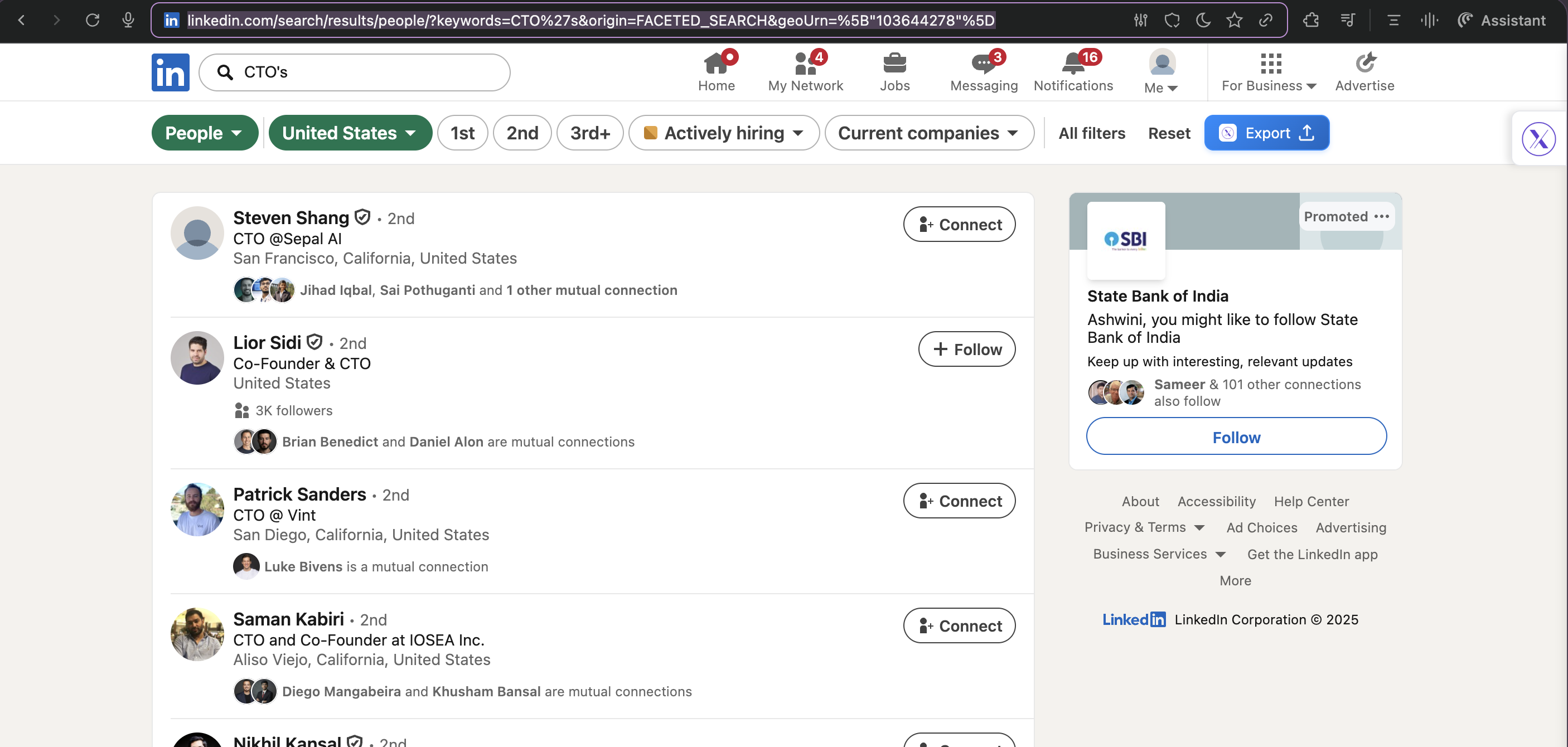 ## **2. Create your People search lead list**
Fill out all the information in the form
## **2. Create your People search lead list**
Fill out all the information in the form
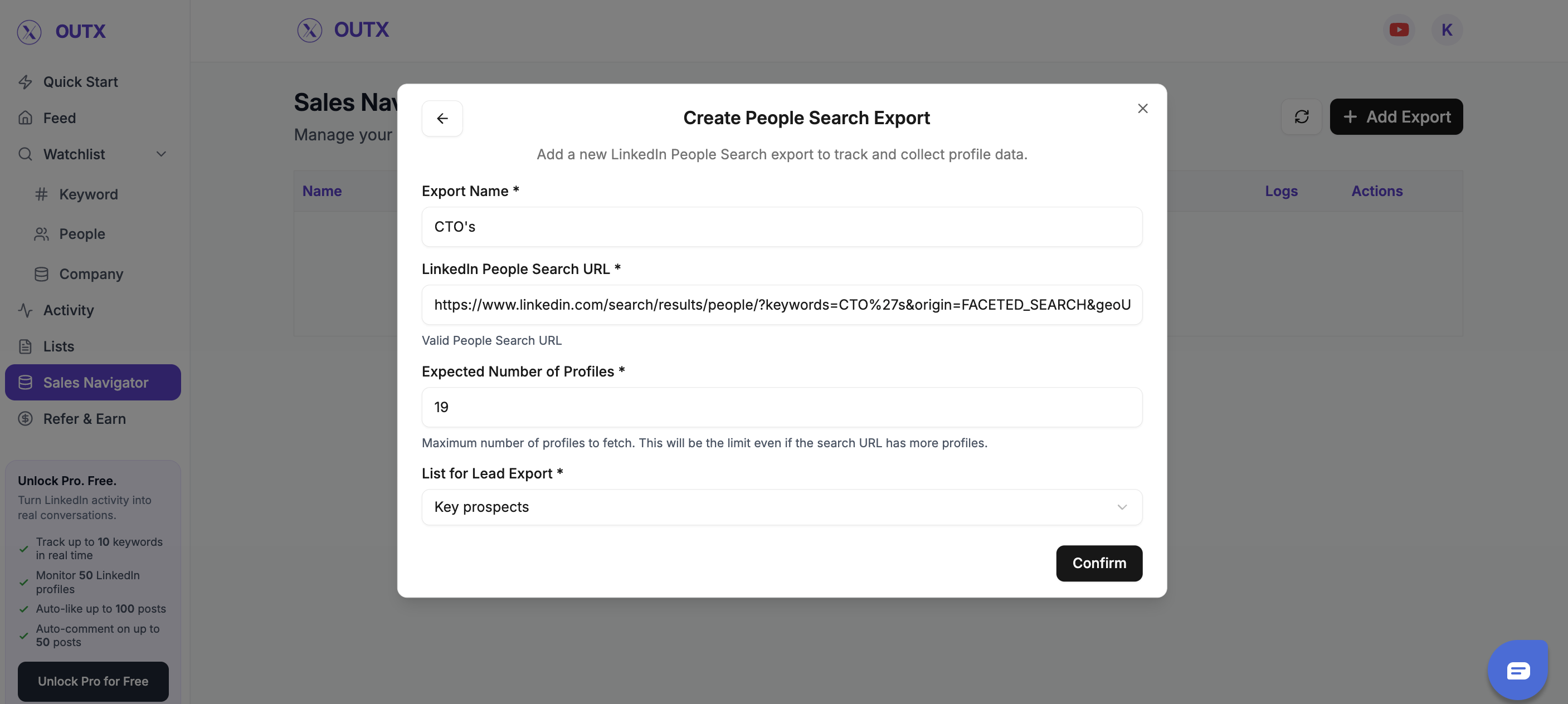 Outx.ai will export all these leads in real-time.
That makes your lead generation process **GDPR-compliant**, in opposition to using databases.
## **3. Download your cleaned list**
After the extraction is done, you will get an email. This email will have a link to download your lead list in a CSV file.
Outx.ai will export all these leads in real-time.
That makes your lead generation process **GDPR-compliant**, in opposition to using databases.
## **3. Download your cleaned list**
After the extraction is done, you will get an email. This email will have a link to download your lead list in a CSV file.
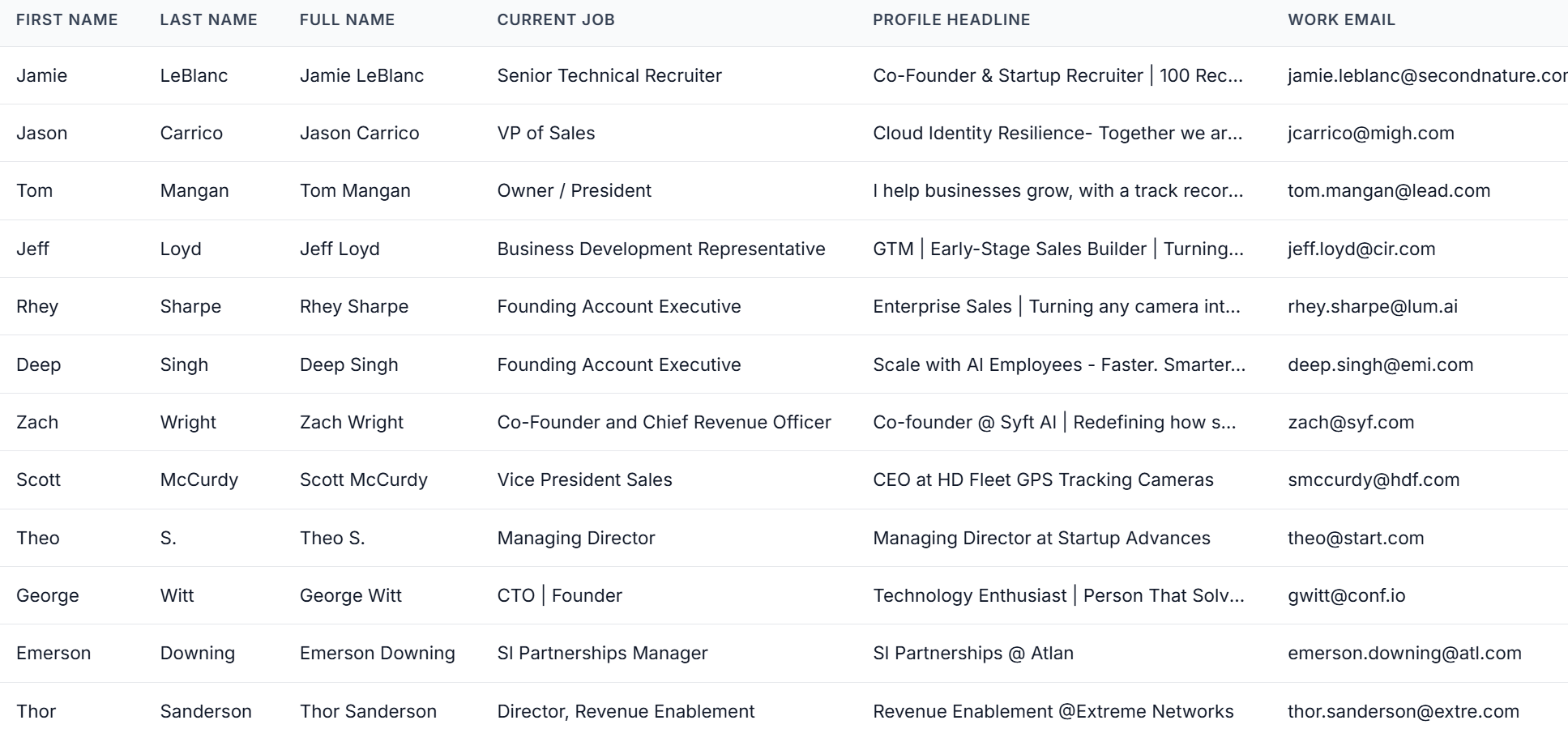 Outx.ai does much more than export your list. It also **cleans all the names and company names** of your LinkedIn contacts.
The data on **LinkedIn is not clean.**
Cleaning data from your people search results can take hours if you do it manually.
The **Outx.ai cleaning algorithm** takes care of all this work for you by automatically cleaning:
1. First names
2. Last names
3. Company names
4. Job titles
Nobody wants to spend hours cleaning Excel files. Better let robots do this boring job.
## Frequently Asked Questions
OutX automates outbound by tracking intent, profiles, engagement, and exporting LinkedIn data at scale.
You can export **up to 2,500 results per search** from People Search.
Yes OutX uses human-like timing and throttling to keep engagement activity safe.
Yes you can track unlimited keywords, profiles, and signals simultaneously.
Yes. The OutX Chrome Extension is required to export data from LinkedIn People Search.
Founders, agencies, SDR teams, and operators who rely on LinkedIn for outbound.
On an average it takes 5-10 minutes to export a people search export.
***
# Database
Source: [https://outx.ai/docs/documentation/data-export/lists](https://outx.ai/docs/documentation/data-export/lists)
Databases help you organize, filter, enrich, and export contacts that you've collected from:
* [**Sales Navigator searches**](/docs/documentation/data-export/linkedin-sales-navigator)
* [**LinkedIn People Search exports**](/docs/documentation/data-export/people-search-export)
This is your source of truth for outbound-ready contacts.
## **Why databases Exist**
When you export data from LinkedIn, you need a place to:
* Store contacts in an organized way
* Segment people and companies
* Enrich and export only what you need
The databases section helps you move from **raw LinkedIn data → usable lead databases**.
***
## **What You'll Find in the databases Section**
Each list contains:
* People profiles (name, role, company, location)
* Associated company details
* Date the profile was added
* LinkedIn profile links
* Enrichment status (if applied)
Databases can be used later for:
* Outreach
* CRM import
* Tracking
* Engagement workflows
***
## **List Overview**
At the top of each list, you'll see:
* **List name**
* **Total contacts in the list**
* Quick actions like:
* Refresh
* Enrich
* Select multiple profiles
Each row represents one person in the list.
***
## **Selecting Profiles**
You can:
* Select individual profiles
* Use **Select All** to choose the entire list
This is useful when you want to:
* Enrich contacts in bulk
* Export a subset of people
* Apply actions to multiple profiles at once
***
## **Filters in databases**
Filters help you narrow large databases into smaller, targeted segments.
### **Personal Filters**
Use these to filter by individual attributes:
* **Name** – Search for a specific person
* **Current Job Title** – Target roles like CTO, Founder, Manager
* **Location** – Filter by geography
Useful when you want to reach a specific persona.
***
### **Company Filters**
Use these to filter by company information:
* **Company Name**
* **HQ Location**
* **Industry**
Helpful for account-based targeting or regional campaigns.
***
### **Email & Contact Filters**
Use these to qualify your list:
* **Email status** (available, not available, enriched)
* **Has phone number**
This helps you export only **contactable leads**.
***
### **Apply & Reset Filters**
* Click **Apply** to update the list based on filters
* Use **Reset** to clear all filters and return to the full list
***
## **Profile Preview Panel**
When you click on a person, a side panel opens showing:
* Profile details
* Company information
* Recent LinkedIn context (if available)
This lets you quickly review a contact without leaving the list.
***
## **Enrichment**
The **Enrich** button allows you to:
* Add work emails
* Add phone numbers (if available)
* Complete missing company data
You can enrich:
* Selected profiles
* Or the entire list
This prepares your list for outreach or CRM sync.
***
## **How databases Fit Into Your Workflow**
databases are typically used after:
1. Exporting people from Sales Navigator or LinkedIn Search
2. Filtering and segmenting contacts
3. Enriching selected profiles
4. Exporting or using them for engagement
They act as the **bridge between discovery and action**.
## Frequently Asked Questions
Watchlists track LinkedIn activity in real time - they monitor keywords, profiles, and companies for new posts and signals. Lists and databases, on the other hand, organize exported lead data from Sales Navigator or LinkedIn People Search. Watchlists are for monitoring; lists are for storing and managing contacts.
Yes. Email enrichment is available directly from the database view. Each email enrichment costs 1 OutX credit. You can enrich individual profiles or entire lists in bulk.
***
Outx.ai does much more than export your list. It also **cleans all the names and company names** of your LinkedIn contacts.
The data on **LinkedIn is not clean.**
Cleaning data from your people search results can take hours if you do it manually.
The **Outx.ai cleaning algorithm** takes care of all this work for you by automatically cleaning:
1. First names
2. Last names
3. Company names
4. Job titles
Nobody wants to spend hours cleaning Excel files. Better let robots do this boring job.
## Frequently Asked Questions
OutX automates outbound by tracking intent, profiles, engagement, and exporting LinkedIn data at scale.
You can export **up to 2,500 results per search** from People Search.
Yes OutX uses human-like timing and throttling to keep engagement activity safe.
Yes you can track unlimited keywords, profiles, and signals simultaneously.
Yes. The OutX Chrome Extension is required to export data from LinkedIn People Search.
Founders, agencies, SDR teams, and operators who rely on LinkedIn for outbound.
On an average it takes 5-10 minutes to export a people search export.
***
# Database
Source: [https://outx.ai/docs/documentation/data-export/lists](https://outx.ai/docs/documentation/data-export/lists)
Databases help you organize, filter, enrich, and export contacts that you've collected from:
* [**Sales Navigator searches**](/docs/documentation/data-export/linkedin-sales-navigator)
* [**LinkedIn People Search exports**](/docs/documentation/data-export/people-search-export)
This is your source of truth for outbound-ready contacts.
## **Why databases Exist**
When you export data from LinkedIn, you need a place to:
* Store contacts in an organized way
* Segment people and companies
* Enrich and export only what you need
The databases section helps you move from **raw LinkedIn data → usable lead databases**.
***
## **What You'll Find in the databases Section**
Each list contains:
* People profiles (name, role, company, location)
* Associated company details
* Date the profile was added
* LinkedIn profile links
* Enrichment status (if applied)
Databases can be used later for:
* Outreach
* CRM import
* Tracking
* Engagement workflows
***
## **List Overview**
At the top of each list, you'll see:
* **List name**
* **Total contacts in the list**
* Quick actions like:
* Refresh
* Enrich
* Select multiple profiles
Each row represents one person in the list.
***
## **Selecting Profiles**
You can:
* Select individual profiles
* Use **Select All** to choose the entire list
This is useful when you want to:
* Enrich contacts in bulk
* Export a subset of people
* Apply actions to multiple profiles at once
***
## **Filters in databases**
Filters help you narrow large databases into smaller, targeted segments.
### **Personal Filters**
Use these to filter by individual attributes:
* **Name** – Search for a specific person
* **Current Job Title** – Target roles like CTO, Founder, Manager
* **Location** – Filter by geography
Useful when you want to reach a specific persona.
***
### **Company Filters**
Use these to filter by company information:
* **Company Name**
* **HQ Location**
* **Industry**
Helpful for account-based targeting or regional campaigns.
***
### **Email & Contact Filters**
Use these to qualify your list:
* **Email status** (available, not available, enriched)
* **Has phone number**
This helps you export only **contactable leads**.
***
### **Apply & Reset Filters**
* Click **Apply** to update the list based on filters
* Use **Reset** to clear all filters and return to the full list
***
## **Profile Preview Panel**
When you click on a person, a side panel opens showing:
* Profile details
* Company information
* Recent LinkedIn context (if available)
This lets you quickly review a contact without leaving the list.
***
## **Enrichment**
The **Enrich** button allows you to:
* Add work emails
* Add phone numbers (if available)
* Complete missing company data
You can enrich:
* Selected profiles
* Or the entire list
This prepares your list for outreach or CRM sync.
***
## **How databases Fit Into Your Workflow**
databases are typically used after:
1. Exporting people from Sales Navigator or LinkedIn Search
2. Filtering and segmenting contacts
3. Enriching selected profiles
4. Exporting or using them for engagement
They act as the **bridge between discovery and action**.
## Frequently Asked Questions
Watchlists track LinkedIn activity in real time - they monitor keywords, profiles, and companies for new posts and signals. Lists and databases, on the other hand, organize exported lead data from Sales Navigator or LinkedIn People Search. Watchlists are for monitoring; lists are for storing and managing contacts.
Yes. Email enrichment is available directly from the database view. Each email enrichment costs 1 OutX credit. You can enrich individual profiles or entire lists in bulk.
***